Honestly, when my ping jumped to 2000 ms and my teammates were teleporting all over the map, I was ready to smash my monitor. Familiar pain, right? In those moments, you realize: the default game settings are absolutely not enough. To really control the match, you need the developer console. The tradition of binding necessary features and setting rates goes back to the days of CS 1.6. And although a lot has changed after the transition to the Source 2 engine (for example, the good old net_graph 1 command no longer works), the management logic itself remains the same.
In this massive guide, I've gathered all the relevant CS2 console commands. I've personally admined more than one dedicated server for pracs and custom tournaments, so I know which variables (CVars) actually work, and which ones are left gathering dust in Valve's archives since Global Offensive. We will cover everything: from how to connect to a CS2 server via console, to setting up asymmetric lobbies and granting admin rights. If you are looking for a way to dominate the server and not waste your nerves on lags — welcome to the VRedux portal.
Table of Contents:
- • Setting up the console in CS2: the baseline
- • Managing your own server: RCON commands
- • Server settings: tournament logic & balance
- • Physics on servers: collision and broadcasts
- • TRAINING HUB: Cheats and settings
- • Troubleshooting: preventive problem-solving
- • FAQ: Answers to frequently asked questions
Setting up the console in CS2: the baseline for server management
Before we start entering commands for CS2, let's quickly go over the basics. Without a properly configured interface, all this magic won't work.
- Activation: To enable the console, go to the game settings (gear icon) → "Game" → "Enable Developer Console (~)" → set it to "Yes".
- Command types: Server commands in CS2 are divided by prefixes. For example,
mp_(Match Parameters) is responsible for round logic,sv_(Server Variables) handles global variables, andbot_is for managing bots. - Permissions: Most setup commands (especially CS2 cheat commands like Noclip or Godmode) require
sv_cheats 1to be activated. This only works on your local PC (server) or if you have admin rights.
If pressing the tilde (~) key doesn't open the chat or console line, check your keyboard layout or make sure the Steam or Discord overlay isn't conflicting. I've seen many beginners make a mistake here, trying to run server management commands with a closed console.
Managing your own server: CS2 console commands (RCON)
Based on my experience with hosting setups, I can tell you: a local server with bots is child's play. The real work begins when you rent a dedicated server for your team. The RCON protocol is used for remote management of a CS2 dedicated server.
You don't need to sit at the hoster's machine. It's enough to launch Counter-Strike 2 on your PC, open the console, and type a couple of lines of code. Here is how it actually works.
How to join a CS2 server via console and authorize
- First, you need to connect. The command to join a CS2 server looks like this:
connect [IP_address:port]. - If you don't know your IP, the command to find out the CS2 server IP is
status. It will output a console dump with the IP, ping, and player list. This is the perfect answer to the question of how to check the server IP in CS2 via console. - Now for the most important part — administrator authorization. Enter
rcon_password [your_password]. - If the password is correct, you will get hidden access. Now you need to add the word
rconbefore any server variable.
Important administrator console commands (RCON)
Below, I've compiled the most useful console commands for setting up a remote server. This is the complete list of what you'll need for administration.
When renting Linux servers, RCON is often disabled in the launch parameters. Make sure that rcon_password is set in the dedicated server config, otherwise the client will get the "Unable to connect to remote server" error.
Server settings: tournament logic and balance (Match Flow)
If you are hosting a local tournament or a 5v5 prac, the default matchmaking won't suit you. Configuring a Counter-Strike 2 server requires strict control over the economy, rounds, and team balance. Let's figure out how it works.
Asymmetric lobbies (Disabling team auto-balance)
Sometimes you need to start a 1v5 match (for example, to practice retakes). But the game will stubbornly move players to even out the rosters. To create a 1v5 lobby in CS2, the server must disable the imbalance penalty.
Enter the following CS2 commands:
mp_limitteams 0— disables the limit on the player count difference between teams.mp_autoteambalance 0— prevents the server from automatically shuffling players at the start of the next round.
mp_restartgame 1.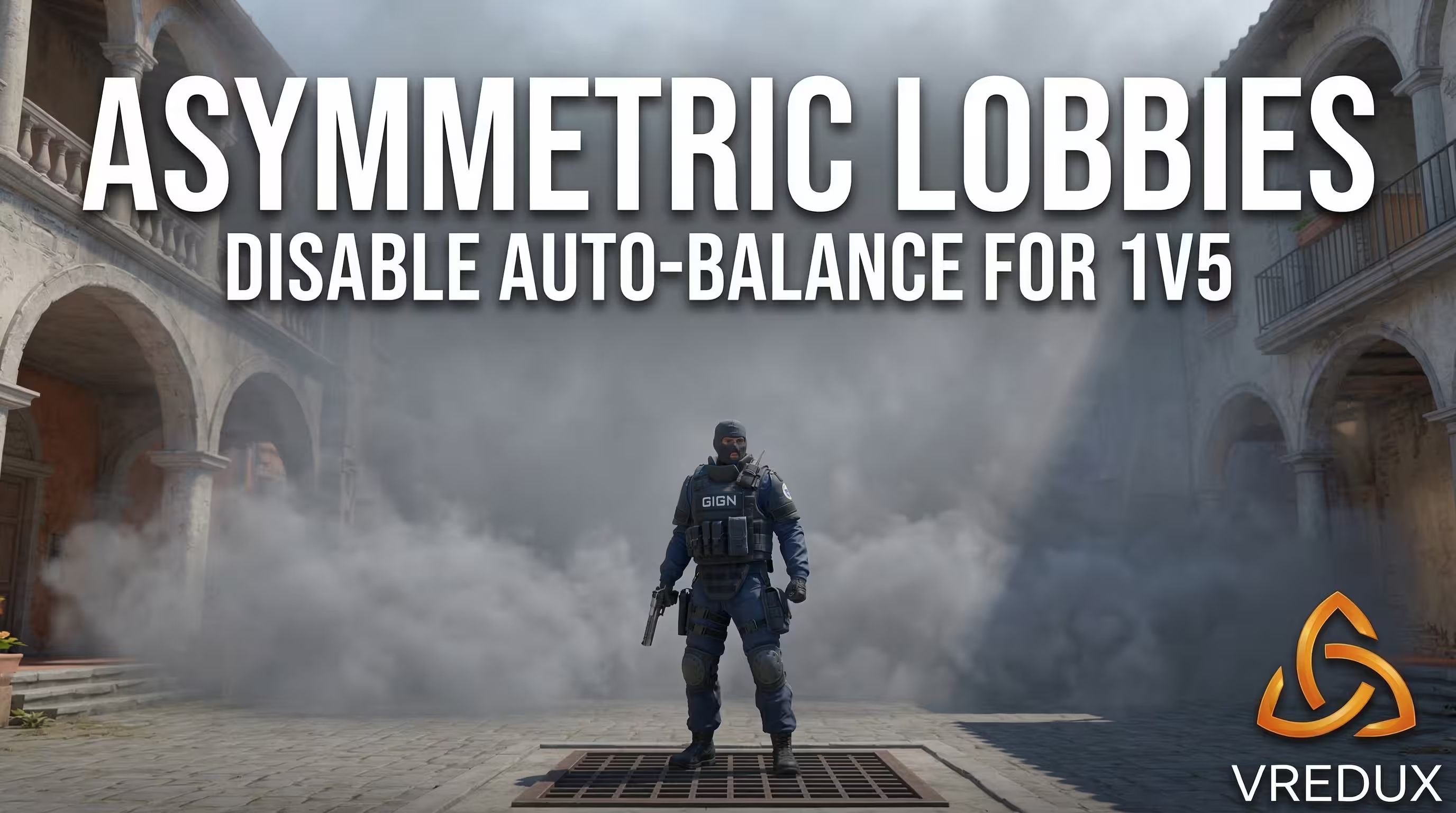
Overtimes and early termination (Clinch)
In the current MR12 meta, matches have become shorter. But what to do when the score is 12-12? So that extra rounds begin instead of a tie, use mp_overtime_enable 1. The server itself will start overtimes with the correct economy ($10,000 at the start).
And what if one team is leading 13-0 in a practice match? To avoid playing out the remaining rounds from mp_maxrounds, type in mp_match_can_clinch 1. The server will instantly award the victory as soon as the mathematical chances for a comeback disappear.
Physics on servers: collision and broadcasts (SourceTV)
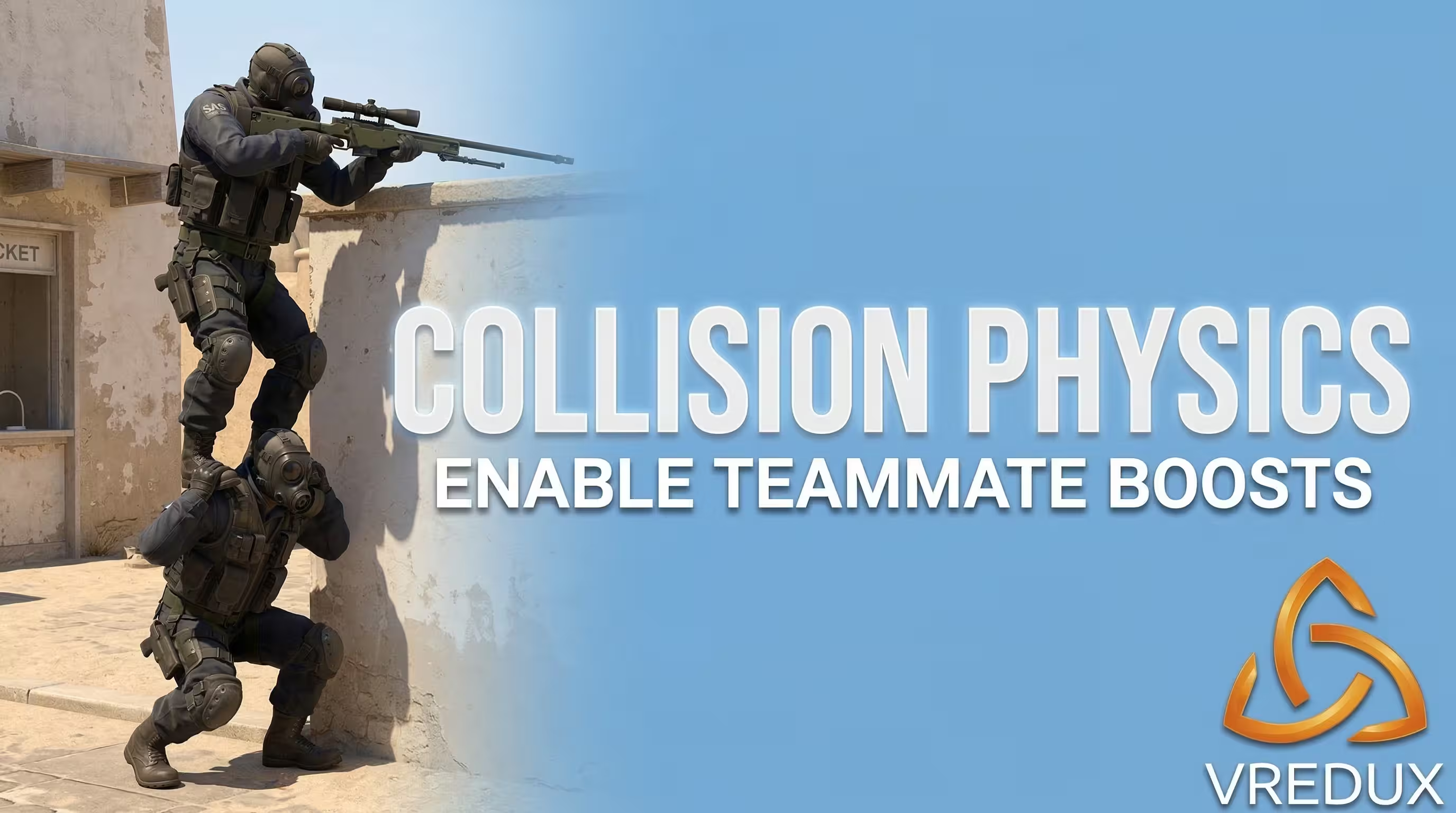
You know, the mp_solid_teammates variable isn't just a number in the console. It's the foundation for practicing. It is exactly what regulates the collision physics between teammates.
To practice boosts on a CS2 server, you need to enable the collision of teammate models with the mp_solid_teammates 1 command. With a value of 0, players will pass through each other. Default matchmaking uses 1, but on DM servers, we always set it to 0 to prevent player blocking at spawn points.
Also, don't forget about broadcasts. To record full-fledged server demos (GOTV/SourceTV) that can later be viewed from any angle, type tv_enable 1 before loading the map.
TRAINING HUB: Navigator for server cheats and settings
We won't detail every line of code here to avoid inflating the article and creating duplicates. I'll give you the main triggers, and for detailed breakdowns, I will send you to our specialized materials. If you have a problem on a local or dedicated server — here is a ready-made solution.
Bot management and Respawns
When bots interfere with testing grenade lineups, simply type bot_kick. But if you need to place them in a specific spot, make them crouch to check a boost, or copy your movements, you will need advanced CS2 bot commands. And to avoid wasting time waiting for the round to end after an accidental death, see how to respawn instantly via binds.
Warmup, Timers, and Restart
For long practice sessions, the default time is never enough. Use mp_warmup_pausetimer 1 to permanently freeze the timer. If you want to customize the economy and limits to your liking, check out our full guide on how to make infinite time, rounds, and warmup in CS2. And if something goes wrong and you need to reset the round counter to zero, here is a cheat sheet on how to restart a match in CS2 via the console.
Cheat commands: Noclip, Godmode, and Grenades
The core of any local training ground is sv_cheats 1. Without it, the magic won't work. We have a huge collection where all the CS2 cheat commands for training are gathered. Want to see a smoke's flight trajectory through the PiP camera? Punch in the CS2 grenade practice commands. Need to quickly move to another plant — find out how to fly in CS2 using a Noclip bind. If you are testing fall damage, read about how to enable God Mode in CS2. And for fun with friends, you can completely change the jump physics by figuring out how to set gravity in CS2.
Economy, Weapon Spawning, and Shooting Physics
You can drop yourself any gun in a couple of clicks, but if you want to twirl a karambit or a butterfly knife for free, read how to give yourself a knife via console in CS2. To avoid running to spawn for ammo every time, a command to buy anywhere in CS2 will come in handy. When we set up custom games for spray tests, we often look at how to remove recoil and spread in CS2. And a classic for pracs — setting up team damage. A detailed guide on how to enable friendly fire in CS2 will help avoid absurd teamkills in official matches.
Automation (Autoexec CFG)
Honestly, entering all these commands every time you launch the game is pure hell. In my config, all server variables, rates, and binds load automatically. If you haven't created your file yet, I highly recommend studying CS2 Autoexec CFG commands: how to use config. Using this feature saves minutes of your life every day.
Troubleshooting: preventive problem-solving
Sometimes CS2 server commands refuse to work. Let's break down the popular errors players encounter:
- "Unknown command": You are trying to enter old CS:GO server console commands (like
cl_bobor old recoil commands) that Valve cut from Source 2. Use only the up-to-date list for CS2. - Command resets: If you changed the game's performance or network settings, but everything reset after a restart, it means the game settings overwrote your config. Save critical parameters in
autoexec.cfg. - RCON not working: Make sure port 27015 is open on your router, and you entered
rcon_passwordbefore sending the actual command.
FAQ: Answers to frequently asked questions about the server console
A properly configured server is half the success on the way to Global Elite or high Elo points. Don't be afraid to experiment with variables, test collisions, and customize configs for yourself. If you need other useful materials, FPS optimization guides, and mechanics reviews, go to our articles section.
While others catch unregs and lose matches due to crooked auto-balance, you dominate the server with perfect ping and smooth gameplay. Good luck with your frags and high framerates!