Do you get pissed off too when it's the deciding round in Premier, you're ready to peek mid on Mirage, and suddenly—black screen, freeze, and the desktop? When CS2 crashes at the most crucial moment and the enemy gets a free round, you just want to smash your keyboard. Honestly, when my game started closing without a single error after recent updates, I tried everything: from a simple reinstall to performing tech voodoo in the registry.
The tradition of blaming everything on spaghetti code goes all the way back to CS 1.6, but after switching to the Source 2 engine, the system became much more demanding on hardware and memory. In this article, I won't give you generic advice like "just restart your PC." Drawing on my ten years of experience digging into Valve engines, I'll show you how to run deep diagnostics. We'll break down error logs, figure out the pagefile, and tweak the system so you never see a CS2 game crash during an important match again. If you're looking for reliable solutions, the massive VRedux knowledge base is the place where gamers become tech-savvy pros.
Guide Contents:
TL;DR: Quick CS2 Crash Diagnostics
No time for a long read? Here is what you need to remember and check first if the game crashes on loading or in the menu:
- Check cache and shaders: Freezing on the Valve logo is almost always tied to shader compilation. Clear the
shadercachefolder in your Steam directory. - Bring back the Pagefile: If CS2 crashes without error on a high-end PC with 16GB or 32GB of RAM, your pagefile is likely disabled. Source 2 aggressively unloads data into the dump.
- Force DirectX 11: If crashes happen while loading a map due to config failures, add
-dx11to your launch options. - Clean install your drivers: Don't just install them over the old ones—remove the old drivers using Display Driver Uninstaller (DDU) in Safe Mode.
- Remove unnecessary parameters: Outdated commands like
-threadsfrom CS:GO ruin thread distribution in CS2.
CS2 Crashes to Desktop Without Error (Silent CTD)
This is where the fun begins. The nastiest type of problem is the so-called Silent Crash to Desktop. You're just playing, the framerate is stable, and suddenly—boom, you're looking at your Windows 11 wallpaper. No warning windows, no codes.
Many mistakenly think it's GPU overheating, especially if you have a fresh RTX 4070. But actually, if you look into the Windows Event Viewer and search for the Counter Strike 2 crash log location, we'll almost certainly see a failure in the ntdll.dll module or an exception code. Recent Source 2 engine updates changed memory management algorithms and exception handling, but hardware conflicts at the driver and RAM level remain a frequent cause of crashes.
Pagefile and Source 2 Memory Leaks
To stop the game from crashing, do the following:
- Press Win + R, type
sysdm.cpl, and hit Enter. - Go to the Advanced tab, and under "Performance," click Settings.
- Go to Advanced again -> Change (under the Virtual memory section).
- Check Automatically manage paging file size for all drives. If you want to set it manually, specify at least 8192 MB on your system drive.
XMP Instability and Error 0xc0000005 (Access Violation)
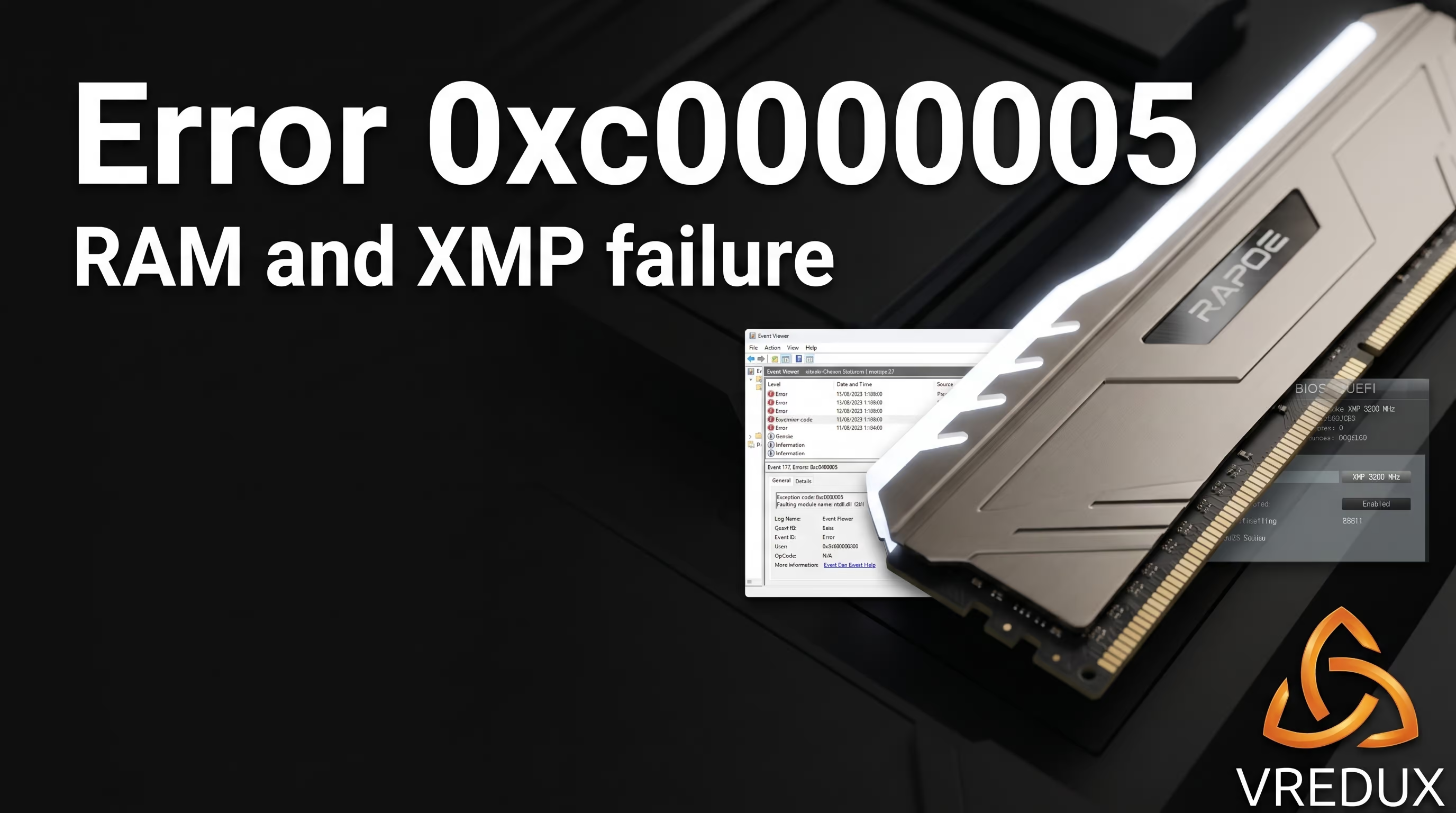
If you see the error 0xc0000005 in the Event Viewer, it means an Access Violation—a memory read access violation. I personally tested a Ryzen 5 5600X setup and ran into this exact headache because of an unstable XMP profile on the RAM.
It seems like a standard factory overclocking procedure, but here is the main catch: Source 2 squeezes every last drop out of your memory. If the timings are unstable, the game crashes. Try going into the BIOS and temporarily disabling the XMP/EXPO profile, or lowering the frequency by one step (e.g., from 3600 MHz to 3200 MHz). If the crash stops—the problem is 100% hardware, not the Steam client.
Impact of Fast Boot in BIOS on Memory Initialization
Another hidden reason why CS2 crashes during a game without errors is the Fast Boot feature enabled in the BIOS. This feature skips Memory Training on a cold PC start. As a result, the system boots with suboptimal subtimings. Go into your motherboard's BIOS and disable Fast Boot. OS boot time will be a couple of seconds longer, but stability in heavy games will increase drastically.
Crashes on Startup and Map Loading (API and Shaders)
A common scenario: CSGO 2 crashes on startup, freezes on the yellow Valve logo, or the CS2 game crashes when trying to join a server (like when loading Mirage). In 90% of cases, this is a graphical API conflict or a corrupted cache.
Forcing DirectX 11 (-dx11) and Clearing Cache
By default, CS2 on Windows exclusively uses DirectX 11. However, due to config file failures or wonky driver updates, the graphical API can initialize with errors, causing a critical failure during shader compilation.
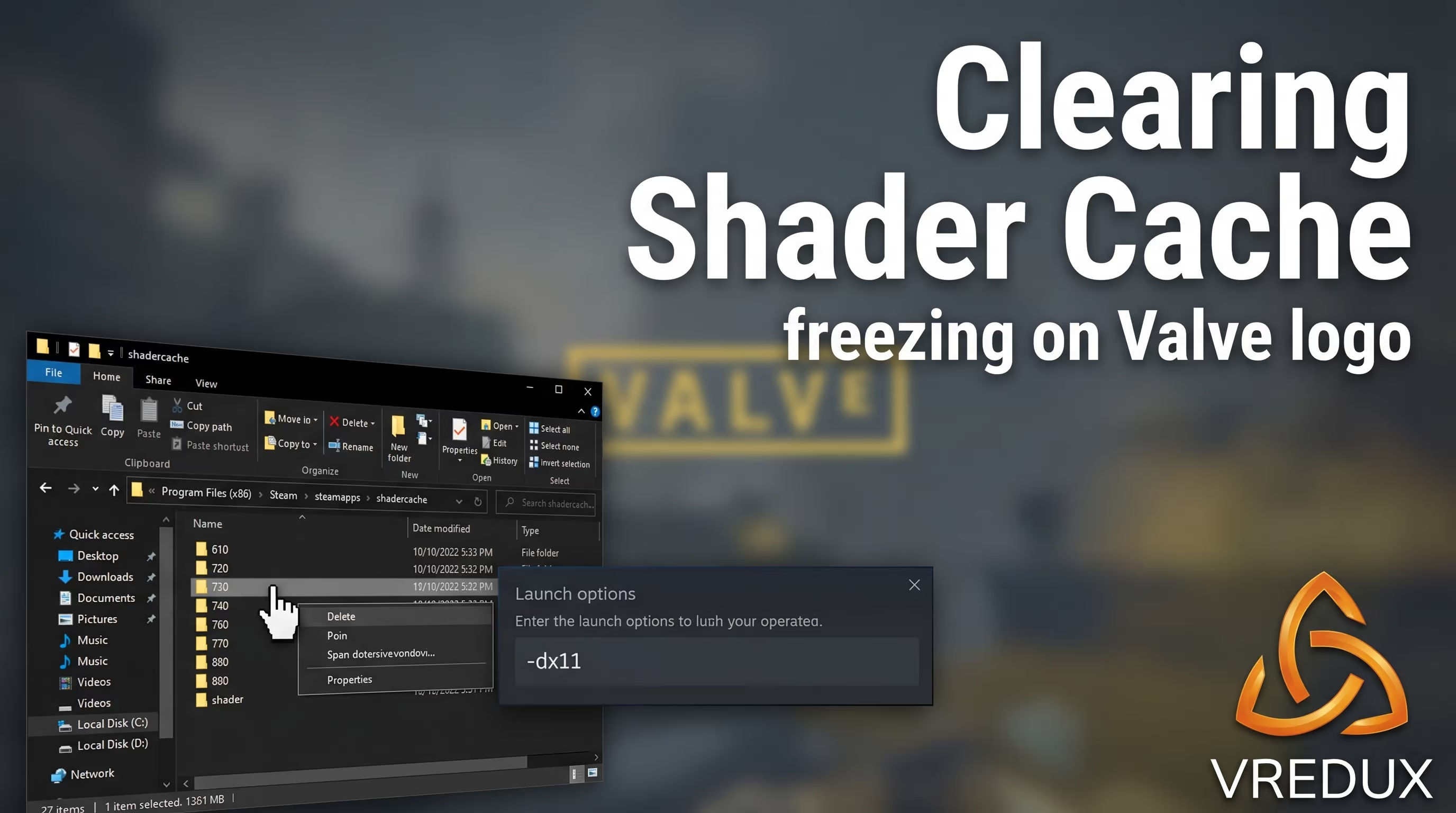
If the game completely freezes, go to the game properties in Steam and enter -dx11 in the launch options to hard-force the API. The main focus here should be clearing the Shader Cache via Steam properties or manually deleting the cache folder so the engine regenerates textures from scratch without errors.
Clearing the Steam Shader Cache
If CS2 crashes after a massive update or changing graphics settings, old cached files might conflict with new textures. You need to force-delete the cache:
- Completely close the Steam client.
- Navigate to:
C:\Program Files (x86)\Steam\steamapps\shadercache. - Find the folder named 730 (that's the App ID for Counter-Strike) and safely delete it.
- Launch the game. You might experience micro-stutters for the first 5 minutes of the match while the cache is rebuilt.
Disabling Windows 11 Fullscreen Optimization
Windows 10 and 11 love to interfere with exclusive fullscreen mode using their overlays. This often results in the monitor turning off in CS2 for a few seconds, or cs2.exe simply minimizing and closing. To stop this, find the cs2.exe file (in the game/bin/win64 folder), right-click -> Properties -> Compatibility -> check Disable fullscreen optimizations. If you want to permanently lock in these settings and other useful tweaks, I highly recommend creating a CS2 Autoexec CFG using our guide.
VAC, DLL Errors, and System Failures
Let's break down how this actually works when an error window pops up on your screen. Valve Anti-Cheat (VAC) and Windows system libraries are closely tied together.
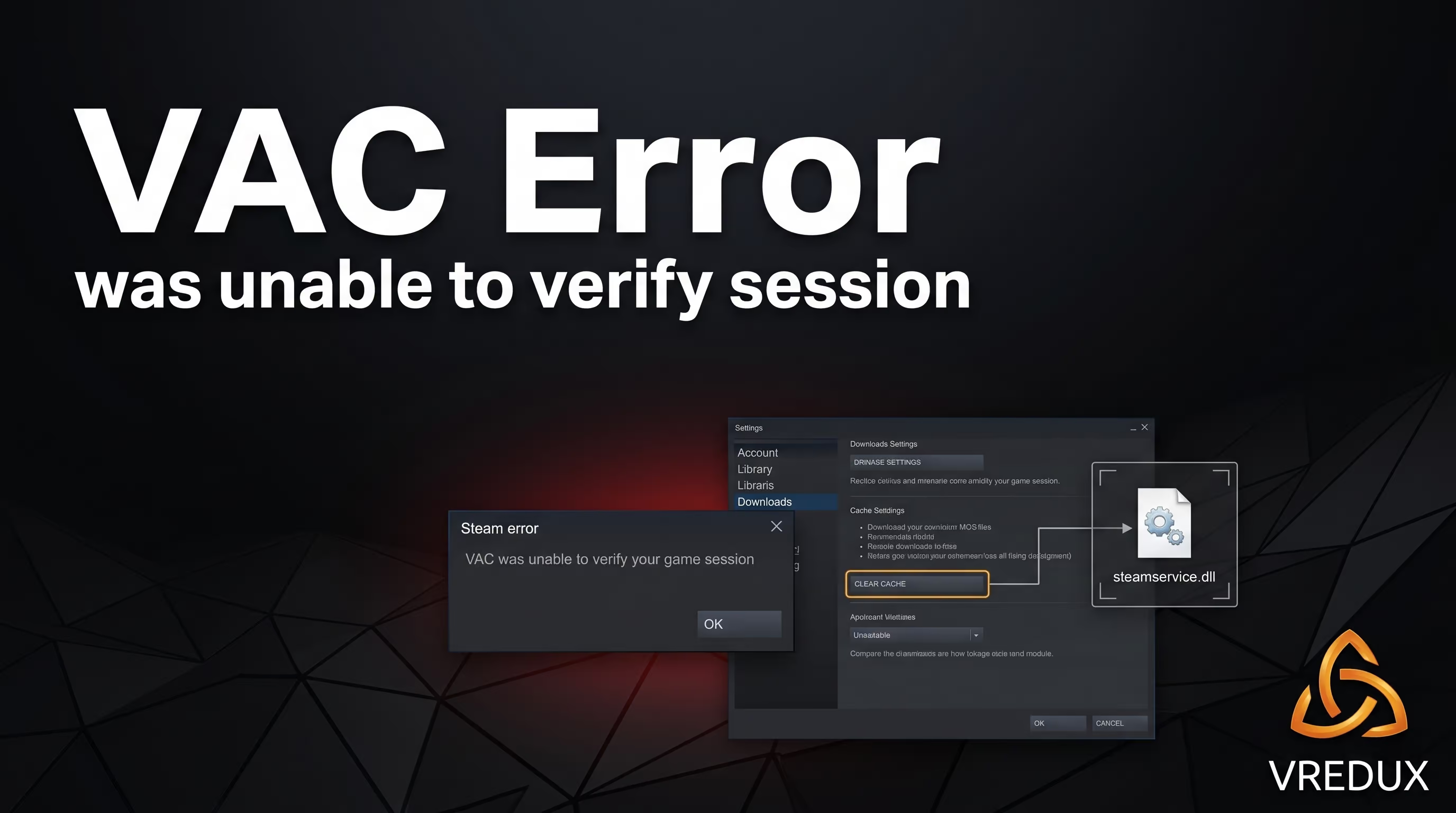
"VAC was unable to verify your game session"
If you get this pop-up, don't panic. It's not a ban. This error means the anti-cheat cannot scan the session due to third-party process interference or a corrupted steamservice.dll file. The anti-cheat is simply protecting the server from suspicious activity.
How to fix the verification error:
- Run Steam as an administrator.
- In the client, go to Steam -> Settings -> Downloads -> Clear Download Cache.
- Restart your PC and verify the integrity of the game files.
DLL Errors (msvcp140, vcruntime140) and Codes 126 / 1114
If a system window pops up complaining about missing .dll files when launching CS2, it means the Microsoft Visual C++ Redistributable packages on your PC are outdated or corrupted. The Source 2 engine requires up-to-date instructions to work. Uninstall all old versions via "Add or Remove Programs" and download the all-in-one Visual C++ 2015-2022 pack (x64 versions) directly from the official Microsoft website.
Conflicts with FACEIT, Vanguard, and Overlays (MSI Afterburner)
I've seen beginners make mistakes here so many times, trying to run CS2 simultaneously with Valorant's Vanguard anti-cheat or FACEIT AC in the background. Modern anti-cheats run at the kernel level (Ring 0). Running them in parallel causes critical failures, and CS2 crashes upon map load. Also, disable Discord overlays and MSI Afterburner with RivaTuner—their injection into the process is often flagged by the game as a hack attempt.
Deep Diagnostics: Drivers and Windows Restoration
If the basic steps didn't help and your PC still shuts down when launching CS2, or CS2 crashes on high-end hardware, it's time to bring out the surgical tools. A standard driver reinstall through GeForce Experience leaves a ton of junk in the registry.
Properly Uninstalling Drivers with DDU (Display Driver Uninstaller)
While a newbie gets lost in Blue Screens of Death (BSOD), an experienced specialist solves the issue with a clean video driver install. If the Counter Strike game crashes after an NVIDIA or AMD driver update, you need DDU.
- Download the Display Driver Uninstaller utility.
- Boot Windows into Safe Mode.
- Run DDU, select your GPU type, and click Clean and restart.
- After rebooting, download the freshest (or conversely, a verified older) driver version from the manufacturer's website and do a "clean" install.
Adapting to 2025-2026 Patches and Windows 11 24H2
New OS builds frequently break stability. In recent CS2 patches, Valve developers have been trying to adapt the game to Windows 11 updates (including the 24H2 branch). If crashes started exactly after an OS update, it's worth repairing system files. Open the command prompt (cmd) as an administrator and enter these two commands one by one:
These utilities will find and replace corrupted system files that might be causing CS2 to freeze and crash. After a successful restore, don't forget to configure proper CS2 launch options to boost FPS to lock in that smooth gameplay.

FAQ: Frequently Asked Questions About CS2 Crashes
I've compiled the most specific requests and obscure bugs players have reached out to me with right here. Look for your problem below.
Conclusion
A simple conclusion follows from all this: most crashing issues are solved by proper system configuration and ditching garbage launch parameters. The main idea is simple: don't try to trick the engine with outdated advice. A properly configured OS is the foundation of a stable framerate and clean gameplay. If you managed to conquer the crashes, it's high time to set up a comfortable interface, for instance, displaying a proper FPS counter in CS2 for constant stability monitoring. While others are bleeding Premier Elo due to freezes and desktop crashes, you'll be dominating the server. Make sure to check out our CS2 guides to tweak the game like an esports pro. Happy fragging!