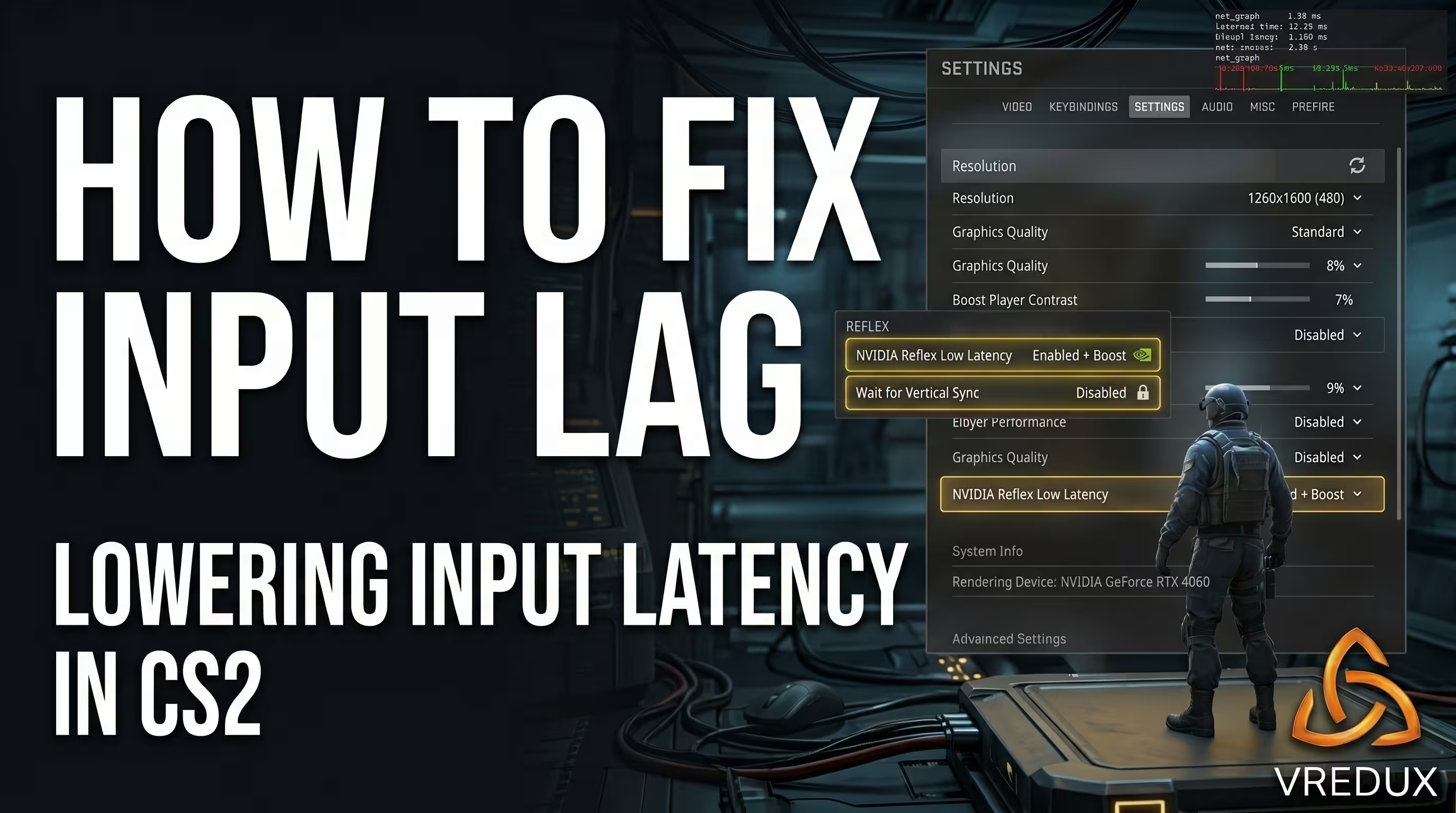
When your ping is fine and your FPS is pushing past 300, yet your crosshair still moves like your mouse is swimming in thick jelly—it’s infuriating. The tradition of digging through configs to disable acceleration dates all the way back to version 1.6. But after the transition to the Source 2 engine and the introduction of the sub-tick system, the old optimization methods simply broke. Now, a sluggish mouse and micro-stutters are fixed completely differently.
Honestly, when I first launched the new Counter-Strike beta, I was shocked by how "heavy" the peripheral response felt. In my tests on a 12400F + RTX 4060 setup, it took several days of digging through the registry and game launch options to bring back the exact sharpness we had in Global Offensive. In this guide, I’ll walk you through the actual ways to fix the problem: from bypassing the Windows window compositor to the hardware nuances of polling rates. By the way, on the VRedux information portal, we’ve compiled a massive knowledge base for gamers, and this article is a condensed summary of what actually works right now.
Guide Contents:
- • Quick Checklist for Reducing Input Lag
- • Anatomy of Latency: Sub-Tick, V-Sync, and NVIDIA Reflex
- • Windows 11 Optimization: Bypassing DWM and Fullscreen Optimizations
- • Peripheral Setup: Raw Input and 4K/8K Polling Rate Traps
- • Deep Diagnostics: ISLC, LatencyMon, and Networking Myths
- • FAQ: Answers to Common Technical Questions
- • Conclusion: Keep Your Hardware in Shape
Quick Checklist for Reducing Input Lag
If you want to quickly fix input lag in CS2 without diving into the technical weeds, here is the basic algorithm that solves the problem in 90% of cases:
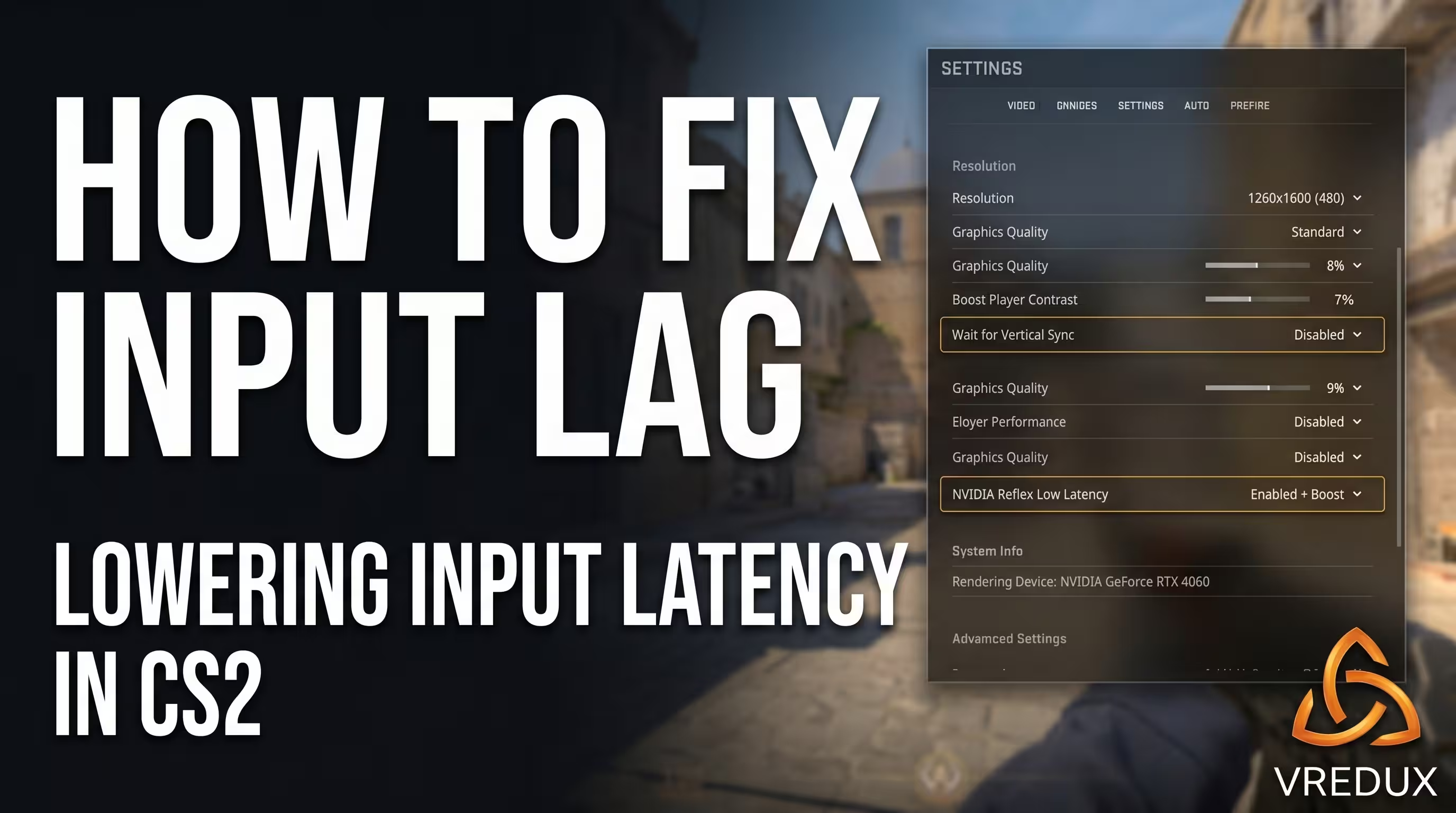
- Disable V-Sync (Vertical Synchronization). It adds 15 to 30 ms to your response time.
- Enable NVIDIA Reflex (On + Boost mode). This syncs your CPU and GPU, eliminating the render queue.
- Disable Fullscreen Optimizations. In Windows 11, this is critical for bypassing the DWM.
- Check your refresh rate. Ensure your monitor is running at 144 Hz (or higher) and your mouse is using a stable 1000 Hz.
- Remove the frame rate cap. Enter
fps_max 0in the console.
Input lag in CS2 is the sum of delays between a physical click and the moment the action is displayed on your screen. Every millisecond counts. Let's break down how this actually works and how to squeeze the most out of your hardware.
Anatomy of Latency: Sub-Tick, V-Sync, and NVIDIA Reflex
There is a non-obvious point here where many players get tripped up. You have to clearly distinguish between network latency (Network Ping), sub-tick visual interpolation, and actual input lag. In CS2, the server registers your shots precisely between ticks (at the exact moment you click), but blood splatters or enemy death animations are tied to the next tick. This makes it feel like hit registration is delayed, even though hardware-wise, everything triggered perfectly.
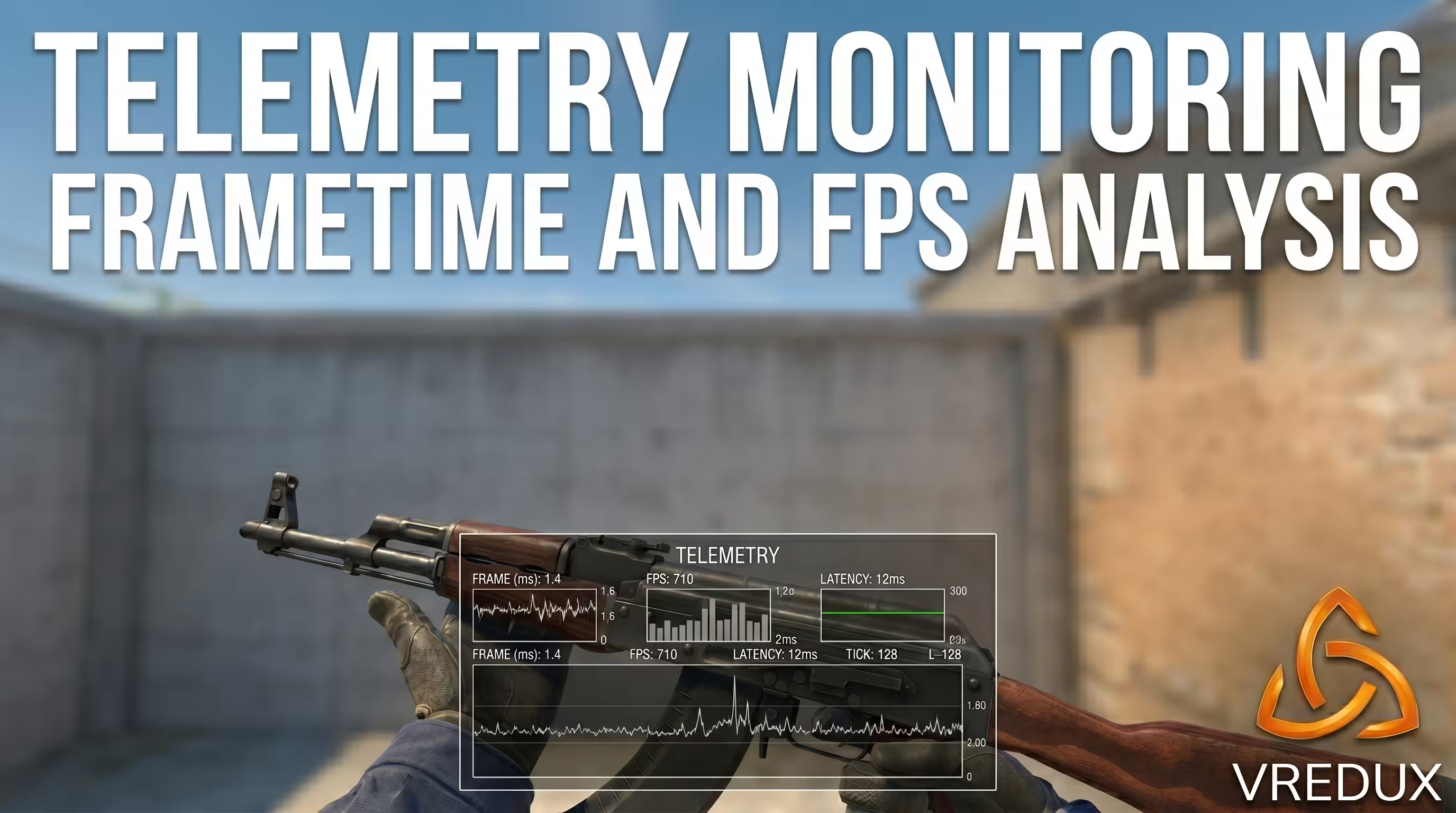
Actual input delay stems from the render queue. When your graphics card can't keep up with your processor, frames wait in line. This is exactly why configuring Reflex is so crucial. NVIDIA Reflex Low Latency technology forcibly clears this queue. In my testing, enabling Reflex dropped system latency from 45 ms down to a stable 15-20 ms.
Here is a visual comparison of how screen settings affect responsiveness:
Windows 11 Optimization: Bypassing DWM and Fullscreen Optimizations
Many people mistakenly believe that setting the game to "Fullscreen" means it's running in exclusive Fullscreen mode (FSE). In Windows 10 and 11, the Fullscreen Optimizations (FSO) feature forces CS2 into a hybrid Borderless mode. Why? So you can Alt-Tab quickly. The result: the image is routed through the Desktop Window Manager (DWM), which introduces buffering and increases CS2 input lag by 20-65 ms.
To remove CS2 input lag stemming from the operating system itself, you need to do the following:
- Open Steam, right-click on Counter-Strike 2, and select Manage -> Browse local files.
- Navigate to:
game\bin\win64. - Find the
cs2.exefile, right-click it, and open Properties. - Go to the Compatibility tab.
- Check the box next to Disable fullscreen optimizations.
- Click Apply and OK.
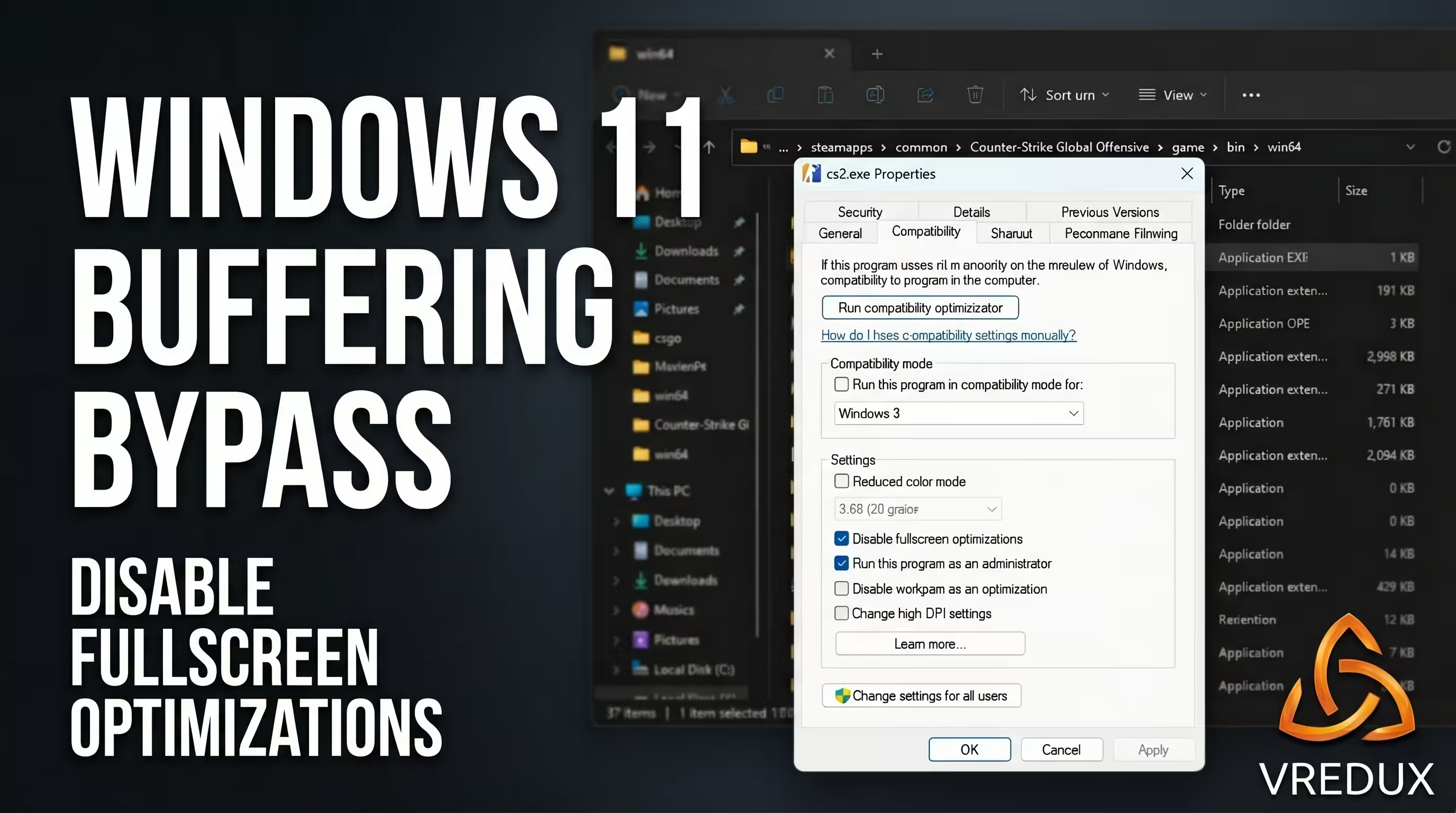
After doing this, the game will have direct access to your monitor. By the way, to maximize this effect, I recommend checking out our guide on the best CS2 launch options to boost FPS, where we break down useful console commands in detail.
Peripheral Setup: Raw Input and 4K/8K Polling Rate Traps
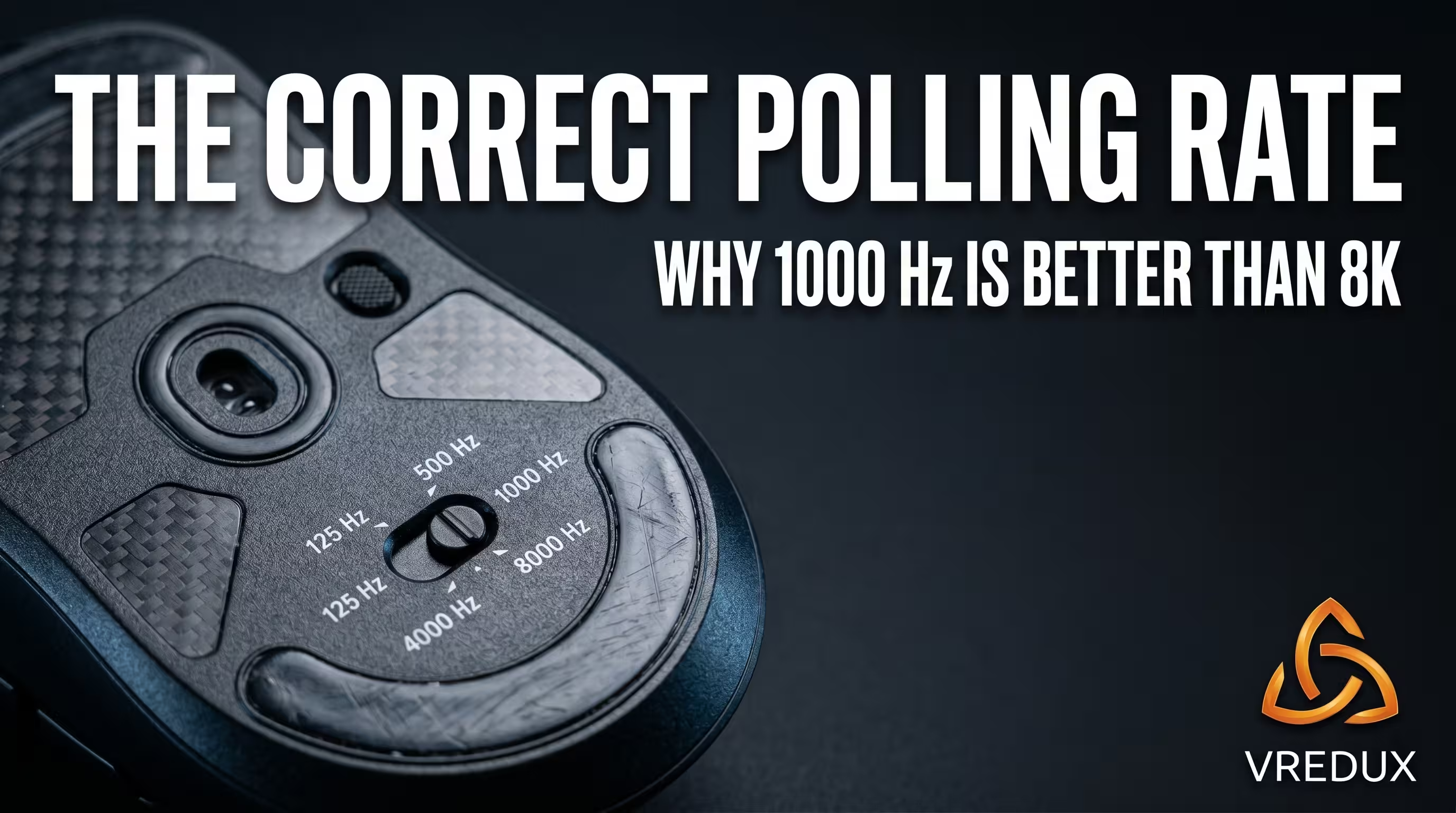
With the release of mice sporting 4000 Hz and 8000 Hz polling rates, many esports players rushed out to upgrade their gear. The logic is straightforward: 1000 Hz yields 1 ms of polling delay, while 8000 Hz drops that down to a mere 0.125 ms. It sounds like the perfect lag killer. But in practice, it’s a massive trap.
I tested a 4K Hz mouse myself on a Ryzen 5600 processor. The Source 2 engine is heavily CPU-dependent. When you crank your mouse polling rate to the max, you force your CPU to process thousands of hardware interrupts (USB Interrupts) every single second. On low- or mid-range systems, this causes severe frametime spikes and FPS drops, which subjectively feels like insane input lag.
- Your solution: If your processor is weaker than a 13th-gen Intel Core i5 or a Ryzen 7000 series, strictly cap your mouse polling rate at 1000 Hz in your peripheral's software.
- Sensitivity: In Windows, make absolutely sure to uncheck "Enhance pointer precision" (Control Panel -> Mouse -> Pointer Options).
- Direct input: CS2 has Raw Input enabled by default. The game reads data directly from the port, ignoring system-level acceleration. You don't need to enter any extra console commands.
Deep Diagnostics: ISLC, LatencyMon, and Networking Myths
I still see guys in the community spamming cl_interp 0 and cl_interp_ratio 1 into the console, trying to achieve minimum latency. Remember this: in CS2, these commands are completely useless. The sub-tick architecture is hard-locked to server values, and the game will ignore your attempts to break the interpolation. CS2 input lag is cured at the hardware level, not through network rates.
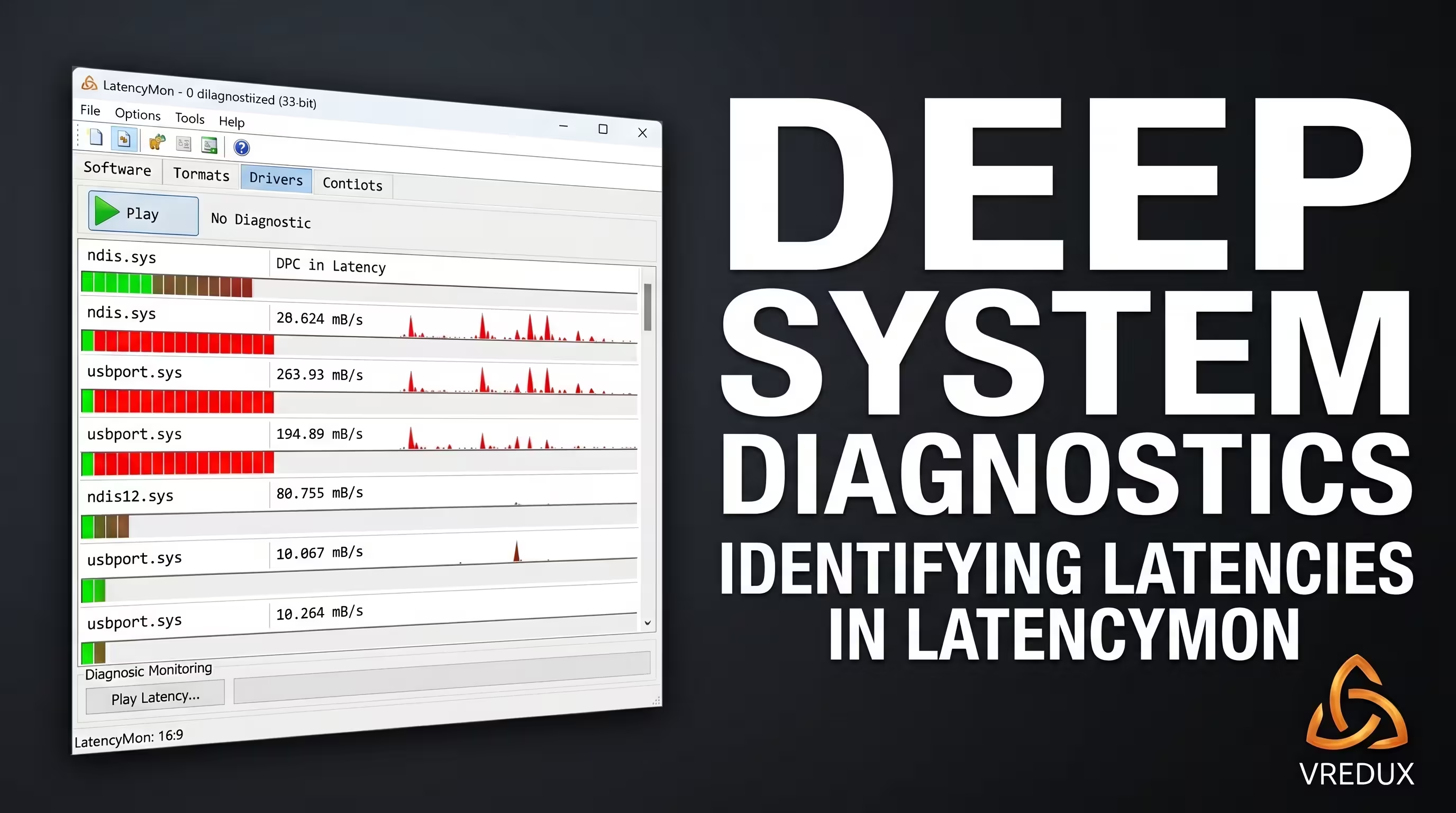
If the basic methods don't help and mouse movement still feels muddy, the issue lies in DPC/ISR latency (system interrupts). To track these down, you need a program called LatencyMon. Launch it, hit the Play button, and play the game for 10 minutes. If the Drivers tab shows red values (over 1000 µs) for drivers like ndis.sys (network) or usbport.sys, then those are exactly what’s causing your system to stutter.
Another brilliant piece of software from the creators of DDU is the Intelligent Standby List Cleaner (ISLC). Windows has a habit of clogging up the RAM cache (Standby List), which causes micro-stutters in CS2. Run ISLC in the background, and it will automatically flush this cache, making your gameplay significantly smoother.
FAQ: Answers to Common Technical Questions About CS2 Input Lag
Conclusion: Keep Your Hardware in Shape
Here is what you need to remember: completely eradicating input delay is impossible, as it is a fundamental aspect of how PCs operate. But lowering it to values imperceptible to the human eye is more than realistic. Turn off V-Sync, force the game to run in pure fullscreen mode without Windows optimizations, enable Reflex, and don't chase the 8000 Hz marketing hype on mice if you have a standard processor.
Once you set everything up according to this guide, your spray control and target tracking will become crystal clear. Explore other useful materials in the VRedux knowledge base to fill any gaps in your technical understanding of the game. Good luck with your peeks and enjoy high FPS on the servers!