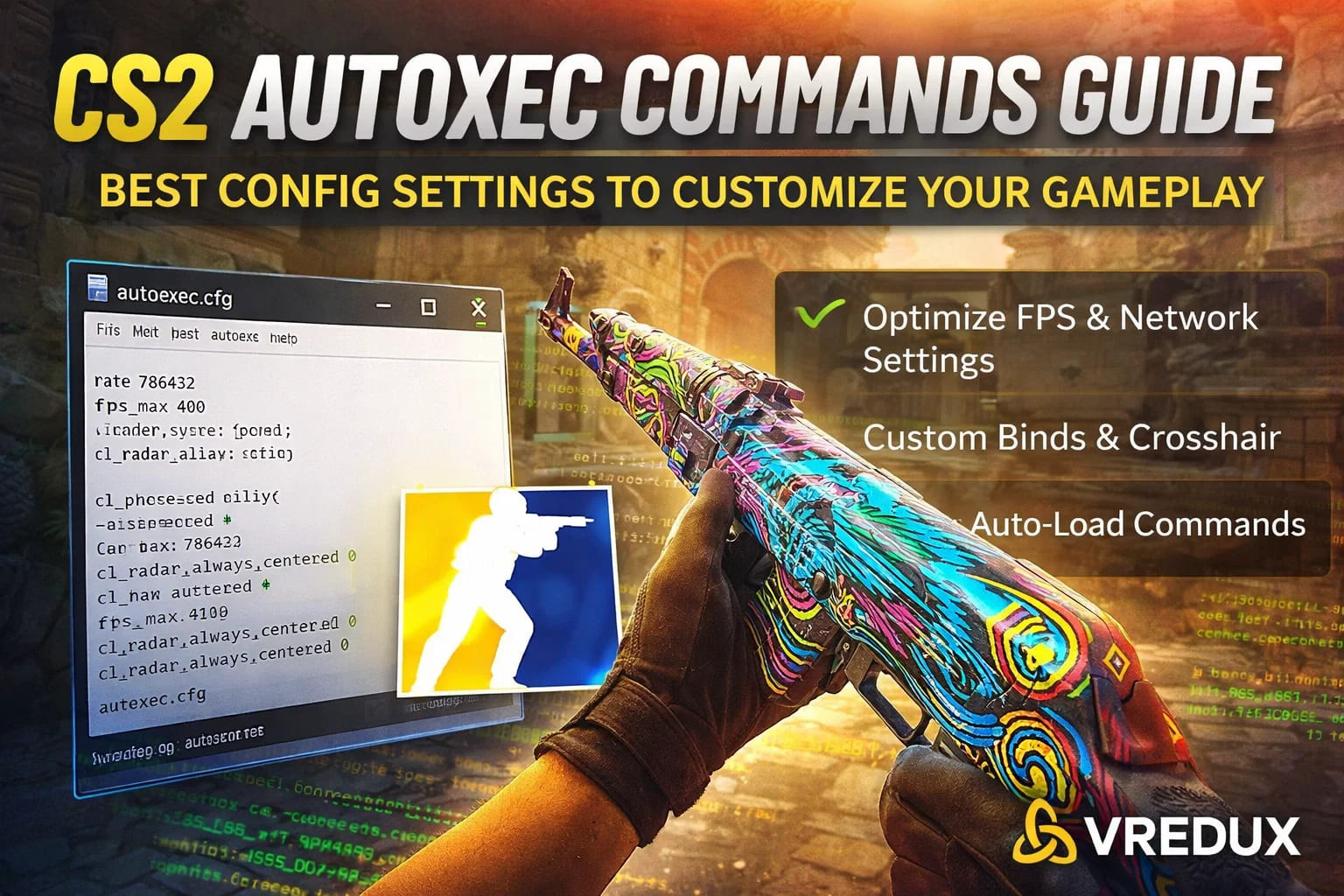
Honestly, there is nothing more annoying than launching Counter-Strike 2 and realizing your settings have reset. You spend five minutes typing console commands to fix your viewmodel, radar, and network settings, only to do it all over again the next time you launch. If you are tired of this routine, you need a CS2 autoexec.
.jpg)
I remember back in the day, typing commands manually every single match like a maniac. It’s tedious. That’s where the autoexec.cfg comes in. It is the holy grail for any CS2 player who wants consistency. Whether you are a casual gamer or grinding to be one of the pro players, setting up a configuration file is the first step to mastering the game.
In this autoexec guide, I will show you how to use autoexec CS2, where to put the files, and the best CS2 commands to include. We aren't just copy-pasting code here; we are building the ultimate CS2 experience.
What is a CS2 Autoexec Config?
Before we dive into the folders, let’s clear up what this actually is. An autoexec file (short for autoexec configuration) is a simple text file that you create inside your game folder.
Normally, when you change game settings in the menu, they save to a default config file. However, some advanced console commands—like specific network rates, jump binds, or crosshair settings—don't always stick.
The autoexec.cfg file forces the game to run your specific commands every time you launch the game. It automatically executes commands as soon as the engine starts. Think of it as a script that tells the game: "Hey, ignore the default junk, use my preferred settings instead." Want some new experience? Try VRedux private CS2 cheat that provides premium features to rank up to 30000 Elo in Premiere mode.
How to Create an Autoexec File in CS2
Creating a CS2 autoexec file is easier than landing a headshot with an AK-47. You don't need to be a coder; you just need Notepad. Here is the step-by-step on creating an autoexec file.
Step 1: Locate the Config Folder
First, we need to find where Counter-Strike 2 lives on your PC. The path has changed slightly from CS:GO, so pay attention.
-
Open Steam.
-
Right-click Counter-Strike 2 in your Steam library.
-
Hover over "Manage" and select "Browse local files".
-
From there, navigate through this path:
game\csgo\cfg.
Note: In the past, we used userdata, but for a CS2 autoexec config, the game\csgo\cfg folder is the most reliable spot.
Step 2: Create a Text File
Once you are in the cfg folder:
-
Right-click in empty space.
-
Select "New" -> Text Document.
-
Name it autoexec.
Now, here is the trick where 90% of people mess up. You need to change the file extension from .txt to .cfg. If you don't see extensions, go to your Windows View settings and check "File name extensions".
Your file should be named autoexec.cfg, not autoexec.txt or autoexec.cfg.txt. Windows often hides the cfg extension, so be careful.
Step 3: Edit and Save
Open your new autoexec.cfg file with Notepad or Notepad++. This is where the magic happens. You will paste your CS2 autoexec commands here. Once you are done adding commands (we will get to the best ones in a minute), just save the file.
Step 4: Set Launch Options
For the game to recognize your new cfg file, you need to tell Steam to load it.
-
Go back to your Steam Library.
-
Right-click CS2 -> Properties.
-
In the Launch Options field at the bottom, type:
+exec autoexec.cfg
Now, every time you start CS2, the game will load your custom settings.
.jpg)
Best CS2 Autoexec Commands to Customize Gameplay
Alright, you have the file, but what do you put in it? I’ve tested hundreds of commands, and honestly, most "pro" configs are bloated with useless junk. You need a basic commands list that actually improves performance and gameplay.
Here is my recommended setup for a CS2 autoexec configuration.
-
Network and FPS Settings
If you have "potato internet" or just want the smoothest hitreg, these are mandatory.
rate "786432"fps_max "400"cl_interp "0.015625"cl_updaterate "128"
rate: Ensures maximum bandwidth usage.
fps_max: Caps your frames. I set mine to 400 for consistency, but you can set fps_max 0 for uncapped.
Interp: Helps with model sync.
If you are struggling with lag, check out our guide on how to fix high ping in CS2 for a deeper dive into network optimization.
-
Binds and Utility
This is where you customize controls. Binds are a game-changer.
// Jumpthrow Bind (Crucial for grenades)

alias "+jumpaction" "+jump;"

alias "+throwaction" "-attack; -attack2"

alias "-jumpaction" "-jump"

bind "v" "+jumpaction;+throwaction;"
// Clear Decals (Clears blood/bullets when you move)
bind "shift" "+sprint; r_cleardecals"
A good jumpthrow bind is essential for landing those smoke lineups. Speaking of binds, if you want to bunnyhop like a demon, read our article on mousewheel jump bind in CS2.
-
Crosshair and Viewmodel
You can copy your crosshair code from a generator, or hardcode it here.
cl_crosshairsize "2"cl_crosshairgap "-3"cl_crosshairthickness "0"cl_crosshair_drawoutline "0"viewmodel_fov "68"viewmodel_offset_x "2.5"viewmodel_offset_y "0"viewmodel_offset_z "-1.5"
-
Audio and Radar
I like my radar to show the whole map.
cl_radar_scale "0.4"cl_radar_always_centered "0"snd_deathcamera_volume "0"
The "End" Command
At the very bottom of your text file, always add this line:
host_writeconfig
This ensures that your autoexec settings overwrite any conflicting game settings once the game loads.
Comparison: Autoexec vs. Standard Config
Why go through the trouble of creating an autoexec file? Let's look at the difference.
| Feature | Standard Config (config.cfg) | Autoexec (autoexec.cfg) |
|---|---|---|
| Persistence | Resets often with updates | Permanent until you change it |
| Portability | Hard to transfer | Easy to copy/paste to new PC |
| Complexity | Basic menu settings | Advanced console command scripts |
| Reliability | Can be overwritten by cloud sync | Automatically executes commands on boot |
Troubleshooting: Why is my Autoexec not working?
You followed the autoexec guide, but the CS2 console commands aren't loading? Don't panic. It happens to the best of us.
-
Check the File Name: Is it autoexec.cfg.txt? Turn on file extensions in Windows to check. It must be a cfg file.
-
Wrong Folder: Did you put it in userdata? Move it to
game\csgo\cfg. -
Launch Options: Did you forget +exec autoexec.cfg in the launch CS2 properties?
-
Echo Command: To test if it works, write echo "Autoexec Loaded!" at the top of your file. Open the CS2 console (~ key) after launch. If you see "Autoexec Loaded!", it worked.
.jpg)
Advanced Customization: Alias and Scripts
For the CS2 autoexec guide power users, you can use alias to create complex behaviors. For example, a net graph toggle (since net_graph is gone, we use telemetry):
alias "togglegraph" "toggle cl_hud_telemetry_serverrecvmargin_graph_show 0 1"bind "L" "togglegraph"
This lets you create commands to use on the fly. You can even set up grenade lineups or specific mouse sensitivity toggles for zooming.
Speaking of customization, if you want to change how your weapon looks on the screen, check our tutorial on switch hands bind in CS2. It pairs perfectly with a good config.
FAQ
Will using an autoexec get me banned?
Absolutely not. Modifying a config file or using autoexec CS2 commands is 100% legal and supported by Valve. It is not a cheat; it is a preference.
Can I use my old CS:GO autoexec in CS2?
Mostly, yes. However, some CS2 console commands have changed (like cl_righthand or net_graph). You will need to clean up the file and remove obsolete commands.
Where is the autoexec location in CS2?
It is located in \steamapps\common\Counter-Strike Global Offensive\game\csgo\cfg.
Do I need an autoexec for high FPS?
It helps. Commands like fps_max and disabling unused heavy features can boost performance. But for real results, hardware matters. If you are struggling, check out our CS2 system requirements and optimization guide.
How do I open the console to check if it loaded?
Go to Settings -> Game -> Enable Developer Console (~) -> Yes. Then press ~ in-game.
Conclusion
Setting up an autoexec in CS2 is one of those things that separates a tourist from a resident in the game. It gives you control, consistency, and peace of mind. You don't have to worry about your mouse sensitivity or grenade binds resetting after a patch.
Creating an autoexec file might seem technical at first, but once you set up your autoexec for CS2, you never have to touch it again. It just works.
Take the time to set up an autoexec file today. Copy the basic commands I listed, tweak them to your liking, and enjoy a smoother in-game experience. And hey, if you want to skip the technical headache and just dominate the server with superior features, VRedux is always here to help you gain that extra edge.
Now, go launch CS2 and get some frags! Is there anything else about your config you're struggling with?