The tradition of clearing out unnecessary map clutter dates back to the legendary Counter-Strike 1.6, but moving the series to the Source 2 engine forced us to change our old habits. The sub-tick system and new volumetric particles didn't just break our usual lineups; they completely trashed our favorite console variables for practicing.
Does it piss you off too when you're practicing lineups on Mirage, the gun model blocks half your screen, and the map is literally choking on a dozen gray clouds? In moments like that, your FPS drops to console-peasant levels because your GPU is sweating to render all that volumetric smoke.
Honestly, when my framerate on a local server tanked from 350 to 90 FPS because of nade spam, I was ready to smash my PC. Out of habit, a lot of guys still spam old CS:GO scripts, not realizing that in the new CS, they're basically broken garbage.
Here at VRedux, the largest Counter-Strike information portal, we've put together an up-to-date knowledge base for gamers. In this guide, I'll break down exactly what command to clear smoke in CS2 actually works today, how to write a proper bind to automate map clearing, and why just deleting the projectile isn't enough for comfortable practice.
Guide Contents:
Quick answer: how to instantly remove smoke in CS2
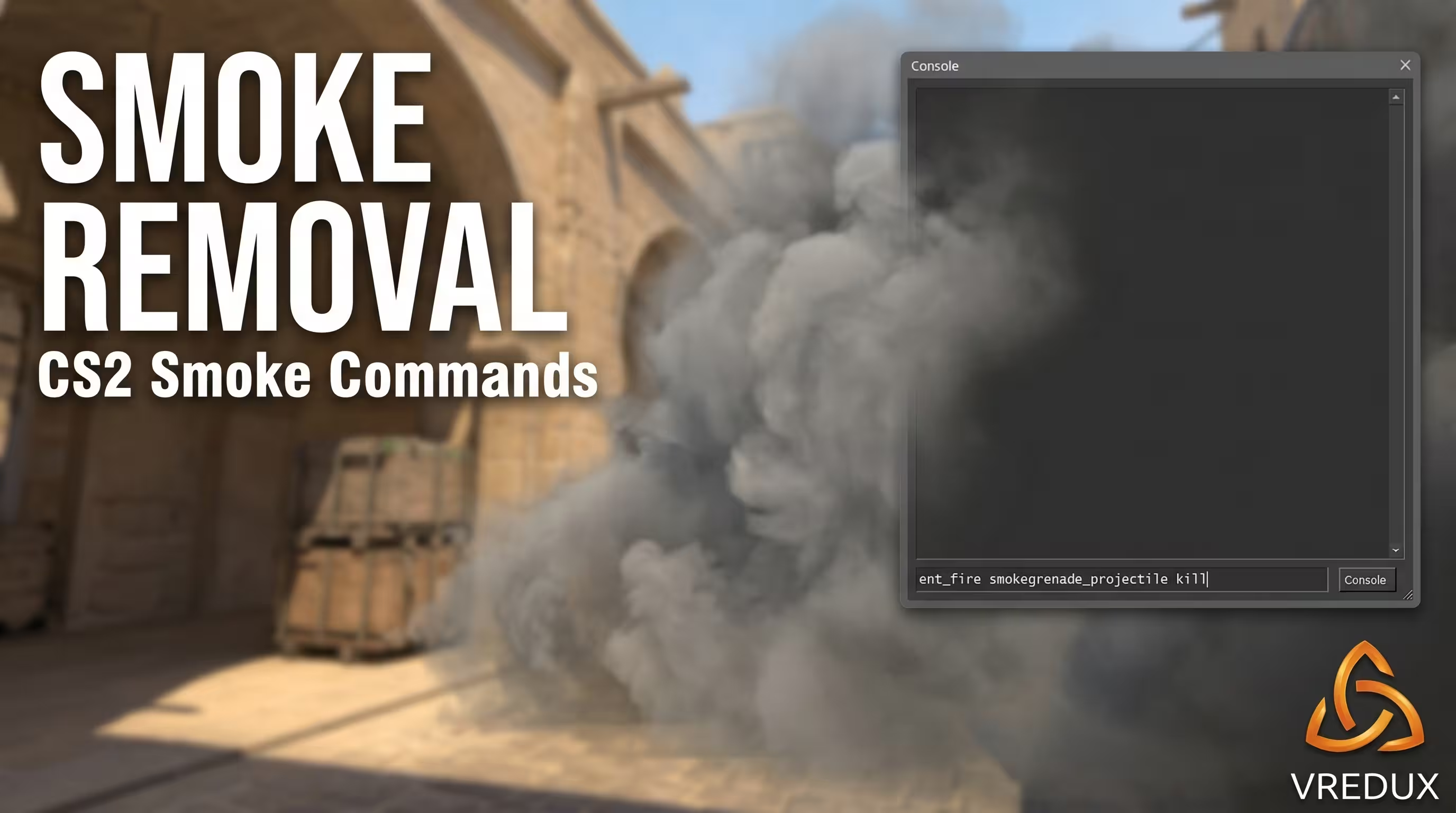
If you just want a fast fix without digging through configs, here's the ready-made solution. To completely clear an active smoke on your server in CS2, open the developer console (tilde ~) and enter two lines in order. First, enable admin mode — sv_cheats 1. Without this, the engine will completely ignore your inputs.
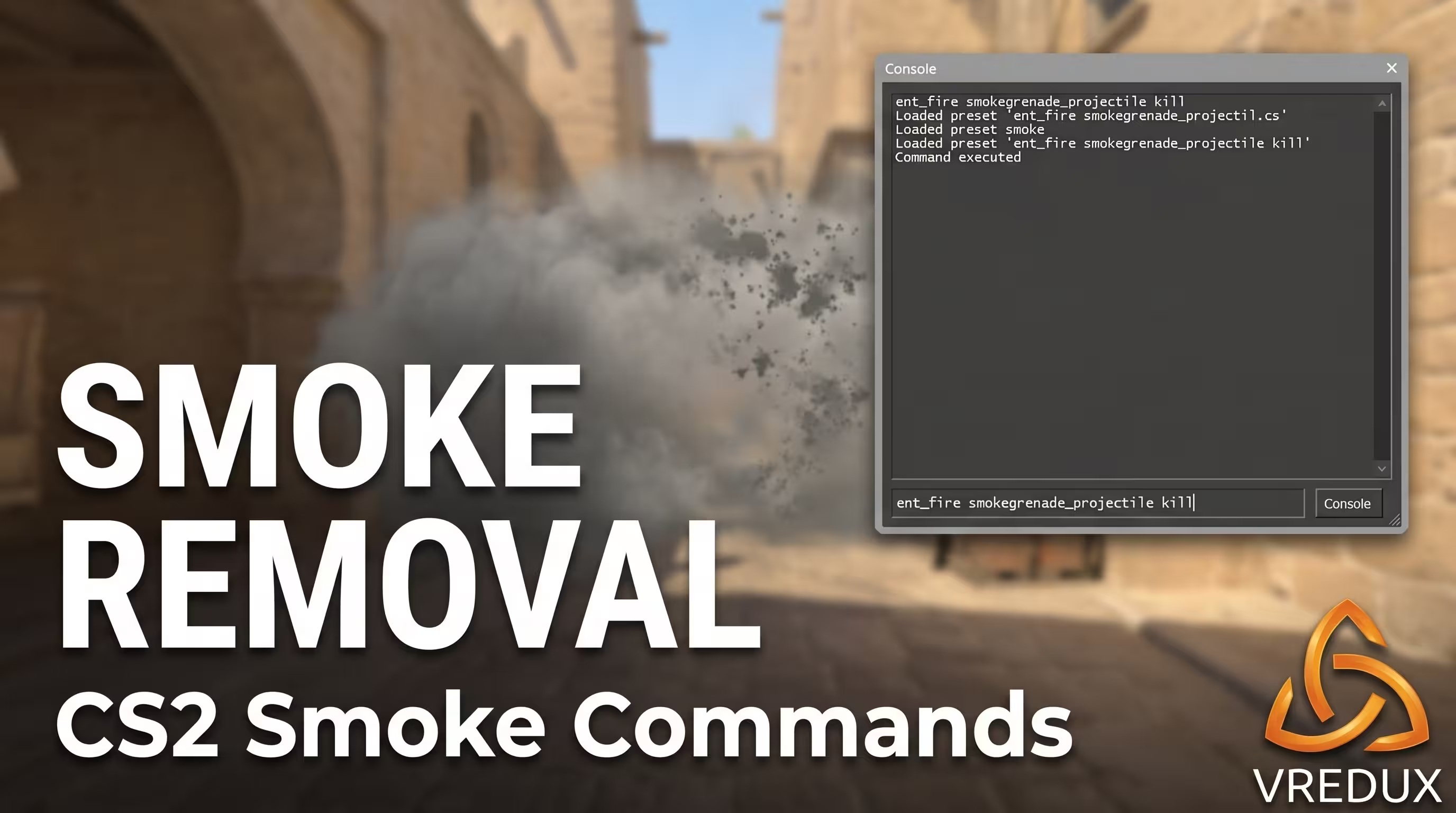
Then enter the main variable: ent_fire smokegrenade_projectile kill. This instantly wipes the cloud off the map. But there's a non-obvious catch here that other guides usually stay quiet about. The visual grenade model disappears, but the ambient hissing sound might keep playing for another second or two.
That's why, for perfect automation, you need to use a complex key bind. Copy this string into your console:
Now, whenever you press O, you'll instantly delete the smoke and kill the audio trail. Practicing lineups just got way less annoying.
Full list of console commands to remove smokes and grenades in Counter-Strike 2
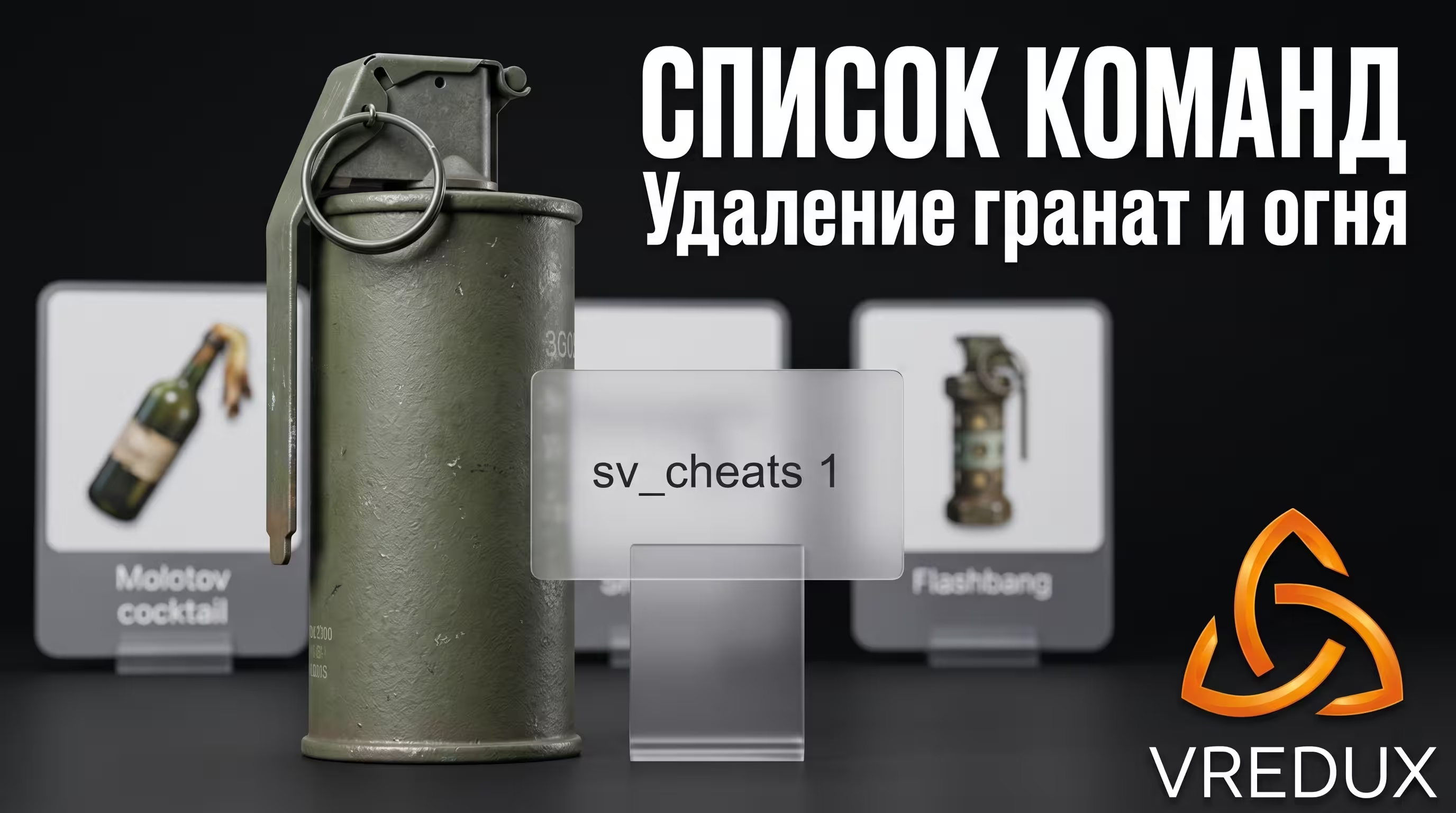
Let's be real: if you're practicing a complex site execute, just clearing smoke isn't enough. You're throwing flashbangs and Molotovs, and those need to be cleaned up too. In Counter-Strike 2, all these objects are considered server entities, and destroying them requires the universal ent_fire syntax.
sv_cheats variable must be set to 1. Without it, the engine rejects your commands.In my tests on the latest patches, this method has been the most stable by far. Below is a cheat sheet of all working commands to keep your practice server clean.
Main Server Variables
By the way, if you're really digging into game mechanics, I highly recommend checking out another solid piece on our site: CS2 Grenade Console Commands: Practicing Lineups in CS2. It's a great foundation for building your own training config.
How to set up a smoke clear bind in CS2: step-by-step automation
Typing commands manually every time you mess up a throw is a massive pain. Why waste hours on routine tasks when you can just map everything to a single key? Personally, I run a macro straight from my autoexec.cfg file so I never have to punch in code every time I boot the game.
Here's a step-by-step guide on how to set up this macro once and for all:
- Open your Steam library, right-click on Counter-Strike 2, go to Manage → Browse local files.
- Navigate to:
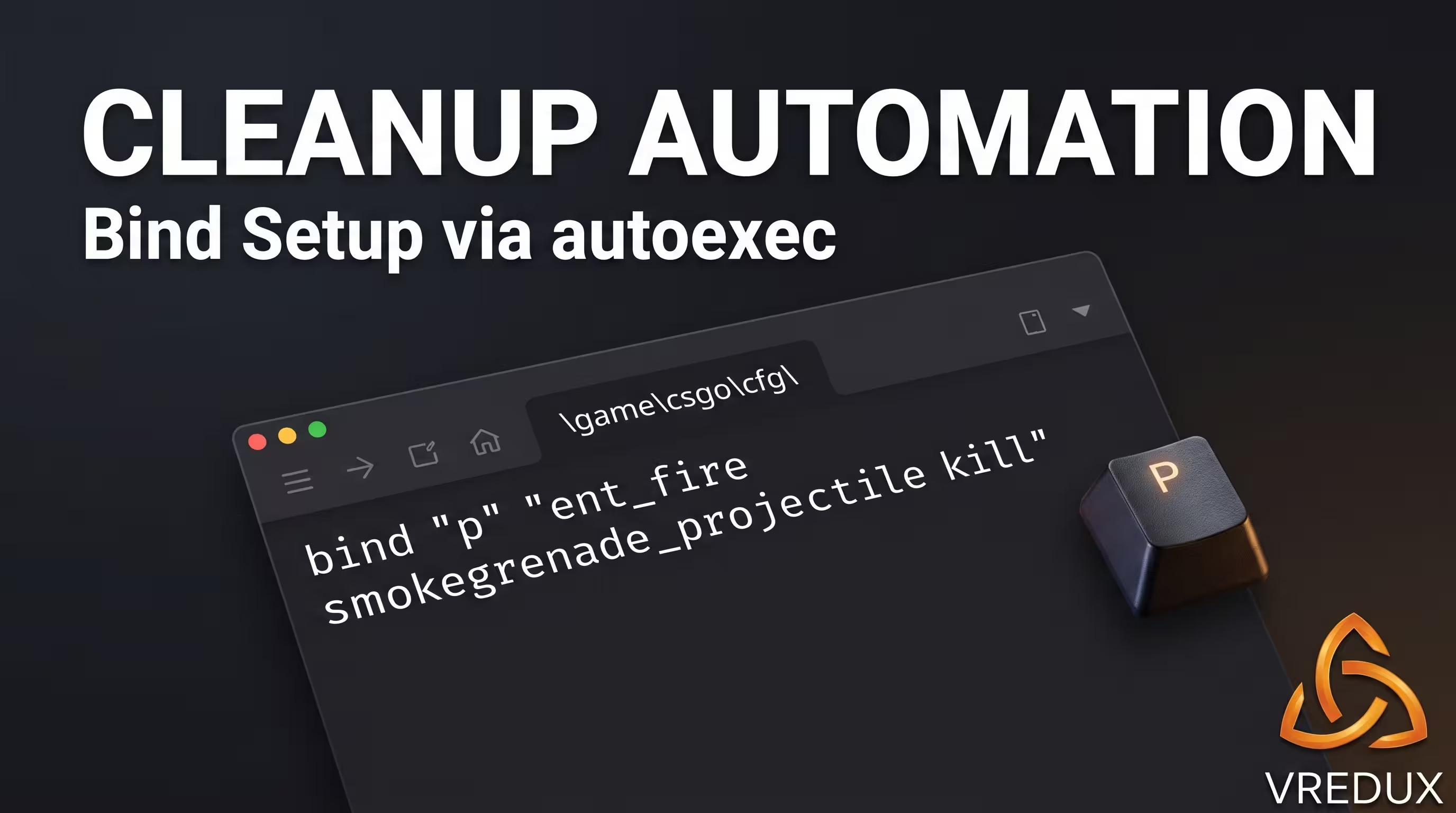
\game\csgo\cfg\. - Create a new text document and rename it to
autoexec.cfg(make absolutely sure the extension isn't left as.txt). - Open the file with Notepad and paste this complex script:
bind "p" "ent_fire smokegrenade_projectile kill; ent_fire molotov_projectile kill; stopsound". - Save the file. Go to your CS2 properties in Steam, and in the launch options, type
+exec autoexec.cfg.
Now, on your practice server, hitting the P key will instantly wipe away all your botched lineups, burning Molotovs, and lingering audio. It seriously saves your sanity when you're hunting for that perfect pixel to aim at.
Why doesn't the old r_cleardecals command work in CS2?
It seemed like a standard trick from the old game: bind r_cleardecals to Shift, and the map magically cleans itself of blood and bullet holes as you run. But here's the kicker: the Source 2 engine operates on entirely different physics rules.
In CS:GO, smoke was a 2D sprite pasted over the map geometry, and bullet impacts were flat decals.
In CS2, smoke is rendered through a volumetric particle system built into Source 2. It's physically calculated by the server as a 3D object. A smoke in CS2 takes about 18–20 seconds to fully dissipate, and its cost in the economy is $300. Commands meant to wipe flat textures off walls physically cannot interact with this volumetric fog. The Valve devs gutted the old variables so they wouldn't break the sub-tick logic.
The only legal way to deform smoke inside a competitive match (MM or Premier) is an HE grenade explosion (HE). An HE detonation temporarily blows the smoke away, creating a brief window of visibility (duration depends on how close it is to the center and the current patch). If you're stressed about framerate drops when effects stack up, check out our piece on the CS2 FPS counter and commands to show FPS to track your stutters in real-time.
Graphics settings to improve visibility through smoke and fire on weak PCs
If you're grinding official matchmaking, cheat commands won't do you any good—VAC will slap you with a hard ban for trying to force exploits. But what about guys on potato PCs, where a Molotov explosion turns the game into a slideshow because of the thick smoke? That's where smart client optimization comes in.
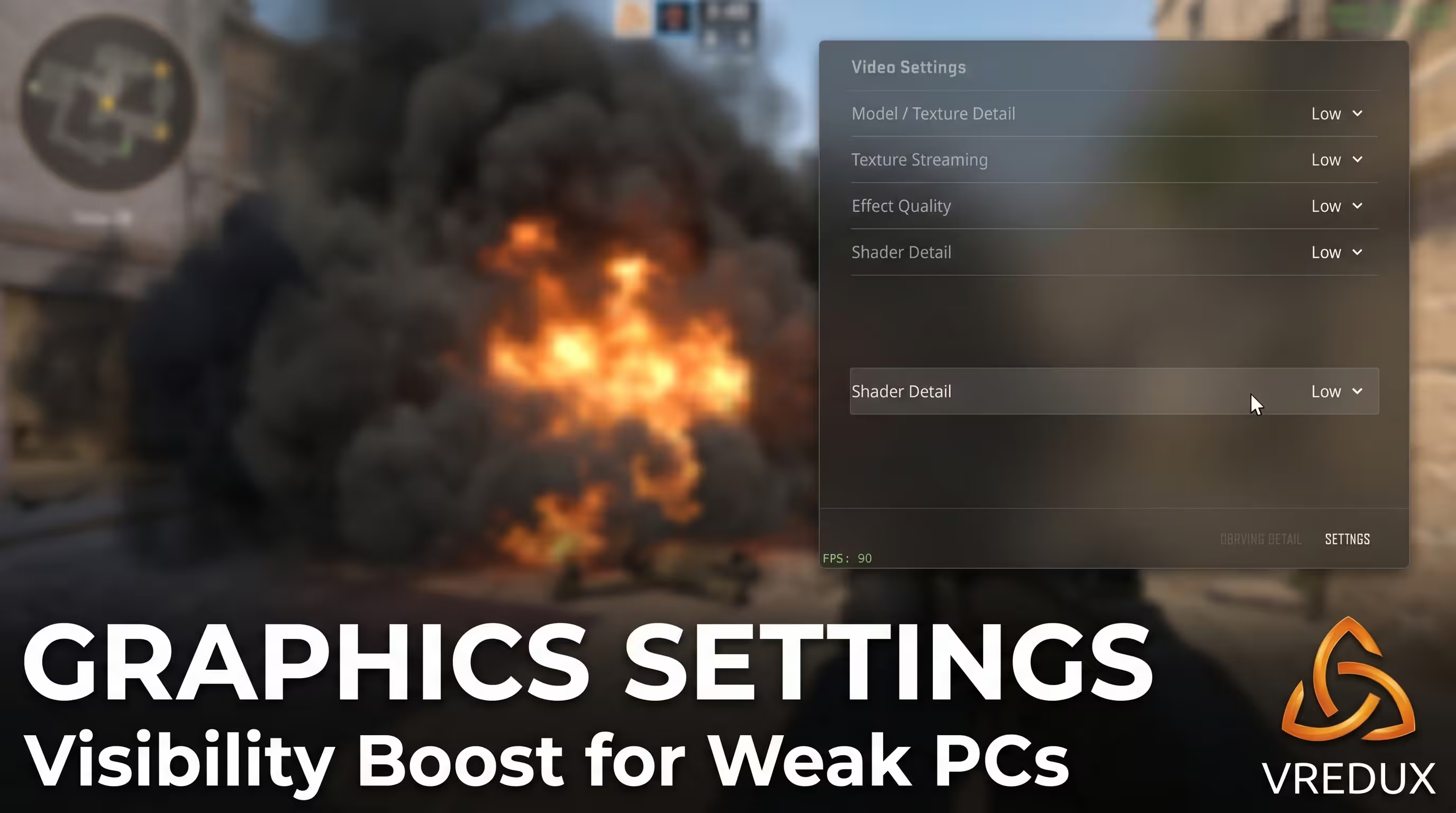
On my test rig (an old Ryzen 5 3600 + GTX 1660), I managed to squeeze out extra frames just by tweaking a few parameters. Here's what you need to know:
How Basic Graphics Options Affect FPS
Dropping your effect detail settings unloads your graphics card, stripping away useless visual clutter without ruining the competitive balance. And if your ping is spiking during gunfights, learn how to enable Net_Graph in CS2 so you can monitor packet loss right in the middle of a match.
Frequently Asked Questions (FAQ)
I've seen rookies mess up the basics over and over by trying to force dead scripts. Let's clear up the biggest blind spots so you don't have any questions left about map-clearing mechanics.
Conclusion
The takeaway here is simple: adapting to the new realities of the Source 2 engine is the key to efficient practice. Remember this: the combo of ent_fire smokegrenade_projectile kill and stopsound completely fixes the problem of lingering clouds on your local host. While other players are wasting time waiting for smoke to fade and dealing with FPS drops, you can continuously drill complex lineups and go on to dominate the server.
Make sure to dump these parameters into your config so you can trigger the entire process with a single button. And if you want to push your game sense even further, head over to the VRedux article knowledge base—we regularly post working tricks, mechanic breakdowns, and optimization guides for smooth gaming. Happy fragging and clean lineups!