Imagine this: you're in a heated 1v2 clutch, nerves of steel, you line up the perfect Molotov to flush out the enemy... and roast your teammate alive instead. In Matchmaking, you get a cooldown. In a private lobby with friends, you just get laughed at. But sometimes, you want to turn the chaos up to 11, or conversely, turn it off completely for a safe practice session.
Friendly fire in Counter-Strike 2 is one of those settings that can change a tactical shooter into a chaotic hilarious mess or a strict training ground. I’ve hosted hundreds of private matches, from 1v1 duels to "Hide and Seek," and messing with the CS friendly fire command is usually the first thing I do. Whether you are looking to enable team damage for a hardcore scrim or disable it so you stop accidentally AWPing your buddy, you need to know how to manage the console. In this guide, we will dig into the commands, the damage scaling, and how to avoid that annoying auto-kick.
Article Contents:
.jpg)
How to Enable Friendly Fire in CS2?
Let's get straight to the point. By default, in casual modes, you can shoot through your teammates like they are ghosts (well, solid ghosts). In competitive, you do damage. But if you are hosting a private server, you control the rules. To change this, you need the developer console. If you haven't turned it on yet, go to settings and enable it, or check out our guide on how to use cheat commands in CS2 properly.
Here is the golden rule: for most of these commands to work in a private lobby, you need Master Control.
The Core Command Sequence:
- Open the console (usually
~). - Type
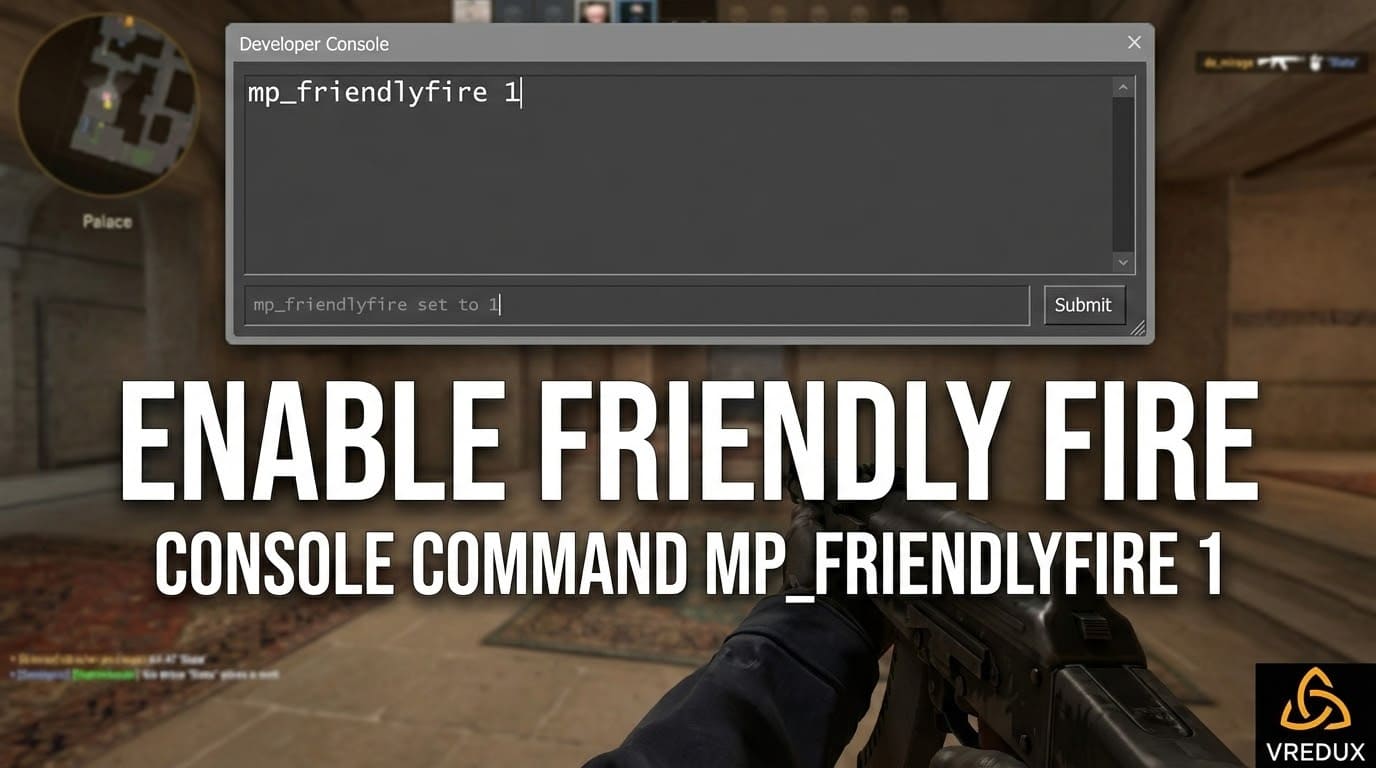
sv_cheats 1and hit Enter. This unlocks the server variables. - To enable friendly fire, type:
mp_friendlyfire 1 - To disable friendly fire, type:
mp_friendlyfire 0
It’s that simple. Once you input mp_friendlyfire 1, bullets will register on teammates. I’ve noticed that sometimes the game requires a round restart for it to fully kick in, so if it doesn't work instantly, type mp_restartgame 1.
Console Command vs. Game Settings
You might be looking for a "switch" in the game settings menu. Spoiler: it doesn't exist. Valve loves their console commands, and Counter-Strike has always relied on text input for server admin duties. While some competitive presets have it on by default, doing it manually gives you control. If you are renting a remote server, you would put these lines into your server.cfg file so they load automatically on reboot.
.jpg)
Configuring Damage: Not Just On or Off
Okay, so you turned it on. But maybe you don't want full damage. Maybe you want a "slap" on the wrist, not a one-tap to the head. CS2 allows you to scale the damage for different weapon types. This is perfect for "Hardcore" training where you want players to be careful with nades but not instantly die from a stray Glock bullet.
Use these commands to tweak the friendly fire damage values:
| Command | Default | Effect |
|---|---|---|
ff_damage_reduction_bullets |
0.33 | Scales bullet damage (0.33 = 33% damage). Set to 1 for full damage. |
ff_damage_reduction_grenade |
0.85 | Scales HE grenade damage. Set to 0 to make nades harmless to team. |
ff_damage_reduction_grenade_self |
1 | How much damage YOU take from your own nade. |
ff_damage_reduction_other |
0.4 | Damage from things like the Zeus or knife. |
If you want a truly realistic experience, set all these to 1. Just be warned: one bad spray transfer and your teammate is spectating the rest of the round.
VRedux Tip: If you are practicing grenade lineups, set
ff_damage_reduction_grenade_self 0. This way, you can stand right on top of your Molotov or HE grenade to see where it lands without committing suicide every time.
How to Turn Off Friendly Fire Kick?
This is the most annoying part of hosting a LAN party or a Discord lobby. You enable friendly fire for fun, someone accidentally kills a friend with an AWP, and BAM—the server kicks them. Valve's default settings are strict about Team Killing (TK).
To prevent the server from banning your friends, you need to disable the punishment system. Honest advice? Do this before you start playing.
Commands to secure your lobby:
mp_autokick 0— This is the main one. It stops the server from kicking players for excessive TKs or idle time.mp_tkpunish 0— Prevents the game from slaying a player at the start of the next round if they killed a teammate previously.mp_td_dmgtokick 0— Sets the damage threshold for a kick to zero (infinite).
If you forget these, you'll be spending half your night re-inviting people to the lobby. The turn off friendly fire logic usually applies to damage, but turning off the consequences is just as important for gameplay flow.
.jpg)
How to Set Up Free For All (FFA) in CS2
Sometimes you don't want teams at all. You want pure chaos. Deathmatch. Everyone vs Everyone. Players often search for the CS:GO free for all command, hoping to turn their competitive lobby into a battle royale.
In Counter-Strike 2, the logic is slightly different from the old days, but the command is powerful. To make every player an enemy, regardless of whether they are Terrorist or CT, use this:
mp_teammates_are_enemies 1
When this is active, the concept of "Friendly Fire" disappears because no one is friendly. Your radar will stop showing blue dots, and you can lock onto anyone. This is essentially how community CS DM FFA servers work. It’s the best way to train aim because you have double the targets.
Just remember to set mp_solid_teammates 1 as well, so players don't clip through each other, maintaining that solid feel of gunfights.
Visual Warnings: The "X" on the Crosshair
Have you ever noticed that when you aim at a teammate, your crosshair changes? In CS2, there's a specific visual cue—a circle with an "X" or a warning sign—telling you "DO NOT SHOOT."
Some players find this distracting and want a clean view. Others (especially new players) need it to distinguish skins, especially now that agent skins can look confusingly similar in dark corners.
The command to control this is: cl_crosshairfriendlywarning.
cl_crosshairfriendlywarning 0— Disables the warning. Your crosshair stays normal when aiming at allies.cl_crosshairfriendlywarning 1— Enables the warning (Default).hud_showtargetid 1— Ensures the enemy/teammate name pops up in red or blue text.
Personally, I keep the warning off. If I can't tell a CT from a T by their uniform, I deserve the teamkill penalty. Plus, it cleans up the UI. Speaking of clean UI, knowing how to show FPS in CS2 without cluttering your screen is another essential skill for optimizing your setup.
.jpg)
FAQ: Common Questions About CS2 Friendly Fire
What is the command to turn off friendly fire in CS2?
To completely disable friendly fire, open the developer console and type mp_friendlyfire 0. Make sure you have admin rights or are the lobby host.
Why isn't the friendly fire command working?
99% of the time, it's because you forgot to enable cheats. You must type sv_cheats 1 first. Also, try restarting the round with mp_restartgame 1 to apply the changes.
Does CS:GO friendly fire command work in CS2?
Yes, most legacy commands like mp_friendlyfire and mp_autokick were ported directly to Source 2. If you are used to the CS:GO friendly fire command, it's the exact same string of text.
Can I reflect damage back to the attacker?
There is a command mp_friendlyfire_damage_multiplier but standard reflection (mirror damage) is usually a server plugin feature, not a default console command in the base game. However, setting ff_damage_reduction_grenade_self manages self-inflicted explosive pain.
Is there a specific CS 1.6 friendly fire command?
For the veterans asking about CS 1.6, the command has remained mp_friendlyfire for over 20 years. Valve knows better than to change the classics.
.jpg)
Wrapping Up
Managing team damage is a basic skill for anyone looking to host their own matches. Whether you are setting up a best CS2 training routine or just messing around with the CS DM FFA settings to create a chaotic warzone, the console is your best friend. The mp_friendlyfire command is powerful—use it wisely.
I’ve seen too many lobbies ruined because the host didn't know how to disable friendly fire or turn off the auto-kick. Don't be that guy. Set your game settings right before the match starts, and you'll have a much smoother experience. And if you are looking to dive deeper into customizing your game, check out more guides on our homepage. From optimization to gameplay tweaks, we've got you covered.
For more in-depth tutorials, browse our articles section to keep your CS2 knowledge sharp.