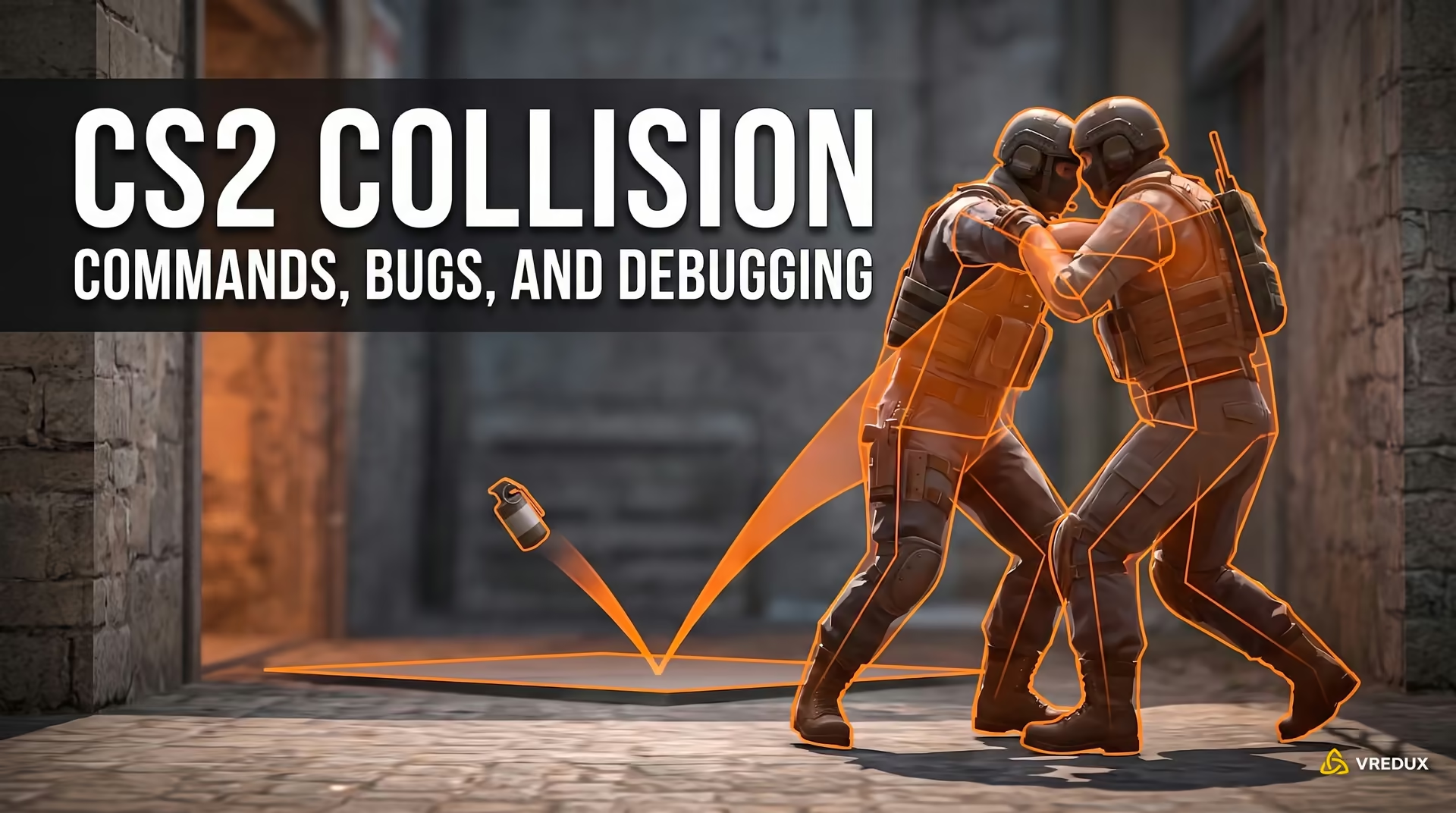
We've all been there: you hop into a local server to warm up before a Premier match, punch in your muscle-memory CS:GO commands, and the console spits back errors. In Source 2, half the legacy syntax like sv_grenade_trajectory 1 is completely obsolete. Valve overhauled grenade mechanics from the ground up and introduced a native picture-in-picture (PIP) camera. To save you from sifting through dead code, the VRedux team put together this complete breakdown: working engine ConVars, proper respawn parameters, essential grenade lineup binds, and a ready-to-use practice config that spins up your server in seconds.

At a Glance: Top 10 CS2 Practice Commands
The essential CS2 practice commands let you set up a dedicated offline session with no round timers or ammo limits. To activate these commands, open the developer console with the tilde key (~) and enable server cheat mode using sv_cheats 1. This mode works exclusively on local and private servers, executed directly by the game's native engine without requiring third-party tools.
How to Launch: CS2 Practice Menu vs. Developer Console
You can launch a practice session in Counter-Strike 2 either through the in-game menu or directly via the developer console. The right choice depends on what you want to practice.
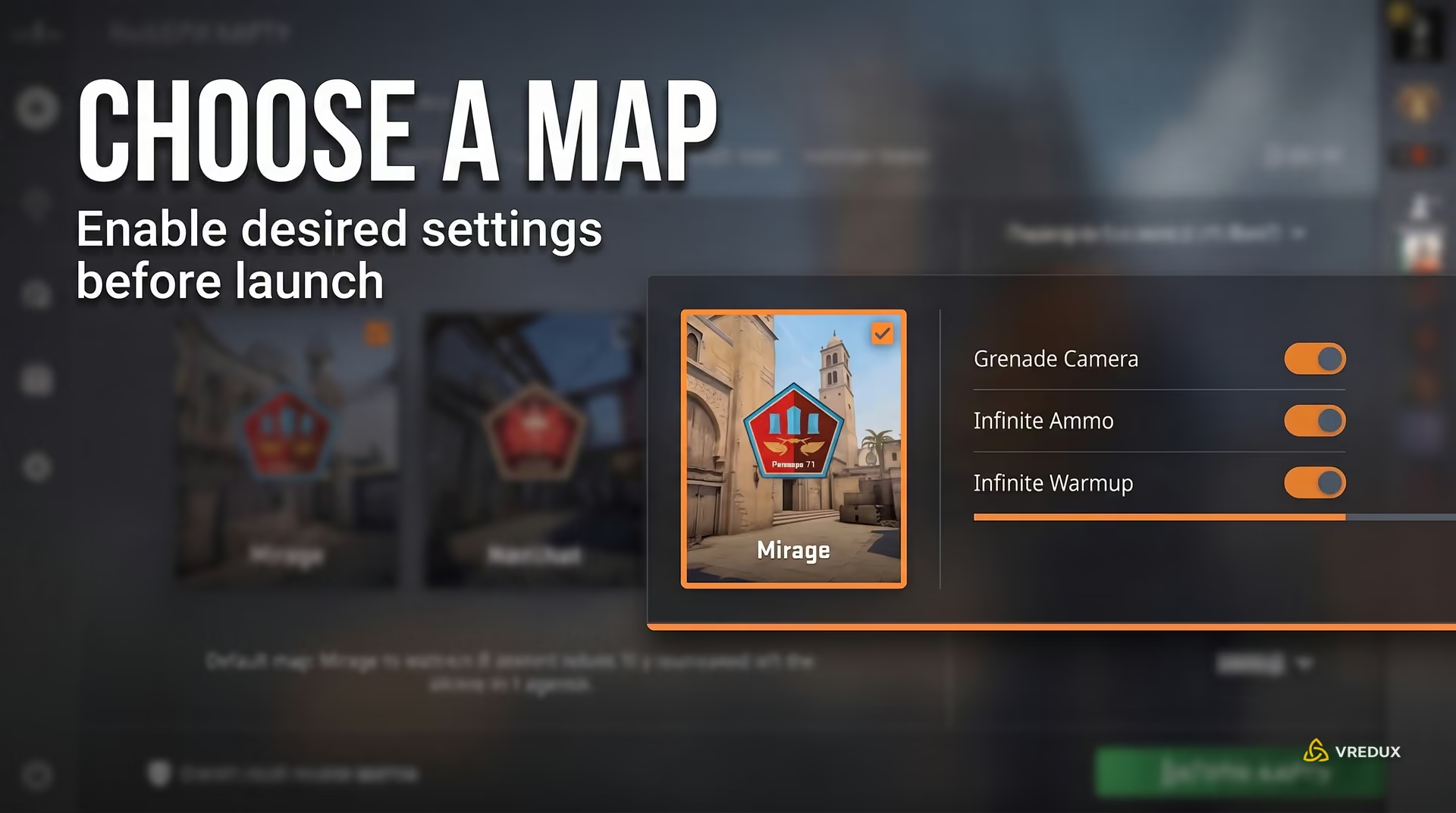
For a quick warmup before a competitive match, use the graphical interface. Go to the Play tab, select Practice, pick your map, and toggle the settings on the left sidebar: Grenade Camera, Infinite Ammo, and Infinite Warmup. The game automatically loads these core parameters for you.
If you prefer launching directly without clicking through menus, open the console and enter the map load command directly: map de_mirage (or map de_dust2, map de_inferno, map de_nuke). The game instantly spins up a local server with bots. Before typing commands, make sure you know how to enable the developer console in CS2 in your client settings so you can manage your server on the fly.
All-in-One Console Script: Copy-Paste Practice One-Liner
This all-in-one console string chains verified practice ConVars into a single command line. The script configures round duration, max starting cash, instant respawns, infinite ammo, and bullet impact visualization, then restarts the round to initialize all settings.
sv_cheats 1; bot_kick; mp_warmup_end; mp_freezetime 0; mp_roundtime 60; mp_roundtime_defuse 60; mp_ignore_round_win_conditions 1; mp_respawn_on_death_ct 1; mp_respawn_on_death_t 1; mp_respawnwavetime_ct 1; mp_respawnwavetime_t 1; mp_maxmoney 60000; mp_startmoney 60000; mp_buytime 9999; mp_buy_anywhere 1; sv_infinite_ammo 1; ammo_grenade_limit_total 5; sv_grenade_trajectory_prac_pipreview 1; sv_grenade_trajectory_prac_trailtime 8; sv_showimpacts 1; sv_showimpacts_time 10; mp_restartgame 1
Load into your chosen map, open the console by pressing tilde (~), paste the string with Ctrl+V, and hit Enter. The server will restart within a second and switch fully into practice mode.
Setting Up Round Time, Economy, and Infinite Round Rules
Standard competitive MR12 rules end the round as soon as the bomb detonates or an entire team is eliminated. For uninterrupted practice, you can disable these restrictions using server ConVars from the mp_ group.
Removing Time Limits and Preventing Spectator Freezes
The command mp_roundtime_defuse 60 extends the round timer to one hour, while mp_freezetime 0 eliminates the pre-round buy freeze. Running mp_ignore_round_win_conditions 1 disables round win conditions entirely, stopping the server from restarting the round when the C4 explodes.
mp_respawn_on_death_ct 1, mp_respawn_on_death_t 1, mp_respawnwavetime_ct 1, and mp_respawnwavetime_t 1. If you skip these, accidentally dying to a grenade or fall damage will leave you stuck in spectator mode until you manually restart the match.Unlimited Economy and Weapon Spawning
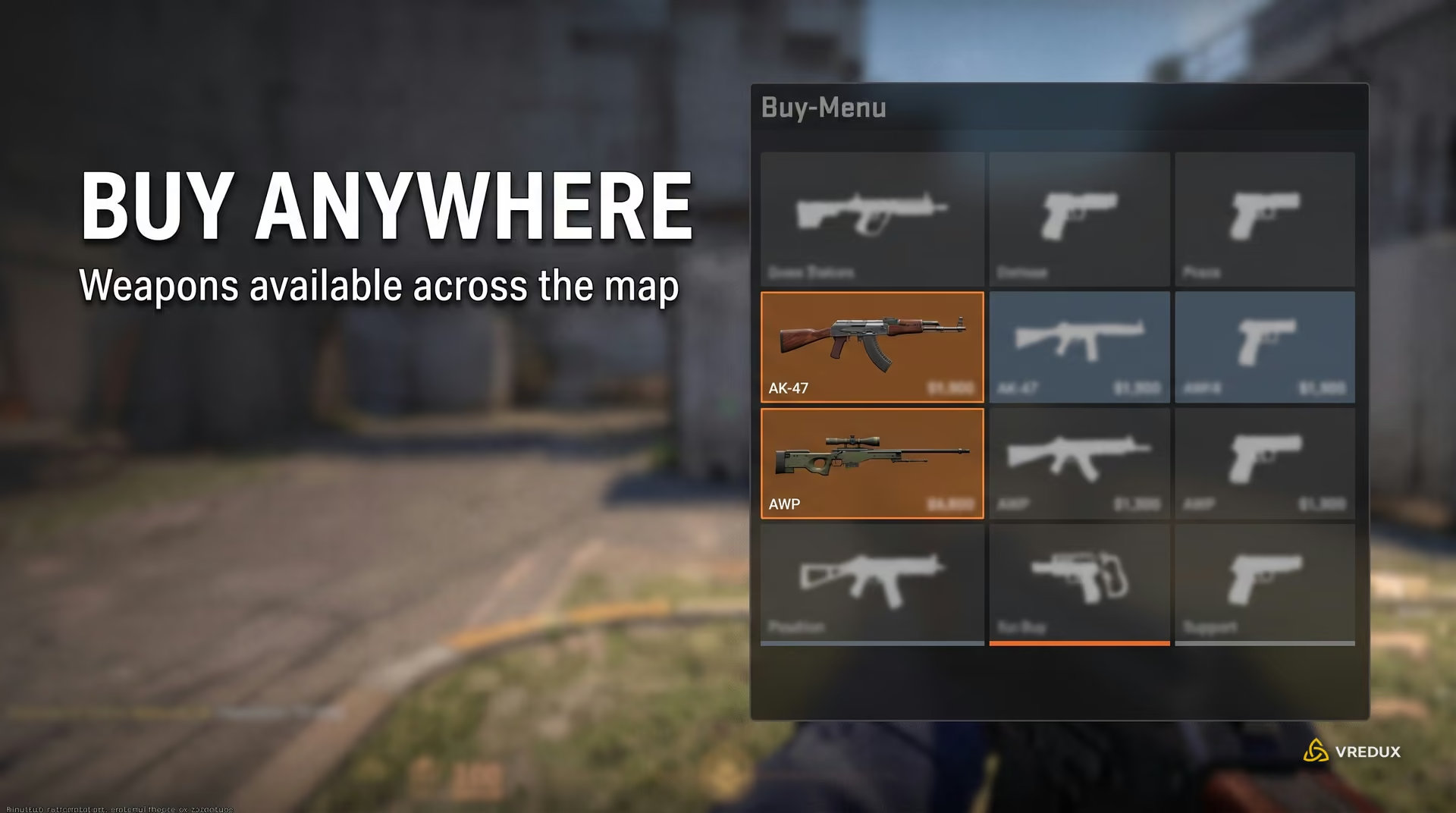
The mp_buy_anywhere 1 command opens buy menu access across the entire map, and mp_buytime 9999 extends the purchase window to roughly 166 minutes. Commands mp_maxmoney 60000 and mp_startmoney 60000 set your bank to the maximum of $60,000. If you eventually burn through your funds buying sniper rifles during an extended drill, you can spawn any weapon for free through the console without spending cash (for example, give weapon_ak47 or give weapon_awp).
Grenade Practice: Trajectory Preview, Rethrow, and Clearing Smokes
Grenade training in Source 2 is built around volumetric smoke interactions and the native PIP camera. For a full list of utility commands, check out our guide covering CS2 grenade practice commands for competitive maps.
Picture-in-Picture (PIP) Trajectory Preview
The ConVar sv_grenade_trajectory_prac_pipreview 1 opens a small Picture-in-Picture window in the top-left corner whenever you pull a grenade pin. This camera streams the grenade's trajectory and exact landing spot in real time. Setting sv_grenade_trajectory_prac_trailtime 8 keeps the trajectory trail visible for the maximum 8 seconds (the Source 2 engine hard-caps this ConVar between 0 and 8).
Rethrowing Your Last Grenade
The sv_rethrow_last_grenade command repeats your last thrown grenade with identical trajectory, speed, and angle. Throw a flashbang, fly over to the defending player's position using noclip, and execute the command to see firsthand how effective the blind angle and duration really are.
Instantly Clearing Smokes and Extinguishing Fire
A smoke grenade in CS2 lasts roughly 20 seconds. Instead of waiting around for it to fade, use an entity kill command: ent_fire smokegrenade_projectile kill, which wipes the grenade projectile along with its voxel smoke cloud. To instantly extinguish Molotov and incendiary fire, run ent_fire inferno kill, because ground fire in Source 2 is handled by a separate inferno entity.
Console Commands to Give All Grenade Types
give weapon_smokegrenade— Smoke Grenade.give weapon_flashbang— Flashbang.give weapon_hegrenade— HE Grenade.give weapon_molotov— Molotov (T-side).give weapon_incgrenade— Incendiary Grenade (CT-side).give weapon_decoy— Decoy Grenade.
Shooting Practice, Spray Control, and Bullet Impacts
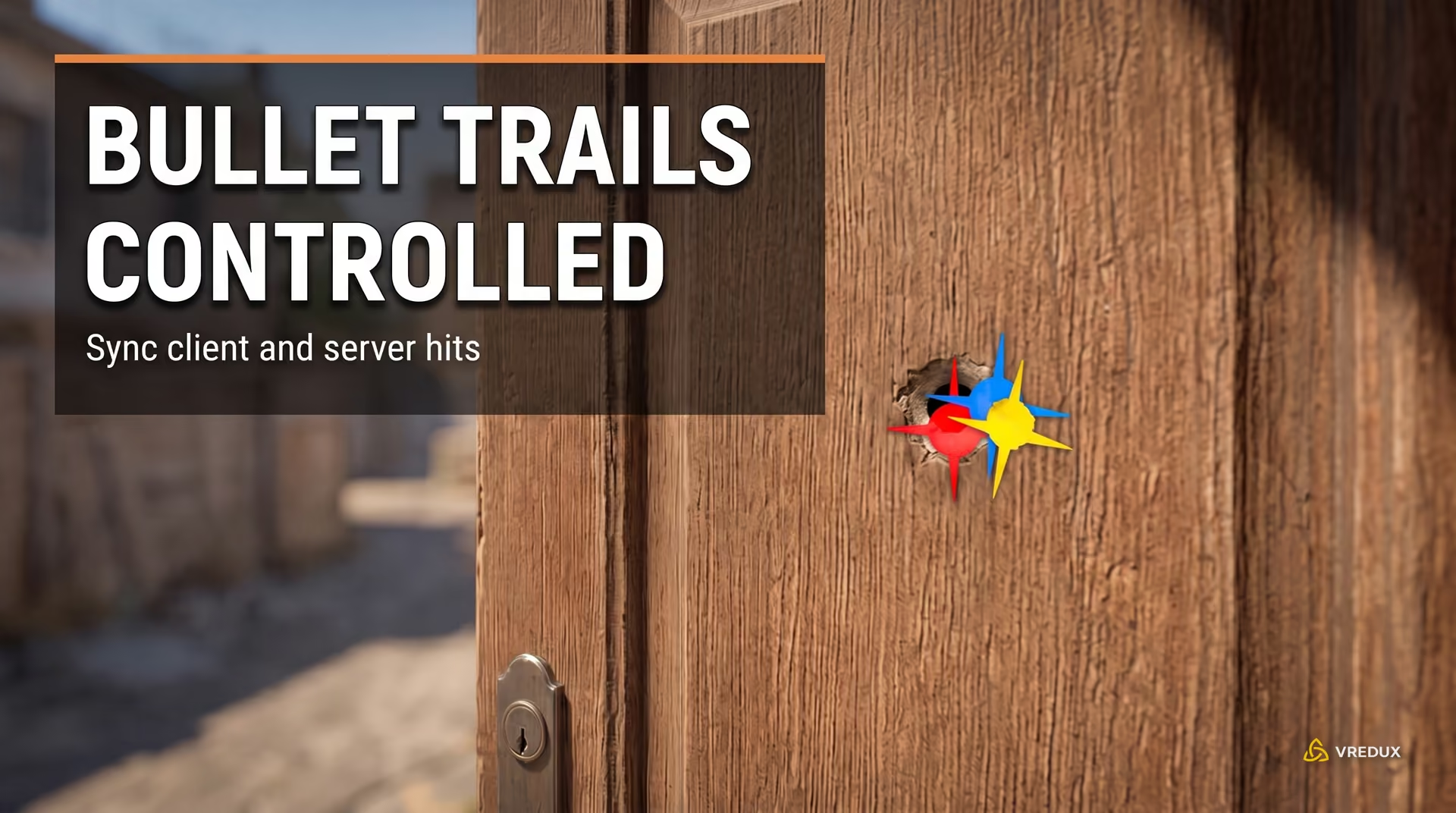
Drilling spray control and wallbangs requires clear visual feedback on where your bullets land. CS2 splits shot registration into client-side and server-side calculations, giving you a transparent look at bullet physics.
For a deeper look into setting up target practice, read our guide on how to enable infinite ammo in CS2 using the console.
Running sv_showimpacts 1 alongside sv_showimpacts_time 10 draws colored bullet impact boxes. Red boxes show client-predicted hits, while blue boxes mark authoritative server registration. A slight offset between the two is normal: the client and server calculate random spread seeds independently to prevent cheats. Movement spread pulls both impact points away from your crosshair proportionally to your player velocity.
Bot Management: Placing Dummies for Prefire Practice
Static bots let you test defensive sightlines and drill prefire peeks on common angles. The bot_place command does not spawn a new character out of thin air; it teleports an existing bot on your server. For a comprehensive list of bot behavior commands, check out our guide to CS2 bot console commands.
- Kick unwanted bots: Enter
bot_kickto clear the server. - Add a single bot: Type
bot_add_torbot_add_ctdepending on which side you need. - Freeze bot AI: Enter
bot_stop 1andbot_dont_shoot 1so the dummy stays in place without firing. - Position the bot: Aim your crosshair at the ground where you want them to stand and type
bot_place. The bot will instantly teleport to those coordinates. - Force crouching: Use
bot_crouch 1to make the dummy crouch behind low cover.
For dynamic drills, use bot_mimic 1 to make the bot mirror your exact movements and jumps. To return to a stationary dummy, turn off mirroring with bot_mimic 0.
Essential Practice Binds: Flight, Rethrow, and Clearing Smokes
Binding practice commands to your keyboard and mouse drastically speeds up routine angle checks. To navigate maps quickly without clipping, check out our guide on how to use the noclip fly command in CS2.
bind mouse5 or bind alt) and take note of the output. To remove a practice bind, enter unbind "key", then restore the previous action with bind "key" "original_action". Avoid running binddefaults to reset practice binds—it resets your entire game layout to factory defaults, wiping your custom bindings.How to Create a practice.cfg: Step-by-Step Guide and Config File
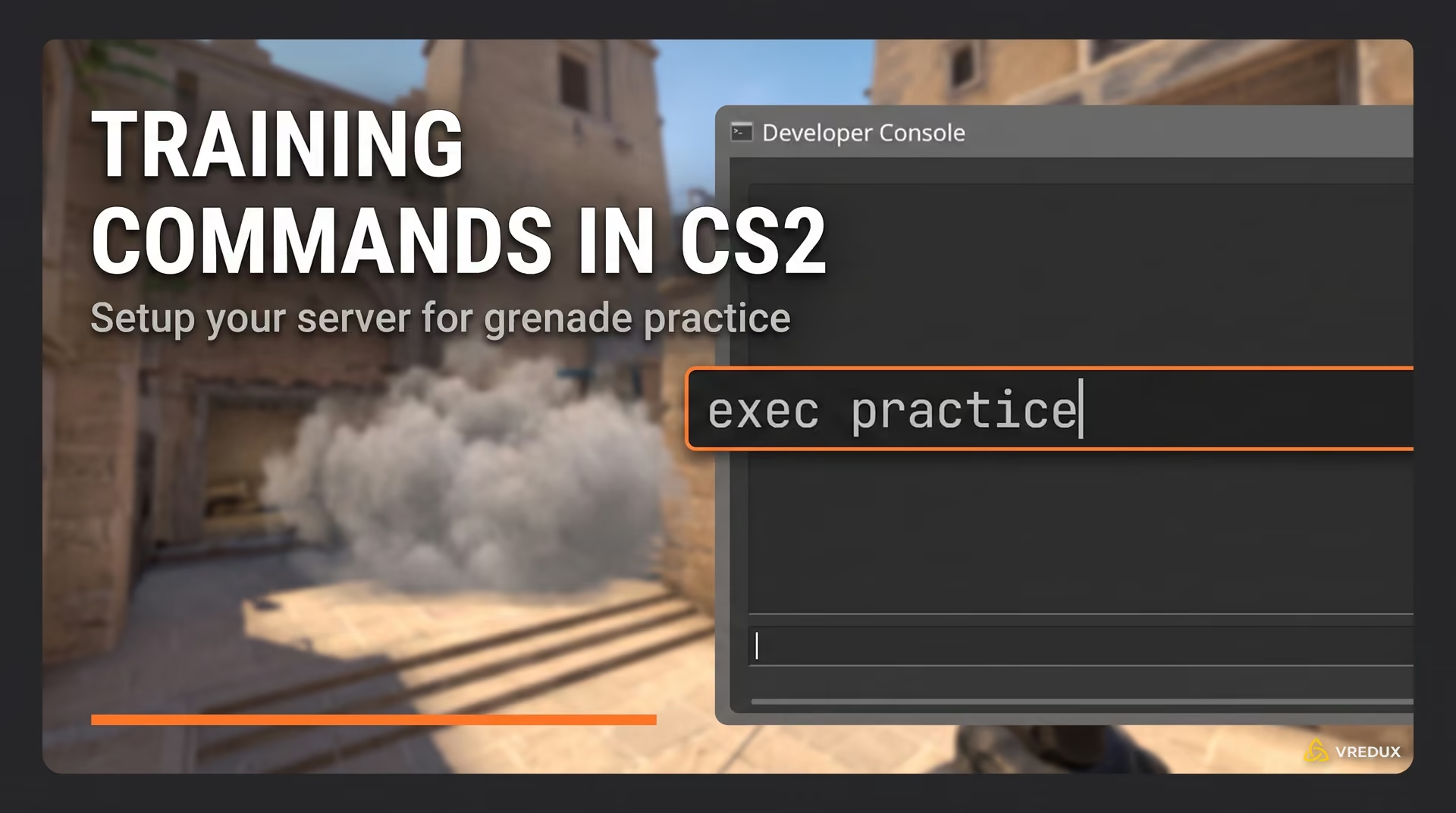
A configuration file automates your entire practice setup. Once you set up practice.cfg, you can initialize the full practice environment anytime simply by entering exec practice.
- Create a text file: Open Notepad (or your preferred text editor) and paste in the complete script provided below.
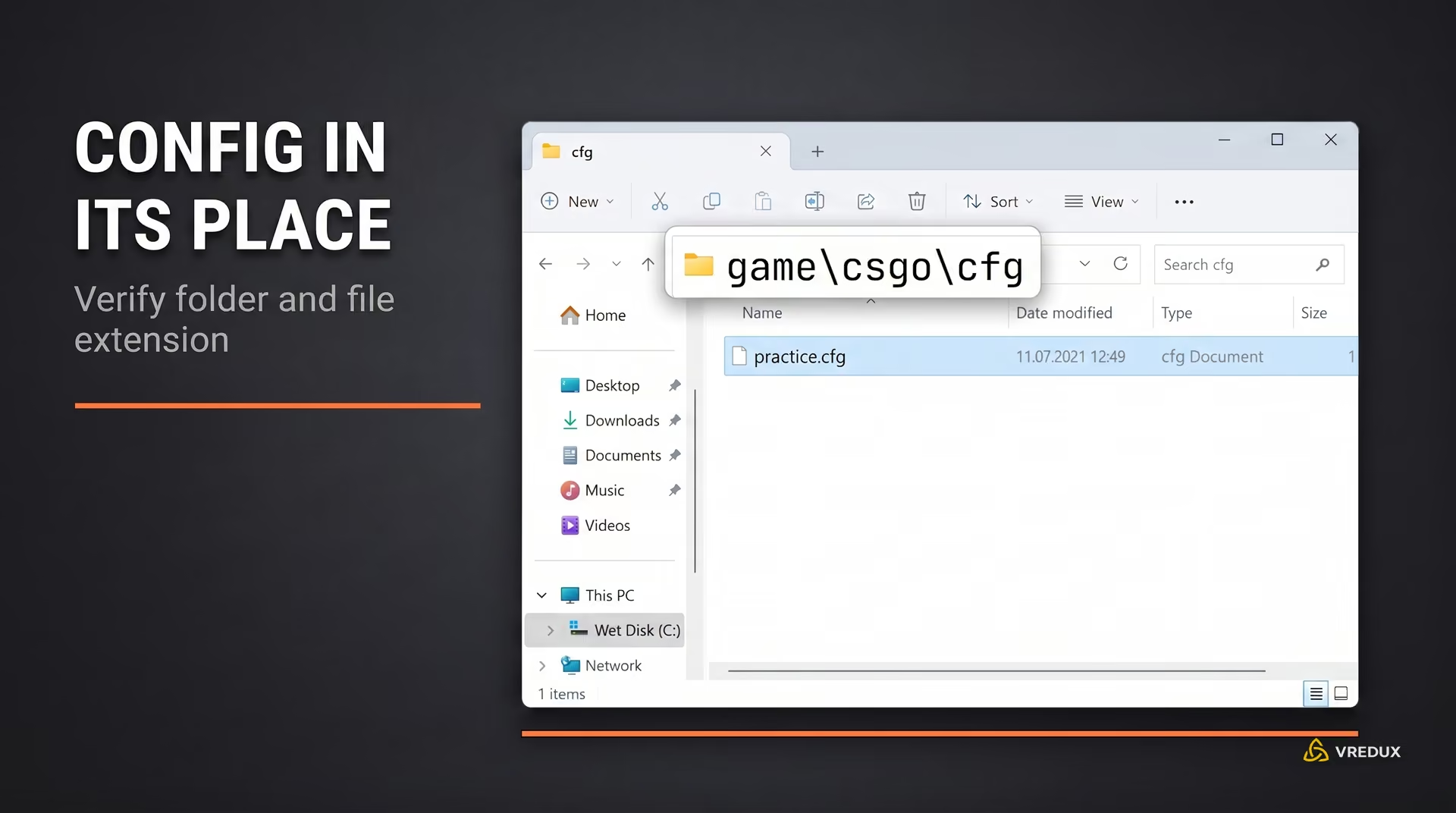
- Save with the correct extension: Click File -> Save As. Enter
practice.cfgin the File name field, and make sure to change Save as type to "All Files (*.*)". This prevents Windows from creating an invalidpractice.cfg.txtfile. - Move the file into the CS2 directory: Place the file in the following game subfolder:
Important: The Source 2 config path must go inside
...\Steam\steamapps\common\Counter-Strike Global Offensive\game\csgo\cfg\
game/csgo/cfg, not the legacy root directory. - Execute the config: Load into a practice map, open the console, and type
exec practice.
// ==========================================
// VREDUX CS2 PRACTICE CONFIG
// ==========================================

// Enable cheats and core server settings
sv_cheats 1
mp_warmup_end
mp_freezetime 0
mp_roundtime 60
mp_roundtime_defuse 60
mp_ignore_round_win_conditions 1
mp_limitteams 0
mp_autoteambalance 0

// Auto-respawn on death
mp_respawn_on_death_ct 1
mp_respawn_on_death_t 1
mp_respawnwavetime_ct 1
mp_respawnwavetime_t 1

// Economy and buy settings
mp_maxmoney 60000
mp_startmoney 60000
mp_afterroundmoney 60000
mp_buytime 9999
mp_buy_anywhere 1

// Gunplay and infinite ammo
sv_infinite_ammo 1
ammo_grenade_limit_total 5
sv_showimpacts 1
sv_showimpacts_time 10

// Grenades: PIP camera and trajectory (capped at 8 seconds in Source 2)
sv_grenade_trajectory_prac_pipreview 1
sv_grenade_trajectory_prac_trailtime 8

// Clear bots from map
bot_kick

// Essential practice binds (including clearing smoke and inferno fire)
bind "alt" "noclip"
bind "mouse5" "sv_rethrow_last_grenade"
bind "p" "ent_fire smokegrenade_projectile kill; ent_fire inferno kill; stopsound"
bind "o" "bot_place"

// Restart round to apply changes
mp_restartgame 1

// Console load confirmation
echo "====================================="
echo "--- PRACTICE CFG LOADED SUCCESSFULLY ---"
echo "====================================="
Troubleshooting: What to Do If Commands or Config Won't Work
Setting up a practice server can occasionally run into common issues caused by syntax errors or Windows file system quirks.
Console shows: "Unknown command"
This indicates either a typo in the command name or a legacy CS:GO command that was removed in Source 2 (such as sv_grenade_trajectory or net_graph). If the command syntax is valid but the server rejects it, make sure you enabled cheat permissions with sv_cheats 1.
Console displays: "Can't exec practice" or "couldn't exec practice"
This error happens when Windows hides known file extensions and saves the document as practice.cfg.txt, or when the file is placed in the wrong folder. In Windows File Explorer, enable file name extensions (View -> Show -> File name extensions), delete the trailing .txt extension, and verify that the file sits inside .../game/csgo/cfg/.
The bot_place command does not move a dummy
The command does not spawn a new character model; it teleports an existing bot. If you previously ran bot_kick, there are no bots on the server to move. Spawn a bot with bot_add_t, aim at the ground, and enter bot_place again.
Practice commands do not work in Premier or Competitive matches
ConVars under sv_cheats are strictly locked on official Valve matchmaking servers to maintain competitive integrity. You can only run practice commands in local offline matches with bots or on private dedicated servers where you have administrative RCON permissions.
Mastering these core console ConVars lets you streamline your warmup routine and test grenade lineups without downtime. For more advanced mechanics, config breakdowns, and other CS2 guides, explore our full library to fine-tune every aspect of your game.
Frequently Asked Questions (FAQ)
Here are answers to the most common questions about setting up a practice server, configuring binds, and practicing grenades in CS2.