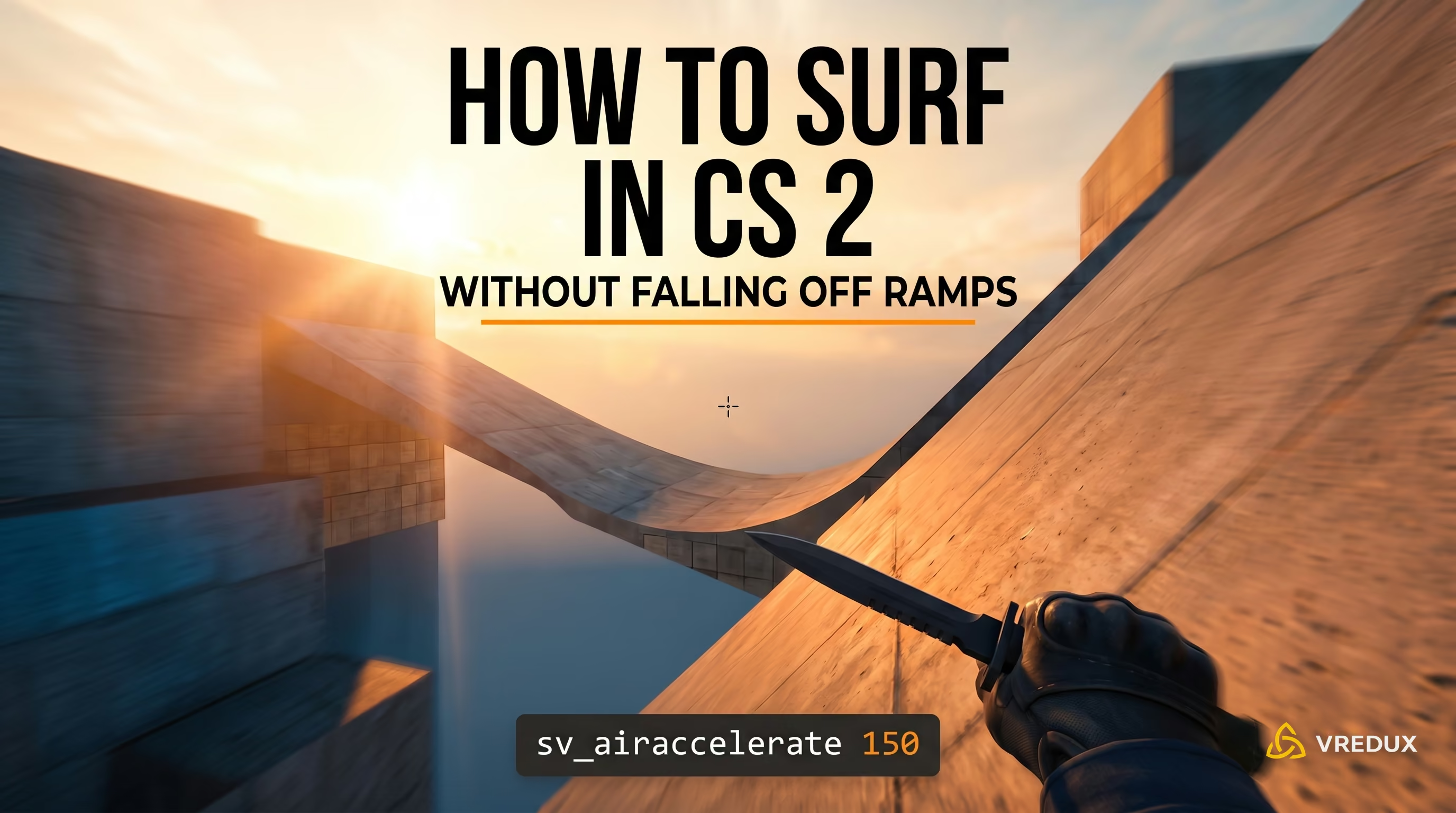
Surfing across inclined ramps traces back to CS 1.6 and the original Source engine, born from how the physics pipeline calculates air acceleration. In Counter-Strike 2 (CS2), surfing received a massive visual overhaul coming out of Global Offensive while preserving its classic movement physics. Learning how to surf in CS2 consistently without slipping off is essential for any player looking to master player-model movement. Pressing forward (W) out of habit on a ramp will instantly slide your character off and send you plummeting to the floor. In Source 2, surfing relies entirely on sideways strafe vectors: hold A on left-facing slopes, hold D on right-facing slopes, and smoothly track your crosshair along the ramp. Below, we break down every core mechanic, configure offline console commands for death-free practice, and highlight the best community servers.

Quick Summary: Rules for Staying on a Surf Ramp
Surfing in CS2 is a movement technique that lets you glide continuously across wedge-shaped ramps by countering gravity with sideways strafe inputs. To stay locked onto a ramp, hold A on left-facing slopes and D on right-facing slopes, keeping your fingers completely off W and S upon contact. For solo practice, enable sv_airaccelerate 150 and disable fall damage with sv_falldamage_scale 0 in the developer console.
- Never touch W or S on a ramp: The forward key is strictly for building initial run-up speed before reaching the ramp. The millisecond your model touches the incline, let go of W entirely.
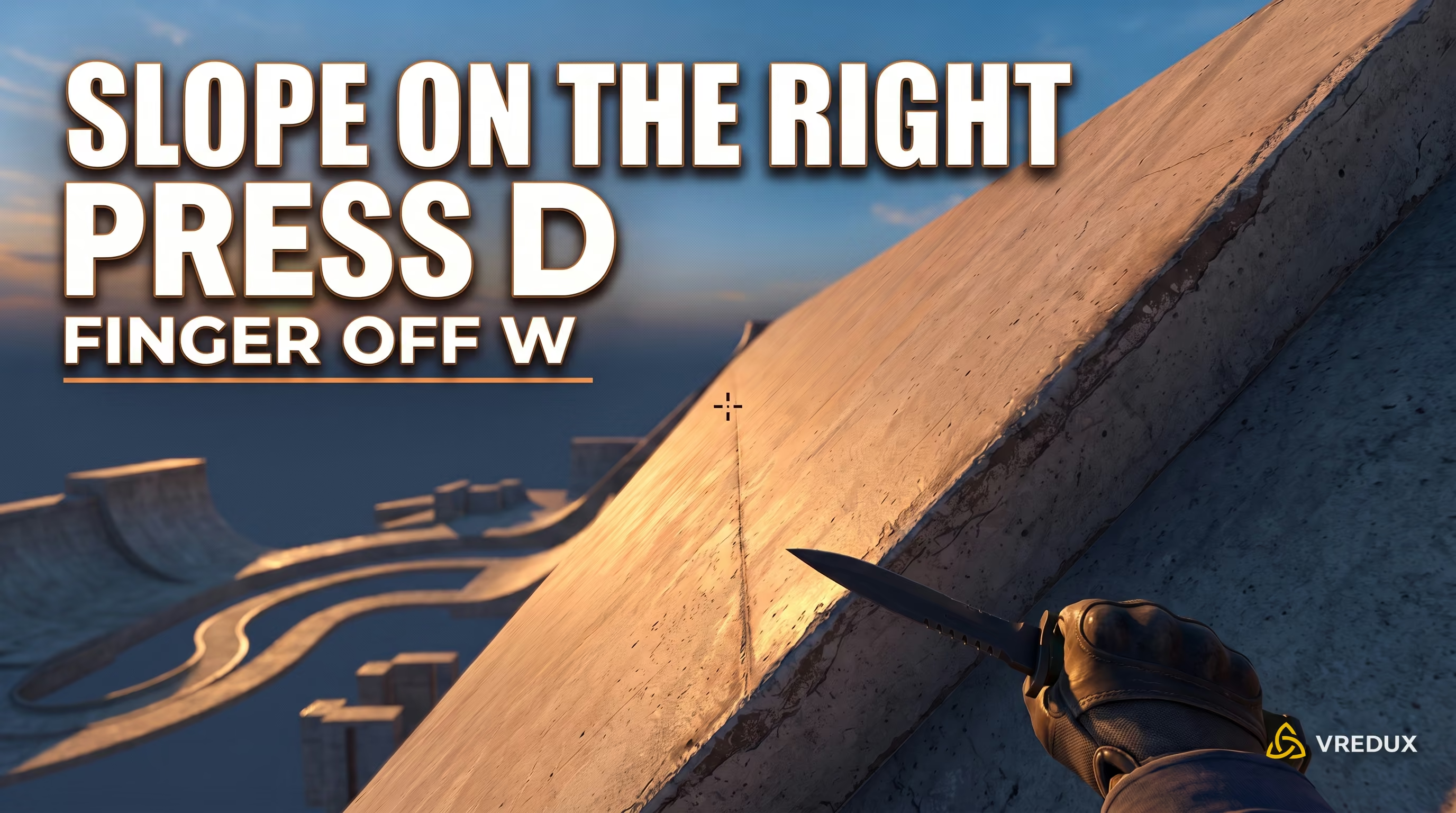
- The A-Ramp-D strafe rule: If the ramp's incline is to your character's left, hold A. If the incline is to your right, hold D. You are essentially pressing your model sideways into the surface.
- Smooth crosshair tracking: Direct your momentum by tracking your mouse smoothly along the ramp's edge. Sharp flicks or vertical twitches will instantly break your grip and throw you off.
- Speed and height management: Dipping toward the base of the ramp generates maximum acceleration, while climbing toward the top spine converts built-up momentum into launch height.
- Local offline physics: In solo play, surfing is mechanically impossible without enabling
sv_cheats 1,sv_airaccelerate 150, andsv_falldamage_scale 0.
Quick Start: How to Surf in CS2 and Pick the Right Training Mode
Learning to surf in CS2 comes down to two clear paths: offline practice on Steam Workshop maps or live runs on community surf servers. Solo practice lets you dissect mechanics and build muscle memory for strafes at your own pace without spectators. Meanwhile, community servers drop you straight into a turnkey competitive environment with automated timers and stage checkpoints.
Choose the setup that fits your current skill level:
- Solo Practice (Offline): The ideal choice for your first few hours. With no distractions, you can get comfortable with A and D key timing, develop smooth mouse tracking, and test custom console commands. Simply load a map via Practice mode and paste our ready-to-use config.
- Public Community Servers (Online): The best environment for regular surf sessions. These servers run calibrated competitive physics out of the box, enable automatic bunnyhopping by holding spacebar, and use plugins that instantly teleport you back to spawn when you drop without waiting for round resets.
Core Mechanics: How to Surf in CS2 and Glide Along Ramps
Surfing mechanics in Source 2 stem from how the engine processes a player model's velocity vector relative to the surface normal of an inclined plane. When your model contacts a wedge ramp, the engine cancels tangential friction while sideways strafe acceleration pins you to the slope, effectively converting gravity into forward gliding speed.
Table: Movement Control Matrix for Ramp Contact in CS2
The A-Ramp-D Rule: Which Keys to Press on Ramps
In competitive matches, pressing W to move forward is pure muscle memory. On a surf ramp, that instinct is fatal: holding W applies a forward vector that pushes your model straight into the surface, immediately breaking contact with the slope. To glide smoothly, you have to press sideways against the ramp: if the incline is on your left, hold A; if it's on your right, hold D. Approach the ramp at a shallow, tangential angle with your knife out to reach max running speed (250 u/s). If you're bored of the default knife and don't feel like dropping ≈$500 on Valve's virtual pixels, you can load up any skin through VRedux to run a Karambit or Butterfly Knife purely for the aesthetic and clean inspect animations.
Speed Control: Base Acceleration vs. Spine Launches
Every surf ramp divides functionally into three zones: the lower third (the base), the middle glide strip, and the upper spine. Sliding down into the base allows engine gravity to accelerate your model, letting you reach speeds exceeding 1,500 units per second (u/s). To launch cleanly onto the next ramp, guide your crosshair in a smooth upward arc toward the spine: your accumulated kinetic momentum will fling your model airborne, giving you the distance and airtime needed to reach the next platform.
Transitioning Between Ramps: Air-Strafing Technique
The moment you leave a ramp's edge, you enter a free-flight phase where maintaining speed depends entirely on air-strafing. Airborne steering demands precise synchronization: to turn smoothly to the left, hold A while guiding your crosshair left in a steady, controlled motion. To carve right, hold D while tracking your mouse to the right. Tapping W in midair will instantly kill your forward momentum. Mastering air-strafing on surf ramps lays a rock-solid foundation for all advanced CS2 movement training, including bunnyhopping and precision skill jumps on competitive maps.
CS2 Surf Commands: Console Setup and Offline Physics
Configuring surf physics in Counter-Strike 2 requires manually tuning server cvars through the developer console. In standard competitive matchmaking, air acceleration (sv_airaccelerate) is locked at 12, making midair steering virtually non-existent. A proper offline surf environment requires lifting round restrictions and disabling fall damage entirely.
All-in-One Offline Practice Script
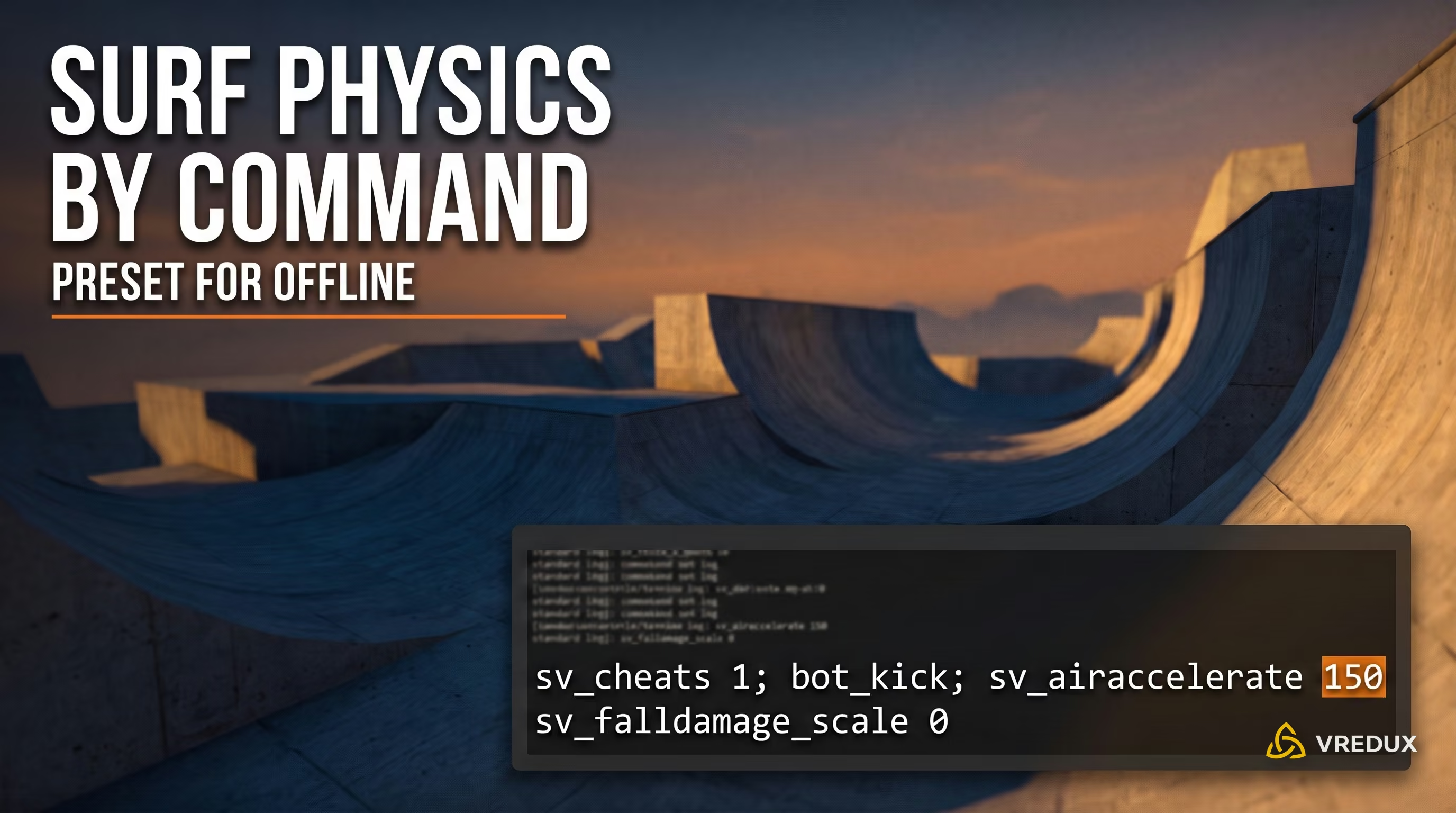
Before applying these settings, make sure the developer console is enabled in your game settings. Launch your chosen Workshop map through Practice mode, open the console, and paste the following config string:
This preset kicks all bots, zeroes out fall damage (sv_falldamage_scale 0), prevents premature round resets (mp_ignore_round_win_conditions 1), enables automatic bunnyhopping, and applies the competitive standard air acceleration of 150.
The sv_airaccelerate Dilemma: Competitive 150 vs. Casual 800
The sv_airaccelerate cvar controls how responsively your model steers in midair when turning your crosshair. Outdated guides often recommend setting this to 800 or 1000, which causes your model to stick aggressively to ramps and make sharp 90-degree turns without losing grip. However, learning on 800 creates flawed muscle memory: public community servers run sv_airaccelerate 150 as the universal standard. If you train on inflated values, you will struggle to complete even basic routes in multiplayer.
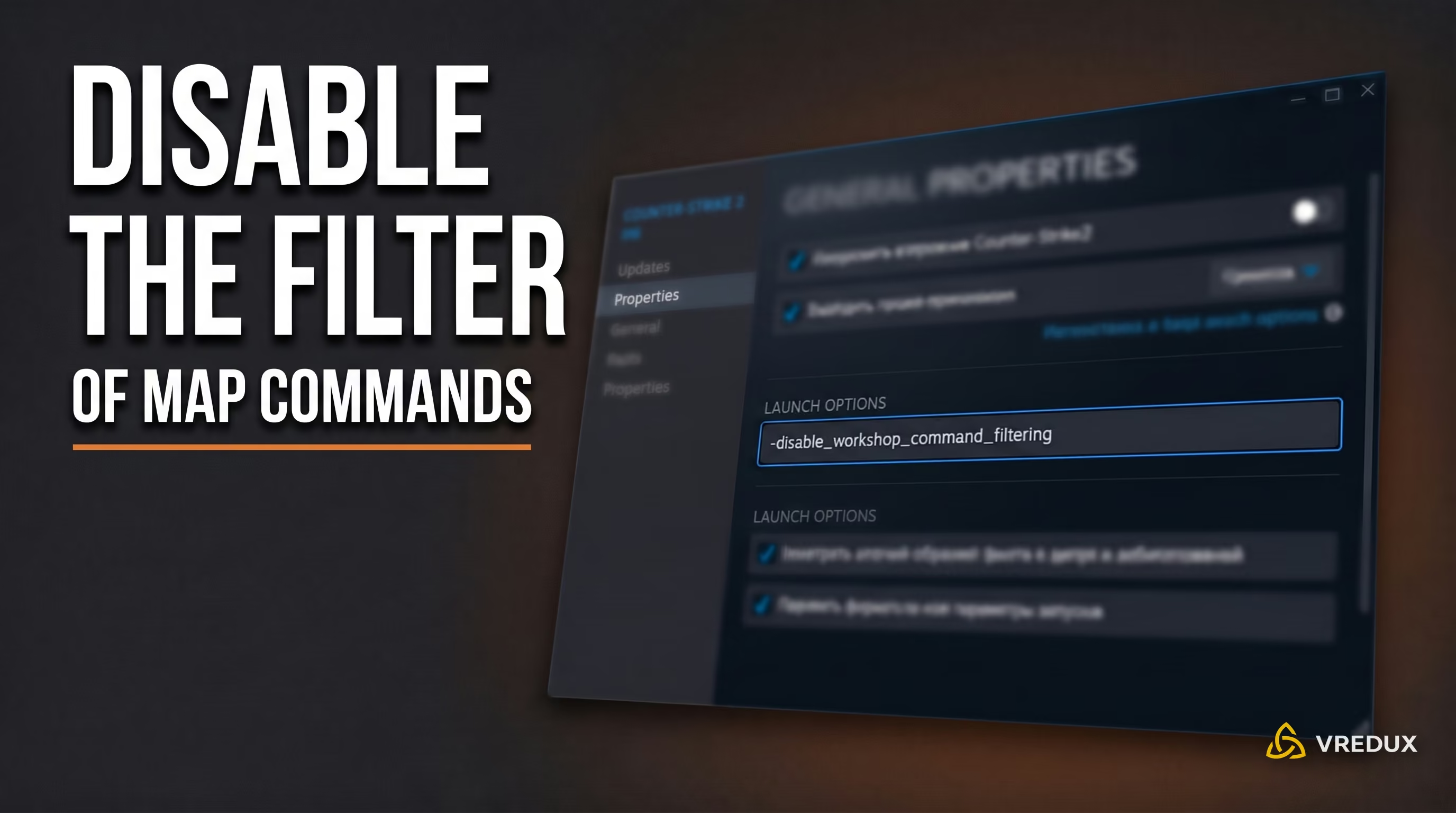
Bypassing Workshop Command Filtering (-disable_workshop_command_filtering)
Following security patches introduced in January, Valve added a cvar filtering system to custom Workshop maps, which can block commands starting with the sv_ prefix. To bypass this restriction and restore full console functionality, follow these steps:
- Open your Steam Library and locate Counter-Strike 2.
- Right-click the game and select Properties.
- Under the General tab, find the Launch Options field.
- Enter
-disable_workshop_command_filteringand restart CS2.
How to Join CS2 Community Surf Servers
Public CS2 surf servers run on dedicated hosts powered by SharpTimer and CounterStrikeSharp plugins. This infrastructure eliminates the need for manual console tuning: movement physics are configured server-side, and dropping off a ramp triggers an instant respawn back to the starting platform without round delays.
Finding Servers via In-Game Browser and Direct Connect
Connecting to surf servers is handled through the built-in community browser or directly via the console:
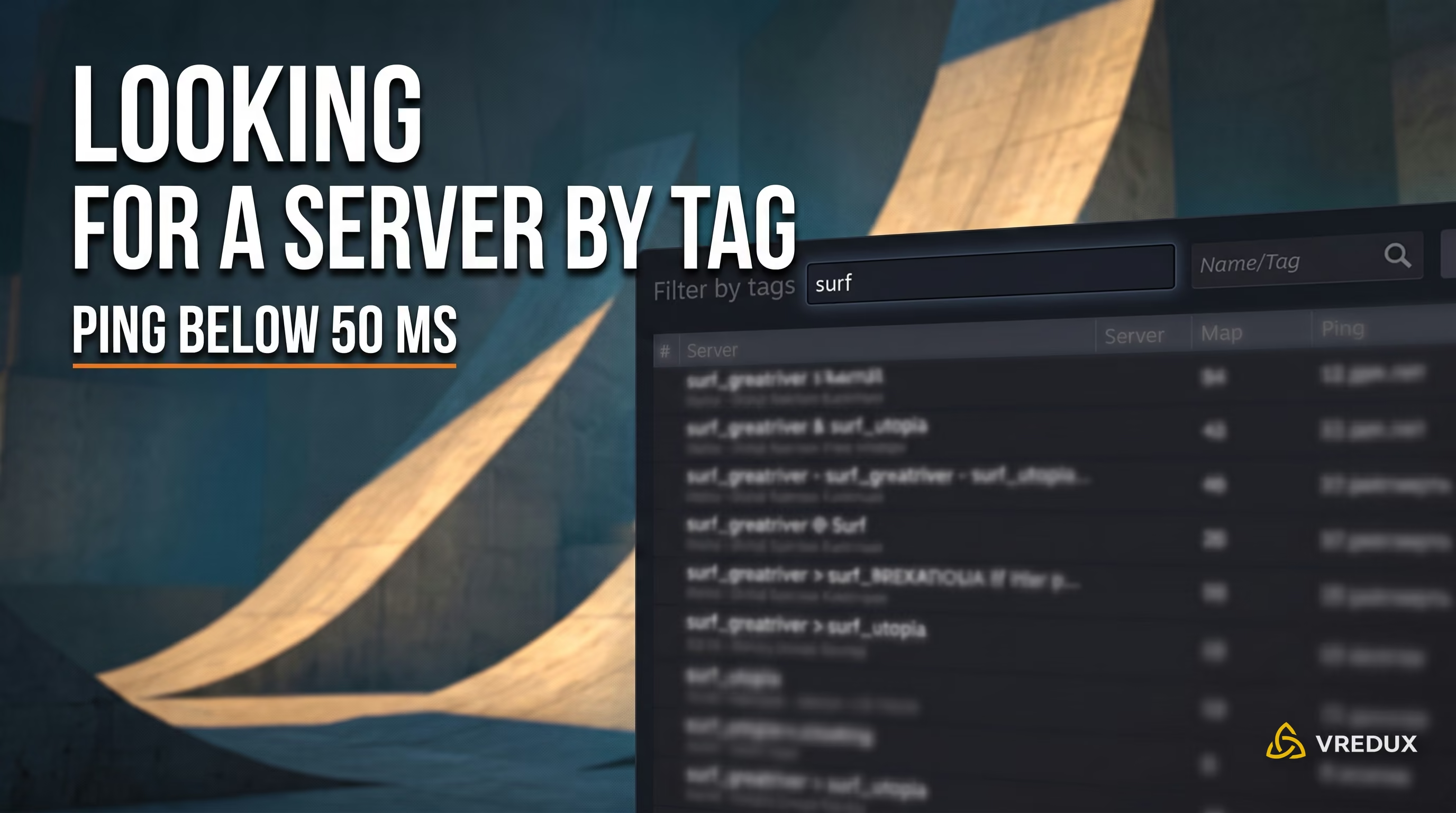
- From the CS2 main menu, click Play and select the globe icon next to the official matchmaking tabs.
- In the pop-up browser window, navigate to the Internet tab.
- Type
surfinto the map name or tag filter. - Sort the list by latency (keep ping below 50 ms to ensure clean sub-tick registration).
- If the in-game list is empty, open a community server tracker (such as Cybershoke or Xplay), copy the server address, and type
connect IP:PORTinto your console.
Table: Essential Chat Commands on CS2 Surf Servers
Best Beginner Surf Maps in CS2: Learning from Scratch
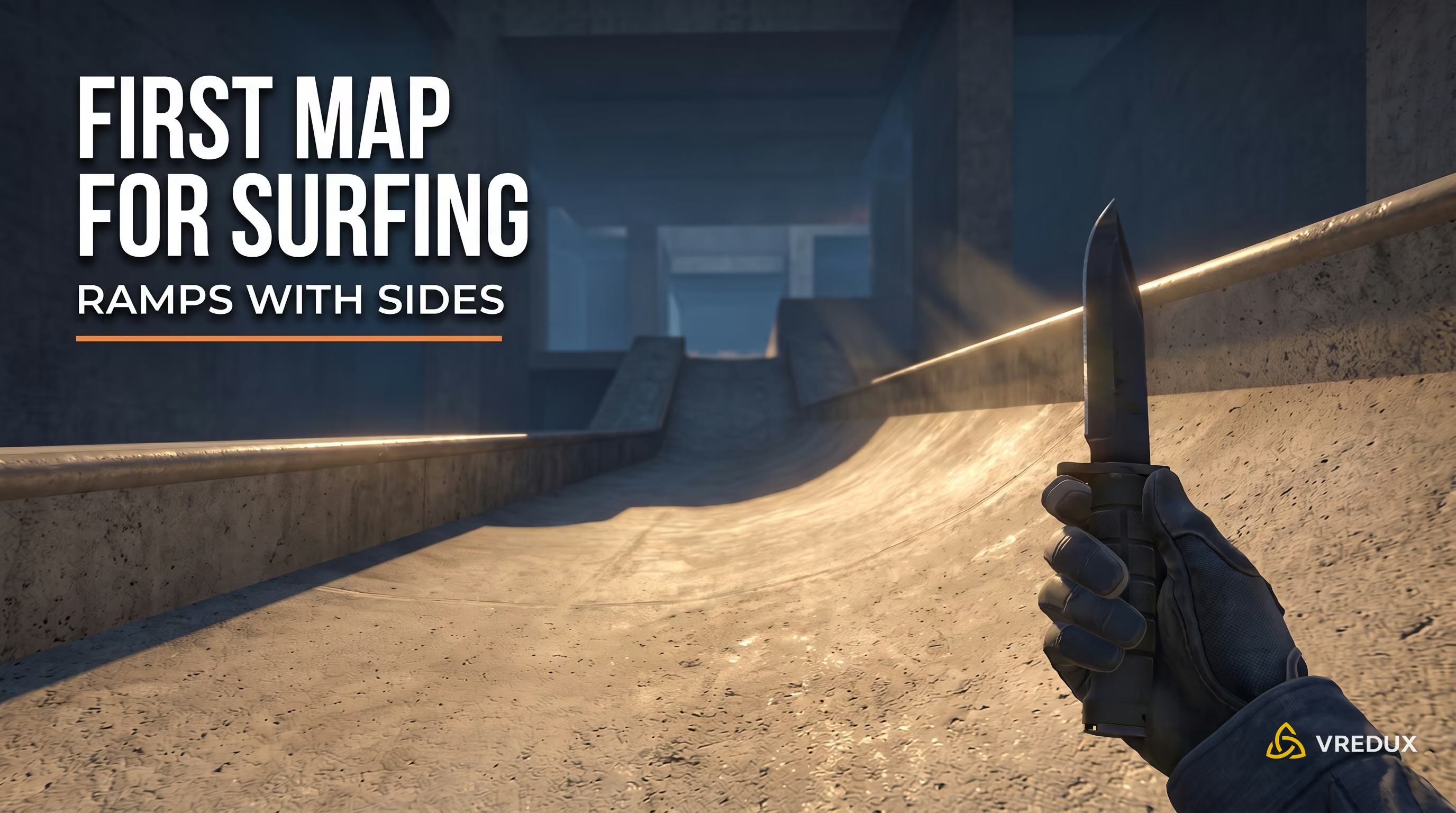
Starting on the right map makes all the difference when locking down basic ramp mechanics. Surf maps are ranked from Tier 1 (gentle, forgiving ramps with wide landing zones) up to Tier 6 (razor-thin spines and punishing maneuvers). When starting out, stick strictly to proven Tier 1 maps optimized for Source 2 lighting and mesh collisions.
Table: Proven Tier 1 Beginner Surf Maps in CS2
To install these maps, open the CS2 Steam Workshop, search for the map title, and click Subscribe. Once downloaded, the map will appear in your in-game Practice menu under the Workshop Maps tab.
Troubleshooting CS2 Surfing: Why You Slip Off Ramps
Losing grip and sliding off ramps in Counter-Strike 2 often comes down to engine-level quirks. Unlike previous iterations of the game, the sub-tick system demands exceptionally smooth mouse tracking. Understanding how Source 2 collision mechanics work helps you quickly diagnose and fix sudden stops.
Table: Common CS2 Surfing Issues and Solutions
Frequently Asked Questions (FAQ)
Mastering how to surf in CS2 at a high level gives you a decisive mechanical edge in crosshair coordination and player-model movement across competitive maps. While inexperienced players bleed fractions of a second dropping off ledges or getting snagged on map geometry, surf practice builds seamless, automated strafing and mouse tracking. If you want to expand your technical movement toolkit even further, check out our other CS2 guides in the knowledge base.