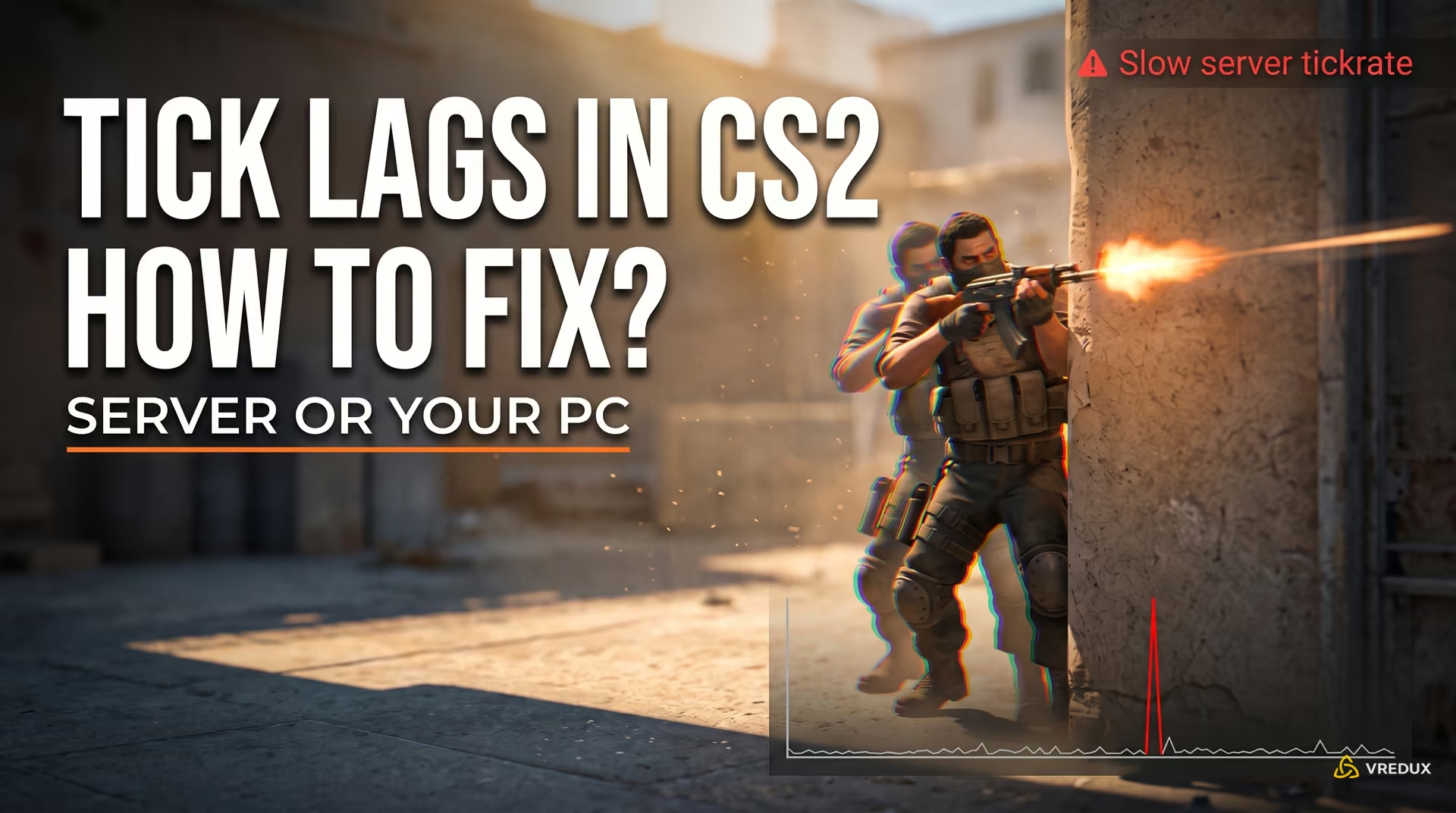
The red "Slow Server Tick Rate" warning in the top right corner of the Counter-Strike 2 (CS2) HUD always seems to appear at the worst possible moment: your screen starts stuttering, and shots stop dealing damage. With a hardcoded 64 Hz tickrate, the server must calculate every game step in exactly 15.625 milliseconds. When the server gets overloaded, that strict timing falls apart, triggering player teleportation, model desync, and delayed hit registration. At VRedux, we regularly break down Source 2 networking issues, so let's unpack the mechanics behind this CS2 error in plain English.
Quick Summary: The Issue in 30 Seconds
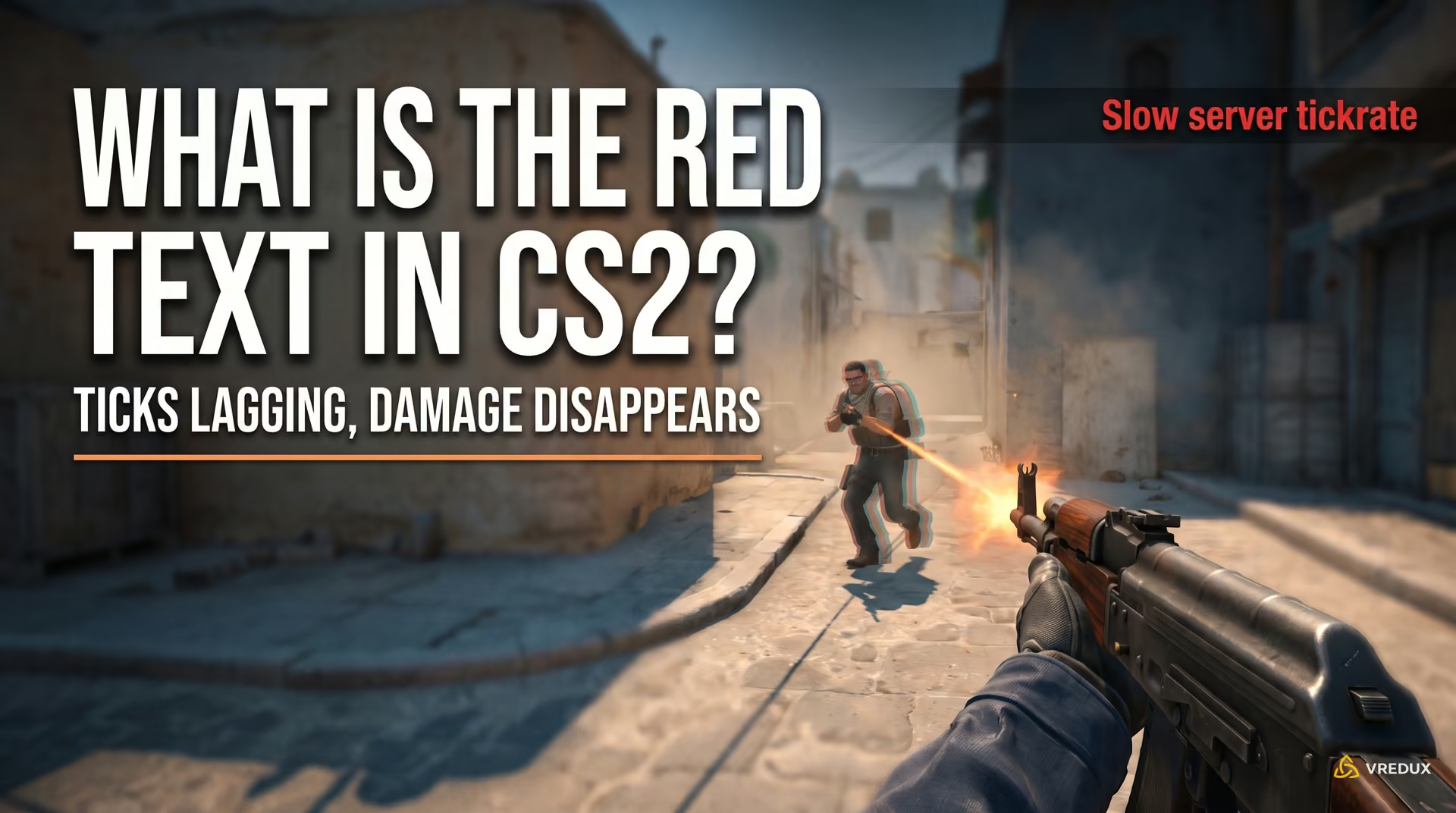
The "Slow Server Tick Rate" warning in Counter-Strike 2 indicates that the server's world simulation cycle has exceeded the standard 15.625 millisecond budget at a locked 64 Hz tickrate. The number displayed alongside the alert shows the actual duration of the delayed server frame. This error points to computational CPU overload on the server, not a change in the game's network mode.
- This is not a drop from 128-tick: CS2 has no 128-tick rate on official servers. The game is hard-locked to 64 Hz with a 15.625 ms update step. The warning reports an individual frame delay, not a server mode switch.
- The number on screen is real frame delay: Seeing 54 ms means the server took a full 54 ms to calculate a single tick instead of the allotted 15.6 ms. The higher that number climbs, the worse the desync and lag become.
- Hiding the HUD banner does not fix the issue: Setting telemetry warnings to "Never" merely clears the red text from your screen. The physical rubberbanding and dropped hit registration remain unchanged.
- In standard matchmaking, there is little you can do: If your ping is stable, FPS is high, and the warning still flashes on Valve servers, the virtual machine in the datacenter is lagging. Lowering your graphics settings will not help here.
Quick Diagnostics: Is It Your PC, Network, or the Server?
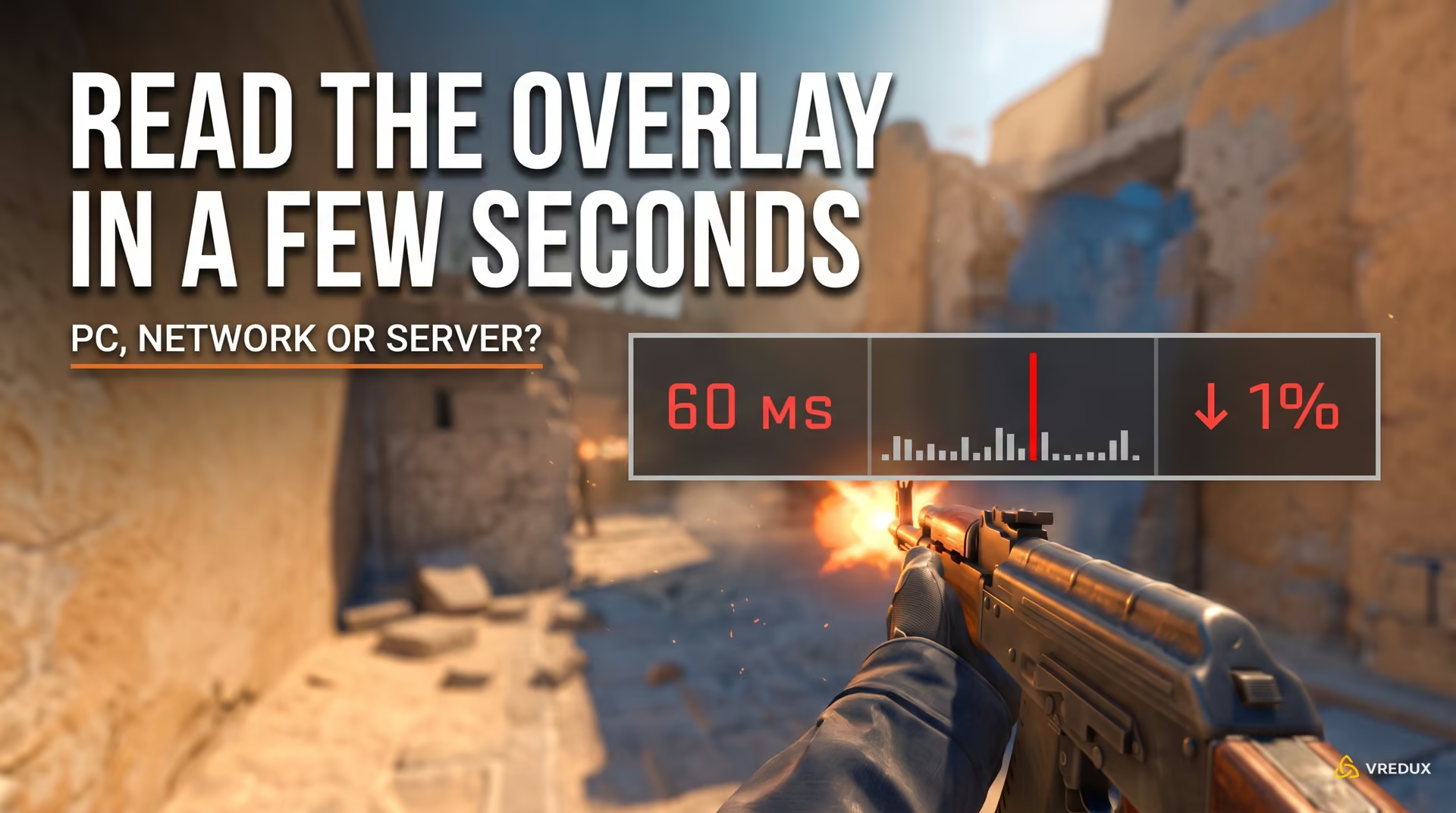
CS2's built-in Telemetry overlay provides an exact diagnostic readout to pinpoint where latency originates. Frame time spikes on the left (measured in milliseconds) indicate hardware instability on your CPU or GPU. Red arrows displaying percentage values point to packet loss across your ISP's network route. A text warning about a slow server tick rate alongside stable ping confirms that the remote match server is overloaded.
Table: Quick Latency Root-Cause Diagnostics
What Slow Server Tick Rate Means in CS2 and Where the Millisecond Number Comes From
Counter-Strike 2 uses a hardcoded 64 Hz tickrate, enforcing a strict 15.625 millisecond world update window. The numeric value in the warning measures how long the server actually took to compute that frame when it breached the budget. When a simulation tick stalls, incoming Subtick input packets queue up, causing severe hitbox desync, teleporting player models, and ghost shots.
Many players mistakenly believe CS2 is attempting to downgrade from 128-tick to 64-tick. In reality, Valve locked the Source 2 server tickrate at 64 Hz for everyone across the board. To explore how the network architecture operates under the hood, check out our breakdown of tickrate and subtick in CS2, where we dissect packet flow and server timestamps.
The Raw Math: Why Exactly 15.625 ms?
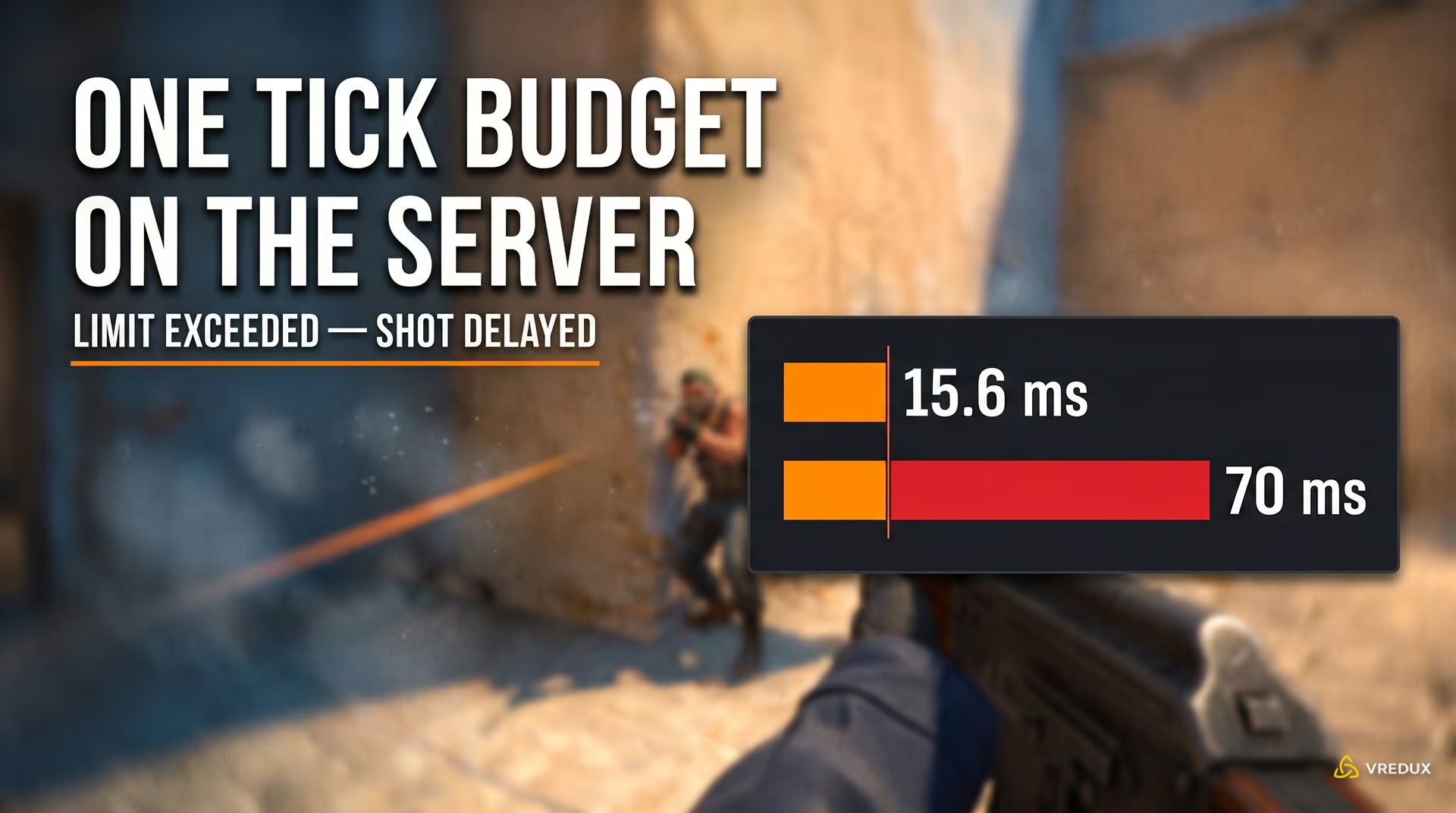
A CS2 server must refresh the world state 64 times per second. Dividing 1,000 milliseconds by 64 gives you exactly 15.625 ms per tick. Within that split second, the server has to ingest commands from all 10 players, simulate grenade physics and bullet trajectories, register damage, and broadcast the authoritative snapshot back to every client. When the server CPU chokes, it overruns that 15.6 ms threshold. The server logs a frame drop, and your HUD flashes a warning showing the exact duration of the stalled tick.
Table: How Server Tick Duration Affects Gameplay
How Tick Delays Break the Subtick System
Subtick operates on a straightforward principle: when you click left-mouse, your client timestamps the action down to the exact microsecond. But validating that hit and applying damage remains the server's job—and it only resolves hits at the end of each tick. If a simulation tick stalls for 70–80 ms, your shot sits waiting in a queue. You land a clean headshot on your screen, but by the time the bogged-down server computes the event, the target has already moved behind cover on theirs.
CS2 Telemetry Configuration: Reading the Overlay and Hiding the Banner
CS2's Telemetry suite replaced the legacy net_graph command, displaying real-time performance metrics directly inside the HUD. The in-game settings menu lets you pin frametime, framerate (FPS), ping, and packet misdelivery permanently or display alerts only when connection quality or local hardware performance dips below acceptable thresholds.
You can configure telemetry in CS2 through either the game settings or the developer console. If you haven't set up your custom autoexec yet, check our step-by-step guide on how to enable the developer console in CS2.
Breaking Down the Overlay Elements
- Frametime on the left (ms): Represents your PC's worst (longest) frame render over recent seconds. If your average FPS sits high (200+), but this number spikes to 35–50 ms, your system is hitching due to background tasks, thermal throttling, or a CPU bottleneck.
- Framerate on the right (FPS): Your system's average frames per second.
- Ping: Round-trip time in milliseconds for packets traveling between your PC and Valve's game servers.
- Down Arrow (↓ %): Incoming packet loss from the server to your client. Anything above 0% causes other players' models to jitter and warp.
- Up Arrow (↑ %): Outgoing packet loss from your PC to the server. If this registers lost packets, the server is dropping your shots, jumps, and movement inputs.
Enabling Telemetry via the In-Game Settings
- Click the gear icon in the top left corner to open the Settings menu.
- Navigate to the "Game" tab and scroll down to the "Telemetry" section.
- For continuous monitoring, set Frametime, Ping, and Packet Misdelivery to "Always."
Telemetry Console Variables
If you prefer configuring settings via autoexec.cfg, add this optimized block to your config:
How to Fix Slow Server Tick Rate in CS2 Premier and Competitive Matchmaking
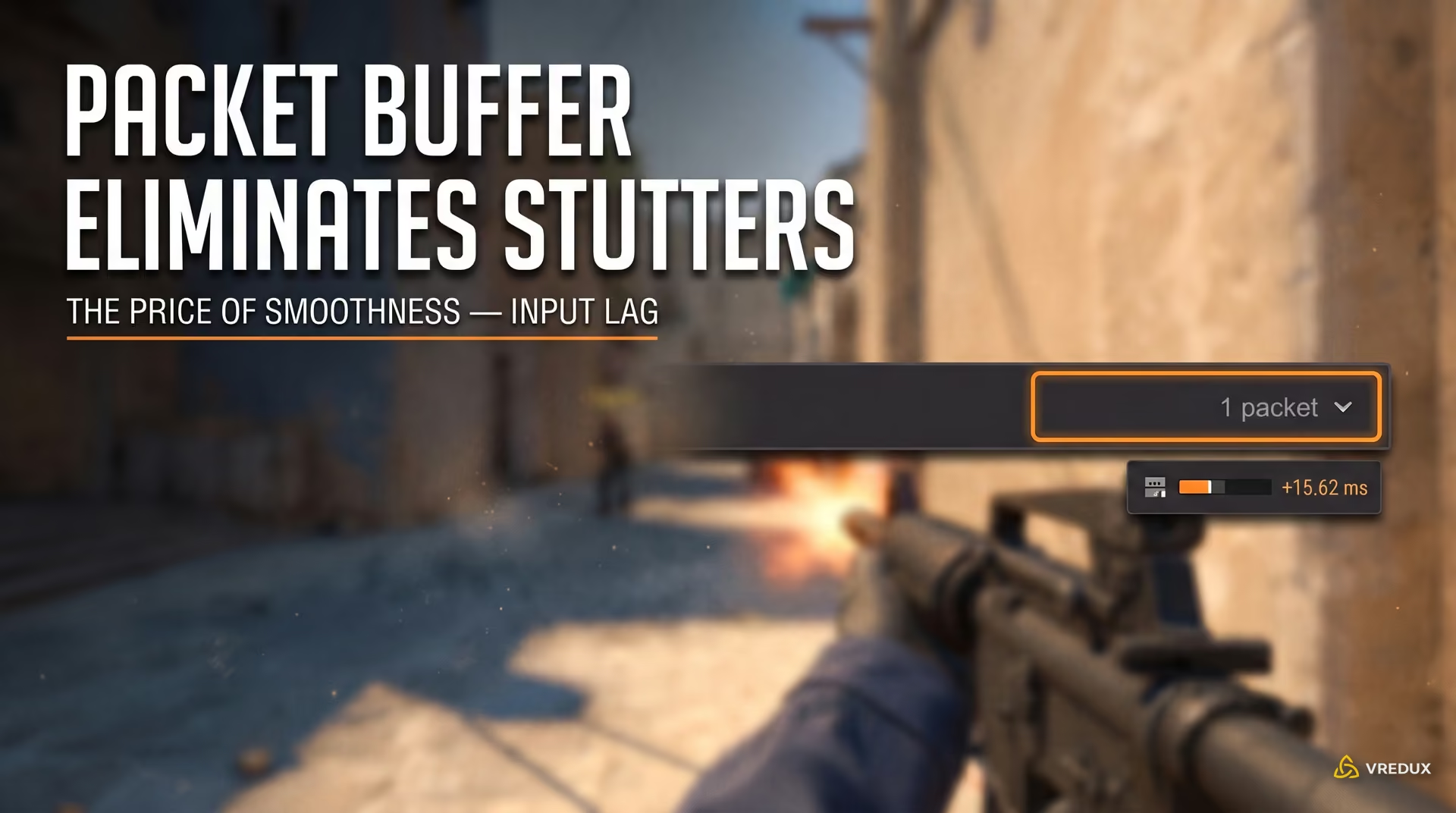
Stabilizing network latency in CS2 competitive modes comes down to adjusting packet buffering via cl_net_buffer_ticks. Setting it to 1 smooths over dropped data by adding 15.625 milliseconds of input latency, while a value of 2 adds 31.25 milliseconds. To avoid routing to congested, distant datacenters, restrict your matchmaking search radius using mm_dedicated_search_maxping in the developer console.
Step 1. Packet Buffering (cl_net_buffer_ticks)
In the CS2 settings menu, this option is labeled "Buffering to smooth over packet loss/jitter." The client holds packets in reserve to iron out connection spikes, trading a fraction of input responsiveness for visual smoothness:
Table: Packet Buffering Modes
If your connection constantly triggers red misdelivery arrows, be sure to read our comprehensive guide on fixing packet loss in CS2, which explains how to isolate problematic routing nodes.
Step 2. Restricting Matchmaking Search Ping
To prevent the matchmaker from routing you onto distant datacenters plagued by routing instability, restrict your maximum acceptable ping via the console:
Step 3. Stabilizing Your Local PC Network Adapter
In competitive shooters, Wi-Fi is almost always the weakest link. Connect your PC directly with a Cat 6 Ethernet cable. In Windows Device Manager under your network adapter properties, disable "Energy Efficient Ethernet" and "Green Ethernet" to stop the controller from entering low-power sleep states mid-round.
Step 4. How to Hide the HUD Warning Banner
If gameplay feels smooth, your shots register cleanly, and the red text is simply cluttering your screen, head to Settings → Game → Telemetry and set "Show slow server tick rate warning" to "Never."
Tick Lag and Simulation Delays in Offline CS2 Bot Matches
Launching an offline practice match with bots forces your CS2 client into a local listen server environment. Your CPU must render graphics while simultaneously processing navigation meshes and AI decision trees for nine individual bots. Insufficient single-core processing throughput results in dropped local simulation ticks, triggering the alert even with zero internet traffic.
In a standard online match, your PC only handles rendering and client-side interpolation while Valve's dedicated servers shoulder the heavy physics computation. But in an offline practice match, your machine becomes the authoritative host. Your CPU has to render visual frames while calculating behavioral logic for 9 bots: navigation paths, sightlines, and shooting vectors. When the primary simulation core saturates, the tick calculation stretches past 15.6 ms—flashing the tick alert despite being entirely offline.
How to Quickly Relieve CPU Load
- Kick unnecessary bots: Nine default bots create massive physics and AI overhead. Type
bot_kickin the console, then set a manageable limit withbot_quota 5. Five bots are plenty for warmup and utility drills, cutting CPU AI overhead in half. - Cap your framerate: Letting your GPU churn out 400+ FPS unchecked starves the CPU thread scheduler. Cap your framerate to match your display using
fps_max 200(or your preferred monitor refresh rate limit). - Close resource-intensive background apps: Web browsers with dozens of tabs, Discord hardware acceleration spikes, and background recording software drain vital CPU resources.

CS2 Dedicated Server Admin Guide: Eliminating Tick Drops
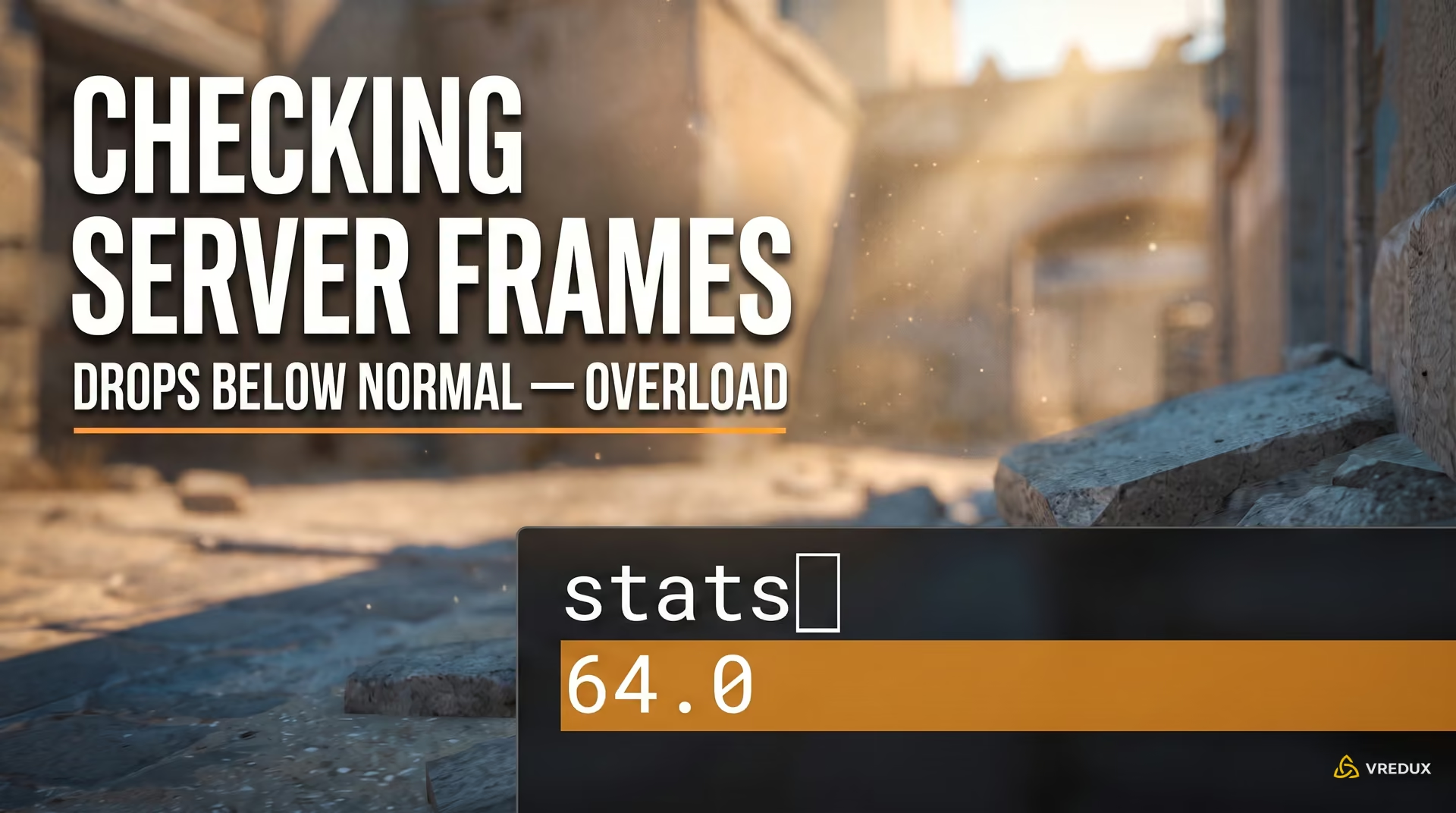
Performance on a Source 2 Dedicated Server (CS2DS) hinges entirely on single-core CPU throughput because the authoritative simulation loop runs on a single execution thread. The console command stats tracks the server's true frame update rate. Any drop below 64.0 signals that the host CPU core is buckling under heavy plugins, unoptimized scripting, or excessive active entities.
Diagnostics via the stats Console Command
Access your dedicated server console and run stats. The output displays current CPU load and actual server tickrate/FPS. If the tickrate holds rock-solid at 64.0, the host is keeping pace. If that number slips down to 45–55, the server is dropping ticks, prompting red telemetry alerts across all connected players' screens.
Server CPU Hardware Requirements
The primary simulation thread in Source 2 cannot be distributed across multiple cores. Older enterprise CPUs with low per-core clock speeds buckle under full 14–16+ player loads, failing to maintain 64 ticks. High-performance community servers require modern architectures featuring high single-core turbo frequencies of 4.8–5.0 GHz or higher.
Plugin Auditing and curtime Precision Drift
Audit your installed plugins and strip out any scripts executing blocking calculations or synchronous database queries inside the per-tick loop. Furthermore, running a server continuously for over 24 hours causes floating-point precision degradation in the engine's 32-bit curtime variable, inducing frame pacing stutter. Schedule automated daily restarts to flush timers and reset the simulation clock.
Debunking Common Myths: Placebo Fixes That Break Your Game
Many circulating CS2 optimization guides still recycle obsolete network commands from the original Source engine. ConVars like cl_updaterate, cl_cmdrate, and cl_interp are either hard-locked or removed entirely, while installing 20-year-old Visual C++ 2005 redistributables has zero effect on the 64-bit cs2.exe executable. Pasting these commands merely floods your console logs with syntax errors.
Table: Obsolete and Non-Functional Network Commands
Final Checklist: Step-by-Step Action Plan for Slow Server Ticks
Now that you understand how Source 2 handles simulation cycles, you can diagnose latency in seconds using your HUD telemetry. If your hardware is running cool and the warning only pops up in an isolated match, save your energy—the datacenter is simply experiencing peak congestion. To master the rest of the tactical shooter's core mechanics, check out our other CS2 guides across our knowledge base.
- Gauge the frequency: Is the alert isolated to a single match, or does it trigger every game? Isolated drops are almost always server-side datacenter hiccups—finish your match and move on.
- Check the packet loss arrows: If red percentage arrows flash next to the warning, set packet buffering to 1 packet (
cl_net_buffer_ticks 1) and inspect your physical Ethernet cable. - Restrict matchmaking ping: Execute
mm_dedicated_search_maxping 45to filter out congested or distant servers. - Ease offline CPU load: When warming up against bots, trim the active roster using
bot_quota 5and cap your max FPS. - Disable the HUD banner: If your gameplay feels completely responsive and hit registration is sharp, suppress the warning in Telemetry settings by choosing "Never."
FAQ: Frequently Asked Questions About Slow Server Ticks
The red slow server tick rate warning in CS2 is an objective indicator that a game simulation step exceeded its allotted 15.625 millisecond window. When the warning flashes intermittently on official Valve servers, the root cause lies within datacenter load, making matchmaking ping filtering (mm_dedicated_search_maxping) or 1-packet buffering the cleanest solutions. If you are configuring your own dedicated server, monitor CPU thread saturation, strip unoptimized scripts, and verify tickrate stability with the stats command. For comprehensive network optimization, explore our in-depth guides on fixing packet loss in CS2 and CS2 tickrate and subtick mechanics on VRedux.