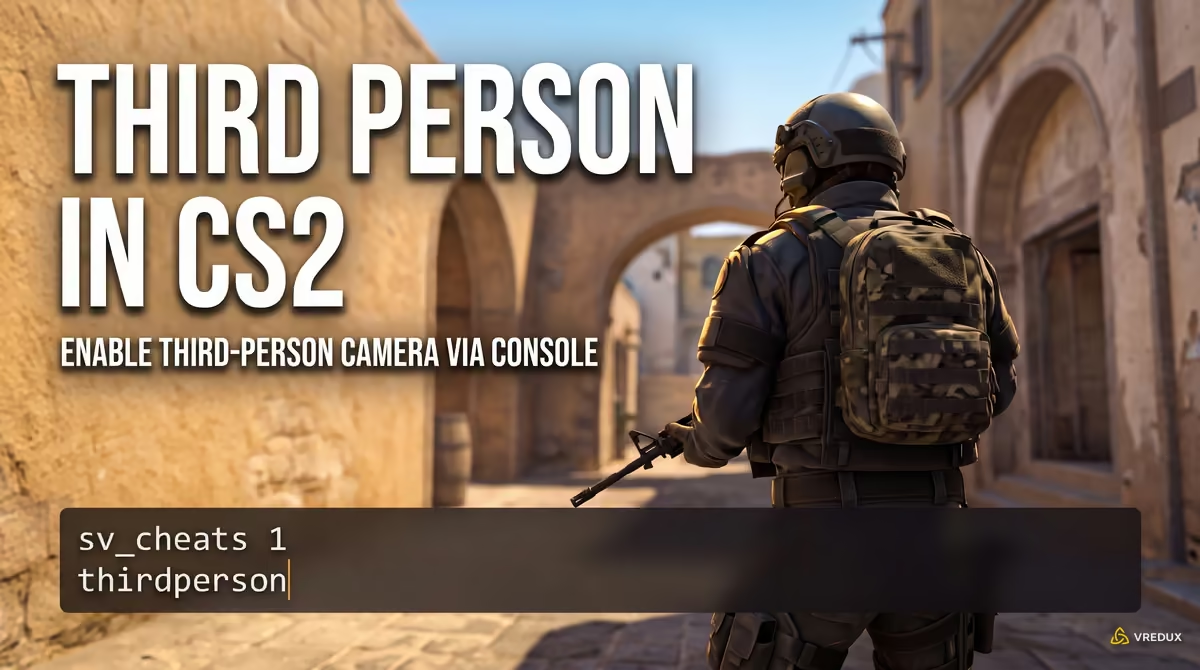
Checking corners and inspecting skins via debug camera convars dates back to the early days of Source, but Counter-Strike 2 enforces far tighter netcode. Trying to run familiar commands on Premier or FACEIT servers will throw an access denied error in your console—cheat-flagged convars are hard-locked on the server side to protect competitive integrity. On a local practice server with bots, however, enabling third-person view in CS2 takes just three seconds, making it ideal for checking angles, analyzing positioning, or capturing cinematic flybys. In this guide, we break down the active Source 2 camera manifest, ready-to-use binds, and known ballistic quirks for 2026.

Quick Take: The Basics in 30 Seconds
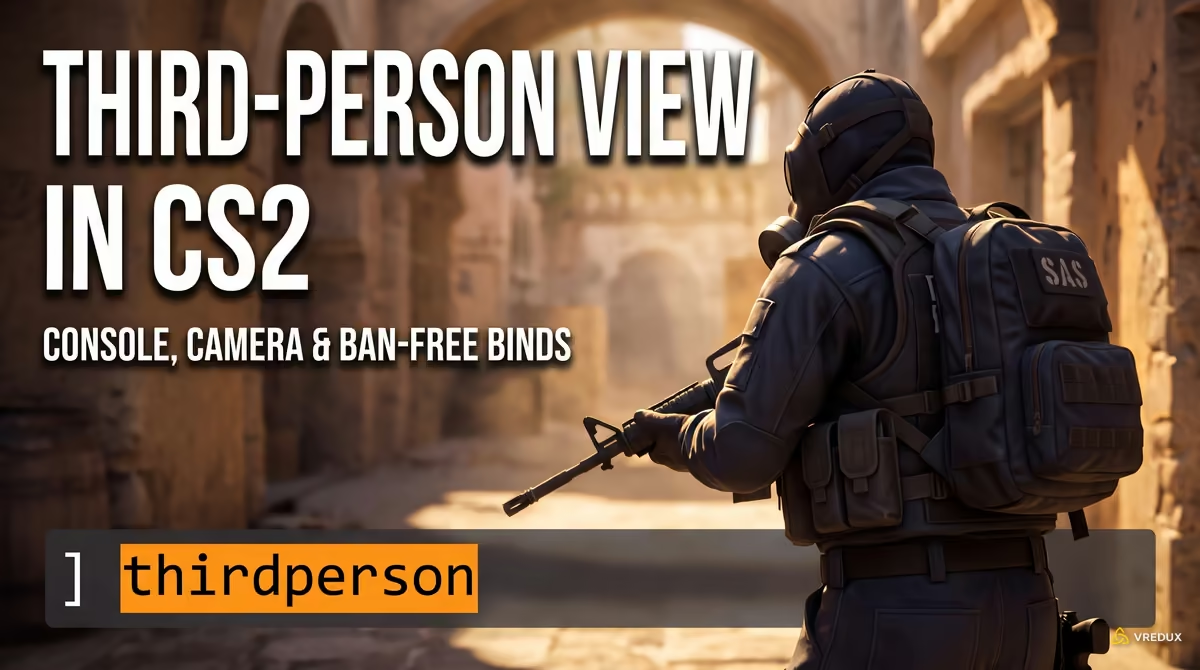
To enable third-person view in CS2 via the console, launch Practice Mode with bots, open the developer console with the tilde key (~), unlock cheat-flagged convars by entering sv_cheats 1, and type thirdperson. To return to the standard first-person perspective, enter firstperson. In official Matchmaking and Premier modes, this feature is strictly blocked by the FCVAR_CHEAT flag.
- Activation command:
thirdperson—shifts the view matrix behind your agent, requiringsv_cheats 1on the server. - Reset command:
firstperson—instantly returns the camera to first person; enteringthirdpersonagain does not toggle it off. - Where it works: Offline Practice Mode with bots, private local lobbies, Steam Workshop custom maps, and dedicated private servers.
- Where it is blocked: Official Competitive Matchmaking, Premier, Wingman, Deathmatch, and FACEIT—the command is blocked by the FCVAR_CHEAT network flag.
- Ban risk: 0% on local servers—VAC Live does not penalize built-in Source 2 console convars.
- Distance adjustment:
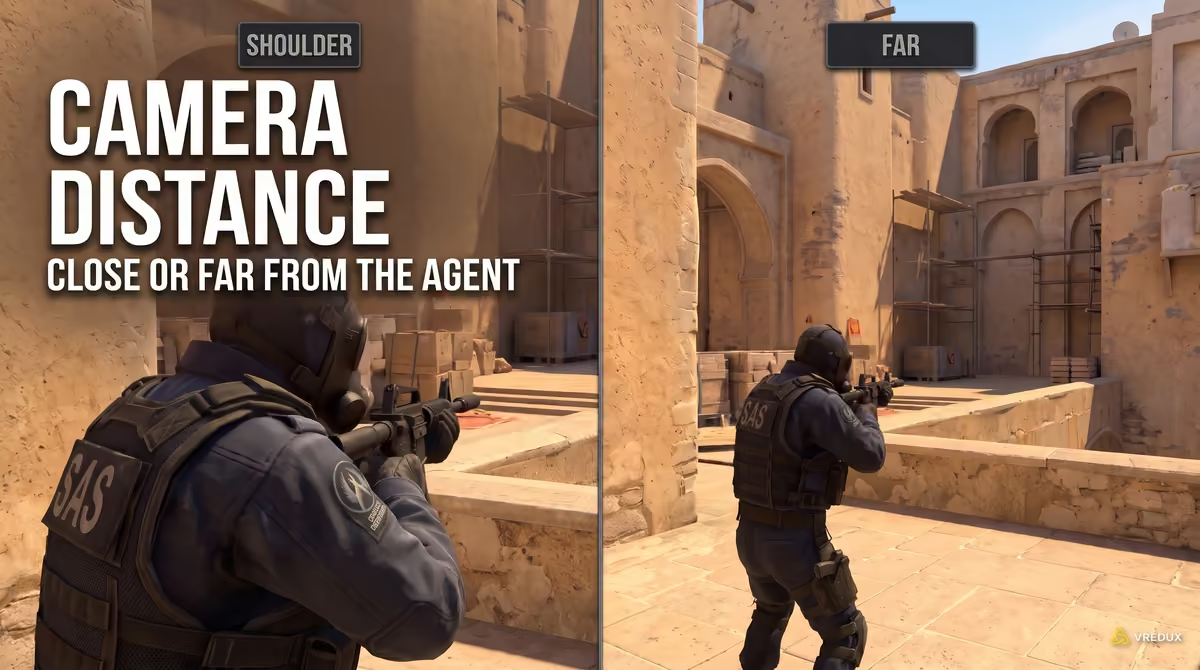
cam_idealdist [value]—adjusts camera distance behind the character model (default is 150 Hammer Units).
Fast Scenario Selector: When and How to Adjust the Camera
Configuring third-person camera settings in CS2 depends on what you want to achieve in your offline session. The Source 2 engine supports standard chase cam tracking, over-the-shoulder offsets for recording gameplay highlights, an orbital camera for inspecting skins, and server-side plugins for community servers without enabling client-side cheats.
Once you choose your scenario, proceed with unlocking debug mode—without it, the client simply ignores any camera positioning commands.
Step-by-Step Setup: How to Enable Third Person in the Console
Enabling third-person view in CS2 requires unlocking server-side debug permissions before calling the client command that shifts the ViewMatrix. This process only works on a local offline server where you have host admin privileges, and it takes under ten seconds without restarting your game client.
Step 1: Enable the Developer Console in CS2 Settings
Before enabling third-person view in CS2, make sure the developer console is active. Open the in-game settings menu (the gear icon in the top-left corner), navigate to the "Game" tab, and set "Enable Developer Console (~)" to "Yes." If pressing the tilde key (~) does not open the console window, check your keybindings or see our guide on how to enable the console in CS2 to fix config conflicts.
Step 2: Launch a Local Practice Server
Protected convars are locked on official Valve servers, so you must start a local offline game. Click "Play" in the top navigation bar, select "Practice," pick either "Competitive" or "Casual," select any map (such as Mirage or Dust II), enable toggles like "Infinite Ammo" and "Infinite Warmup" on the left panel if desired, and click "Go."
Step 3: Enter the Commands to Switch Perspective
In our testing on de_mirage in the current Source 2 build, this sequence executes within a single subtick when entered in order after spawning on either team.
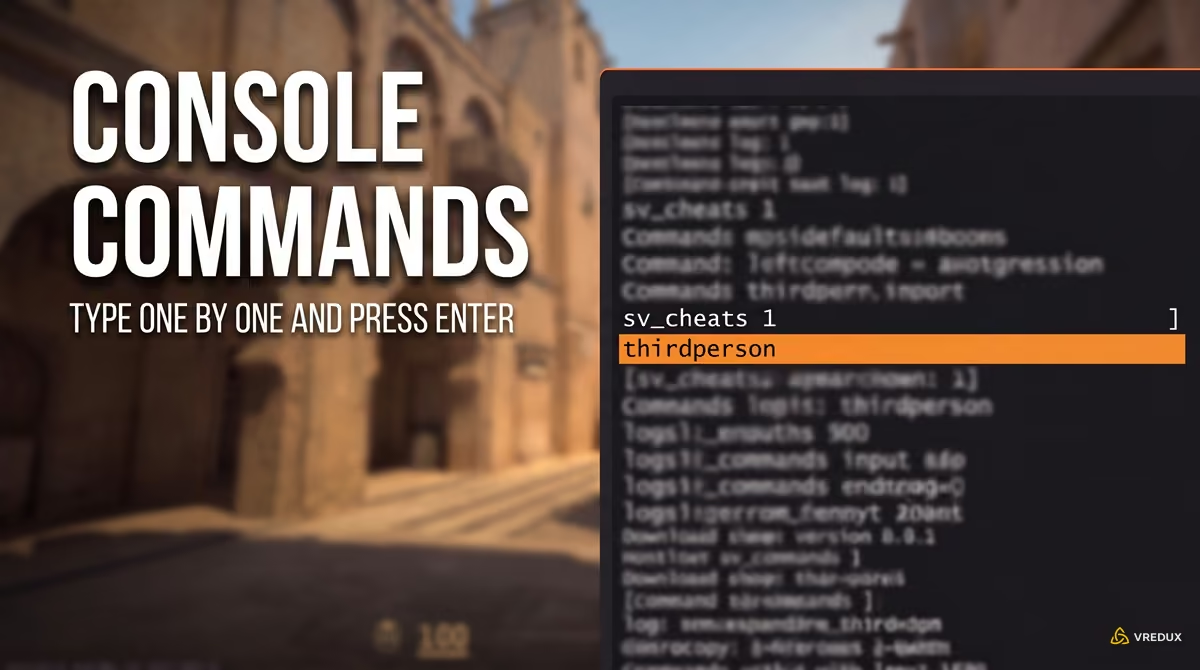
- Open the developer console. Press the ~ (tilde) key on your keyboard.
- Unlock server debug mode. Enter the convar that enables debug cheats and press Enter:
sv_cheats 1
- Switch the camera perspective. Enter the client command for third-person view and confirm:
thirdperson
- Verify the view. Close the console—your camera perspective will instantly pull back 150 units behind your agent.
Step 4: How to Disable Third Person and Return to First Person
A common mistake in outdated guides is telling players to enter thirdperson a second time or restart the game to reset the camera. In Source 2 architecture, this command is a one-way action rather than a toggle. To restore the standard first-person viewmodel, open the console and type firstperson. Your perspective also automatically resets to first person whenever your agent dies in a round or when you return to the main menu.
Fine-Tuning Camera Settings: Distance, Height, and Shoulder View
Adjusting third-person camera placement in CS2 is handled through a set of client-side cam_* and c_thirdperson* convars measured in Hammer Units. These variables let you modify the camera distance behind your player model, configure a cinematic over-the-shoulder offset, tweak vertical pitch, and manage physical collision with map geometry.
When measuring camera dimensions in Hammer Units at default 68 FOV, we found that exceeding cam_idealdist 300 causes your own character model to obstruct crosshair alignment and fine targets. Avoid disabling collision detection via cam_collision 0: without collision, the camera clips through walls into the skybox void, covering the screen in visual artifacts. Keep in mind that legacy CS:GO and Source 1 commands such as thirdperson_distance, cam_command, and sv_allow_thirdperson were purged from the Source 2 engine manifest, while map creators in build 24916958 gained the dedicated cs_player_camera script entity for VScript.
Front View and 360-Degree Orbit: thirdperson_mayamode
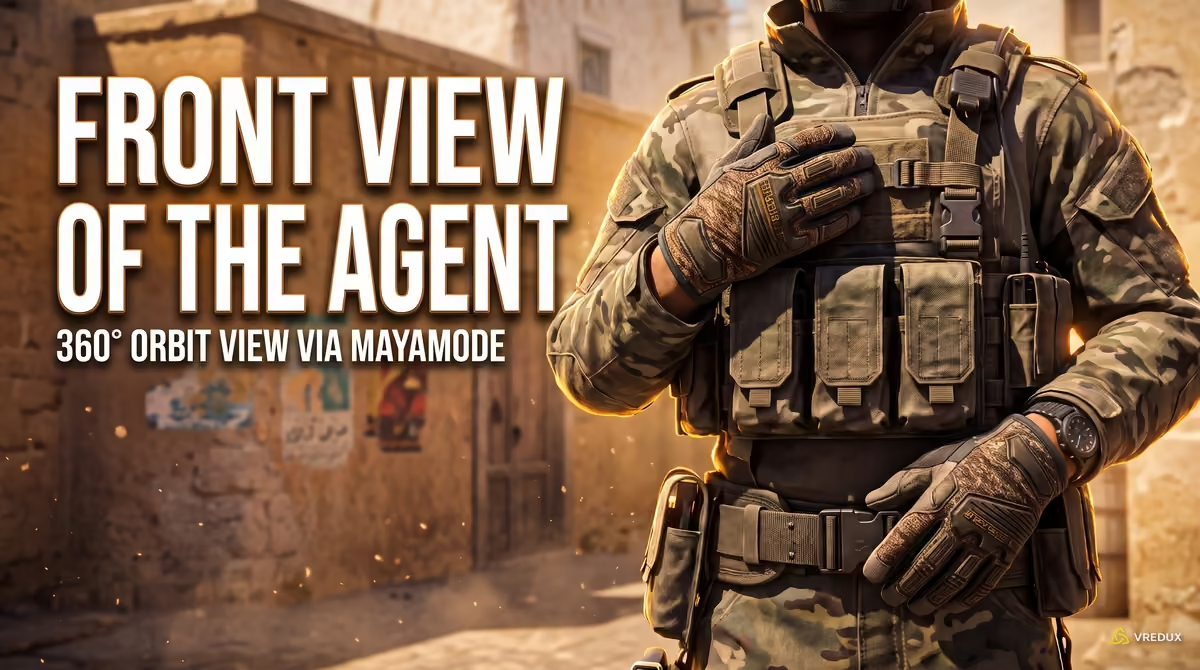
The so-called "second-person view" in Counter-Strike 2 rotates the external camera 180 degrees to face your character head-on. This perspective is enabled using the debug command thirdperson_mayamode—a name borrowed from the Autodesk Maya 3D modeling suite—or by directly locking the horizontal yaw via cam_idealyaw 180.
- Enable base third person. Make sure
sv_cheats 1andthirdpersonare running on your local server. - Activate orbital camera mode. Open the console and unlock the free camera axis:
thirdperson_mayamode
- Rotate the camera to face your agent. Close the console, hold down Left Alt, and while holding Left Click (LMB), drag your mouse horizontally to smoothly orbit the camera 180 degrees around your character.
- Reset angles if disoriented. If the camera gets stuck backward after manual rotation, force-reset the coordinate angles back to default:
cam_idealyaw 0; cam_idealpitch 0; firstperson
During our hands-on testing of thirdperson_mayamode, we found that holding Alt + Left Click decouples your agent's movement vector from the camera's gaze direction. This makes it an ideal preset for closely inspecting rare glove pattern IDs and float values, or evaluating the updated AnimGraph 2 skeletal animation system from an outside angle, though running and shooting in this view is unplayable due to inverted movement inputs.
Ready-to-Use Binds and Configs for Instant Perspective Toggling
Switching smoothly between first and third person in CS2 is best handled through keybinds using the bind command or an auto-executing .cfg script. Because thirdperson is an action rather than a binary toggle with 0 and 1 values, using two separate hotkeys or an alias cycle prevents input desync after switching sides.
Separate Keybinds and Single-Key Toggle Scripts
Many outdated guides suggest using bind "key" "toggle thirdperson", but the toggle operator in modern Source 2 builds cannot cycle back to firstperson. For dependable switching while checking angles, set up two separate adjacent keys in your console or use an alias loop (note that Option 2 aliases must be saved in your autoexec.cfg, or the game will wipe them upon restart):
Ready-to-Use Practice Config: practice_tp.cfg
Instead of typing ten separate commands every time you launch a map, save this complete preset as practice_tp.cfg inside steamapps/common/Counter-Strike Global Offensive/game/csgo/cfg/. If you are new to working with config files, check out our guide on how to create and set up an autoexec.cfg in CS2 using UTF-8 encoding without hidden .txt extensions.
Running the script in your console with exec practice_tp applies all camera settings, freezes bots, and grants infinite ammo in a single subtick.
Why Third Person Is Blocked in Competitive Matches and VAC Ban Risks
In competitive Counter-Strike 2 game modes (Premier, Matchmaking, Wingman, FACEIT), third-person perspective is hard-locked on the server by the FCVAR_CHEAT bit flag. Entering the command in the standard console during an online match is simply rejected by the network protocol without any penalty, whereas attempting to force it via memory modification results in an instant ban by VAC Live.
The reason for such strict enforcement is obvious to any tactical shooter veteran: holding tight behind a site box while maintaining panoramic sightlines without exposing your hitbox destroys peeker's advantage and core competitive balance. Testing the thirdperson command on a secured Valve server with sv_cheats 0 simply returns a convar protection warning with zero risk to your account standing. It is also important not to confuse client-side camera modes with Valve's Spring 2026 AnimGraph 2 update: that overhaul reworked third-person skeletal animation rendering and network interpolation, but never introduced perspective toggles to competitive play.
Ballistics, Inaccuracy, and the AWP Scope Bug
Gunplay in Counter-Strike 2 is engineered exclusively for first-person perspective, where the raycast bullet trajectory aligns with the optical center of the display. Switching to a third-person camera introduces angular ballistic parallax between the offset lens and the weapon barrel, while scoped sniper rifles become unusable due to character head geometry obstructing the view.
The Parallax Effect: Why Bullets Miss the Crosshair
Shooting over the shoulder in CS2 is like aiming through binoculars strapped to the side of a helmet: the camera's optical line of sight does not match the actual calculation point of the shot. In Source 2, hitscan raycasts calculate from the character model's eye vector (EyePosition), not from the offset external camera. In our AK-47 spray tests on a practice range, bullets grouped close to the reticle at 3–5 meters (10–16 ft), but past 15 meters (50 ft), hits drifted down and to the right by one and a half to two head widths due to angular parallax. That is why training aim or counter-strafing in third person ruins your muscle memory for competitive play.
Sniper Scopes: Why Zooming In Stares Into the Back of Your Head
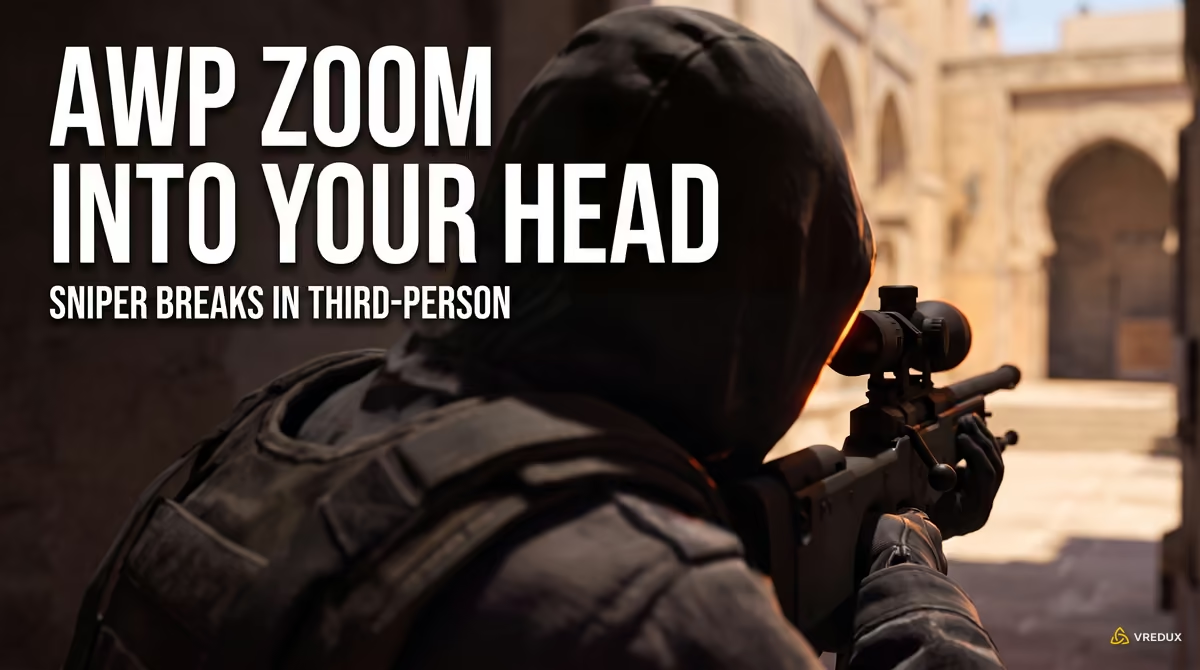
If you equip an AWP, SSG 08, SCAR-20, or G3SG1 with thirdperson enabled and right-click to zoom, you will see a blurry inner skull texture or hood seam rather than a scope reticle. The Source 2 2D scope overlay is hardcoded to the first-person viewmatrix; in third person, the game simply narrows the FOV and pushes the camera forward—directly inside your agent's head hitbox.
Wallhack Prevention and PVS Culling
Even on a local server, third-person perspective does not grant full wallhack vision across the entire map. The engine uses Potentially Visible Set (PVS) algorithms that stop transmitting enemy coordinates when opponents are far behind solid geometry. At close range near corners, however, the server transmits player models ahead of time—allowing an offset camera to spot an approaching enemy well before peeking, which is why the command remains strictly prohibited in competitive formats.
Legit Alternatives: Watching Demos and Server-Side Plugins
Using third-person perspective legitimately without enabling the cheat convar sv_cheats 1 is possible in two CS2 scenarios: reviewing recorded replays through the built-in demo viewer (DemoUI / CSTV) and playing on modded community servers powered by the CounterStrikeSharp framework.
Free Cam and Third-Person Chase Cam in CS2 Demos
When reviewing recorded matches, perspective toggling is fully supported by default and requires no console permissions. Download a match replay from your "Watch Matches" tab, launch playback, and tap the Spacebar to cycle through camera modes: first person through the player's eyes, third-person chase cam, and Free Cam. Open the playback control timeline using Shift + F2 or by typing demoui, and check out our full guide on how to watch CS2 demos to break down your positioning mistakes.
Server-Side Plugins for Community Servers (CounterStrikeSharp)
If you want to play in third person online with friends—such as on Surf, Bhop, Zombie Escape, or Hide and Seek servers—browse the community server list for servers running CounterStrikeSharp C# plugins like ExternalView or ThirdPerson-Revamped. On these servers, simply type !tp or !thirdperson in the in-game text chat: the server overrides the camera matrix via the game SDK without requiring client-side sv_cheats 1 and without putting your account Trust Factor at risk.
FAQ: Frequently Asked Questions About Third Person in CS2
Use third-person view in CS2 strategically: dial in shoulder offsets and free orbit via thirdperson_mayamode for capturing fragmovies, checking elbow visibility behind cover, or showing off sticker crafts—but always switch back to firstperson before practicing your spray and gunplay. To optimize your setup further, check out our guide on how to enable the console in CS2, along with our other CS2 guides on VRedux.