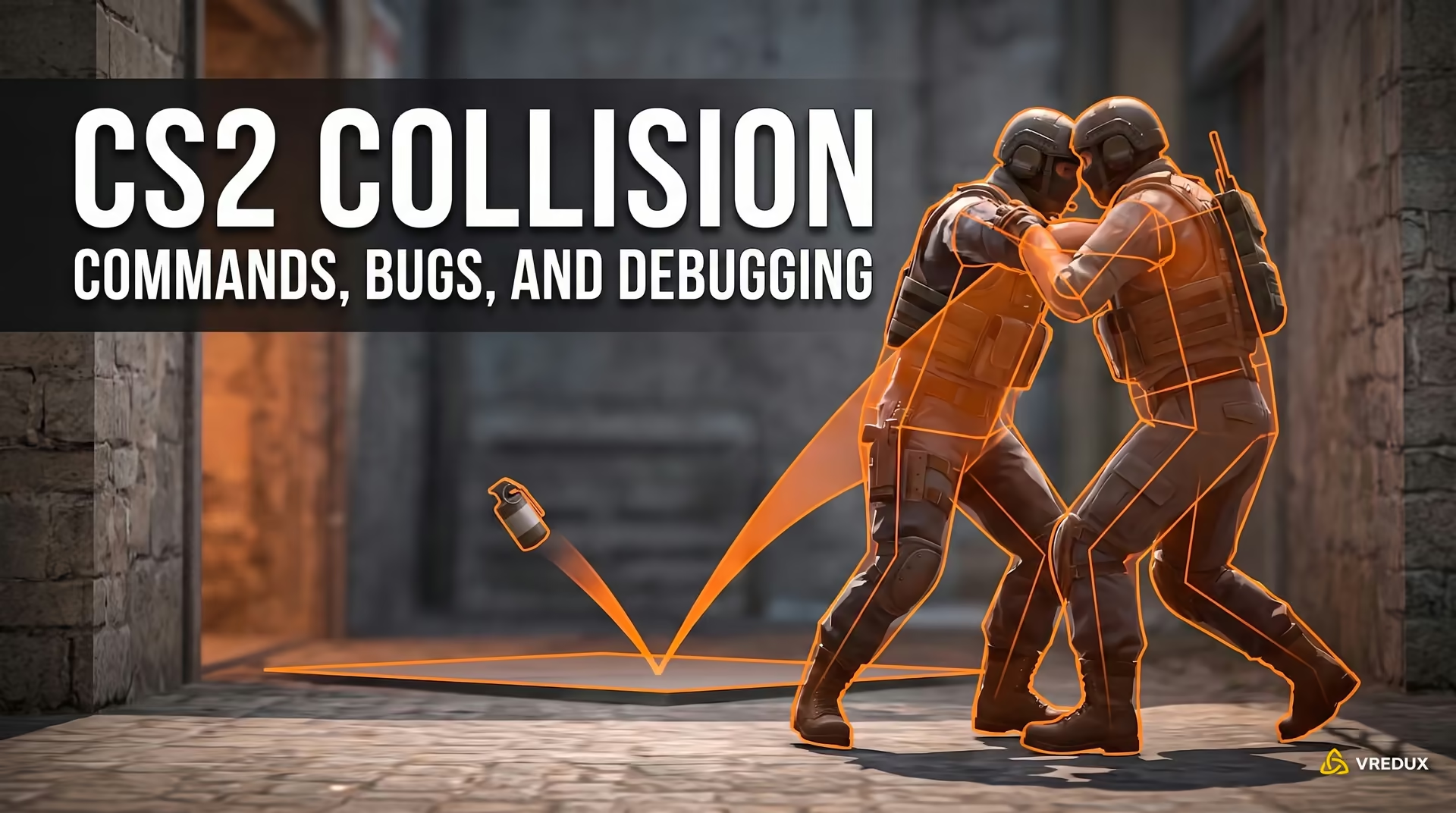
You swing out to trade short with a teammate, bump shoulders, and your screen starts violently shaking, throwing your spray completely off target. Sound familiar? Or maybe you line up a set smoke, only for it to bounce off thin air. Every single one of these interactions comes down to collision—the physics calculations governing contact between solid objects, player models, and map geometry in Counter-Strike 2. In Source 2, Valve replaced the aging Havok engine with Rubikon to handle these physics calculations. If you want to understand how the engine ticks behind the scenes, our VRedux CS2 software breaks down the game's underlying mechanics. Here is how to toggle collision via the console, why bumping into models shakes your crosshair, and which geometry bugs Valve patched in recent updates.

At a Glance: CS2 Collision Fundamentals
Collision in CS2 is the physical calculation of contact between objects (player models, utility, weapons) and map geometry, calculated by Valve's Rubikon engine using invisible collision hulls and clip brushes. Teammate solidity is managed by the server variable mp_solid_teammates (accepting values 0, 1, or 2), while enemy collision on custom servers is toggled via mp_solid_enemies.
Quick Selection: The Right Collision Command for Your Needs
Model solidity depends heavily on your server setup and practice goals. Instead of testing commands through trial and error, use these verified command pairs for your specific use case.
- Practicing team boosts and competitive 5v5 timings: Run
mp_solid_teammates 1andmp_solid_enemies 1, then restart the round withmp_restartgame 1. This replicates standard Premier and FACEIT competitive settings—without it, jumping on teammates' heads will not work. - Deathmatch servers or large warm-up lobbies: Set
mp_solid_teammates 0. Teammate models become completely transparent to movement, eliminating congestion around spawn points. - Custom matches or casual lobbies without doorway griefing: Choose
mp_solid_teammates 2. This prevents teammates from blocking tight choke points while keeping their heads solid for vertical boosting. - Solo grenade lineups with stationary bots: Apply
mp_solid_teammates 0andmp_solid_enemies 0. You can walk straight through placed bots on both teams, though thrown grenades will still bounce off them.
How to Configure Teammate and Enemy Collision: Server Commands
Player model collision in CS2 is controlled by two core server cvars: mp_solid_teammates for friendly players and mp_solid_enemies for the opposing team. Neither command requires cheat mode, but they can only be changed by the local lobby host or a dedicated server admin with RCON access. On official Valve servers (Premier and Competitive), both values are locked to 1.
mp_solid_teammates and mp_solid_enemies on a local practice server or via RCON on a dedicated server. In official Valve competitive matchmaking, both parameters are strictly locked.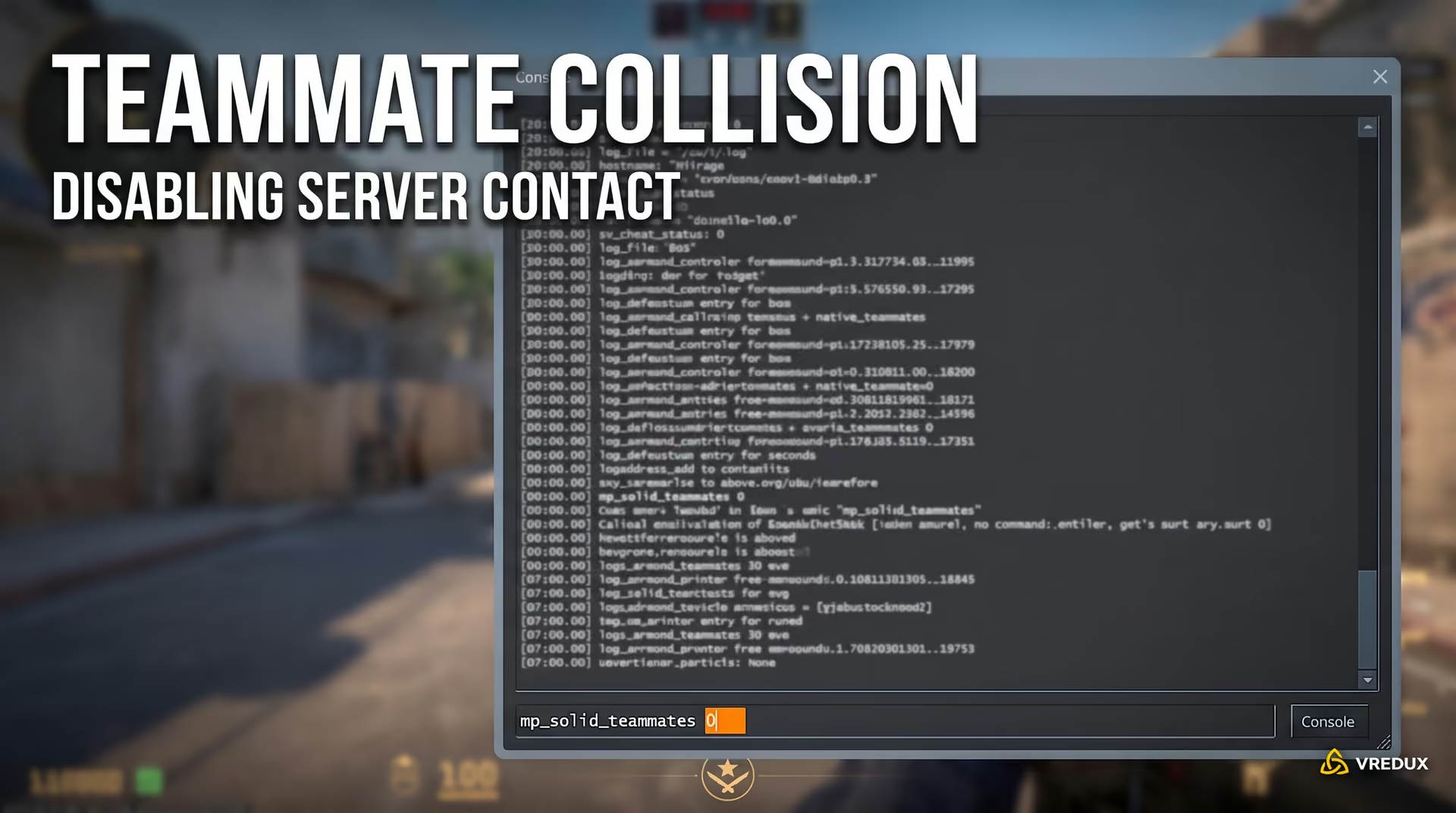
Understanding mp_solid_teammates 0, 1, and 2: Premier, Casual, and DM
Setting this cvar to 0 completely turns off teammate collisions, letting you walk through friendly models while disabling all boost mechanics. A value of 1 activates the competitive Premier standard: player bodies are fully solid, enabling boosts while making it possible to block doorways and chokepoints. Setting it to 2 enables the hybrid Casual mode preset: player bodies are non-solid horizontally, but the top surface of the head remains a solid platform for boosts.
Configuring Enemy Collision: The mp_solid_enemies Variable
The mp_solid_teammates command has zero effect on interactions with opponents. On private servers, enemy collision is controlled independently via mp_solid_enemies: setting it to 1 (default) preserves solid enemy models, while 0 removes the physical barrier entirely, allowing players to walk straight through hostile models. This variable cannot be modified on official matchmaking servers.
How to Enable Player Pass-Through on Local Servers or via RCON
To adjust physical collision parameters, first enable the developer console in the game settings, then launch a local practice map or connect to your server.
- Press the tilde key (
~) to open the developer console. - Enter
mp_solid_teammates 0(on a dedicated server, use the prefixrcon mp_solid_teammates 0). - If you also want to disable enemy collision, enter
mp_solid_enemies 0. - Restart the round by typing
mp_restartgame 1so the engine applies the new collision states to all entities. - Verify the change: walk directly into a teammate or bot—your model will pass straight through without any resistance.
Boosting Accuracy Balance: The weapon_accuracy_stack_boost_limit Rule
The server cvar weapon_accuracy_stack_boost_limit balances weapon spread for players standing on teammates' heads. Set to 2 by default, it applies ladder inaccuracy penalties to any player supported by a stack of two or more teammates (a vertical tower of three or more players total). This mechanic prevents overpowered multi-man boost stacks from holding angles with pinpoint sniper accuracy.
Why Your Crosshair Shakes on Collision: The Source 2 Movement Bug
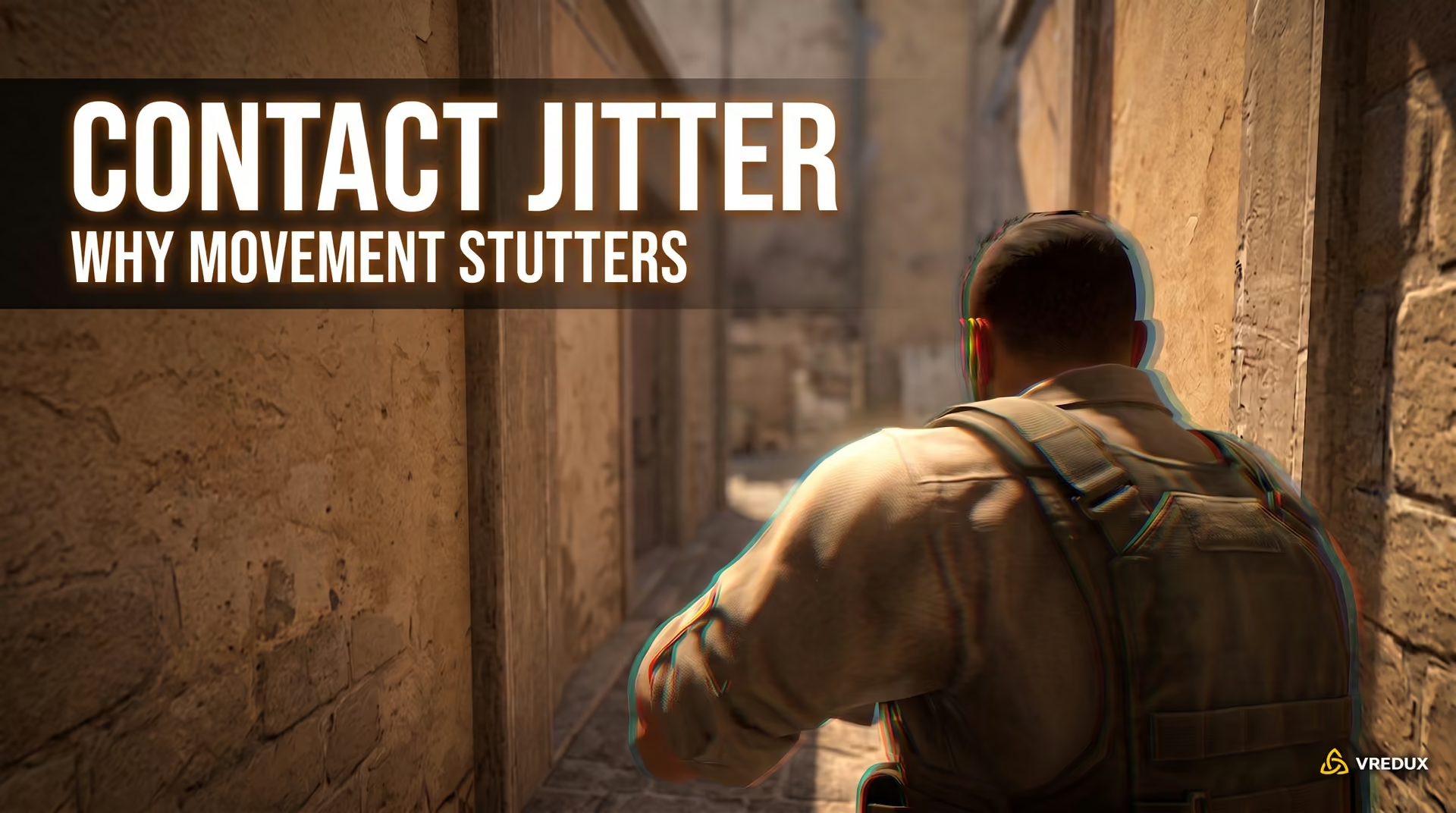
The rapid screen shake (jitter or rubberbanding) when running alongside teammates in CS2 is an experience every player encounters leaving spawn in a tight group. In official matchmaking, this stuttering has nothing to do with high ping or your internet connection.
The Root Cause: Client-Side Prediction vs. Server-Side Sub-Tick
Technical analysis from dataminers and community engineers points to a desync between client-side movement prediction and server-side contact resolution under the sub-tick architecture. Your PC predicts a smooth forward path locally, but the moment two player bounding capsules collide, the Rubikon physics engine on the server calculates a repulsive impulse and snaps your coordinates back. The client is forced to roll back its predicted position instantly (prediction rollback), which renders on your screen as violent jitter.
How to Avoid Micro-Stutter and Rubberbanding During Site Executes
There are no console commands to disable this effect in competitive play, and tweaking network settings will not fix it. Many players confuse this physics desync with weapon animation bobbing, searching for ways to tweak viewmodel and screen shake while firing, but resolving player model friction comes strictly down to disciplined spacing.
- Space out your paths: In open areas (Dust2 Long, Inferno Banana), run parallel lines while keeping at least three feet of distance between models.
- Stagger your entry: When pushing narrow choke points (Mirage Palace, Overpass Connector), designate clear entry fraggers rather than trying to squeeze through the doorway together.
- Minimize micro-strafing: Avoid erratic left-to-right adjustments during the first few seconds out of freeze time while running in a tight group.
Map and Grenade Collision: Invisible Walls, Clip Brushes, and 2026 Patches
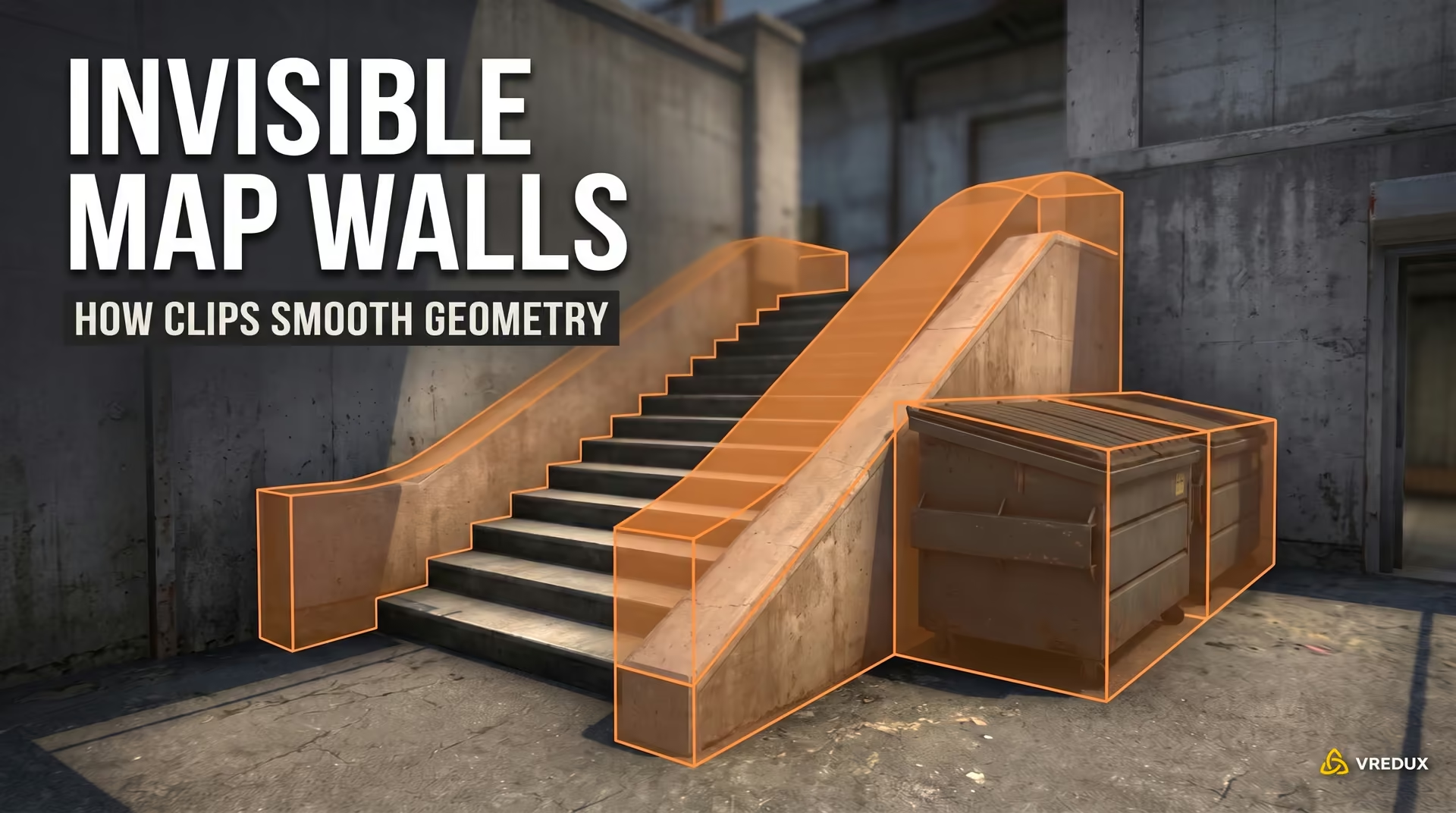
Level geometry in CS2 is split into rendered polygons and invisible utility surfaces: Player Clip (blocks player movement) and Grenade Clip (bounces thrown utility). Level designers rely on them to smooth out staircases, block decorative clutter, and eliminate unintended boost spots. These collision calculations operate completely independently from how bullet impacts register against CS2 skeletal hitboxes.
Why Grenades No Longer Clip Through Walls: The August 2026 Update
Prior to August 2026, high-velocity jump-throws at shallow angles could slip past thin barriers before the physics tick registered the impact. This exploit allowed players to throw smokes and Molotovs straight through metal vent panels on Nuke and seam seams on Cache. In the August 3–4 update, Valve reworked the Continuous Collision Detection (CCD) algorithm for all utility, completely eliminating wall clipping.
Cache, Ancient, and Overpass Updates: Solo Boost Removals and Gap Fixes
On Cache, level designers eliminated the popular solo boost at Outside A (Shelter) by sealing the ledge behind a smooth vertical clip brush, making the position inaccessible without a teammate. Ancient received two separate collision passes on stone staircases and water surfaces, though subtle micro-ledges still require care when throwing utility at your feet. On Overpass, community feedback prompted Valve to smooth out the invisible clip boundaries around trash cans and park benches that previously caused flashbangs to bounce erratically.
The Wall Run Velocity Glitch Fix
The August 19, 2026 patch fixed an exploit in movement physics: running into flat walls at sharp angles while holding W and A generated an unintended velocity boost. This speed glitch broke opening engagement timings across several maps. Valve corrected how friction surface normals are calculated, enforcing standard weapon speed caps whenever players slide against map geometry.
Debug Lab: Console Commands for Testing Collisions
The legacy CS:GO command r_drawclipbrushes is not present in Source 2 because collision geometry is compiled directly into custom physics meshes. To test grenade trajectories and pinpoint player snag points on a local server, you must rely on verified Source 2 engine debug tools under sv_cheats 1.
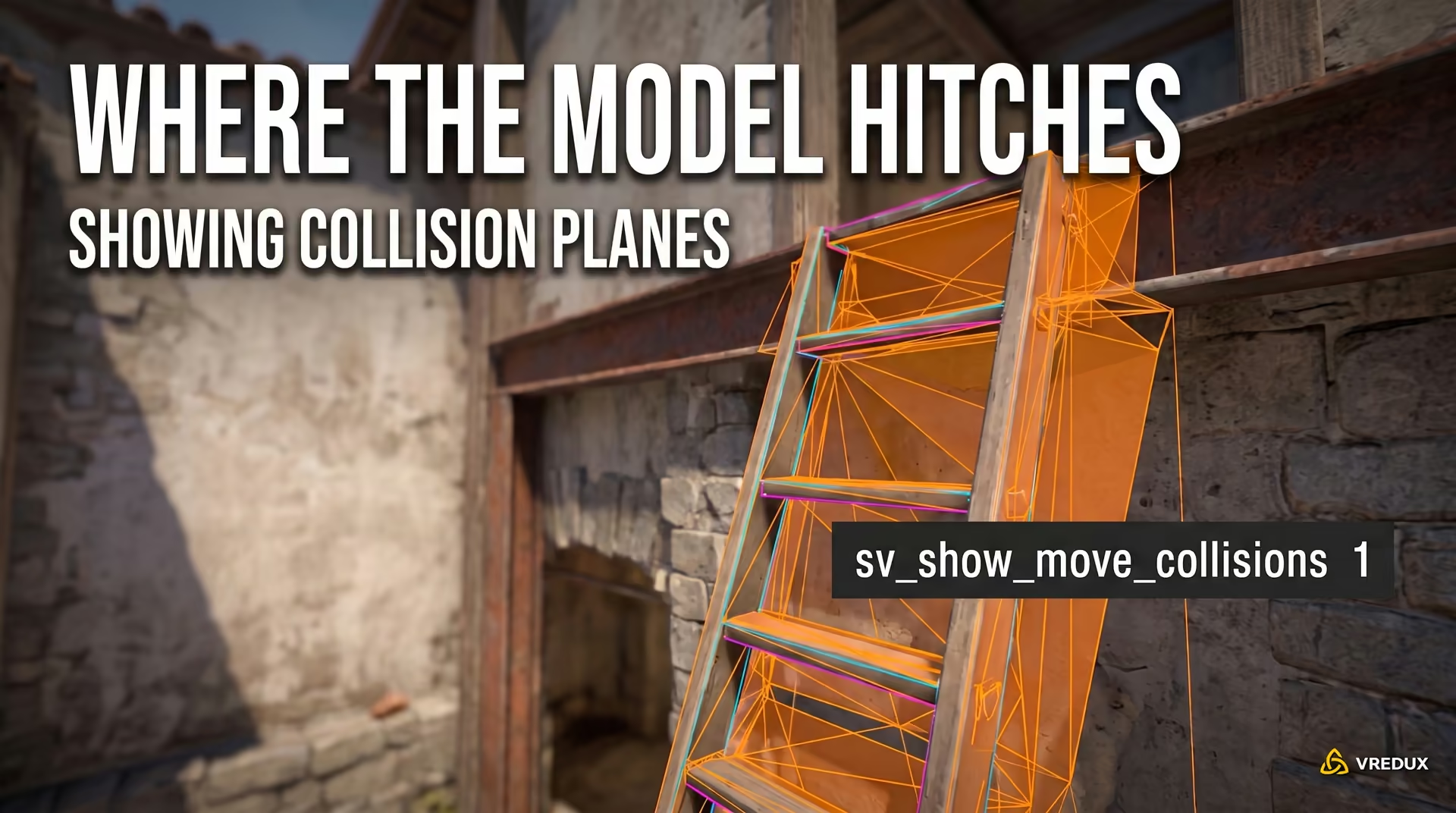
sv_show_move_collisions 1: Visualizing Movement Contact Planes
The console variable sv_show_move_collisions 1 renders the contact planes between your player capsule and map objects in real time. It draws colored lines and impact polygons across collision surfaces, showing exactly where your model snags while strafing. This command requires sv_cheats 1 and introduces significant CPU overhead, so keep it toggled off during normal play.
prop_debug_collision: Inspecting Interactive World Props
The prop_debug_collision 1 command highlights interactive and static props across the map. It color-codes objects based on their assigned collision group, letting you instantly verify whether a specific decorative prop blocks player models, deflects grenades, or lets bullets and movement pass straight through.
Ready-to-Use practice.cfg and Resetting Commands
To set up your own testing environment, save the code block below as practice.cfg inside your game/csgo/cfg/ folder and launch it from the console using exec practice. If you manage a dedicated server, you can also explore our breakdown of essential server console commands to fine-tune custom matches.
// CS2 Collision Debug Config
sv_cheats 1
bot_kick
mp_limitteams 0
mp_autoteambalance 0
mp_warmup_pausetimer 1
mp_solid_teammates 1
mp_solid_enemies 1
prop_debug_collision 1
sv_show_move_collisions 1
mp_restartgame 1
echo ">>> COLLISION LAB LOADED <<<"
To turn off debug visualization and restore standard performance without colored wireframes cluttering your screen, run these reset commands:
// Reset debug parameters
sv_show_move_collisions 0
prop_debug_collision 0
sv_cheats 0
mp_restartgame 1
Mastering collision mechanics keeps you from losing momentum during critical executes and helps coordinate tighter team spacing. Test map geometry, practice advanced boost spots, and check out our other CS2 guides to level up your gameplay with technical precision.
CS2 Collision FAQ: Frequently Asked Questions
Here are clear answers to the most common questions regarding player model solidity, collision jitter, and debugging map geometry in CS2.