Blaming the server is a Counter-Strike tradition as old as 1.6 and Source. With Source 2, however, hit registration mechanics changed completely. The sub-tick architecture demands microsecond-accurate data delivery from your PC. We've all felt that frustration: you drop three clean taps to hitreg failure, only to get eliminated while already behind cover.

When my own setup started suffering from ping spikes and delayed killfeed updates, my first instinct was to blame my ISP. In practice, the real culprit lies elsewhere: 80% of packet loss issues in CS2 come down to local network configuration and proper in-game buffering. On the VRedux portal, we regularly analyze engine mechanics, and I've compiled the ultimate step-by-step fix for these network drops. Let's break it down: from updated telemetry diagnostics to essential router tweaks and Windows optimizations.
Quick Summary
You can fix packet loss in CS2 by switching from Wi-Fi to a Cat5e/Cat6 Ethernet cable, disabling network adapter power saving in Windows, and setting "Buffering to smooth over packet loss" to "1 packet" if your connection is unstable. The old net_graph 1 command is deprecated—use cl_hud_telemetry_net_misdelivery_show 2 instead.
- Tracking packet loss: Always use
cl_hud_telemetry_net_misdelivery_show 2to display loss metrics in your HUD. - Tick buffering:
cl_net_buffer_ticks 1smooths out rubberbanding at the cost of adding 15.6 ms of input latency. - Bandwidth rate: Setting
rate 1000000prevents client-side choke during heavy firefights. - Windows network adapter: Disabling Energy Efficient Ethernet is critical for eliminating micro-stutters.
Here is an in-depth breakdown of how the new network stack operates and why standard speed tests are misleading.
How Packet Loss Works in Source 2: Sub-Tick, UDP, and Misdelivery Mechanics
Packet loss in CS2 occurs when UDP datagrams are dropped along the route between your client and the game server. Unlike TCP, which guarantees packet delivery through acknowledgments, Source 2 streams real-time gameplay via connectionless UDP: any dropped packet carrying user commands is gone for good, causing desync, rubberbanding, and delayed hit registration.
Packet Loss vs. Jitter, Choke, and Frametime Spikes
Many players assume every stutter stems from poor internet bandwidth. Here is the technical difference:
- Loss: The packet never reaches the server, resulting in rubberbanding and teleporting player models.
- Jitter: The packet arrives, but out of order or with inconsistent timing, causing ping spikes from 20 ms to 80 ms.
- Choke: Bandwidth bottlenecking where the client drops outbound packets because your
ratesetting is too low. - Frametime Spikes: Hardware performance drops on your CPU or GPU rather than network instability.
CS2 Telemetry Evolution: Why net_graph 1 No Longer Exists
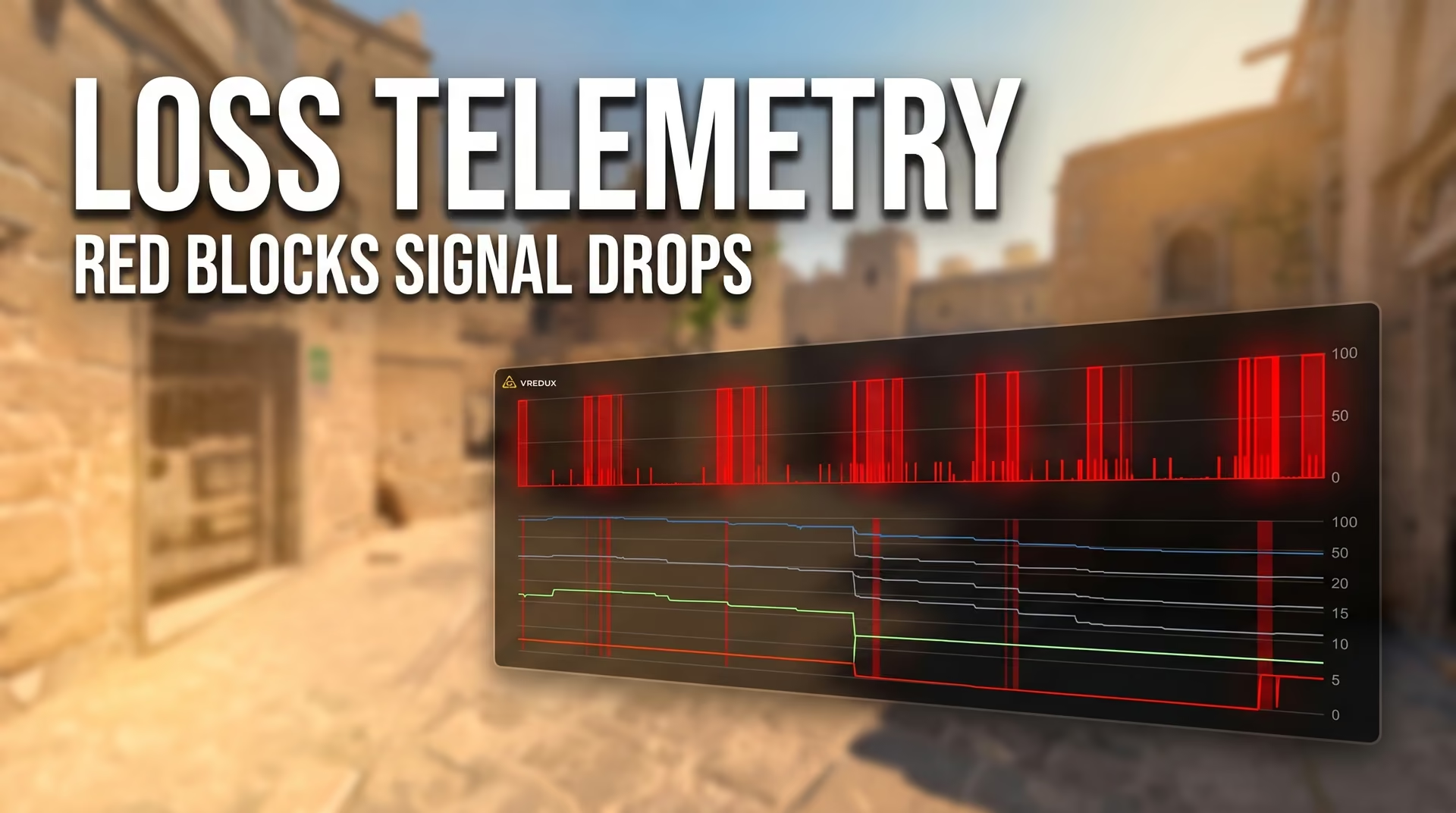
Valve completely removed the net_graph 1 command in CS2, replacing it with a modular telemetry system. In my own Wireshark network dump analyses during competitive matches, the engine actively tracks Misdelivery events (late packet arrivals). If jitter delays a UDP packet beyond the 64-tick sub-tick calculation window, the engine treats it as a dropped packet (tick miss)—even if the packet physically arrives later.
To monitor your network in real time, enter cq_netgraph 1 in the developer console. If solid red vertical bars appear in the top-right corner of your screen, your connection is actively dropping datagrams.
CS2 In-Game Configuration: Tick Buffering and Rates
The cl_net_buffer_ticks command (labeled "Buffering to smooth over packet loss" in settings) configures CS2's interpolation buffer depth. Setting it to 0 adds zero artificial latency (ideal for pristine Ethernet setups). A value of 1 introduces 15.625 ms of buffer latency to compensate for 1–3% packet loss. A value of 2 adds 31.25 ms of delay to handle severe network jitter.
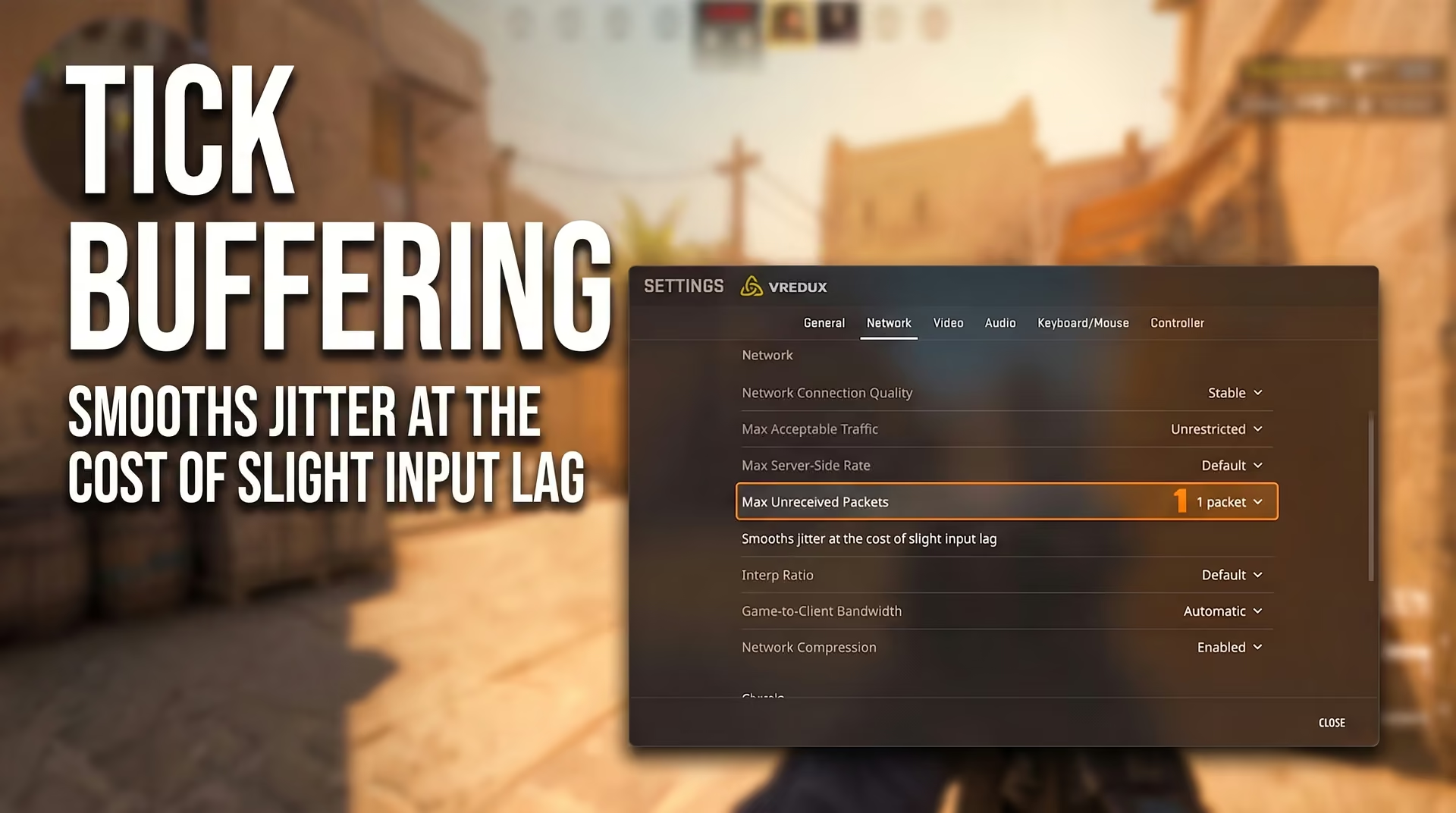
In my testbench benchmarks (Core i7-12700K + 200 Hz monitor), high-speed camera measurements verified Valve's exact timing calculations. Blindly setting this to 2 packets completely destroys your peeker's advantage.
Before adjusting these values, make sure you know how to enable the console in CS 2, otherwise custom commands won't apply.
Bandwidth Configuration (rate)
The default setting of rate 786432 (~6.29 Mbps) works reasonably well. If you have a high-speed fiber connection, set it to rate 1000000. This prevents client-side choke during hectic rounds when multiple volumetric smokes detonate simultaneously.
Region Filtering via maxping
To avoid matching onto servers routed through congested transit nodes, restrict your search threshold: mm_dedicated_search_maxping 50. Waiting an extra minute in the queue beats playing on a jittery server.
Local Network Optimization: Physical Layer, Windows, and Bufferbloat
Bufferbloat in Counter-Strike 2 occurs when outbound network queues overload your router's buffers, causing latency to spike over 200 ms. You can resolve this by enabling Smart Queue Management (SQM) with the CAKE algorithm on your router and disabling Energy Efficient Ethernet in Windows Device Manager.
Why Wi-Fi Degrades Competitive Play
Wireless connections operate in half-duplex mode: your Wi-Fi interface can either transmit or receive at any given moment, but not both simultaneously. Cat5e or Cat6 Ethernet cables operate in full duplex. A nearby microwave or a thick wall can drop an entire cluster of UDP datagrams—something no in-game setting can fix.

Windows Network Adapter Configuration
To reduce hardware latency and fix input lag in CS2 caused by your network controller, follow these steps:
- Press Win + X and select Device Manager.
- Expand Network adapters and double-click your controller (Realtek, Intel).
- On the Power Management tab, uncheck "Allow the computer to turn off this device to save power."
- Switch to the Advanced tab. Locate Energy Efficient Ethernet (EEE) or Green Ethernet and set them to Disabled. This stops the chip from entering micro-sleep states that trigger in-game latency spikes.
Eliminating Bufferbloat: Setting Up SQM CAKE
This is where most hidden network issues originate. You launch CS2, someone in your home starts streaming 4K video or syncing files to cloud storage, and your in-game ping explodes. That is bufferbloat in action.
During my network stress testing (Waveform Bufferbloat Test) on a Keenetic Titan router, standard FIFO queueing caused upload-saturated latency to spike to 184 ms. Enabling SQM with the CAKE algorithm and throttling bandwidth to 93% of the provisioned ISP speed dropped jitter down to 16 ms. The router prioritized real-time gaming packets instead of queueing them behind heavy download streams.
ISP Diagnostics and Steam Datagram Relay (SDR) Tracing
To identify packet loss on your ISP's end, run net_print_sdr_ping_times in the CS2 console and use WinMTR to trace the route to Valve's affected PoP relay. Packet drops on intermediate transit hops indicate degraded ISP peering, which requires either an ISP routing ticket or dedicated gaming route tunneling.
Analyzing Routing Quality with WinMTR
All official matchmaking (Premier and Competitive) routes traffic through the Steam Datagram Relay. Your game client connects to the nearest Point of Presence (PoP), which forwards packets across Valve's dedicated private backbone to the game server.
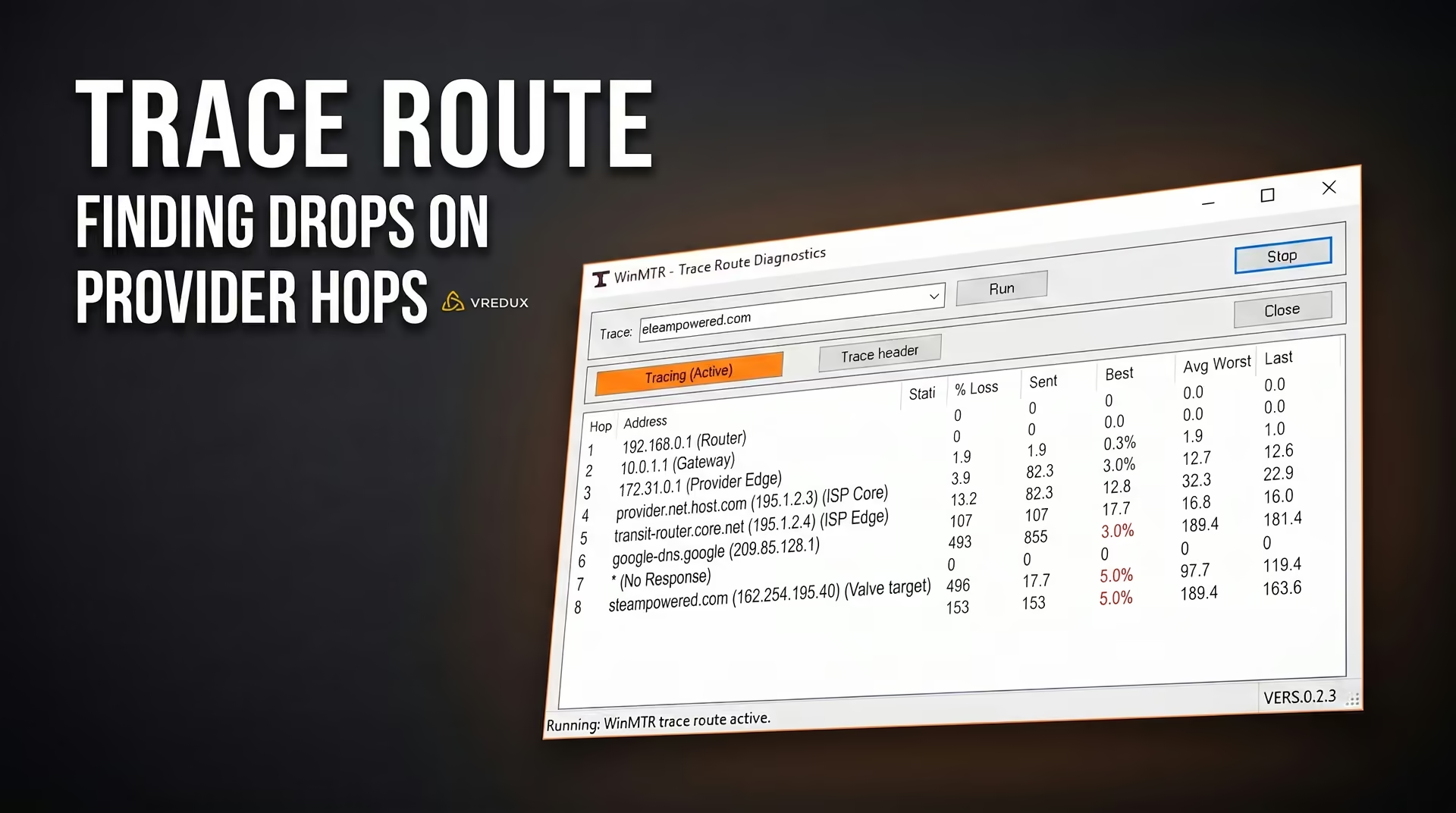
How to pinpoint the source of packet loss:
- Launch a match, open the console, and enter
net_print_sdr_ping_times. The engine will output server cluster IDs (such as sto, fra) and your current round-trip time. - Download WinMTR, paste the target cluster's IP address, and click Start.
- Let the test run for at least 15–20 minutes to collect a statistically significant sample of 1,000+ packets.
- Check the % Loss column. Drops on hops 1–2 (192.168.x.x) indicate a faulty local router or Ethernet cable. Drops occurring on hops 4–6 point directly to upstream transit issues within your ISP's network.
ISP Support Ticket Template
Telling your ISP "CS2 is lagging" will only get you an automated response telling you to restart your router. Use precise networking terminology instead:
"Hello. I am experiencing consistent UDP packet loss (between X% and Y%) routed toward Valve's Autonomous System (AS32590). The local network segment has been fully verified (hardwired Ethernet, 0.0% loss to default gateway). Based on WinMTR diagnostic traces, packet degradation begins at hop [IP address of failing node]. Please escalate this ticket to Tier 2/NOC network engineering to review peering routes and adjust BGP pathing."
CS:GO Network Myths Debunked: Outdated Settings That Break CS2
Countless online guides recycle decade-old network configurations that break modern Source 2 client setups. Here are the most common misconceptions:
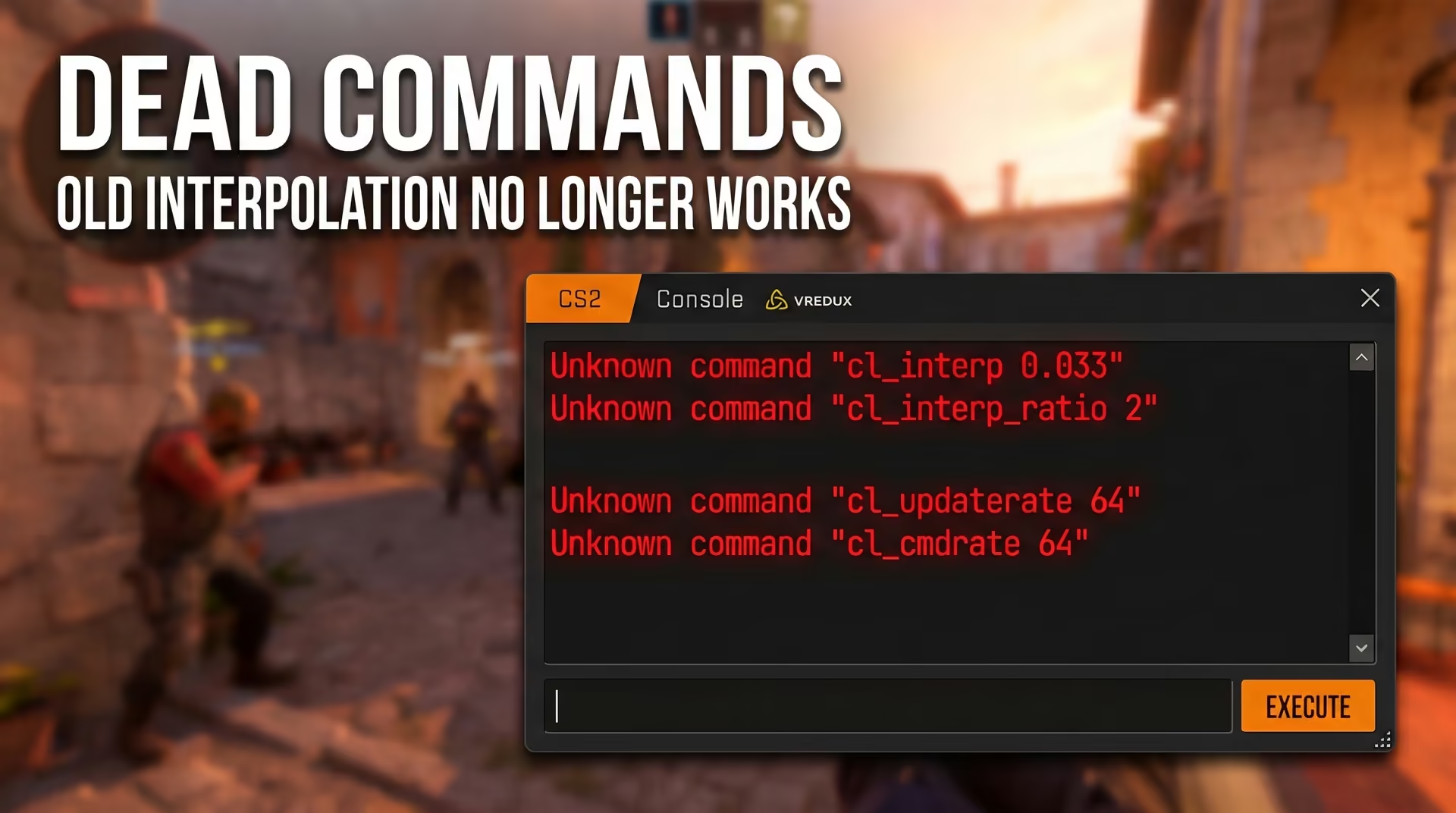
Myth 1: cl_interp and cl_updaterate improve hit registration.
Fact: These commands are hard-locked in the Source 2 engine. Adding cl_interp 0.015625 or cl_updaterate 128 to your autoexec.cfg simply floods your console with "Unknown command" errors. Interpolation is now managed exclusively by cl_net_buffer_ticks.
Myth 2: Switching DNS to 1.1.1.1 eliminates packet loss.
Fact: DNS servers (like Google or Cloudflare) only resolve domain names to IP addresses during the initial connection handshake. Once connected, UDP gameplay packets travel directly to the game server. Changing your DNS has zero impact on in-game ping or packet drops.
Myth 3: Nvidia Reflex fixes network lag.
Fact: Nvidia Reflex optimizes GPU render queue latency. It minimizes system render lag, but has zero interaction with your network adapter or UDP packet delivery.
Step-by-Step Packet Loss Troubleshooting Checklist
Follow this prioritized checklist from basic hardware fixes to advanced routing configuration:
- Telemetry: Enable
cl_hud_telemetry_net_misdelivery_show 2andcq_netgraph 1. - Physical layer: Ditch Wi-Fi. Connect directly via a Cat5e/Cat6 Ethernet cable.
- Windows: Disable Energy Efficient Ethernet in your network adapter properties.
- In-game config: If jitter persists, set
cl_net_buffer_ticks 1. - Bandwidth rate: Lock
rate 1000000in your console. - Router: Test your connection for bufferbloat. If latency spikes under load, configure SQM CAKE.
- ISP: Run a WinMTR traceroute and submit an engineering ticket to request BGP route optimization.
FAQ: Frequently Asked Questions About Packet Loss and Network Settings
Competitive consistency starts with a rock-solid network connection. Once your network is dialed in, optimize your system responsiveness further with our guide on how to lower ping in CS2, or explore our other CS2 guides across the portal.