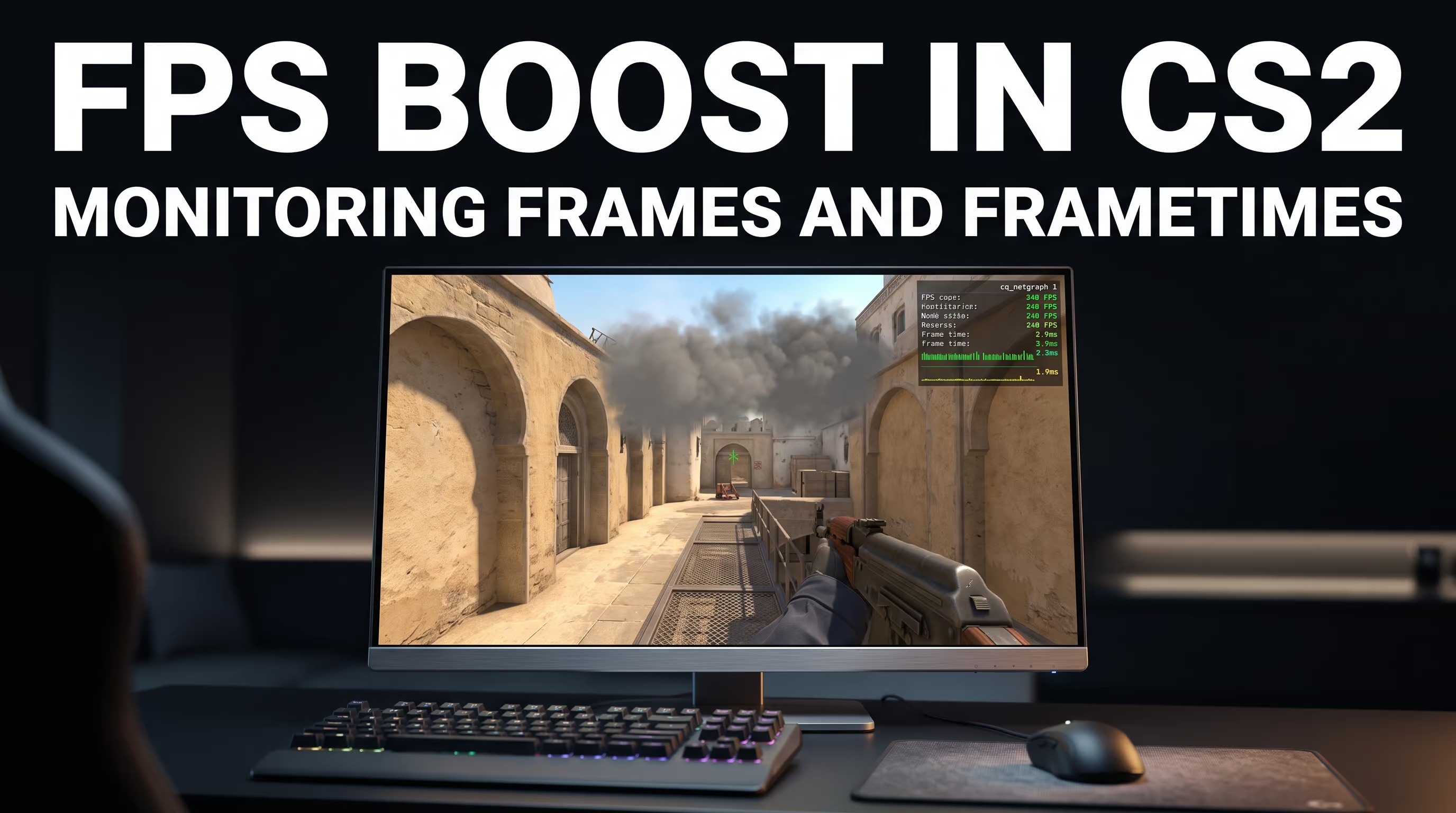
Squeezing every last frame out of the engine has been a Counter-Strike tradition since the days of CS 1.6 and CS:GO, but in Counter-Strike 2 (CS2), those legacy tweaks simply don't work anymore. The transition to the Source 2 engine fundamentally changed graphic rendering, CPU thread distribution, and network stack behavior. If your framerate tanks inside a smoke grenade or your mouse feels sluggish and floaty, the issue isn't just your graphics card—it's buried deep in your OS settings. To boost FPS in CS2 and eliminate stutters, you need to systematically disable VBS, clear out obsolete launch options, tune your graphics settings without compromising enemy visibility, and stabilize your frametime. Here is the proven step-by-step framework prepared by our VRedux knowledge base. In this guide, we'll cover how to get more FPS in CS2 on low-end PCs and maximize performance on high-end rigs without breaking the game.
Expert Verdict
Low FPS in CS2 and micro-stutters are most commonly caused by the CPU-bound architecture of Source 2, Windows 11 virtualization overhead, and outdated launch options carried over from CS:GO. You can boost your FPS and stabilize frametimes (1% Lows) in 10–15 minutes by comprehensively optimizing your OS, GPU drivers, and in-game video settings.
Key Causes & Solutions
- OS Virtualization Conflicts: Disable Memory Integrity (VBS) in Windows 11 24H2 via the registry—this frees up CPU cycles and stops micro-stutters.
- Junk Launch Options: Remove legacy commands like
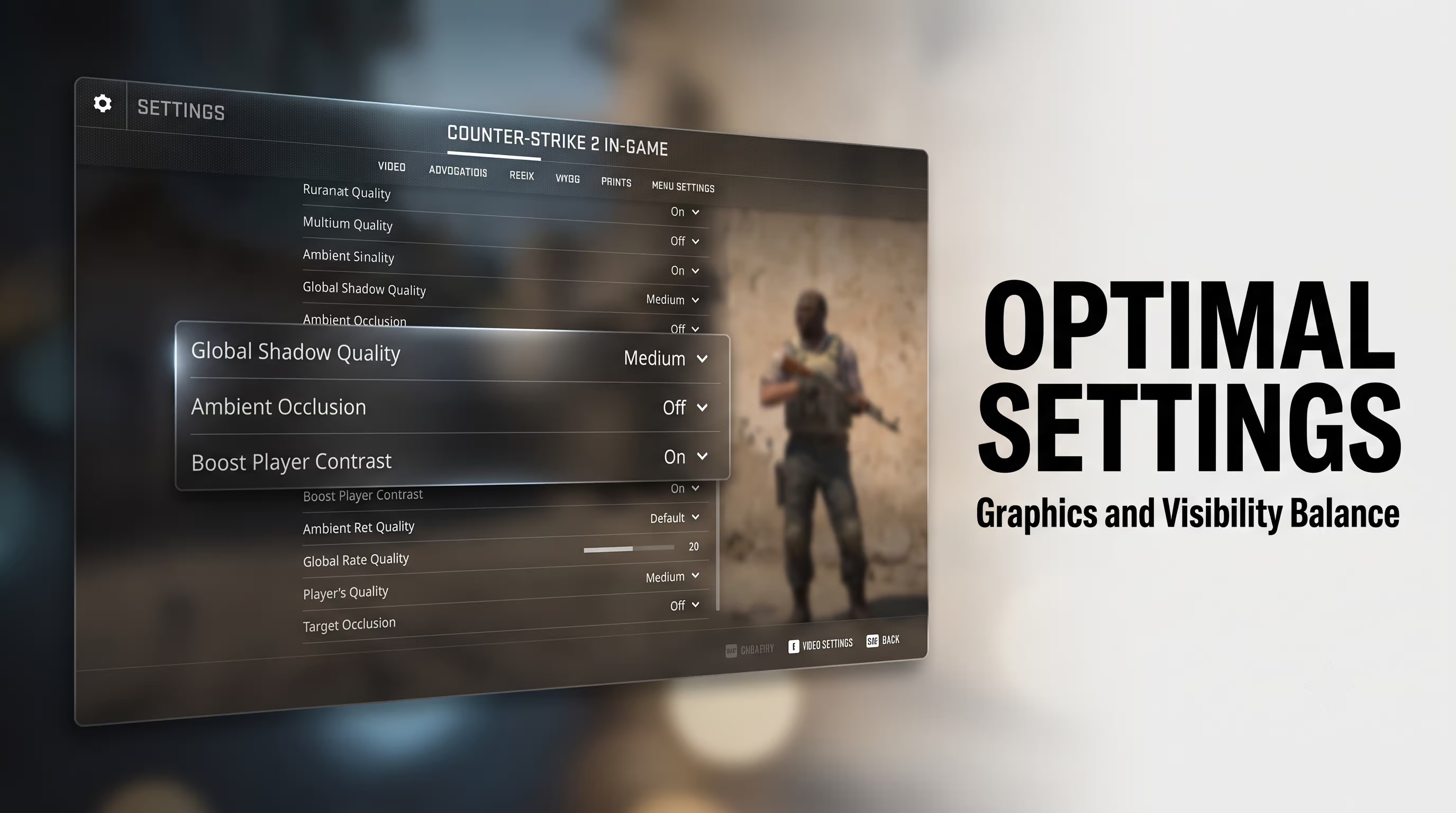
-threads,-tickrate 128, andcl_forcepreload, which mess up L3 cache allocation and cause desync. - Improper Video Settings: Keep Global Shadow Quality on "Medium" to preserve player shadows, but disable Ambient Occlusion and heavy MSAA anti-aliasing.
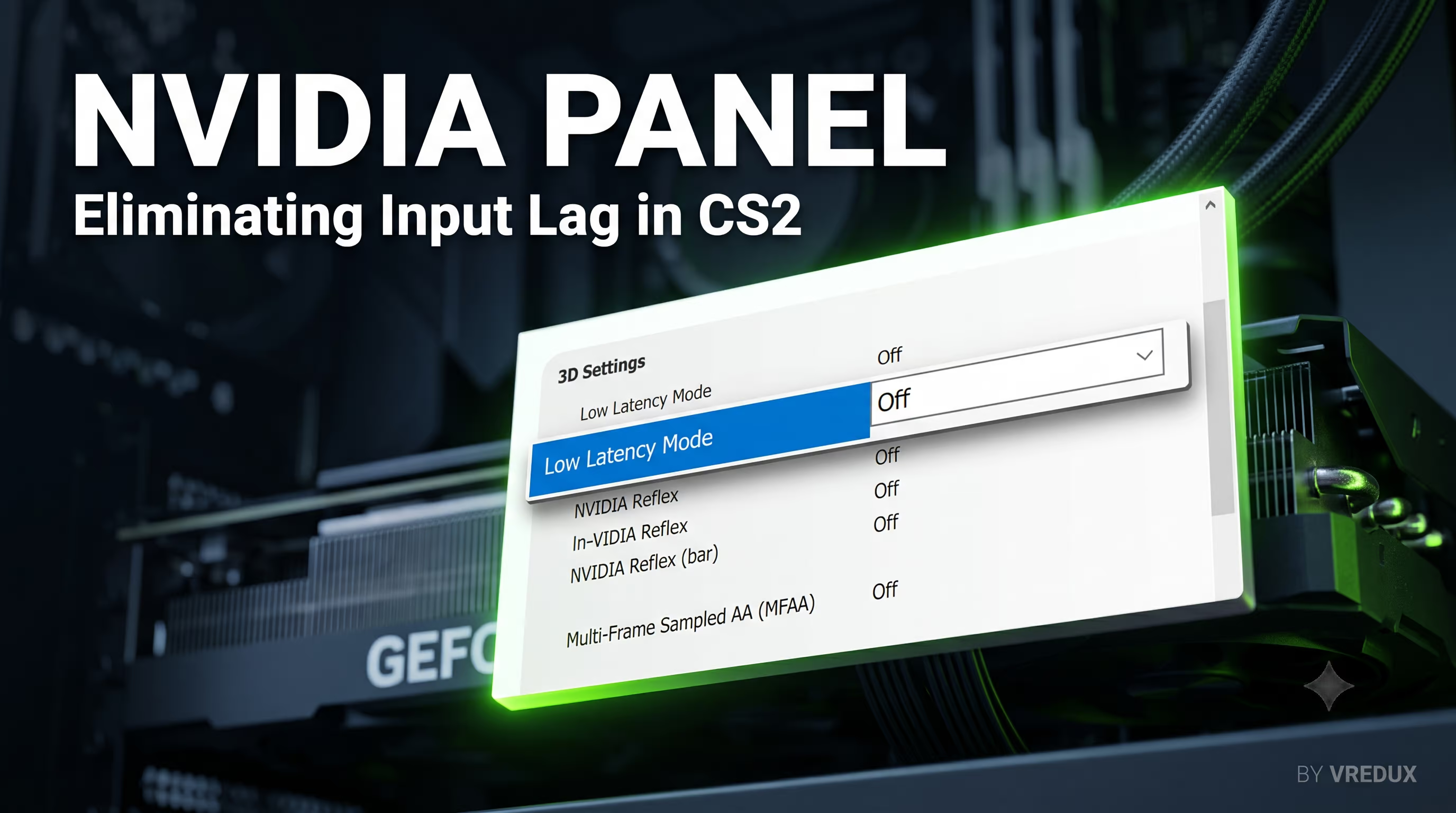
- Render Queue & Input Lag: Turn NVIDIA Reflex to "On + Boost" while keeping driver-level Low Latency Mode off to prevent queue conflicts.
At a Glance: Quick Checklist for Stable FPS
If you need a quick frame boost in CS2 before jumping into a Premier match, use this summary table. It covers the core steps to increase performance without losing enemy silhouette readability.
Why CS2 FPS Depends Heavily on Your CPU and Source 2
The defining architectural shift in Counter-Strike 2 is its heavy reliance on the central processing unit (CPU-bound performance). Unlike standard single-player titles where the graphics card (GPU) bears the heavy lifting, Source 2 constantly calculates volumetric smoke physics, bullet penetration geometry, map structures, and Sub-tick network packet timing. Even when your GPU usage sits at just 40–50% and average framerate looks high, you might still experience frustrating micro-stutters. The culprit is an erratic 1% Low framerate and high frametime (the time in milliseconds it takes to render a single frame).
It's best to approach FPS optimization systematically: first, smooth out your frametime graph by eliminating frame drops below your monitor's refresh rate, and only then aim to push peak average FPS. This holistic approach delivers true gameplay responsiveness during fast mouse flicks rather than just inflated numbers on an overlay.
Migration Mistakes: CS:GO Commands That Break CS2
The single biggest mistake players make when trying to optimize CS2 is blind-copying legacy configs and launch options from CS:GO. Source 2 runs on a 64-bit Direct3D 11 / Vulkan pipeline and natively manages CPU multithreading. Manually forcing launch options like -threads 8 or +mat_queue_mode 2 forces improper thread allocation, causing L3 cache desynchronization and severe frametime spikes.
I tested this issue firsthand on Intel Core i5-12400F and AMD Ryzen 5 5600X test benches. As soon as we purged these legacy console hacks from Steam, the random framerate drops disappeared, and the frametime graph smoothed out completely.
Best CS2 Launch Options in Steam
To configure launch parameters, open your Steam Client → Right-click Counter-Strike 2 → Properties → General tab → Launch Options field. Keep it clean without unnecessary bloat:
-novid -high +fps_max 0 -nojoy -freq 144
Breakdown of these launch parameters:
-novid— skips the Valve intro movie for faster game boot times;-high— grants high CPU priority to the cs2.exe process in Windows Task Manager;+fps_max 0— removes the framerate cap (or lock it to match your refresh rate);-nojoy— disables background controller support to free up RAM overhead;-freq X— forces your monitor refresh rate (replace X with 144, 240, or 360).
If you want to dive deeper into specific console variables, check out our dedicated guide to current CS2 launch options.
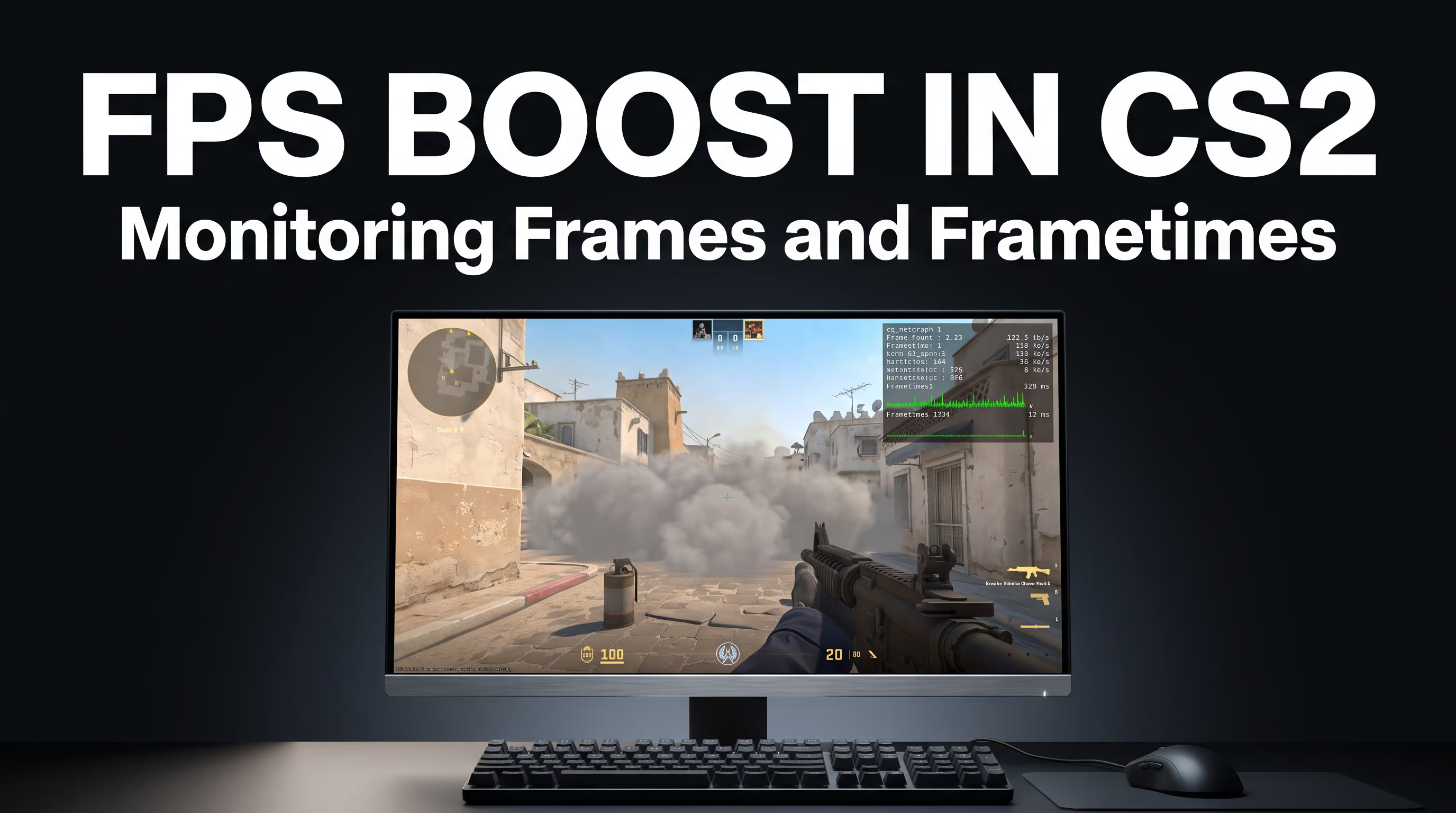
Best CS2 Video Settings: Balancing FPS and Visibility
Optimizing CS2 requires balance—dropping every setting to "Low" is a tactical mistake. In competitive shooters, graphic quality directly impacts player model readability and dynamic shadow projection.
Here are the field-tested esports video settings for Counter-Strike 2:
- Boost Player Contrast: Enabled. Zero impact on GPU performance while highlighting enemy silhouettes in dark corners.
- V-Sync: Disabled. Vertical sync must stay off due to massive input latency penalties.
- Anti-Aliasing Mode: CMAA2 or 2x MSAA. Disabling anti-aliasing completely causes distracting pixel shimmering along edge geometry. CMAA2 is ideal for GPUs with 1GB or 2GB VRAM.
- Global Shadow Quality: Medium. Critical Note: On "Low", the game completely disables dynamic player shadows! You won't see an enemy's shadow peeking around a corner before they emerge. Keep this on Medium.
- Model / Texture Detail: Low. If you have 6GB–8GB+ VRAM, Medium works equally well without dropping frames.
- Shader / Particle Detail: Low. Reduces CPU strain during heavy smoke, HE grenade explosions, and Molotov fires.
- Ambient Occlusion: Disabled. Saves up to 15% FPS without sacrificing competitive visibility.
- FidelityFX Super Resolution (FSR / FSR 1.0): Disabled. FSR 1.0 relies on spatial upscaling, which introduces heavy blur and masks distant enemy heads at 1080p and lower.
- HDR (High Dynamic Range): Performance or Quality. Minimal GPU load—choose whichever provides better visual clarity on your panel.
- NVIDIA Reflex Low Latency: On + Boost. Flushes the render queue and forces GPU clock speeds to stay at maximum state.
Resolution & Aspect Ratio: 4:3 Stretched vs. 16:9
Playing stretched 4:3 (1280x960 or 1024x768) reduces overall pixel count, helping boost CS2 FPS on budget rigs. Player models appear wider, making target acquisition feel easier. However, on CPU-bound setups, dropping from 1080p to 960p only adds about 10–15% more frames since the main bottleneck sits with the processor.
If your framerate feels smooth after tweaking graphics but mouse movement still feels delayed, check out our in-depth guide on fixing input lag in CS2.
Console Commands & autoexec.cfg for CS2 FPS Optimization
While Valve removed many legacy console commands in Source 2, proper network and telemetry tuning is still crucial for smooth frame delivery.
Navigate to your game directory: ...\Steam\steamapps\common\Counter-Strike Global Offensive\game\csgo\cfg\. Create a text file named autoexec.cfg and paste the following commands:
// Telemetry and Frame Counter (Replaces net_graph 1)
cl_hud_telemetry_frametime_show 2
cl_hud_telemetry_ping_show 2
cl_hud_telemetry_net_misdelivery_show 2

// Network Settings and Sub-tick
rate 786432
cl_net_buffer_ticks 0

// Low Latency & Frametime Stability
engine_low_latency_sleep_after_client_tick true

// Network Analytics
cq_netgraph 1

host_writeconfig
Command breakdown:
cl_net_buffer_ticks 0— removes extra packet buffering. On stable, packet-loss-free connections (0% loss), this ensures instant shot registration.rate 786432— sets maximum network bandwidth for server communication.engine_low_latency_sleep_after_client_tick true— synchronizes client tick processing threads, eliminating micro-stutters on hybrid CPUs (Intel Core i5 / i7 / i9 P+E cores).cq_netgraph 1— displays the modern network diagnostic overlay to track packet loss.
Feel free to grab our ready-to-use CS2 autoexec.cfg config file containing the complete suite of optimization commands.
Deep Windows 10 & Windows 11 Optimization
If in-game settings are fully tuned but low FPS and stutters persist, the issue lies within your operating system configuration.
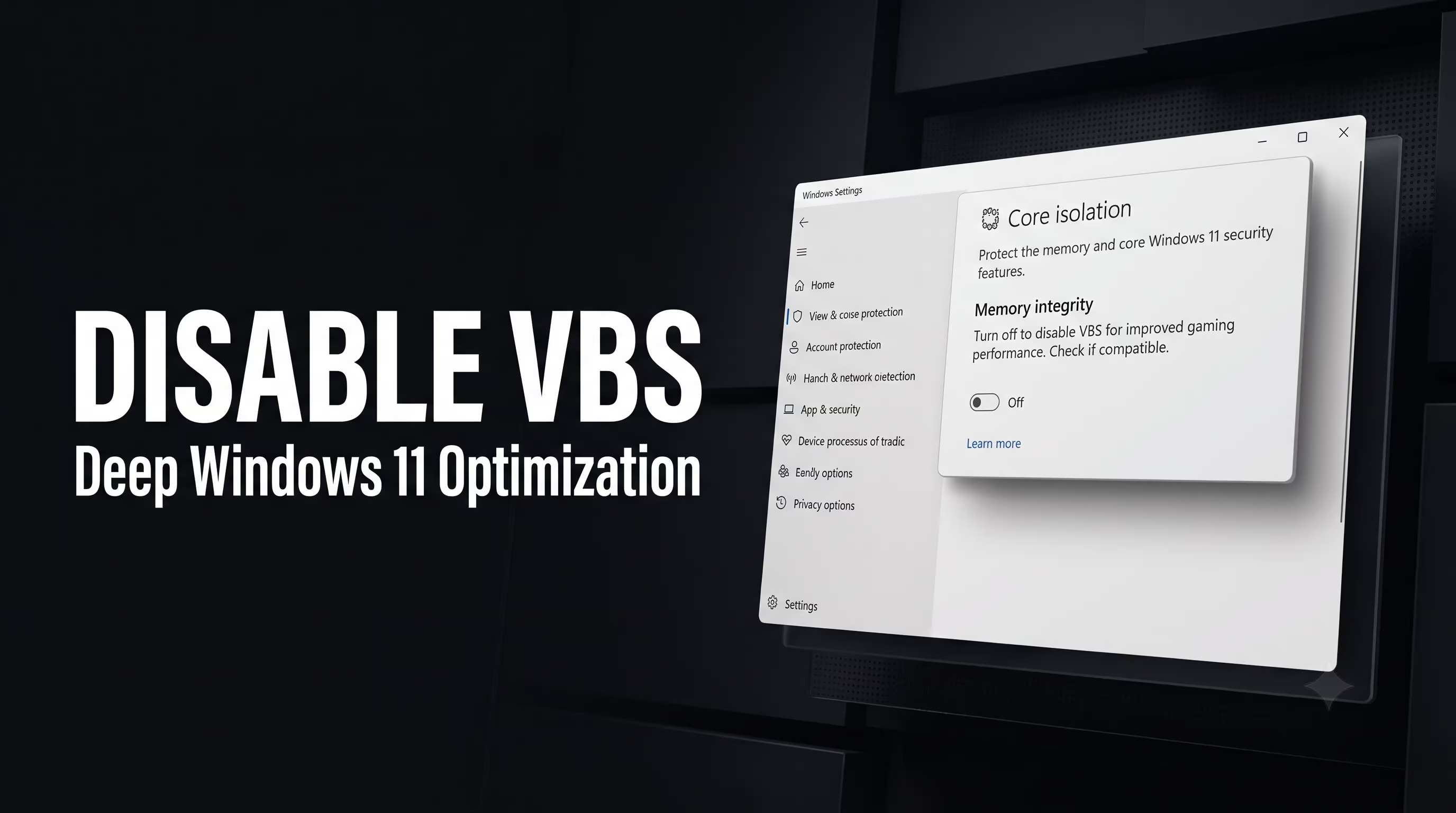
1. Disable VBS (Memory Integrity) in Windows 11 24H2
Virtualization-Based Security (VBS / Memory Integrity) protects your OS but imposes heavy background overhead on CPU cores, eating up to 15–20% of your potential FPS. In Windows 11 24H2, the toggle inside Windows Security often fails to disable it completely, making registry modification the most reliable method.
- Press
Win + R, typeregedit, and hit Enter. - Navigate to:
HKEY_LOCAL_MACHINE\SYSTEM\CurrentControlSet\Control\DeviceGuard\Scenarios\HypervisorEnforcedCodeIntegrity. - Locate the
Enabledparameter and change its value from 1 to 0. - Restart your PC.
2. HAGS: Hardware-Accelerated GPU Scheduling
Hardware-Accelerated GPU Scheduling (HAGS) offloads VRAM management directly to the GPU controller. On budget GPUs with 2GB or 4GB VRAM, HAGS can save system overhead, but in CS2 it sometimes causes frametime spikes. Open Settings → System → Display → Graphics, and benchmark your game with HAGS toggled both On and Off.
3. Background Tuning: Game Mode, DVR, Power Plan & Fast Startup
To minimize latency and free up system resources in Windows 10 and 11:
- Game Mode: Enable. Helps Windows prioritize cs2.exe over non-essential background processes.
- Xbox Game Bar & Background DVR: Disable. Background clip recording places heavy continuous load on the CPU.
- Fullscreen Optimizations: Disable under cs2.exe Properties (Compatibility tab) to eliminate DWM presentation latency.
- Power Plan: Select "High Performance" or "Ultimate Performance" via Control Panel to prevent CPU core parking.
- Fast Startup: Disable in Power Options to prevent accumulated driver state corruption across system restarts.
- Background Apps: Close browsers, Discord (or disable hardware acceleration inside it), and third-party overlays (GeForce Experience, RivaTuner).
NVIDIA Control Panel & AMD Adrenalin Optimization
Proper graphics driver configuration improves overall performance and eliminates frame tearing.
NVIDIA Control Panel Settings
Right-click desktop → NVIDIA Control Panel → Manage 3D Settings:
- Power Management Mode: Prefer Maximum Performance.
- Low Latency Mode: Off. Critical Note: Do not enable 'Ultra' in driver settings if NVIDIA Reflex is active in-game! Dual-buffering queue conflicts cause framerate dips.
- Shader Cache Size: Unlimited or 10 GB.
- Texture Filtering - Quality: High Performance.
AMD Software: Adrenalin Edition
Inside AMD Software: Adrenalin Edition, navigate to Gaming / CS2 profile:
- Radeon Anti-Lag 2: Enable (reduces input delay on Radeon GPUs).
- Radeon Chill & Radeon Boost: Disable. Dynamic resolution and framerate scaling introduce unwanted motion blur.
- Smart Access Memory (SAM / Resizable BAR): Enable to allow direct CPU access to VRAM.
Shader Cache Compilation After Updates
Every major game or GPU driver update resets your shader cache. To prevent sudden stutters during competitive matches, hop onto an offline bot map for 3–5 minutes and throw a few smoke and HE grenades. This forces the engine to pre-compile shaders in the background.
Monitor Refresh Rate, VRR & FPS Caps
Synchronizing frame delivery with high refresh rate monitors (144 Hz, 240 Hz, 360 Hz) ensures silky-smooth visual tracking:
- With G-Sync / FreeSync (VRR): Cap in-game FPS 3 frames below your refresh rate (e.g.,
fps_max 141for 144 Hz, orfps_max 237for 240 Hz). This keeps rendering strictly within the VRR window, preventing screen tearing without introducing G-Sync V-Sync delay. - Without VRR (Standard Monitor): Set
fps_max 0if your system easily maintains stable high FPS. If your framerate swings wildly (e.g., jumping between 150 and 300 FPS), cap it near your 1% Low average (e.g.,fps_max 200) for frametime consistency.
Hardware Bottlenecks: CPU, RAM, SSD & System Requirements
If your system falls below Valve's recommended hardware baseline, software tweaks can only do so much. Audit your rig against these key factors:
- CPU & L3 Cache: CS2 thrives on processors with large L3 caches. AMD Ryzen CPUs with 3D V-Cache technology (5700X3D, 7800X3D) deliver unmatched 1% Low frametimes. Intel Core i5 chips (12400F, 13400F, 14400F) also provide solid baseline stability.
- System RAM: Dual-channel mode is non-negotiable. Running a single RAM stick cuts memory bandwidth in half, guaranteeing stutters. Sweet spot: DDR4 3600 MHz CL16 or DDR5 6000 MHz CL30. If you only have 8GB RAM, close all background applications.
- SSD Storage: Installing CS2 on an HDD leads to asset streaming hitches during round starts and map loads. The game must run on a fast NVMe or SATA SSD.
- Thermal Throttling: If FPS drops significantly after 15 minutes of play, monitor temperatures via HWMonitor or MSI Afterburner. If CPU temps exceed 85°C (185°F), the processor throttles clock speeds. Clean out dust and re-apply thermal paste.
Frequently Asked Questions (FAQ)
Conclusion
While average players lose rounds to micro-stutters and choppy frametimes, you can easily optimize Counter-Strike 2 for maximum input response and glass-smooth tracking. Comprehensive OS tuning, disabling VBS, configuring Steam launch parameters, and tweaking GPU driver settings will squeeze every drop of performance out of your hardware.
Check out other technical Counter-Strike 2 guides on our platform, apply these battle-tested tweaks, and dominate your matches. GL HF!