Honestly, nothing is more annoying than launching Counter-Strike 2 and getting your ears blasted by the Valve intro video for the thousandth time. Or worse, messing up your video settings so bad that you get a black screen. If you’ve been playing as long as I have—from the dusty cyber cafes of 1.6 to the Premier rating grind in CS2—you know that the game isn't just about shooting heads; it's about optimization.
.jpg)
Today, we aren’t just listing codes. We are going to dig into the best CS2 startup commands (also known as launch options) that actually work. I’ve tested these settings on potato laptops and high-end rigs to see what gives a real fps boost CS2 launch options and what is just a placebo. Whether you need to fix a resolution error or squeeze out those extra frames, this guide covers it all.
What Are CS2 Launch Options?
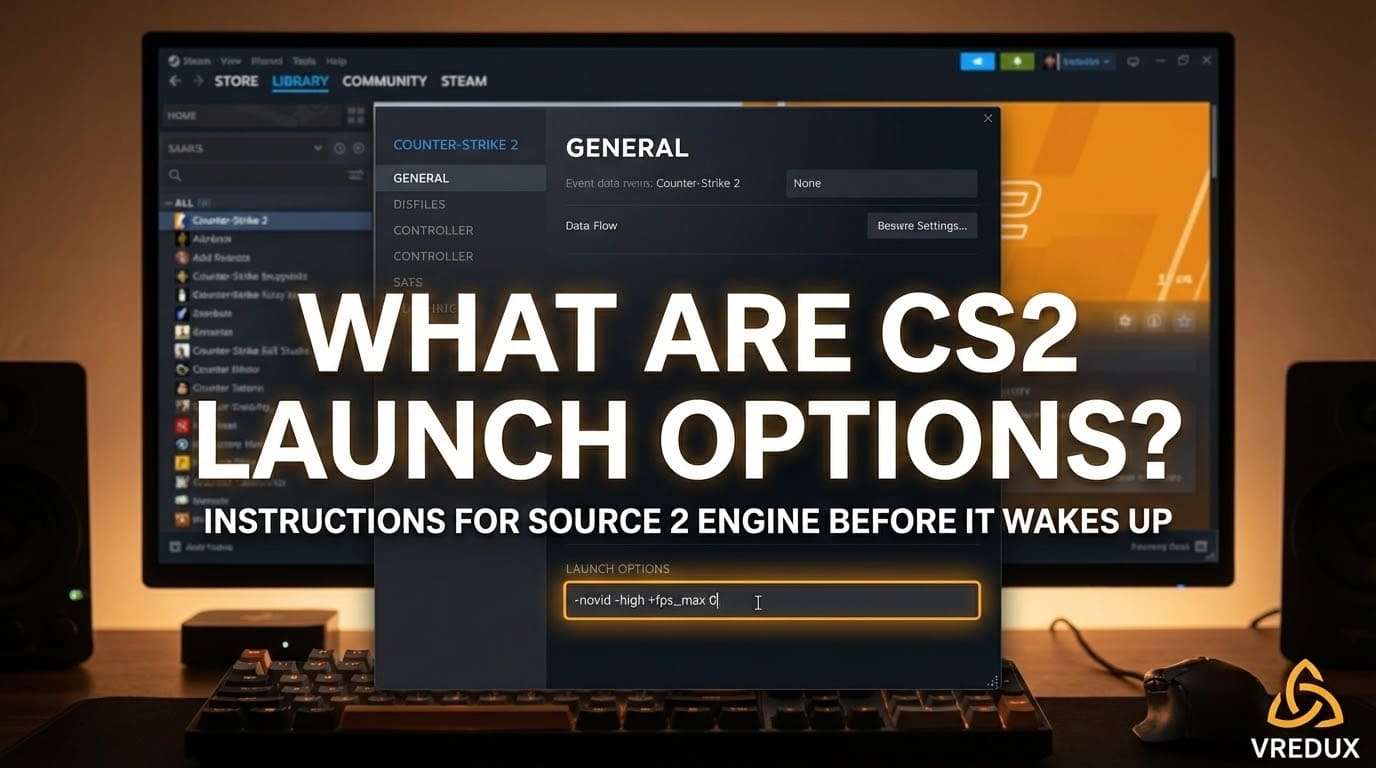
Think of CS2 launch options commands as instructions you give to the game before it even wakes up. They tell the Source 2 engine how to behave, how to use your processor, and what screen settings to force.
Back in the day, CS GO startup commands were a bible for optimization. In Counter-Strike 2, many of those old commands are obsolete, but the ones that remain are critical. Using the right launch parameters can reduce input lag, fix crashing issues, and yes, boost fps.
How to Set Launch Options in CS2
If you are new here, don't worry. Setting CS2 steam launch commands is easier than learning a smoke lineup on Mirage.
-
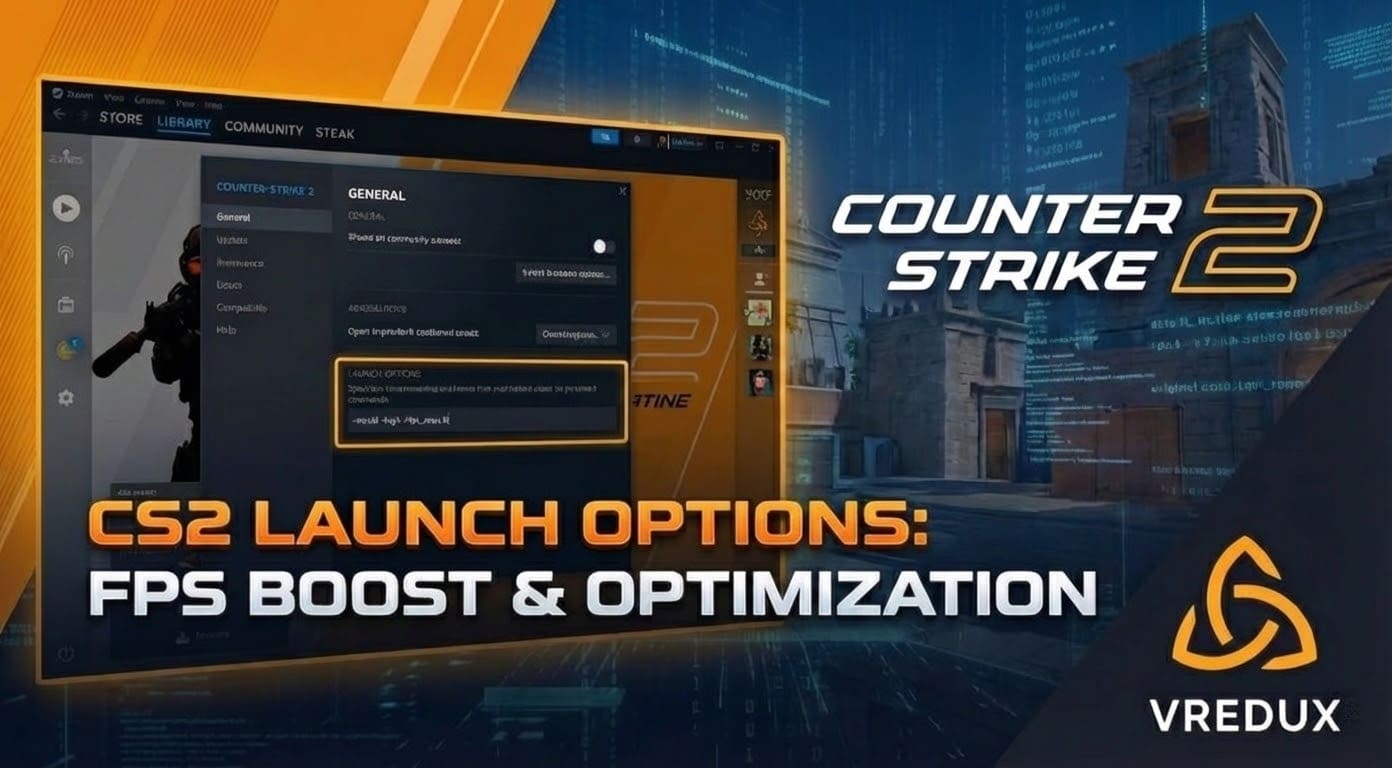
Open your Steam Library.
-
Right-click on Counter-Strike 2.
-
Select Properties.
-
In the General tab, look for the Launch Options text box at the bottom.
-
Type your commands here (separate each command with a space, like
-novid -high).
Essential CS2 Startup Commands for FPS and Comfort
Let's cut to the chase. You want to know commands to make CS2 run better. I’ve filtered out the junk to give you the best CS2 launch options 2026 edition.
The "Must-Have" Commands
These are the CS2 best startup commands that I put on every single account I boost or play on.
-
-novid: The classic. This is the CS2 novid command that skips the loud Valve intro video. It saves you seconds every time you start CS2. -
-high: This forces your Windows system to give the CS2 process "High Priority". Basically, it tells your PC, "Hey, focus on the game, not the browser in the background." It’s a staple CS2 high priority command. -
-nojoy: No, it doesn't remove joy from your life. It disables joystick support. Since the game constantly polls for a controller, disabling it frees up a tiny bit of RAM and CPU. -
+fps_max 0: This command eliminates fps limitations. By default, the menu might cap you. This uncap your fps completely, allowing your PC to push as many frames as possible.
Optimizing Threads and CPU
A lot of people ask about the threads CS2 command. In Global Offensive, we used -threads 4 or 8. In CS2, the engine is smarter.
However, if you are experiencing stuttering, you might see guides suggesting mat_queue_mode 2. My advice? Be careful. I’ve tested this, and while it forces multi-threaded mode, it can cause crashes on some Ryzens. Generally, letting CS2 manage threads automatically is safer now. But using CS2 launch options fps boost like -high is still safe and effective..jpg)
How to Change Resolution in CS2 Without Opening Game
This is a lifesaver. Maybe you bought a new monitor, or maybe you accidentally set a 4K resolution on a 1080p screen and now you can’t see the menu. You need to know how to change resolution in CS2 without opening game.
We do this via CS2 startup commands resolution settings.
Force Resolution Commands
To force a specific resolution, we use -w (width) and -h (height). This acts as a hard CS2 resolution command or CS GO resolution command (it works the same).
-
For 1080p:
-w 1920 -h 1080 -
For 4:3 Stretched (1280x960):
-w 1280 -h 960 -
For Low End (1024x768):
-w 1024 -h 768
This is the fastest method regarding how to change resolution in console CS2 (well, technically outside the console). Once you launch the game with these, it forces that size. You can then remove them from launch options if you want to change it in settings later.
Setting the Refresh Rate
If you have a 144Hz or 240Hz monitor, you must ensure the game actually uses it. There is nothing sadder than playing on 60Hz with a top-tier monitor. The CS2 refresh rate command ensures you are getting that smooth buttery gameplay.
-
Command:
-refresh 144or-freq 144(Change the number to your monitor's Hz, e.g., 165, 240, 360).
This answers the common query: how to change CSGO refresh rate or how to change hz in CSGO (and CS2). Always hardcode this to avoid Windows resetting it.
Aspect Ratio Fixes
Sometimes, even with the resolution set, the game looks squished. You might need the CS2 aspect ratio command. While usually handled in settings, you can try forcing windowed modes if things are broken:
-
-fullscreen: Forces full screen. -
-windowed: Forces windowed mode (useful for troubleshooting).
.jpg)
Advanced CS2 Launch Options: Vulkan and Configs
Now for the nerdier stuff. If you are looking for advanced CS2 launch options, here is what you need to know.
Vulkan vs. DirectX
-
-vulkan: This switches the rendering API from DirectX to Vulkan.-
My take: I tried vulkan CS2 on my NVIDIA card, and it stuttered like crazy. However, if you are on Linux or some specific AMD setups, this might actually be a fps boost CS2 launch options contender. For 99% of Windows users? Skip it.
-
Auto Config and Video.txt
-
-autoconfig: This autoconfig CS2 command resets your video and performance settings to the default recommended for your hardware. Use this CS2 starting commands only if your game keeps crashing on boot. -
CS2 video.txt: This isn't a launch option, but a file located in your userdata folder. Sometimes, when looking for how to change CS2 resolution in files, you manually edit this file. But honestly? Using the -w and -h launch options is way faster and safer.
The "Do Not Use" List (Myth-busting)
You will see many sites listing launch commands for CS GO that simply do not work in CS2. Using these CS2 steam startup commands creates "placebo" clutter in your config.
-
-d3d9ex: This is enabled by default now. Useless to add. -
+cl_forcepreload 1: The CS2 preload command is dead. In fact, Valve devs have said previously that preloading can cause stuttering in modern engines. -
-novid(Wait, I listed this as good?): Actually, it works, but sometimes it causes a black screen for 2 seconds anyway. It's still one of the best CS2 launch commands, but don't panic if the screen hangs briefly.
Summary Table: Best CS2 Launch Options 2026
Here is a quick cheat sheet for the best startup commands CS2 users should apply.
| Command | Function | Recommended? |
|---|---|---|
-novid |
Skips Valve intro video | ✅ Yes |
-high |
Sets high CPU priority | ✅ Yes |
-freq X |
Forces refresh rate (e.g., -freq 144) | ✅ Yes |
+fps_max 0 |
Removes FPS cap | ✅ Yes |
-nojoy |
Disables joystick support (saves RAM) | ✅ Yes |
-w 1280 -h 960 |
Forces resolution (Example) | Only if needed |
-vulkan |
Uses Vulkan API | ❌ Only Linux |
-threads X |
Forces specific CPU threads | ❌ Let CS2 decide |
.jpg)
How to Boost FPS Further?
If you have applied all the CS2 launch options for fps boost and your game still runs like a slideshow, your hardware might be the bottleneck. However, there are software solutions.
I highly recommend checking out the private cheat VRedux. It’s not just about aiming; it has incredible optimization features. The visual removers can strip away useless effects that eat up your GPU, giving you a smoother CS2 experience. It’s the ultimate tool when console commands aren't enough.
FAQ: Frequently Asked Questions
How to change resolution in CS2?
You can do it in the video settings menu. However, if you have a black screen, use the CS2 change resolution command in launch options: -w [width] -h [height].
What is the CS2 skip intro command?
The command is -novid. Add it to your CS2 launch commands in Steam.
How to change refresh rate on CSGO/CS2 without entering the game?
Use -freq 144 (or your monitor's Hz) in the launch options. This is the standard refresh rate command CSGO players have used for years.
Do CS GO launch commands work in CS2?
Some CSGO start commands like -novid and -console work. Others like -tickrate 128 do not, because CS2 uses a subtick system.
How to change CS2 resolution outside of game?
The best way is using the launch options -w and -h. Alternatively, you can edit the CS2 video.txt file in your Steam userdata folder, but that is more complex.
What are the CS2 launch options to increase FPS?
The best CS2 launch commands for FPS are -high, +fps_max 0, and -nojoy. Also, ensure you aren't running heavy background apps.
Conclusion
Setting up your CS2 startup commands is the first step to becoming a better player. You can't hit heads if your screen is tearing or your frames are dropping. By using the CS2 best launch commands we discussed—like -high, -novid, and the correct refresh rate command CSGO veterans swear by—you ensure your PC is focused entirely on the match.
Remember, launch options for CS2 are powerful tools. Don't copy-paste random list of commands from 2015. Stick to what works in the Source 2 engine.
Now that your game is optimized, are you ready to dominate the server? If you want to take your rank even higher, check out our guide on CS2 Premier Rating System or learn how to show FPS in CS2 to monitor your new performance boost.
See you on the server! Global Elite won't reach itself.