The tradition of cranking display settings to the max dates back to 1.6, when every single pixel could decide a duel. Are you also frustrated that the washed-out colors on Mirage hurt your eyes, and you simply can't see enemy models in the dark corners of Inferno? Honestly, when I first switched to Source 2, my eyes were practically bleeding from the gray, muddy visuals. Searching for a fix online was even more painful: 90% of the articles recommend dead console commands from a bygone era. As a shooter veteran and a regular contributor to the VRedux technical knowledge base, I've taken the engine apart piece by piece. In this guide, I'll break down exactly how to adjust gamma in CS2 via the console, why old methods break the game, and how to bring back that crisp, vibrant picture to dominate your matches.
Guide Contents:
- • Expert Verdict
- • Why CS:GO Commands No Longer Work
- • The Only Working Method: r_fullscreen_gamma
- • The Washed-Out Colors Issue and the Hardware Fix
- • Pro Players' Gamma and Color Settings
- • Ready-to-Use autoexec.cfg for the Perfect Picture
- • FAQ: Common Questions on Brightness and Monitor Setup
- • Conclusion
Expert Verdict
In Counter-Strike 2, the old gamma and mat_monitorgamma variables have been completely disabled by the Source 2 engine. The only working console command to control the luminance curve is r_fullscreen_gamma. In 80% of cases, the dull picture issue is solved by the right combination of this command and your GPU driver settings.
Key Causes and Solutions
- Outdated Syntax: Trying to enter old commands throws an "Unknown command" error. Use exclusively
r_fullscreen_gamma. - Windowed Mode Conflict: The gamma command is completely ignored in "Borderless Windowed" mode. Make sure to switch to exclusive "Fullscreen" mode.
- Washed-Out Colors: The new engine uses AGX Tone Mapping, which eats up color saturation. Compensate for this by cranking up the Digital Vibrance in the NVIDIA Control Panel to 75-90%.
- Reset on Restart: To prevent brightness settings from resetting after closing the game, hardcode them into your autoexec.cfg.
Why CS:GO Commands No Longer Work (Debunking Guide Errors)
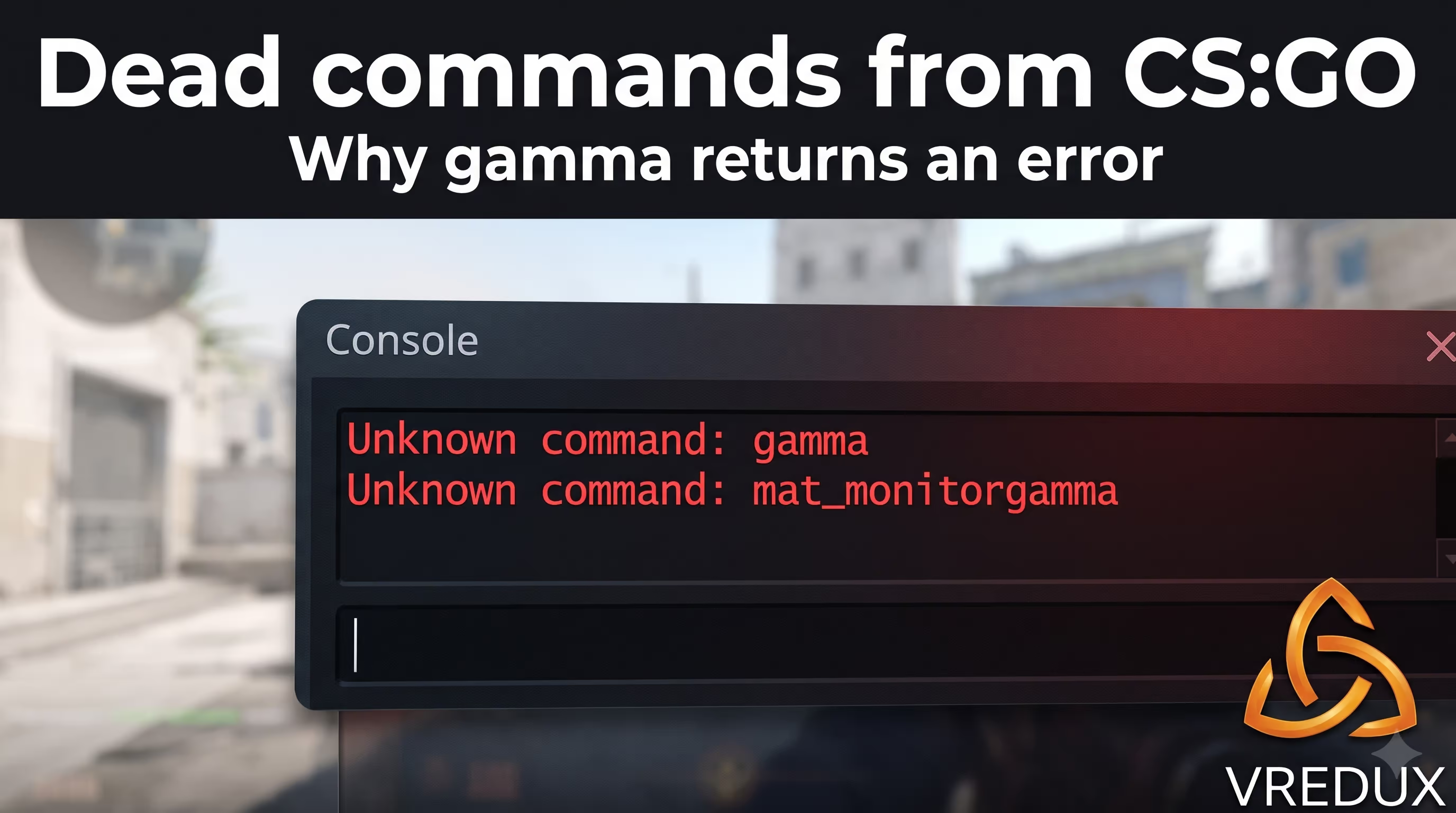
Many players search for "CS2 gamma settings" and end up on AI-generated articles. These AI guides blindly copy information from old Counter-Strike versions. Remember: after the switch to the Source 2 engine, the rendering architecture changed completely. Valve implemented a physically based lighting algorithm that handles shadows differently. Because of this, the good old mat_monitorgamma has faded into oblivion.
Today, the gamma parameter simply doesn't exist in the CS2 code. If you type it in, the developer console will throw an error. Let's be honest, it's frustrating when you're trying to tweak your game and the console spams red text. That's why it's crucial to understand which commands actually work in the current 2026 meta.
Table: Dead vs Working Brightness Commands
The Only Working Method: r_fullscreen_gamma
The only real CS2 brightness command the game recognizes is r_fullscreen_gamma. Essentially, it's a gamma curve multiplier that controls shadow depth and contrast. If you're looking for how to make CS2 brighter or, conversely, darker for better visibility, this is the one you need to tweak.
Let's break down step-by-step how to change gamma in CS2 via the console. Open the developer console (default key is `~`) and enter the command. In my tests on an RTX 4060, I tried dozens of variations to find the perfect balance between blown-out highlights on Dust 2 and pitch-black shadows in dark corners. By the way, if you're annoyed by a weapon model that's too large and blocks your view, make sure to also check out how FOV and Viewmodel settings work in CS2 — it provides just as much of a visibility boost.
Value Matrix: How to Dial in the Perfect Gamma
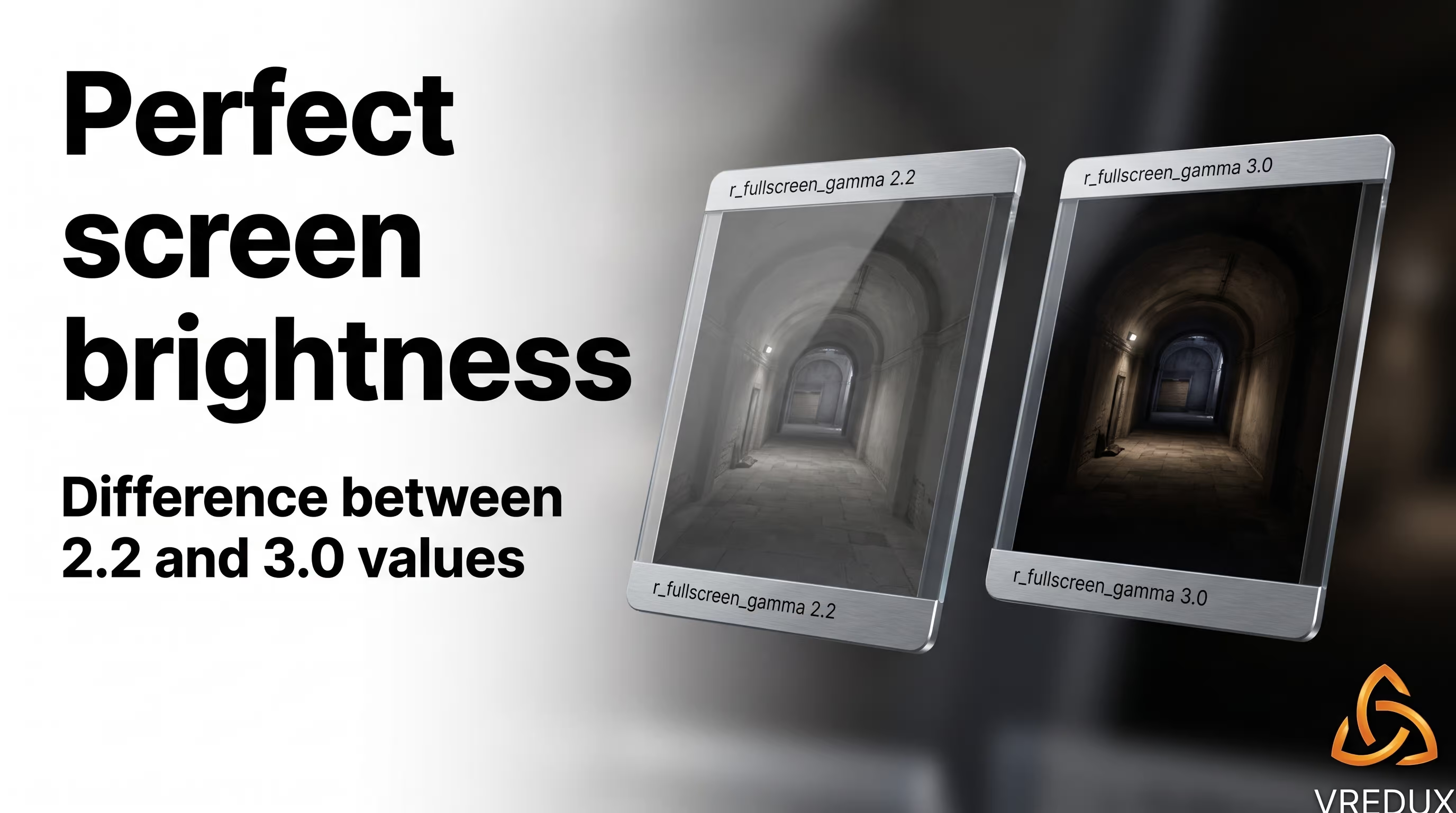
The default in-game value is 2.2, which matches the sRGB monitor standard. But pros rarely play on default. Below, I've compiled working presets. To apply them, use the syntax: r_fullscreen_gamma [value].
Fix for Borderless Windowed Mode
There's an important nuance here. If the in-game slider is grayed out and the r_fullscreen_gamma command isn't working, the issue lies in the display mode. In Borderless Windowed mode, color management is hijacked by the Windows DWM (Desktop Window Manager) compositor. The fix is simple: go to video settings and switch to "Fullscreen" mode. Without this, any CS2 gamma tweaking will be useless.
The Washed-Out Colors Issue and the Hardware Fix
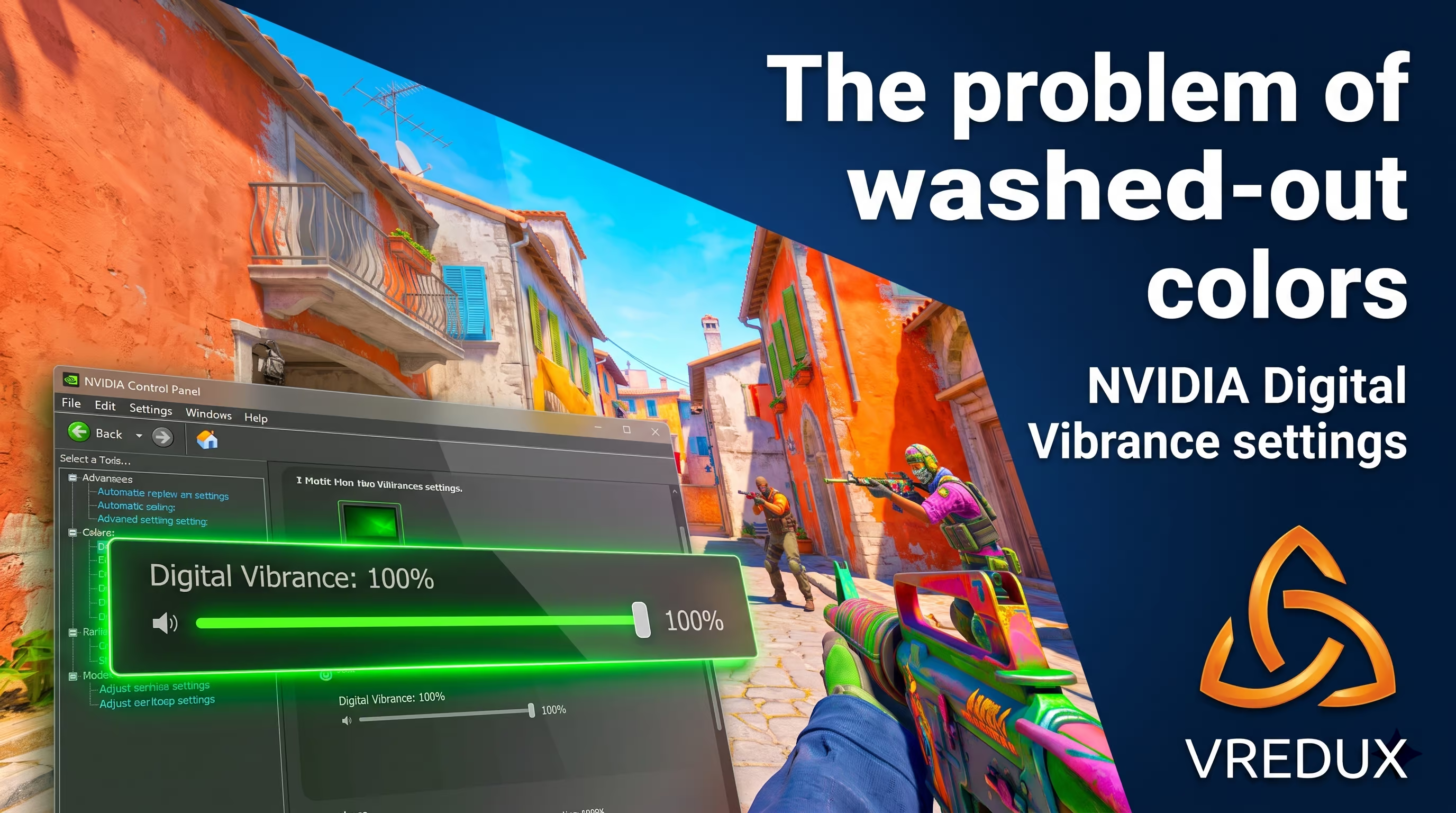
Many complain about the gray "mush" on their screens. You type in commands, but the game doesn't get any more vibrant. Why? Because gamma only changes the brightness of gray tones, but has zero effect on color saturation. The Source 2 engine uses Filmic Tone Mapping, which intentionally makes the picture look realistic and slightly washed out.
To make enemy models practically glow against the walls, we need more than just a gamma command—we need GPU assistance. Personally, I recommend using a combo: console tweak + driver settings. If you're running an NVIDIA GPU, right-click your desktop, open the NVIDIA Control Panel, go to "Adjust desktop color settings," and crank up Digital Vibrance to 75-100%. For AMD owners, this parameter is called Saturation in the Adrenalin software. Trust me, after this, you'll start spotting enemies milliseconds faster. By the way, visual smoothness isn't just about colors, so I also recommend checking out the best FPS commands in CS2 to eliminate input lag.
Pro Players' Gamma and Color Settings
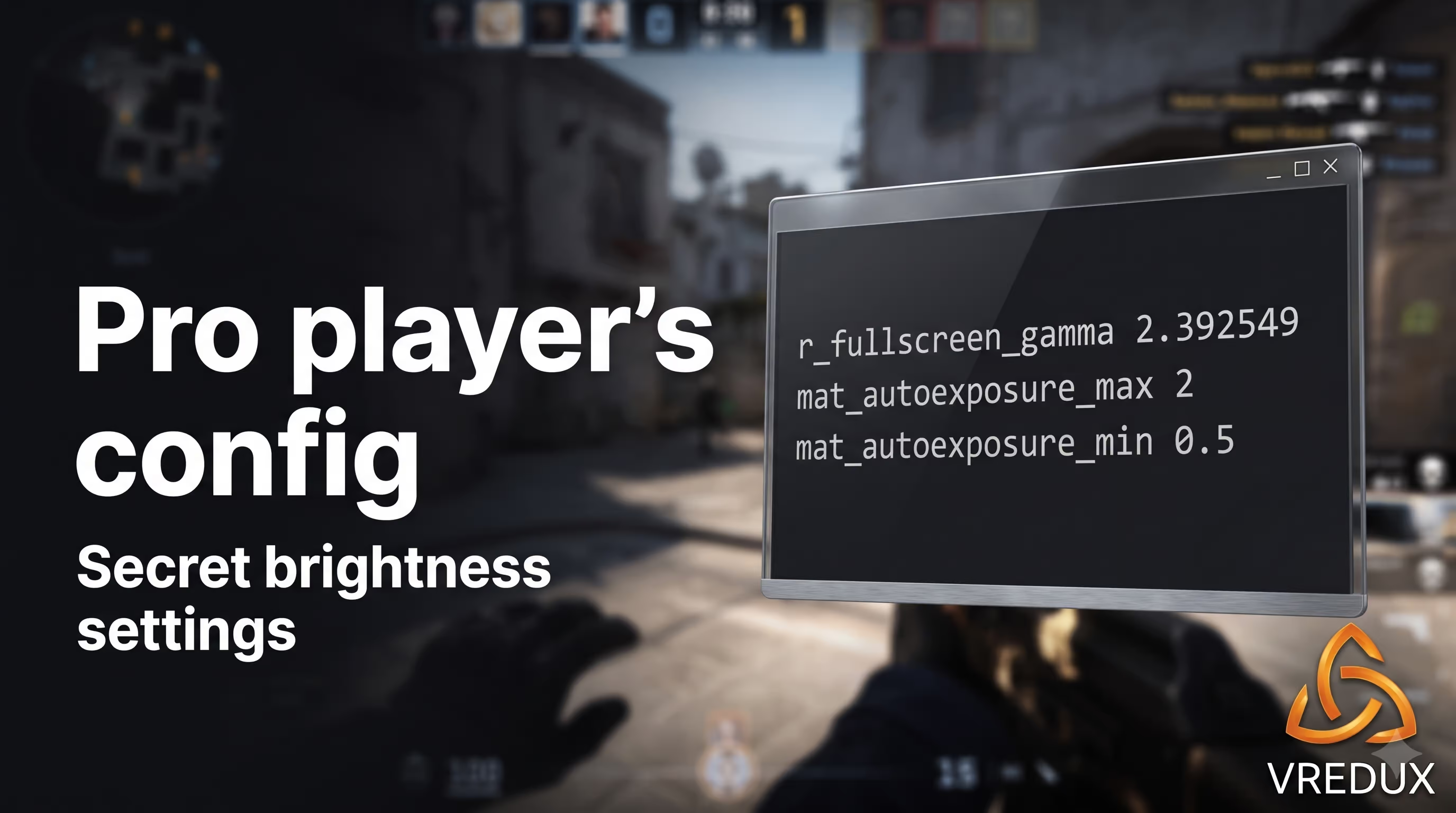
Players often argue about what graphics settings the pros use. Let's look at the facts. Team Spirit's biggest rising star, donk, uses a very specific config. His settings feature a highly precise value: r_fullscreen_gamma 2.392549. Combined with a 1280x960 resolution (4:3 stretched), this gives him perfect model clarity without excessive blur in the shadows.
Meanwhile, the legendary s1mple relies more on his hardware. He runs 100% brightness in-game, but on his actual Zowie XL2546K esports monitor, the Black eQualizer is tuned to brighten dark areas of the map at the hardware level. The bottom line is simple: pros combine engine tweaks with display settings.
Ready-to-Use autoexec.cfg for the Perfect Picture
You'd think you just type the command and go hand out headshots. But here's the catch: upon restarting, CS2 often resets the values to default. To avoid re-entering the parameters every time, create an autoexec.cfg file. Paste the following code into it:
// Optimal gamma and HDR settings in CS2
r_fullscreen_gamma "2.5" // Brings back old CS:GO contrast
mat_autoexposure_max "2" // Limits HDR blowouts from the sky and flashbangs
mat_autoexposure_min "0.5" // Stabilizes brightness in dark corners (e.g., apartments)
If you're a beginner and don't know where to put this text document or how to force the game to read it, be sure to check out our detailed guide on how to create and set up a CS2 Autoexec CFG. It's fundamental knowledge for any player.
FAQ: Common Questions on Brightness and Monitor Setup
Here I've gathered the most popular questions from the community to finally put the topic to rest.
Conclusion
The main takeaway is simple: forget about the garbage commands from outdated guides. A properly tuned r_fullscreen_gamma combined with exclusive fullscreen and GPU digital vibrance is your key to a crystal-clear picture. While others are squinting at pixels in the dark corners of the map, you'll clearly see every move your opponent makes. Apply these settings, jump into DM, and you'll feel the difference immediately. And if you want to level up your config even further, I recommend checking out our technical articles section, where all the secrets of hidden CS2 settings are broken down.