Table of Contents
.jpg)
Ever feel like your AK-47 is hugging your face and blocking half the map? You aren’t alone. In Counter-Strike 2, visibility is king, and the default position of your weapon can feel claustrophobic, especially if you are coming from other shooters with a dedicated FOV slider.
Here is the harsh truth: CS2 doesn't have a standard slider to change the FOV (Field of View) of the world geometry like Call of Duty or Apex. Valve locked the horizontal FOV to 90 degrees (106:9) to keep competitive integrity tight.
However, don’t panic. You can change the viewmodel FOV. This changes how close or far your gun appears on the screen, freeing up massive amounts of peripheral vision.
In this guide, I’ll show you exactly how to change FOV in CS2, adjust the viewmodel, and which console commands you need to type to get the best viewmodel settings for your playstyle.
What is FOV in CS2: Viewmodel vs. World FOV
Before we start typing codes, we need to clear up a common misconception. When players ask how to change FOV in CS2, they usually mean one of two things:
- World FOV (Field of View): This is how much of the map you see. In competitive matchmaking, this is locked. You cannot change fov for the camera itself without cheats.
- Viewmodel FOV: This controls the position of your hands and weapon model. By increasing this value, the gun moves "forward," making it appear smaller and covering less of the screen.
Understanding how to change your viewmodel in CS2 is critical because a bulky weapon model can literally hide an enemy peeking a corner.
.jpg)
How to Change FOV in CS2 (Viewmodel)
There are a few ways to set your fov regarding the weapon model. You can do it through the game settings menu or, if you want full control like a pro, using console commands.
Method 1: The Easy Way (Settings Menu)
Valve finally added a basic option to the in-game settings menu. It’s not very detailed, but it works for beginners.
- Open Counter-Strike 2.
- Go to Settings (gear icon) -> Game.
- Scroll down to the Item section.
- Find Viewmodel Position.
- You can choose between Desktop (default), Couch, or Classic.
- Desktop: The standard default FOV look.
- Couch: Moves the weapon higher and closer.
- Classic: Mimics the old CS 1.6 feel (tucked in the corner).
Honestly, playing with presets is okay, but if you want to change fov in CS2 to the maximum value, you need to open the console.
Method 2: The Pro Way (Console Commands)
To get the best viewmodel, you need the developer console. If you haven't enabled it yet:
- Go to Settings -> Game.
- Set Enable Developer Console (~) to Yes.
- Press
~(tilde) on your keyboard.
Now, enter the holy grail of viewmodel commands:
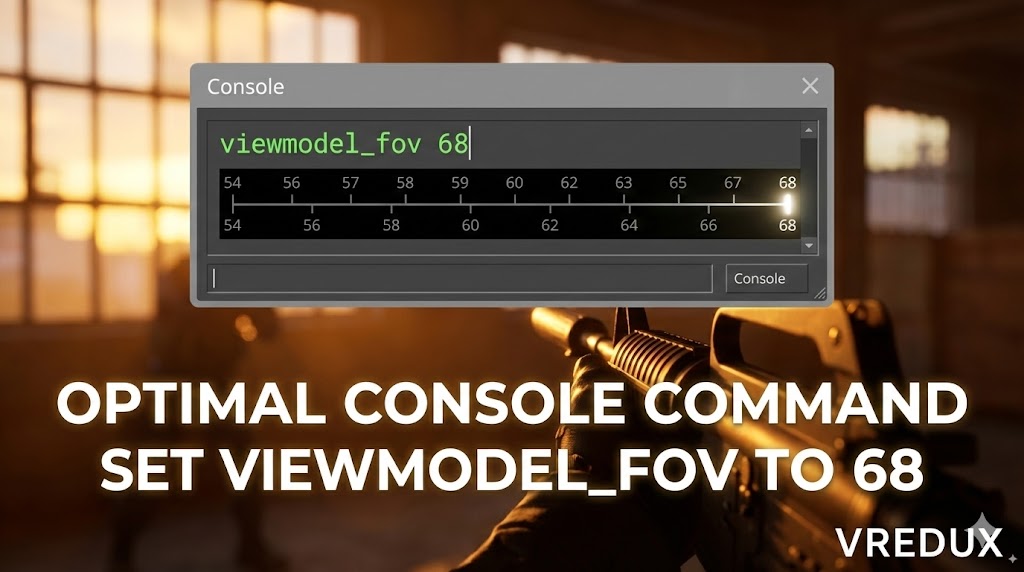
viewmodel_fov 68- viewmodel_fov command: This command adjusts the "field of view" of the gun.
- Minimum value: 54 (gun looks huge and close).
- Maximum value: 68 (gun looks smaller and further away).
I personally recommend setting this to 68. This higher fov pushes the gun away from your face, giving you better visibility.
.jpg)
Advanced Viewmodel Settings in CS2
Changing the viewmodel_fov is just step one. To fully customize the offset of your view model, you need to tweak the X, Y, and Z coordinates. These CS2 viewmodel commands determine exactly where the gun sits in 3D space.
Enter these commands in your console one by one to see what fits your gameplay experience:
1. Left or Right (X Axis)
viewmodel_offset_x 2.5This moves the gun left or right.
- Range: -2.5 to 2.5.
- Higher values move it to the right (if right-handed).
2. Close or Far (Y Axis)
viewmodel_offset_y 2This sets the y offset. It determines the length of your arms.
- Range: -2 to 2.
- Adjust the viewmodel to 2 to make arms look longest.
3. Up or Down (Z Axis)
viewmodel_offset_z -2This sets the z offset (vertical height).
- Range: -2 to 2.
- I prefer -1.5 or -2 to keep the gun lower, so it doesn't block vision.
.jpg)
Best Viewmodel Settings CS2 (Ready-to-Use Presets)
Don't want to mess around finding the best viewmodel settings manually? I’ve got you covered. Here are the recommended settings used by many pros. Just copy and paste these into your console.
The "Maximum Visibility" Preset
This pushes the gun as far away as possible (FOV 68) and to the side. Ideally suited for competitive play.
viewmodel_fov 68;
viewmodel_offset_x 2.5;
viewmodel_offset_y 0;
viewmodel_offset_z -1.5;
viewmodel_presetpos 3
The "Centered" Doom Style
Want a retro vibe? This centers the gun (mostly).
viewmodel_offset_x -2;
viewmodel_fov 68;
viewmodel_offset_z -2
Note: You can use a workshop map like "Crashz' Viewmodel Generator" to visualize these changes, but typing them is faster.
Can You Change the Actual World FOV in CS2?
Here is where things get tricky. Many players ask: can you change fov in CS2 to see more of the map (fisheye effect)?
Technically, yes, but not in competitive matchmaking.
Valve includes a CS2 fov command for debugging, but it requires sv_cheats to be enabled. This means it only works in private lobbies or practice mode.
How to use the debug FOV slider:
- Open console.
- Type
sv_cheats 1. - Type
fov_cs_debug <value>(Example:fov_cs_debug 100).
The default field of view is 90. Setting this to 100 or 110 gives you a broader view, but remember, you cannot use this in Premier or Faceit.
The VRedux Solution
If you are looking for a FOV changer CS2 that works in real matches to gain an advantage (seeing enemies in your peripheral vision earlier), standard game settings won't help.
This is where the private cheat VRedux comes into play. VRedux offers features that standard video settings don't allow, potentially including visual modifications. While the viewmodel_fov helps you see around your gun, tools like VRedux are designed for players who want to push the boundaries of gameplay mechanics and change the position of elements in ways the vanilla game blocks.
.jpg)
Viewmodel Commands Cheatsheet
Here is a quick reference table for the viewmodel commands we discussed.
| Command | Description | Recommended Value |
|---|---|---|
viewmodel_fov |
Changes the weapon fov. | 68 (Max) |
viewmodel_offset_x |
Moves gun Left/Right. | 2.5 |
viewmodel_offset_y |
Moves gun Forward/Back. | 2 |
viewmodel_offset_z |
Moves gun Up/Down. | -1.5 |
viewmodel_presetpos |
Loads default presets. | 0 (Custom) |
cl_righthand 0 |
Switch hands (Note: In CS2 this is now a setting or different bind). | Preference |
FAQ
What is the highest FOV in CS2?
For the viewmodel, the limit is between 54 and 68. You cannot set fov to any value beyond 68 without cheats. For the world camera, it is locked at 90 unless you use fov_cs_debug with cheats enabled.
Does changing viewmodel affect recoil?
No. Changing viewmodel is purely visual. It does not change spray patterns, but it can help you control recoil visually by clearing up the screen.
How to reset viewmodel in CS2?
To go back to default, type viewmodel_presetpos 1 in the console.
Can I bind a key to change FOV?
Yes, you can bind keys to toggle settings. For example: bind "v" "toggle viewmodel_fov 54 68".
Conclusion
Adjusting your FOV and viewmodel is one of the first things you should do in Counter-Strike 2. It might seem like a small detail, but CS2 can significantly feel different when your gun isn't blocking your view.
Tweaking these settings in CS2 allows you to spot enemies at the edges of the screen faster. My advice? Set viewmodel_fov 68, push the offsets to the right, and stop letting your gun model lose you rounds.
If you are looking for more ways to optimize your game, check out our guide on how to show FPS in CS2 or learn how to bind jump to mousewheel for better movement.
For the ultimate advantage and customization beyond what Valve allows, check out the VRedux main page at vredux.com. Good luck, and keep your vision clear!