Are you also tired of dying after an intense firefight, leaving your opponent alive, and having zero idea whether your teammate should peek them because you don't know if they are 1 HP or full health? The tradition of checking damage logs via the developer console using old commands has been around since CS:GO. But after the transition to the Source 2 engine and the release of CS2, the rules have drastically changed. Valve completely reworked the interface, stripping us of our usual tools.
Honestly, when I first encountered the new HUD, I desperately missed those good old green numbers in the top-left corner that showed every single hit. Here at VRedux—the ultimate knowledge base for gamers—we regularly break down the game's hidden mechanics. In this guide, I'll explain how to check your damage in CS2 right now, why your old binds no longer work, how to squeeze maximum info out of the UI, and why the subtick system sometimes feeds you fake hit markers.
Guide Contents:
- • Expert Verdict & Key Methods
- • Official Methods: End of Round & Scoreboard (TAB)
- • Console Commands for Damage & Wallbang Testing
- • Damage Prediction & Hitreg Issues
- • CS2 Damage Math: Armor, Distance, & Hitboxes
- • Server Plugins: Real-Time Damage Display
- • FAQ: Common Questions on Damage & Hitreg
Expert Verdict
In official matchmaking modes (Premier, Competitive), it is impossible to see damage dealt in CS2 in real-time. Valve forcibly disabled this feature for casual players to level the playing field and match the professional esports scene. In 100% of cases, information about damage dealt will only appear after the round ends.
Key Ways to Check Damage & Why Things Changed
- Player Avatars: Exact information on damage dealt and taken is displayed at the top of the screen right under the enemy icons—but only after the round ends.
- Locked Console: Old CS:GO commands (like
con_filter_text) no longer work on official Valve servers. You can no longer track your performance via the tilde key. - Scoreboard (TAB): The built-in interface lets you see your ADR (Average Damage per Round), but it updates with a delay and doesn't provide per-hit breakdowns.
- Practice Servers: For testing wallbangs and hitbox math, use a local server with the commands
sv_cheats 1andsv_showimpacts_penetration 1activated.
Official Methods: End-of-Round Screen & Scoreboard (TAB)
If you're playing in official modes, the only legitimate way to see your damage dealt is to wait until the end of the round or until you die. There are no more real-time logs. Many beginners ask how to show damage in CS2 like they used to in CS:GO, but the harsh truth is: you can't. Valve integrated the DamageDealtHUD directly into the end-of-round UI logic.
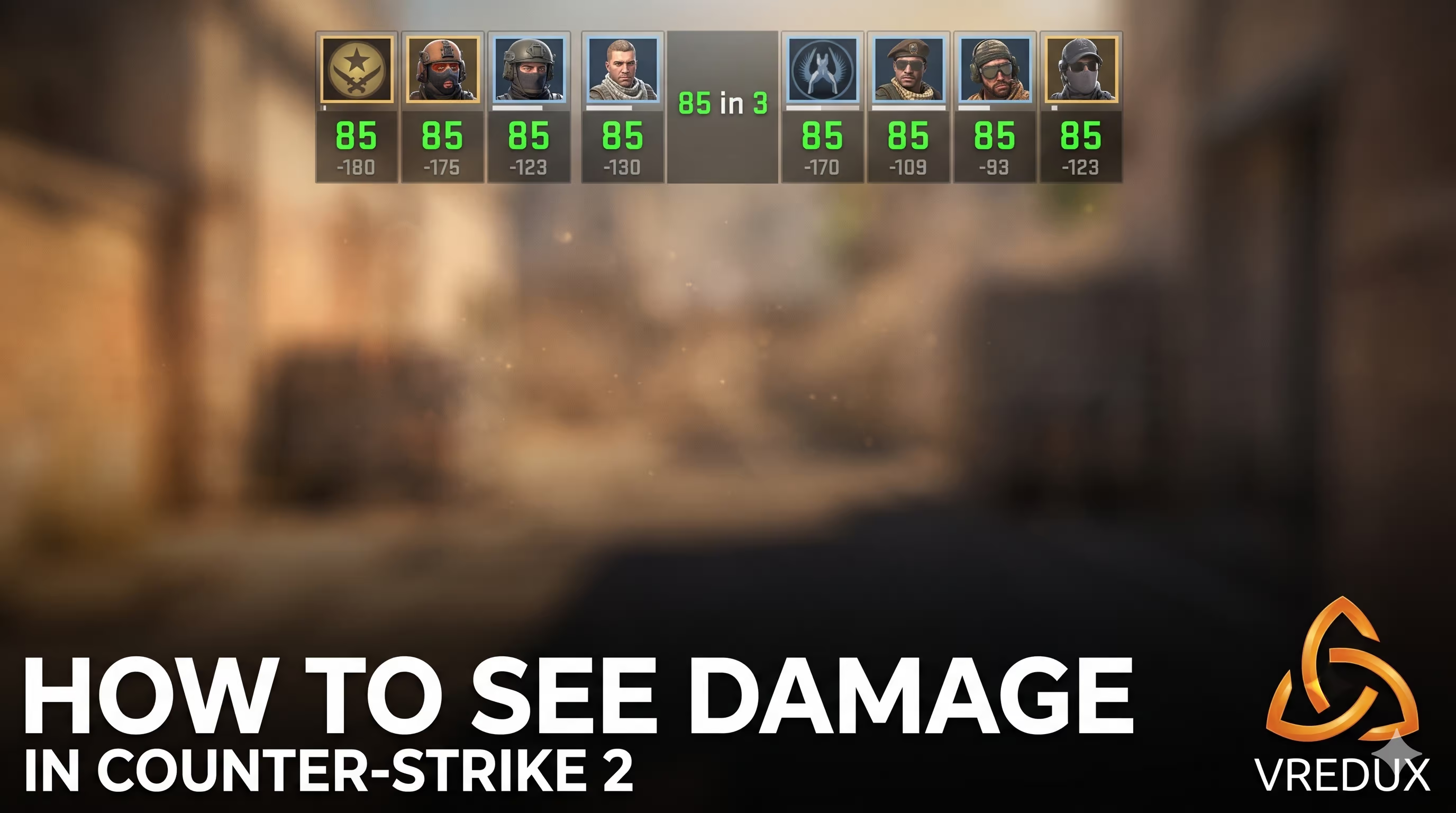
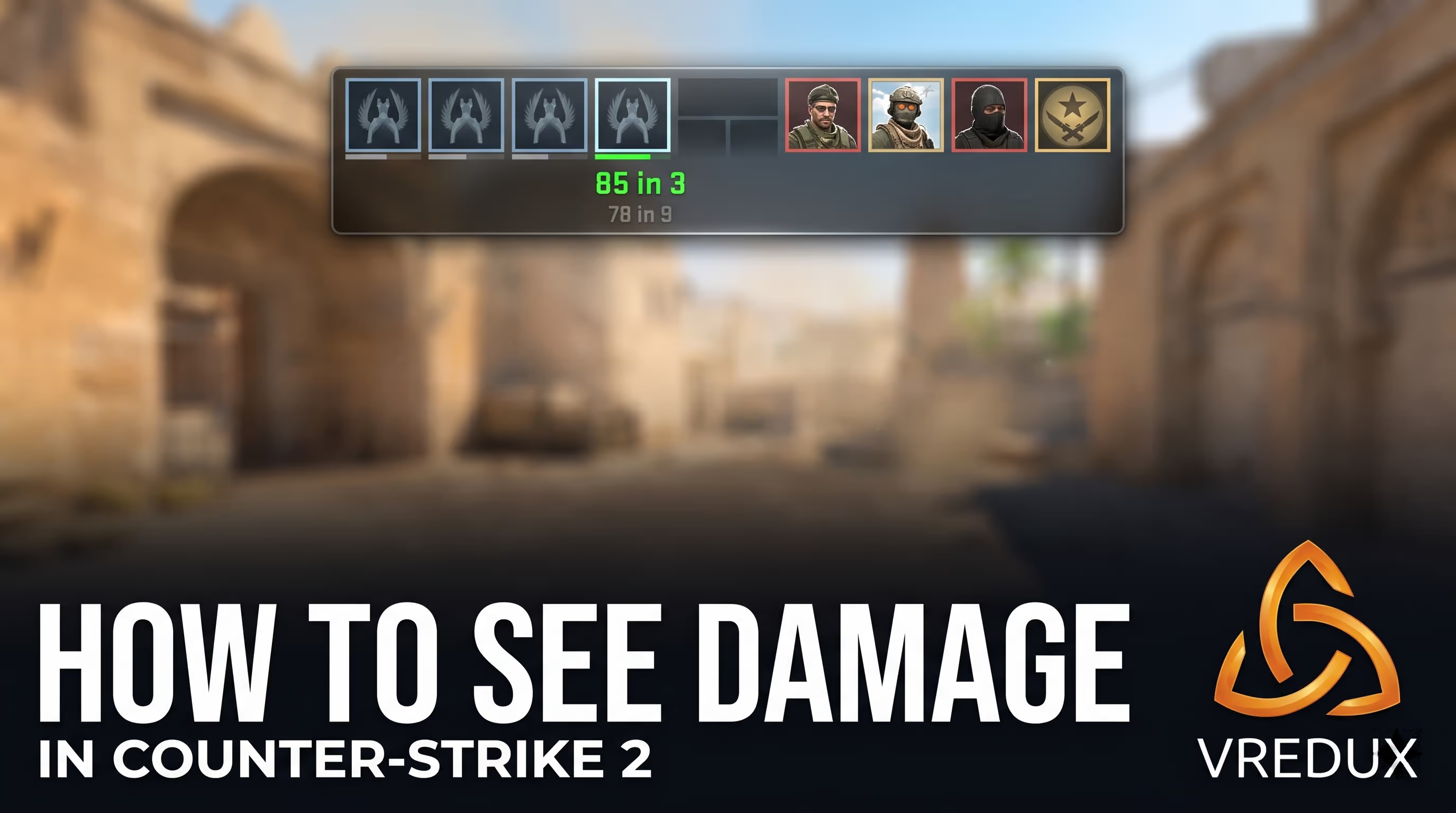
Here is a crucial detail: as soon as the round concludes, look at the top panel with the player avatars. Beneath the icons of the enemies you shot, two numbers will pop up. The green numbers show your damage to the enemy, while the gray numbers below them show how much damage they dealt to you. The display format looks like "85 in 3", which means 85 damage across 3 hits.
By the way, if you care about more than just damage and want buttery-smooth frames during gunfights, I highly recommend setting up an FPS counter via the console to monitor your frametimes and avoid nasty drops at critical moments.
How to Check Your ADR During a Match
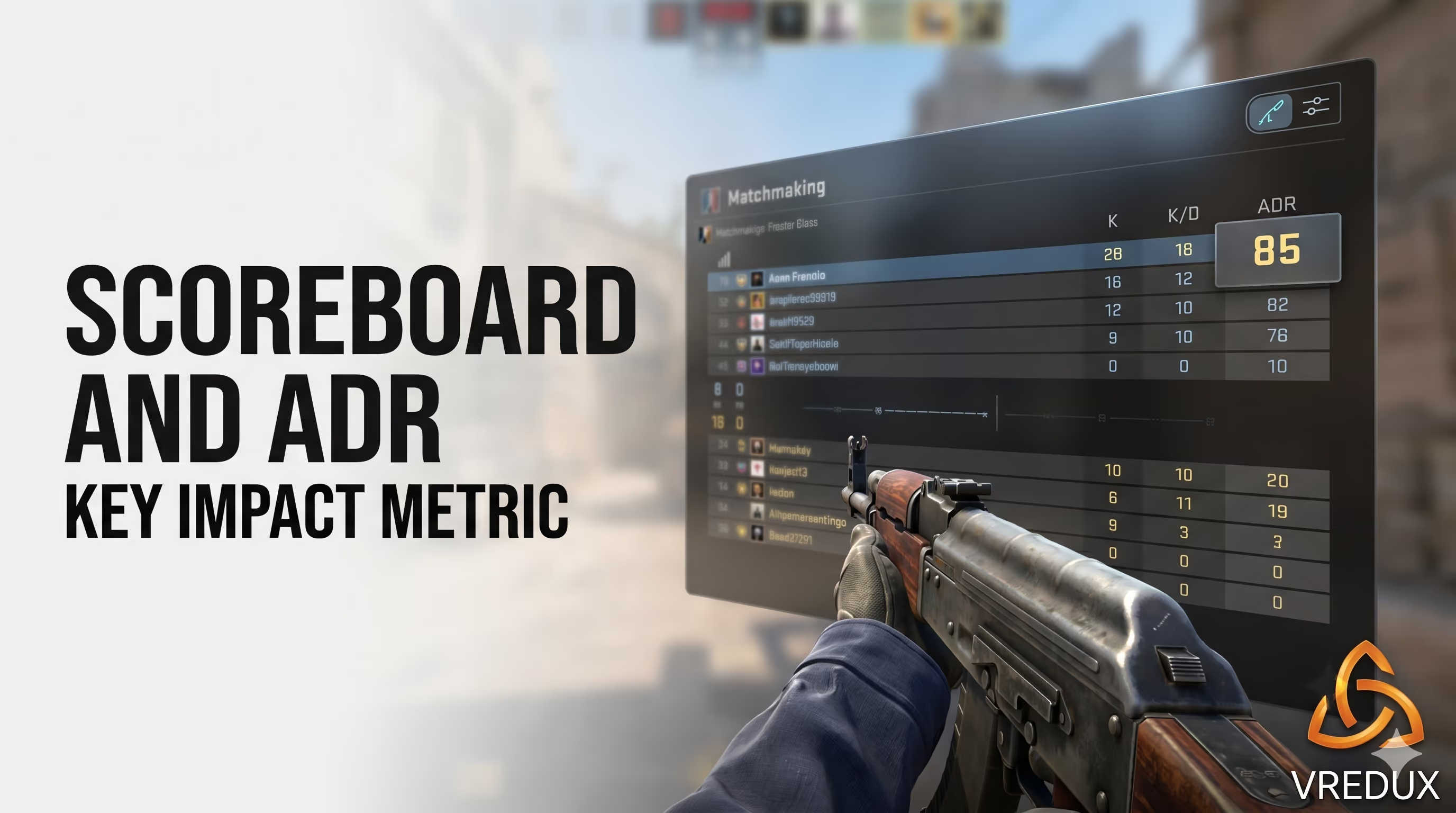
Your ADR (Average Damage per Round) is your primary usefulness metric. While K/D (Kill/Death ratio) can be deceiving due to trade assists or critical chip damage from nades, ADR shows your true impact. The formula is simple: total damage divided by the number of rounds.
To track your efficiency mid-game, you need to toggle the default scoreboard view:
- Hold down the
TABkey to open the Scoreboard. - While holding
TAB, right-click (RMB) to enable your cursor. - In the top-right corner of the scoreboard, click the toggle icon to switch to the stats view.
- Now, instead of headshot percentages, you'll see your current ADR. Anything above 85 is considered excellent across all ranks in Premier or FACEIT.
Console Commands for Damage & Wallbang Testing (Local Servers Only)
Based on my experience digging through configs, I can safely say that most guides online are hopelessly outdated. People are still trying to enter developer 1 and con_filter_text "Damage" to see damage in the CS2 console. Look, these commands are either fully removed or hard-locked in matchmaking. Don't waste your time.
But how do you check CS2 damage dealt when practicing lineups or testing new one-shot angles? For that, we use local practice servers and the built-in debugging tools of the Source 2 engine. This is essential for understanding how hitboxes behave and how wallbangs interact with the new PBR wall materials.
Here is a step-by-step setup for practice:
- Boot up a local server (Practice with Bots).
- Open the developer console (tilde ~).
- Enter
sv_cheats 1to enable debug mode. - Type
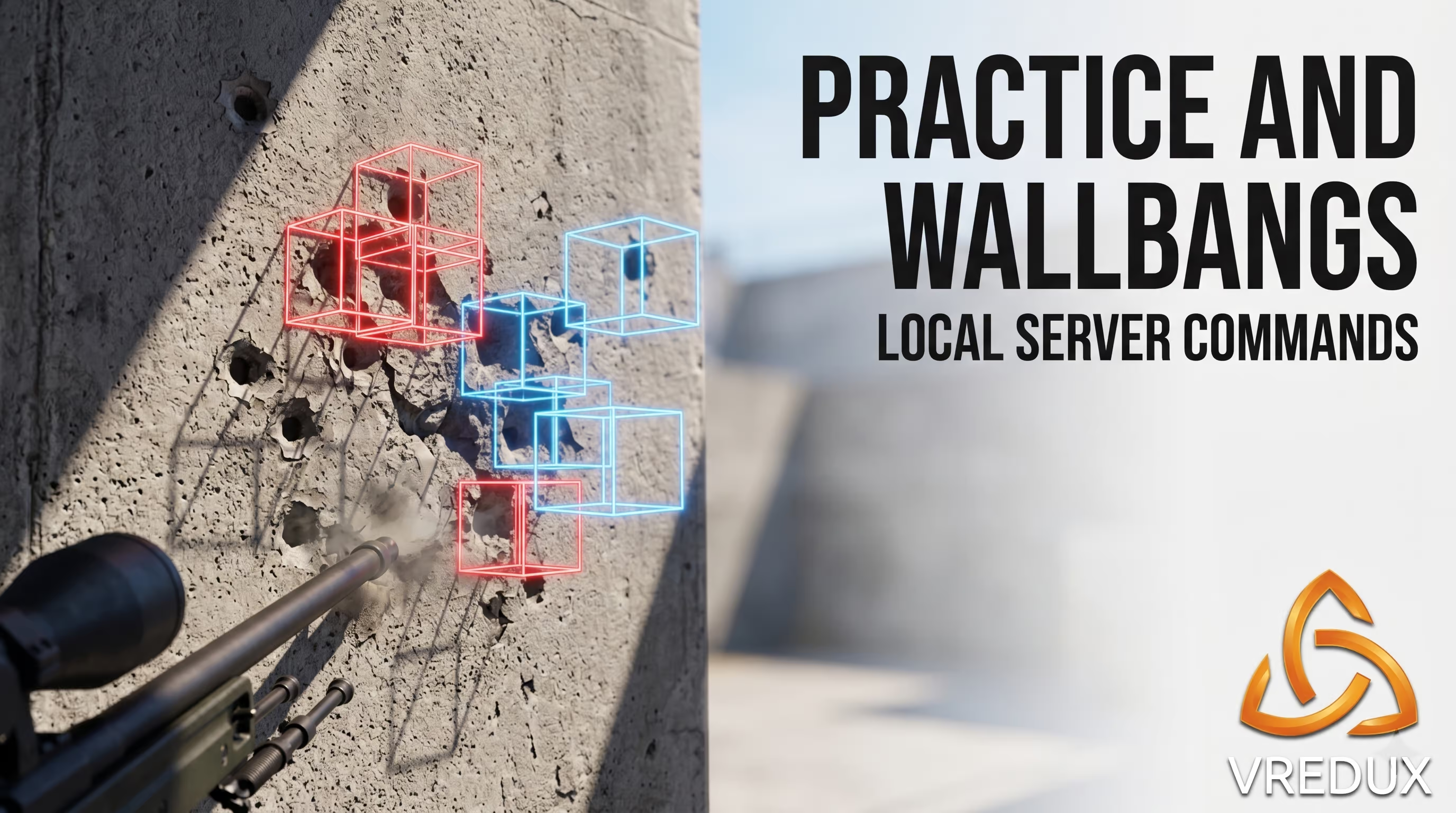
sv_showimpacts 1. This forces the game to draw blue (client-side) and red (server-side) hit markers. - Next, enter
sv_showimpacts_penetration 1. This command is absolute gold. It projects detailed wallbang stats right on your screen: wall thickness, damage drop-off, and the final damage that actually reaches the enemy.
If you want to save these parameters for regular practice routines without typing them out manually every time, add this block of code to your custom config. For more details on how to create and where to drop your Autoexec CFG, check out our dedicated settings encyclopedia.
Damage Prediction: The Setting That Changes Hitreg
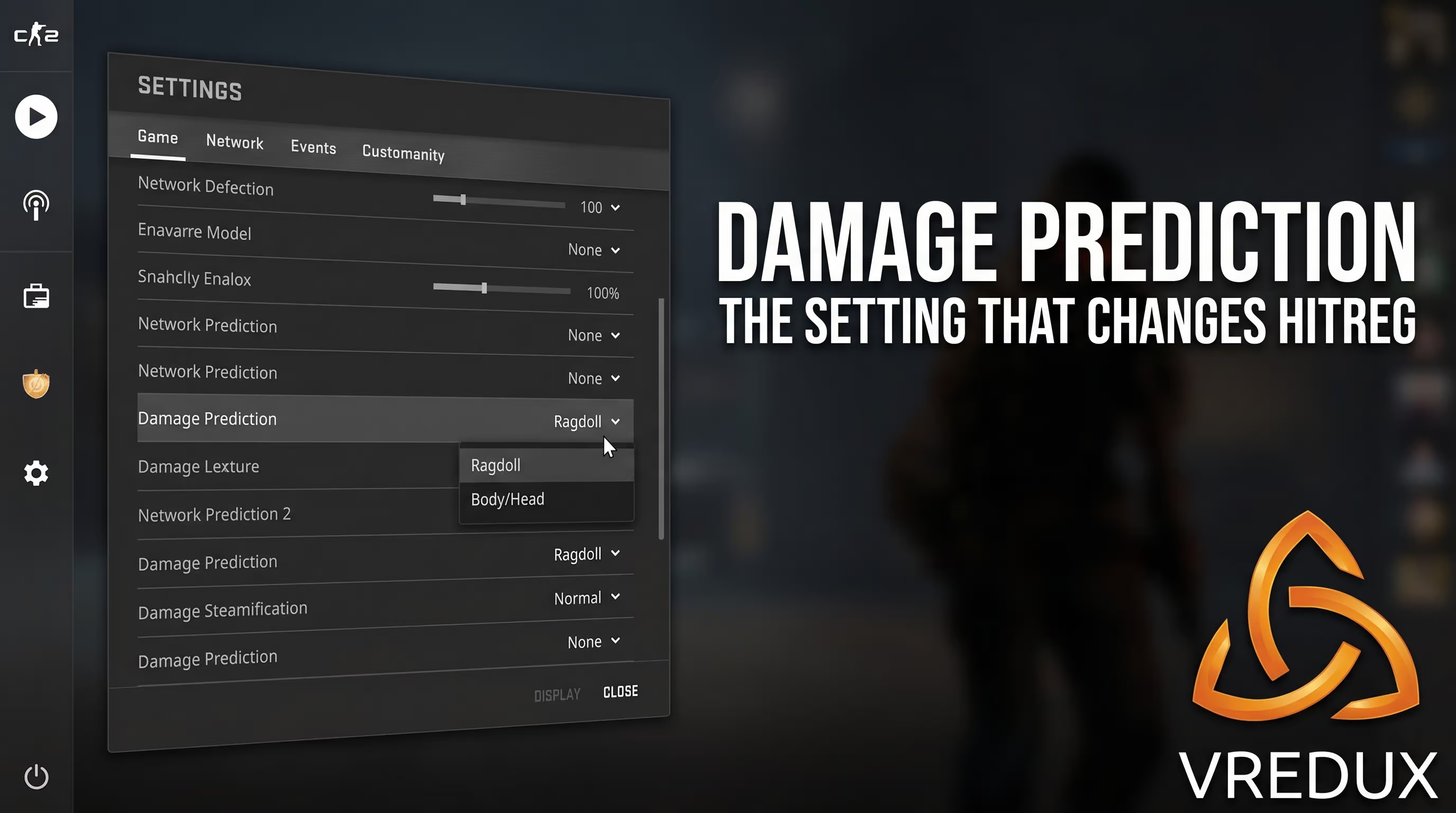
Here’s what the devs usually leave out when praising the new server architecture. In November 2024, Valve added—and in July 2025 severely overhauled—the "Damage Prediction" feature. This mechanic directly impacts how hit registration feels.
What exactly is it? Essentially, the game tries to mask your latency (ping). The client renders a hit marker, plays the dink sound, and even flinches the enemy player model before the server actually confirms that you hit the shot. Sounds great on paper, but in practice, it creates massive friction with the subtick system.
I’ve personally tested the game on an unstable connection (ping spiking to 60+ with high jitter), and those ghost hits will drive you insane. You shoot, see blood splatter, confidently turn away, and instantly die to the guy you supposedly just killed. You check the damage logs at the end of the round, and you dealt exactly 0 damage. The server ruled that, due to the subtick gap, your opponent ducked into cover a millisecond earlier.
My advice—and the consensus among the pro scene—is to go into Settings → Game → Damage Prediction. Turn off prediction for Body and Head, but leave Ragdolls (dead body physics) enabled if you want. This will save you from the mental gymnastics of seeing one thing on your screen while the server calculates something entirely different.
CS2 Damage Math: Armor, Distance, & Hitboxes
Let’s break down how this works at the code level. To truly grasp why an AK-47 gives you a clean one-tap while the M4A1-S leaves them at "-98 in 4", you need to understand the foundational mechanics. Final damage in Counter-Strike 2 is calculated using a strict exponential formula.
It looks something like this: Base Damage * Hitbox Multiplier * (RangeModifier ^ (Distance/500)) * Armor Mitigation.
Sounds complicated? It’s actually quite logical. Every weapon has a damage drop-off stat (Range Modifier). The AK sits at 0.98, meaning the bullet travels far and barely loses its lethal power. The Glock-18, however, hovers around 0.75—at long range, you’re basically shooting peas. Distance is calculated in raw Source engine units.
But the most critical factor is the hitbox multiplier. Where your bullet lands dictates the damage output:
There is a non-obvious detail here that players frequently forget. Armor (Kevlar) only protects the torso and head. The legs are perpetually exposed. If an enemy has 100 HP and full armor, an AWP leg-shot will deal exactly 85–86 damage (base 115 * 0.75). Understanding these multipliers helps you figure out which weapons are optimal buys in specific rounds to maximize your team’s economy and overall impact.
Server Plugins: Real-Time Damage Display
For private server owners, Deathmatch projects, or those who just love sparring with friends in custom lobbies, there is a fantastic workaround. Since Valve gutted the console readouts, the community stepped up and coded server-side plugins to restore the classic functionality.
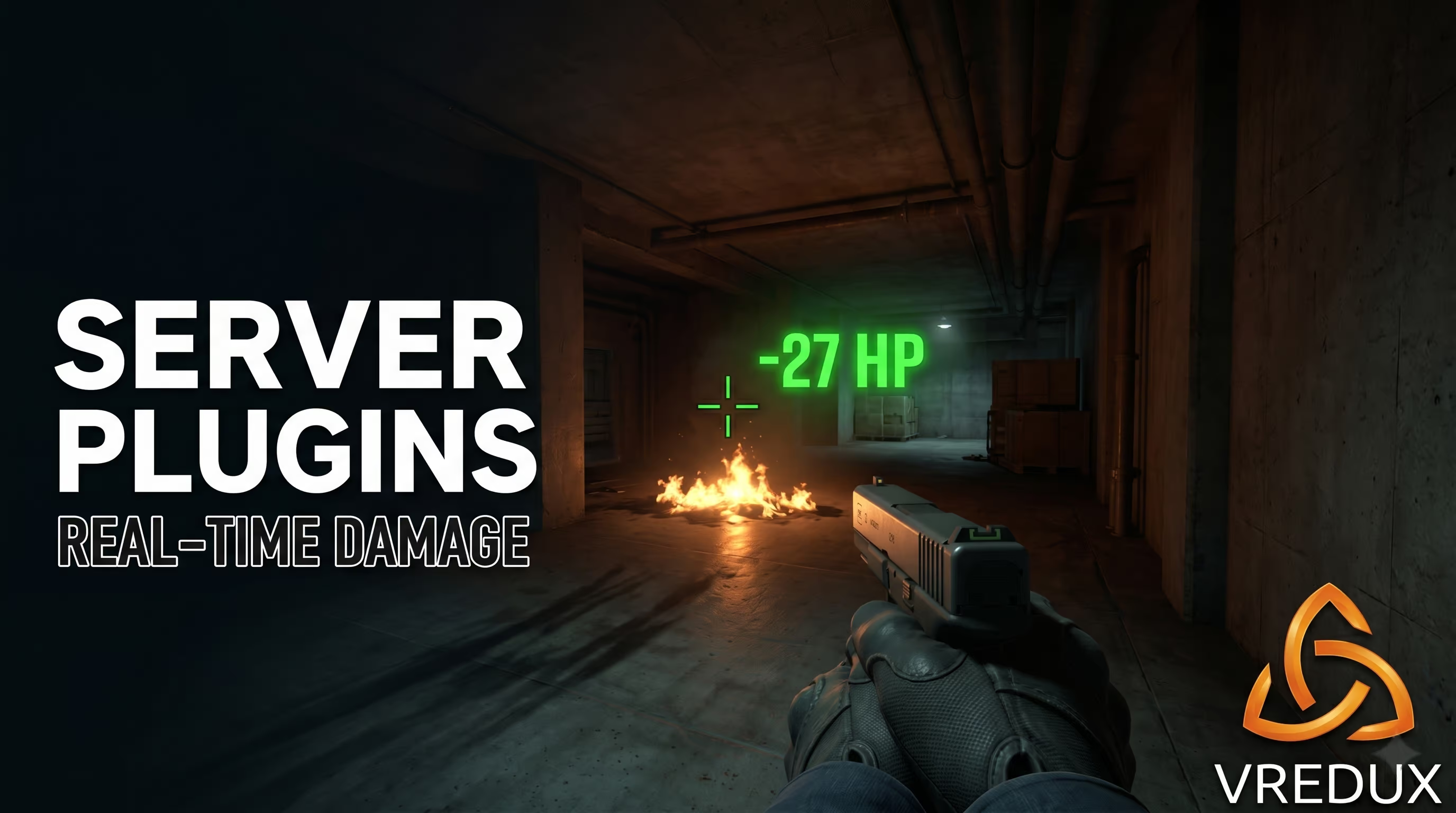
The most popular and stable option right now is the CS2_ShowDamage plugin. It's built on the modern CounterStrikeSharp framework (requires .NET 8.0 and API v362+). The logic is dead simple: the plugin intercepts server-side damage events and instantly prints them to the center of your screen (HUD) as a green or red text string in real-time.
It features highly customizable variables (CVARs), like css_showdamage_enabled 1 for the master toggle, and a killer feature called css_showdamage_grenade_total_enabled. This specific command tallies up all the chip damage from a Molotov burn into a single, clean number so you can see exactly how much HP your utility roasted away. It’s an absolute must-have tool for server admins that permanently solves the "CS2 not showing damage" headache for players.
FAQ: Common Questions About Damage & Hitreg
Conclusion
Here is the bottom line: it's time to permanently drop your old habits from CS:GO. Learning how to analyze your impact via the ADR scoreboard, correctly tweaking your damage prediction settings, and understanding raw hitbox math will save you in more clutch situations than you can count. Stop spamming broken commands into your console mid-match and focus on your crosshair placement. Be sure to check out our guides and articles section to discover even more mechanics that will help you dominate the server.