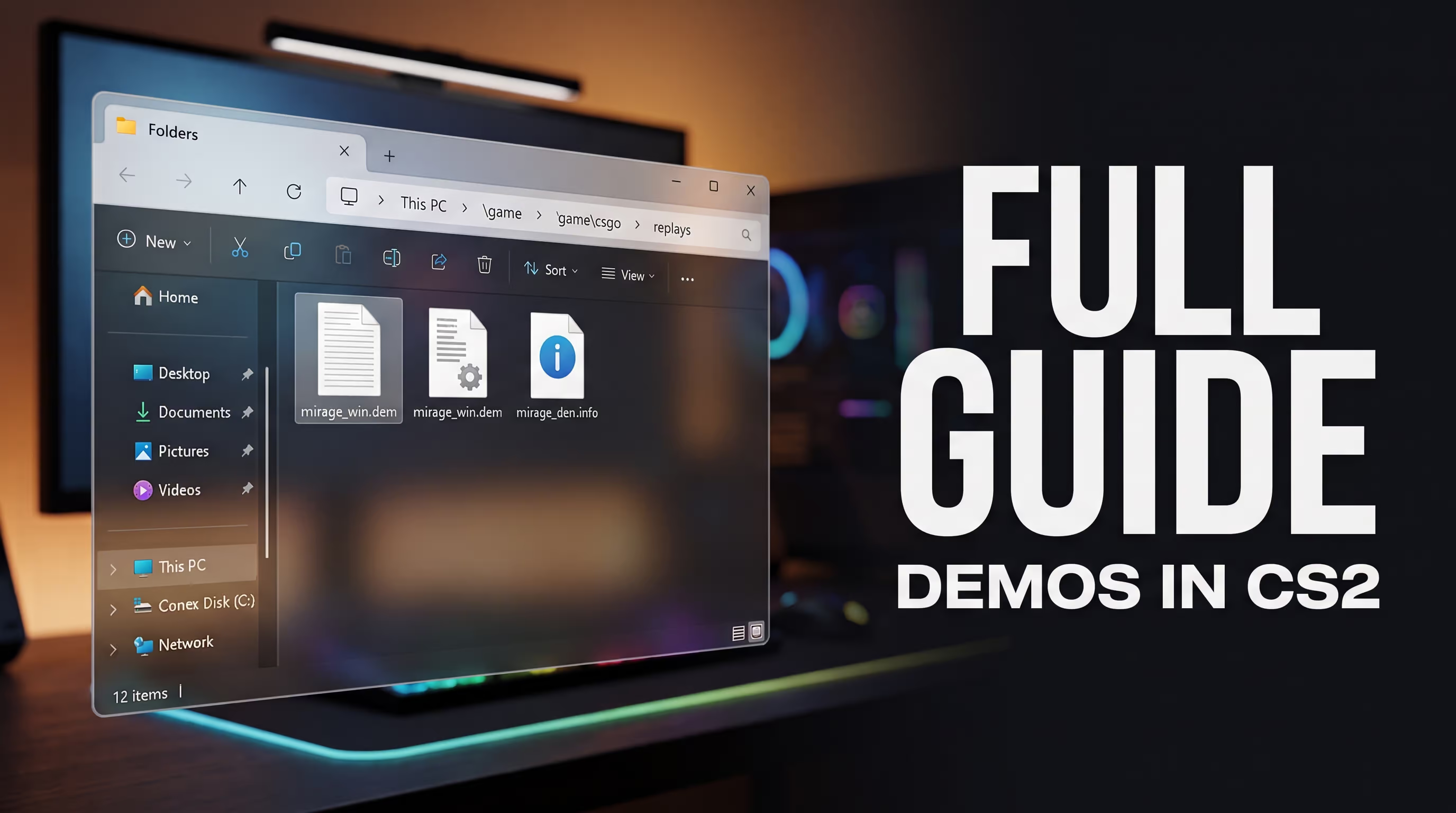
In Short: How to Open Any CS2 Demo
- Extract the downloaded archive (if you downloaded it from FACEIT or via a browser).
- Place the file with the
.demextension into the...\Counter-Strike Global Offensive\game\csgofolder. - Launch CS2, open the developer console (
~), and typeplaydemo filename. - To bring up the demo playback control panel, press Shift+F2 or type
demoui.
Remember that feeling when you pull off an unreal ace or, conversely, catch a sketchy shot through smoke from a sus player? The first thought is—I need to rewatch this clip right now. The tradition of digging through match replays goes way back, but after the switch to the Source 2 engine, file architecture and console commands have undergone massive changes. The official sub-tick system and the new MR12 format dictate their own rules. Honestly, the first time I tried opening my replay after the global update, I was ready to smash my keyboard because of the crashes and black screens.
In this guide, I’ll break down everything related to CS2 demos. Drawing on my background in reverse-engineering and analyzing competitive shooters, I’ll show you how to properly download them, where to put them, how to launch them, and most importantly—how to hear teammates' and enemies' voice comms on FACEIT. In the technical knowledge base at the VRedux portal, we constantly dissect the engine's intricacies, so this guide is built on real field testing, not outdated CS:GO-era manuals.
Expert Verdict
The Counter-Strike 2 replay system frequently breaks due to Steam cache issues or global map geometry updates. In 90% of cases, playback issues and download bugs can be fixed simply by placing the files in the correct folder and knowing the right console variables.
Key Causes and Solutions
- File location: Manually downloaded
.demfiles must be dropped strictly into the\game\csgopath. Auto replays from matchmaking default to the new\game\csgo\replayssubfolder. - Quick launch: Open the developer console and type
playdemo filename. To bring up the demo playback UI, use the Shift+F2 shortcut or typedemoui. - Voice chat activation: Official Valve servers do not record voice. To enable demo voice chat in CS2 from FACEIT, apply a bitmask using the
tv_listen_voice_indices -1andtv_listen_voice_indices_h -1commands. - Download error: If the download says "incomplete," copy the match's Share Code and download the archive directly through any desktop browser, bypassing the buggy Steam client.
What Demo Type You Have: Premier, FACEIT, GOTV, or Manual Record
How a .dem Differs from a Standard Video
A .dem file is not a video. It's a structured set of coordinates and events that the CS2 engine re-renders in real-time. This is exactly why old demos crash the client after map geometry updates. To create an MP4, you have to play the demo in-game and use separate screen capture software.
Where CS2 Demos Are Stored and How to Download Them
Many people mistakenly think the folder structure is the same as it was five years ago. In the current build of the game, Valve separated user recordings from server GOTV files. Let's break down where to drop your files and where to find them so you can watch CS2 demos without throwing errors.
If you want to download a CS2 demo from official Matchmaking (MM) or Premier mode, you do it directly in the game. Go to the TV tab (Watch Matches), find the match you need, and hit the download button. The system automatically places the file in the correct directory. However, they aren't stored there forever—Valve servers permanently delete recordings after 14-30 days.
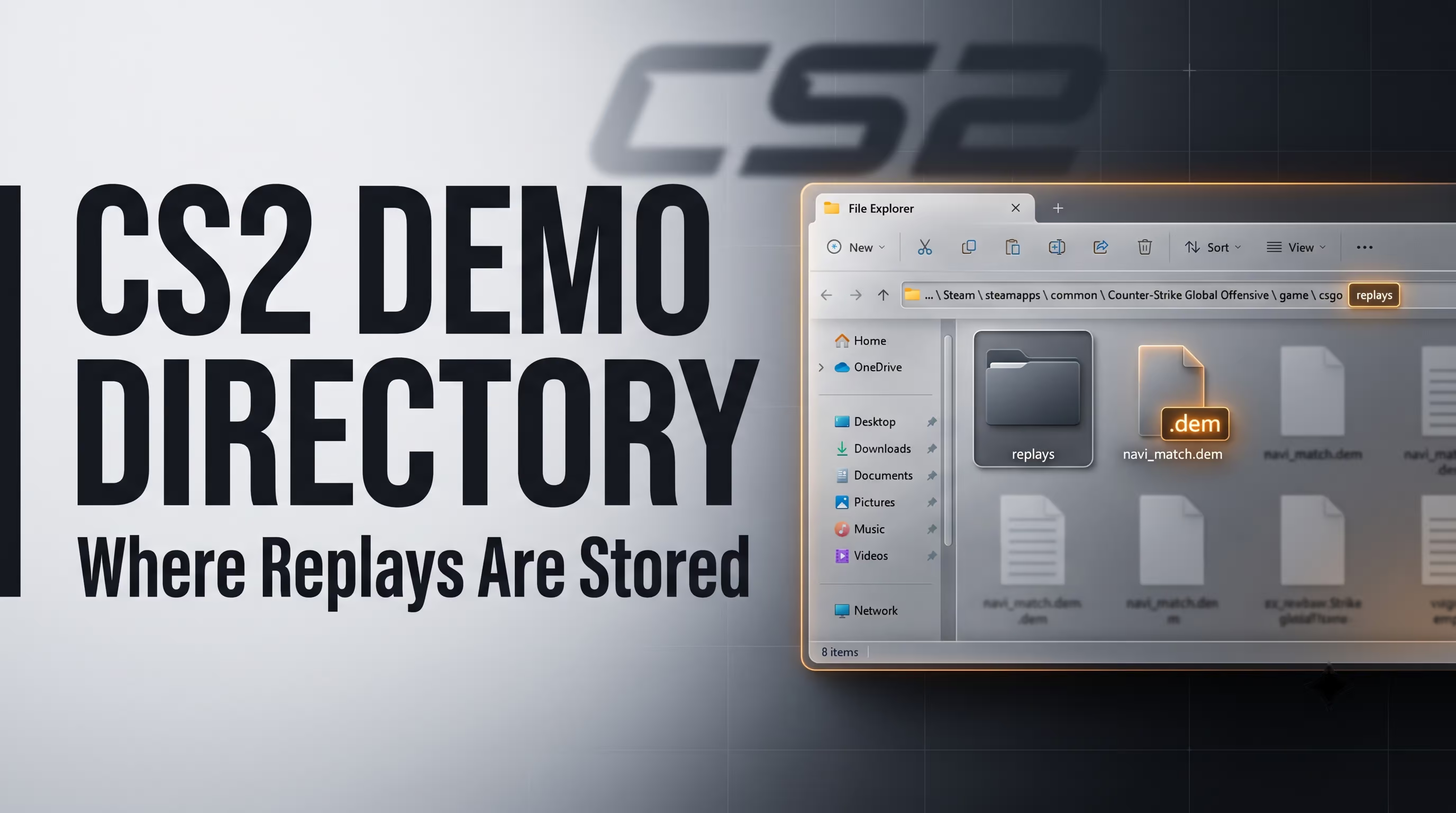
With third-party platform files (for example, if you need a FACEIT demo in CS2), it's a bit trickier. You download a .gz or .bz2 archive via your browser. You absolutely must extract it using an archiver (like WinRAR or 7-Zip). The resulting .dem file must be moved manually.
Here are the exact paths for Windows:
- Auto downloads (MM/Premier):
C:\Program Files (x86)\Steam\steamapps\common\Counter-Strike Global Offensive\game\csgo\replays - Manual recordings and FACEIT (where to drop them):
C:\Program Files (x86)\Steam\steamapps\common\Counter-Strike Global Offensive\game\csgo
mirage_win.dem so I don't have to struggle typing it into the console later.How to Play and Manage a Demo (Console and demoui)
While a rookie gets lost in folders, an experienced player handles it in a couple of clicks via the developer console. So make sure you know how to properly enable the console in CS2 beforehand, otherwise none of the commands below will work.
Launching via Console and Binds
To start viewing, you don't need to hunt for the file through the game UI. Open the tilde (~) and use the playdemo command. For instance, if you named your file navi_match, type playdemo navi_match. The game will automatically pull the file from the \game\csgo root or the replays folder.
If you need to record your own POV (Point of View) on a practice server, enter the command record my_demo. Recording starts instantly. To finish, type stop. This is hyper-critical for moviemakers and anyone analyzing their utility lineups in solo practice.
Rewinding by Ticks and Rounds
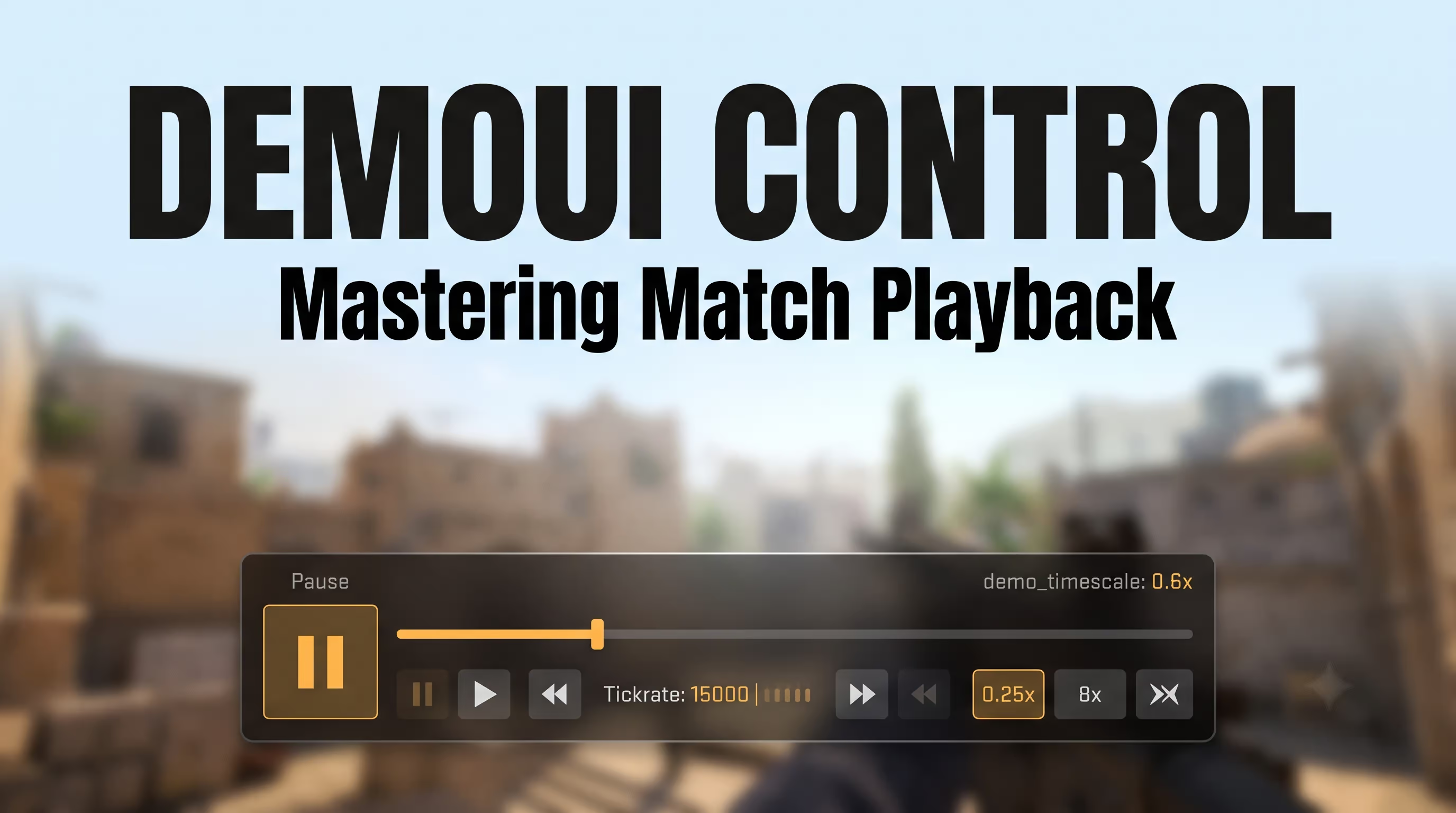
Once your CS2 game demo loads up, you'll need the Demo Playback control panel. You can bring it up in two ways: type demoui in the console or press the Shift+F2 shortcut. The new UI on Source 2 is much more responsive, but rewind bugs still pop up occasionally.
For professional analysis, it's much better to use console parameters:
demo_timescale 0.25— slows time down by 4x. Perfect for checking how sub-tick registered your shot.demo_timescale 8— fast-forwards playback so you can quickly skip eco rounds.demo_timescale 1returns to normal speed.demo_gototick 15000— instantly jumps the demo to the 15000th server tick.
On my rig (i5-12400F + RTX 4060), I bind the playback speed controls to my mouse side buttons. It has saved me a ton of time when decrypting VODs and analyzing CS2 demos.
Complete Control Commands Table with Reset Values
Ready-to-Use CFG for Demos
bind "F6" "demo_togglepause"
bind "F7" "demo_timescale 0.5"
bind "F8" "demo_timescale 1"
bind "F9" "demo_timescale 2"
bind "F10" "demoui"
bind "F11" "toggle spec_show_xray 0 1"
How to Hear Voice Comms and See the Chat
This is arguably the community's biggest headache. You download a match, want to hear your toxic teammate raging, but your headset is dead silent. Let's figure out how to watch a FACEIT demo in CS2 with voice comms and why it simply doesn't work in standard Matchmaking.
Enabling Voice Comms in FACEIT Demos
The core issue is simple: for privacy reasons, official Valve servers (Premier/MM) structurally do not record voice chat in CSTV files. No commands will help you hear voice comms in a CS2 demo if it was downloaded from Matchmaking.
It's a totally different story with FACEIT. Their servers record the voice of all ten players. But by default, it's muted. To hear voice comms, you need to use a bitmask system. Open the console and punch in these two commands:
tv_listen_voice_indices -1
tv_listen_voice_indices_h -1
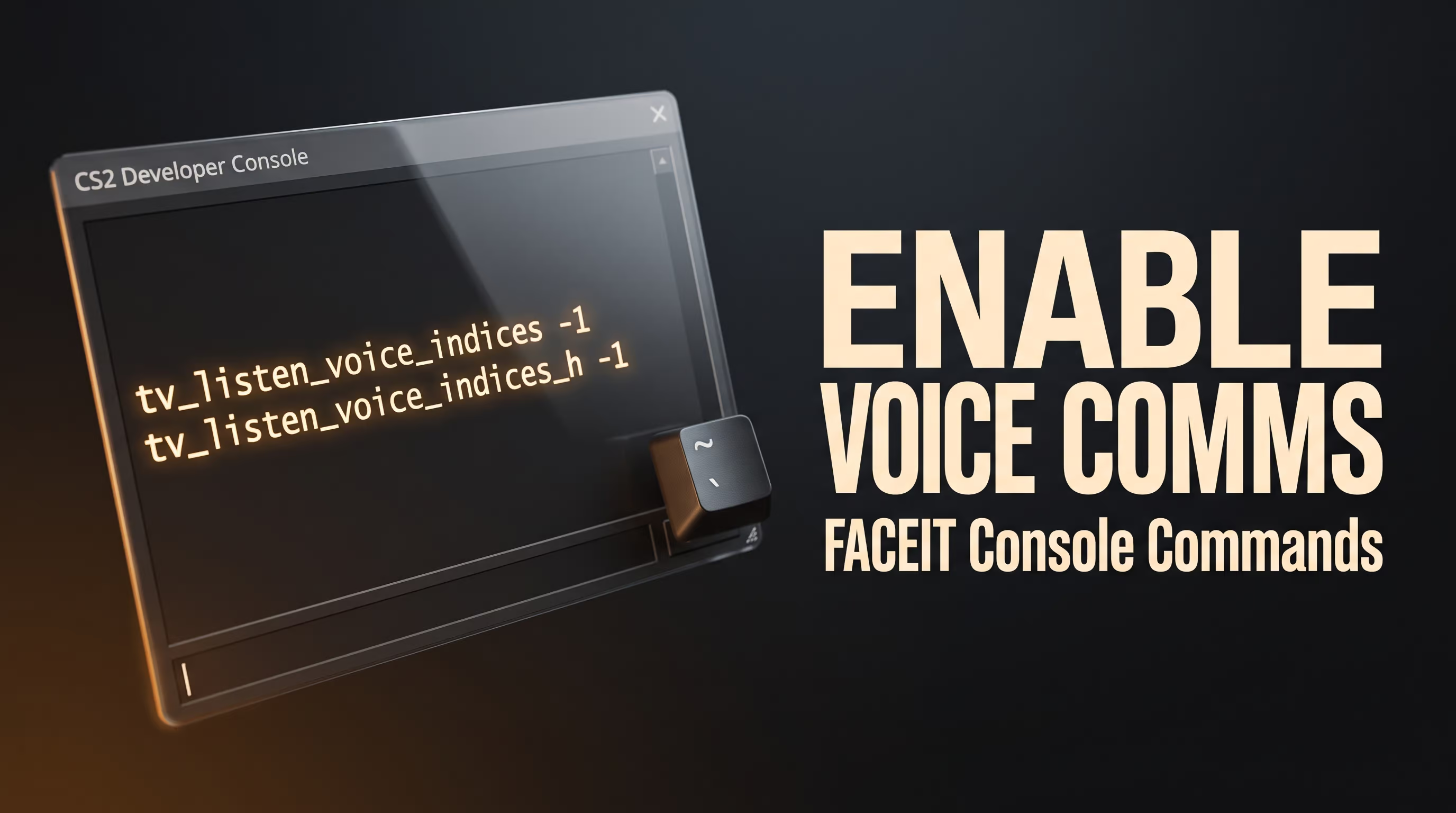
What do these commands actually do? tv_listen_voice_indices handles the first 32 slots on the server, and the index _h enables slots 32 through 63. The value -1 acts as a mathematical mask that turns on audio for absolutely every player on the map. If you need a voice chat command, a CS2 demo from FACEIT will react to this perfectly. If you want to listen to just one team, you'd have to calculate the exact mask using a programmer calculator, but for 99% of tasks, the -1 value is all you need.
Displaying Text Chat
Text chat is much simpler. Sometimes it glitches out and disables when you rewind. To force display messages from all players (including all-chat), use the parameter tv_relaytextchat 2. Setting it to 0 will completely hide the chat, which is super useful for recording clips.
Visual Setup: How to Remove the HUD and Enable X-Ray (WH)
If you hopped into a CS2 demo to record content for YouTube (fragmovies) or deeply analyze positioning, the standard interface will just get in the way. The massive radar and health bars block the killfeed. You could use, for example, a bind to switch hands in CS2 so your viewmodel doesn't obscure vision, but for total control over the image, you need system variables.
There's a critical catch here: most guides tell you to just type cl_drawhud 0. Yes, that removes the UI, but it takes the killfeed and even your crosshair down with it. For moviemakers, that's a disaster.
Below, I’ve put together a HUD state table that actually fixes this. I’ve field-tested this method, and it covers all content creator needs.
Also, if you want to heavily customize your interface and radar in CS2 for your specific needs, including minimap scaling, you can do all that through the standard game settings menu before launching the demo.
How to Record a Video or Highlight from a .dem
Since you can't just rename a .dem file to MP4, you'll need a basic workflow without specialized tools:
- Find the exact moment using
playdemo. - Setup your camera and UI (e.g., leave only the killfeed).
- Screen record using third-party software (OBS, ShadowPlay).
- Trim the result in any video editor.
Fixing the "Download Incomplete" Error and Other Bugs
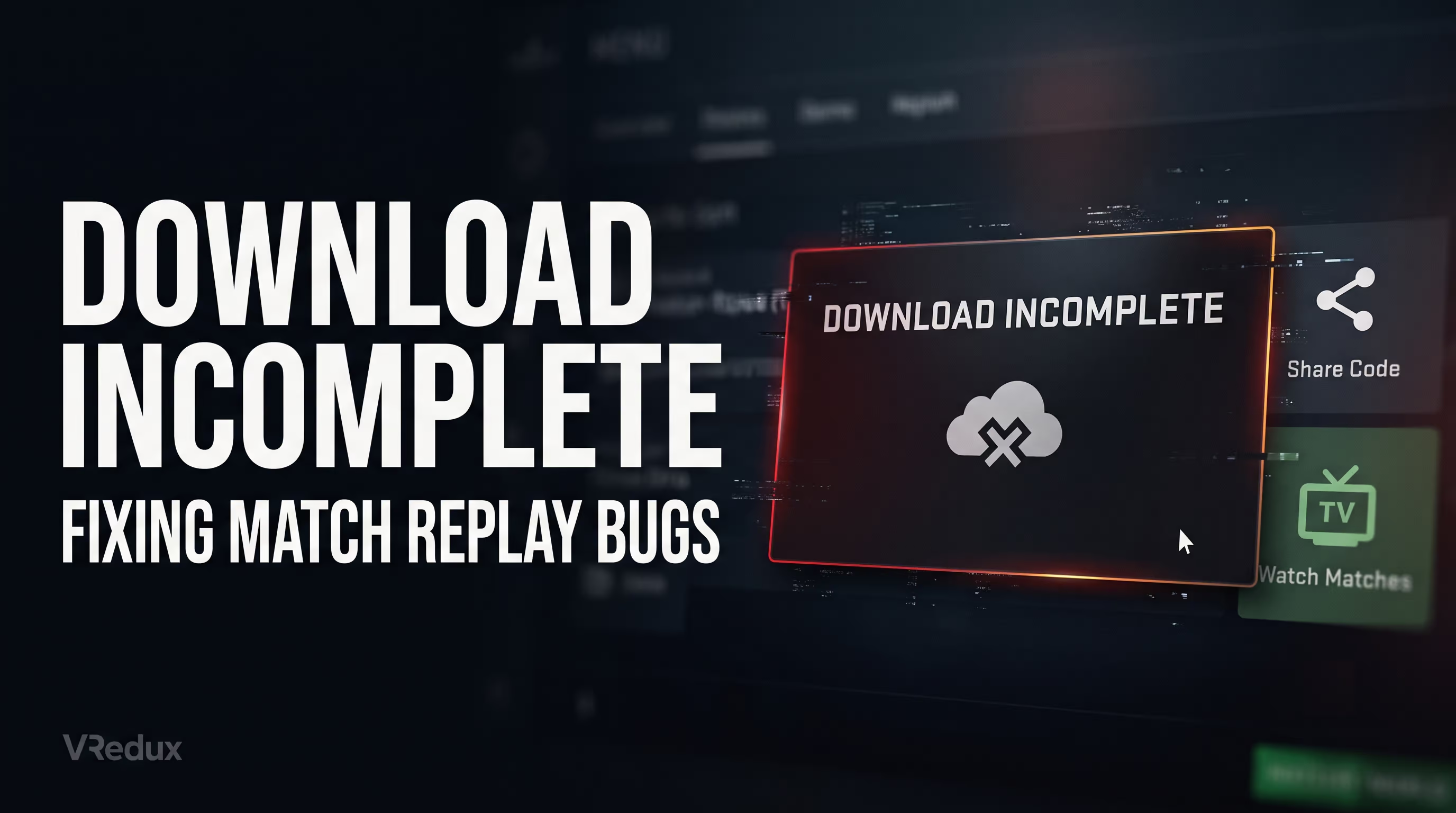
You just finished a sweaty match, hit the download button, and the game spits out: "Download Incomplete." Sound familiar? When an enemy kills you behind a wall because of ping disparity—what's the first thing you want to do? Watch the replay. And then you hit this wall. Let's look at how to fix it.
Bypassing the Error via Browser (Share Code)
In 80% of cases, the issue lies in the Steam client's own cache, which fails to properly route the HTTP request to Valve's servers. Don't waste time constantly restarting the game. Do this instead:
- Open your match history in CS2 and click the share icon next to the bugged game.
- Copy the match link (the Share Code starting with
steam://rungame/...). - You need to extract the match ID from this link. The easiest way is to paste this link into any third-party stat tracker (like Leetify).
- The tracker will give you a direct download link for the
.bz2archive from Valve's servers. - Download the archive via your browser (Chrome, Firefox), extract it, and drop the file into your
\game\csgofolder.
If the CS2 demo won't download even then, go into your replays folder, locate the file with the .dem.info extension, delete it, and try downloading it through the game again.
Black Screens and Crashes (Patch Compatibility Issue)
The Source 2 engine is strictly tied to PBR materials and map geometry. If Valve drops a major patch tweaking map textures (like reworking the site on Mirage), old demos will instantly hard crash the client. This happens because player coordinate data no longer aligns with the new geometry (a collision issue). There is only one solution: use 2D replays via SaaS services.
The SaaS Ecosystem: 2D Replays and AI Micro-Analysis
While others waste hours manually watching POVs in the default demoui, pros automate the process. SaaS platforms have pushed demo reviews to the next level. If you don't need to record a video but strictly want hardcore analytics on your performance, use specialized websites.
I've personally tested several services. Platforms like Scope.gg and GetReplay convert your .dem file into interactive 2D timelines right in your browser. You get a top-down view of the map, utility timings, and movement paths without ever booting up the game. InsightLabs takes it even further—their AI analyzes micro-control, tracking your counter-strafe speed (overflicking) and spitting out exact success rates on braking before a shot.
It's like comparing riding a bike to driving a sports car. The native player is great for visual checks, but for understanding macro-gameplay, third-party parsers in 2026 are simply irreplaceable. Plus, they automatically pull match data even after Valve's storage limit expires.
Watching Demos in the Client vs. Browser
How to Analyze Demos & Find Mistakes
Don't just watch the match linearly. Pick 5–8 high-impact rounds. Here's a breakdown template for a single round:
- Context of the economy: force buy or eco?
- Initial gameplan: what were you supposed to control?
- First casualty: who got the entry frag?
- Available info: what was known before the peek?
- Decision & alternative: could you have played it differently?
Make absolutely sure you watch these moments from the enemy's POV to gauge your predictability and timing gaps.
FAQ
Conclusion
Handling replays correctly is the foundation for improving your skill. Without analyzing your mistakes (overpeeking, bad utility timings), climbing out of low ELO in Premier is practically impossible. The main takeaway is simple: keep your replays folder clean, don't forget the bitmask for FACEIT voice comms, and use 2D analyzers to save time.
If this article helped you fix your crashing issues and you finally managed to download and watch your ace—awesome, feel free to drop a thanks in the comments of our community; I tried to gather all the technical groundwork in one place. Make sure to check out our technical articles section to learn more about Source 2 engine optimization. While others lose games because they refuse to learn, you're utilizing every tool available to dominate the server. Happy fragging and clean killfeeds!