Every experienced player knows: extra visual noise during a gunfight means a lost duel. With the shift to the Source 2 engine, animations became more realistic, but weapon bobbing and screen shake (view punch) in CS2 have turned into a massive headache for spray control.
Old, familiar binds from CS:GO no longer work, and popular guides often feed you cheat-flagged commands that are blocked in matchmaking. Below, we’ll break down strictly legal and fully updated methods for 2026 to minimize camera shake, hide extra animations via Viewmodel, and bring rock-solid focus back to your crosshair in Premier mode.
Table of Contents:
- • Expert Verdict
- • Why CS2 Bobbing is Different From CS:GO
- • The Biggest Guide Trap: view_punch_decay
- • Legal Ways to Reduce Weapon Bobbing
- • Crosshair and Graphics Settings
- • System Tweak: Disabling Fullscreen Optimizations
- • Autoexec.cfg: How to Save Your Settings
- • FAQ: Frequently Asked Questions
Expert Verdict
Do you also get pissed off when a heavy spray covers half your screen, and the camera bounces so much you lose track of the enemy? Let me give it to you straight: completely and legally disabling screen shake (view punch) in official Premier and Matchmaking modes in 2026 is impossible due to Valve's engine restrictions. However, in 80% of cases, you can solve the problem by minimizing visual noise with the right settings.
I’ve personally tested dozens of configs and isolated 4 working steps that will save your eyes and bring back your spray control:
- Console command: Switch to a more static animation using
cl_usenewbob 0(if not disabled by the current micro-patch). - Shifting the model: Use custom Viewmodel coordinates (X, Y, Z axes) to push the weapon into your peripheral vision.
- UI fix: Disable the "Follow Recoil" option in the crosshair settings so your crosshair doesn't jump while shooting.
- System tweak: Disable Windows fullscreen optimizations to eliminate micro-stutters that your brain mistakes for camera jitter.
Why CS2 Bobbing is Different From CS:GO (Source 2 Mechanics)
The tradition of binding jump to the scroll wheel dates all the way back to 1.6, but the attempts to completely turn off walking animations ended with the shift to the Source 2 engine. Honestly, when I first launched the Counter-Strike 2 beta, the new character movements made me dizzy.
The thing is, animations in CS:GO were primitive and strictly governed by variables like cl_bob_lower_amt. In the new installment, Valve implemented the AnimGraph system. Now, arm movement, walking sway, and recoil are part of a complex physical model tied directly to the sub-tick system. The server calculates bullet trajectories independently of how much your mouse jerks across the screen.
To understand the difference, let’s look at the facts. Here is a table explaining why the old methods no longer work:
The Biggest Guide Trap: view_punch_decay and sv_cheats 1
Here is where it gets really interesting. You run a search, type "how to remove screen shake in CS2," and stumble upon hundreds of articles advising you to enter view_punch_decay 999. Many are misguided, thinking they've struck gold.
view_punch_decay variable carries a hidden system flag: cheat. This means to activate it, you first need to enter sv_cheats 1. Nobody is going to let you enable cheat mode on official Valve servers (MM, Premier mode).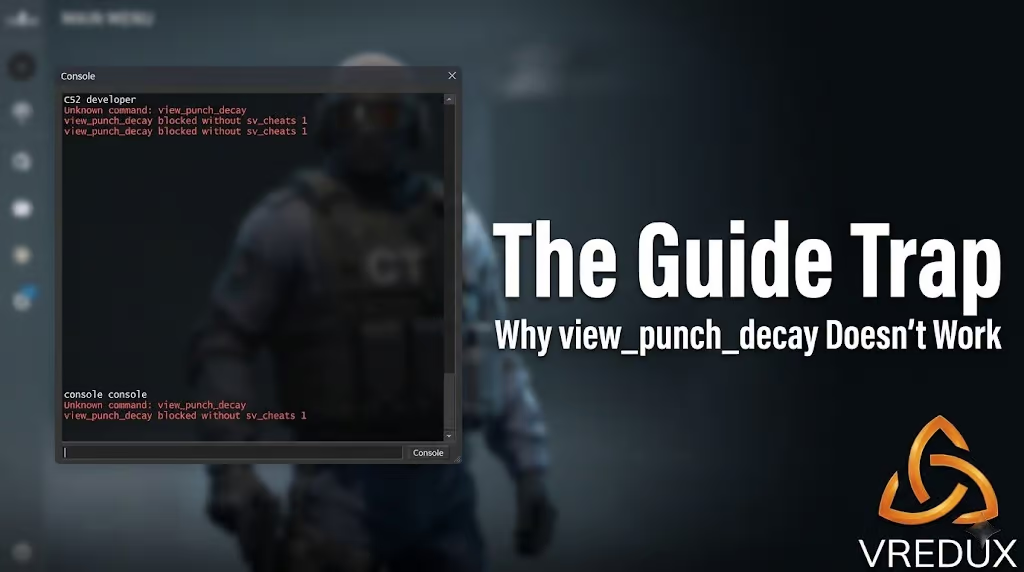
At VRedux, a leading information portal, we test every command, and I strongly recommend not wasting time on garbage advice from random forums. Keep this command strictly for offline local servers where you're practicing nade lineups or spray control.
Legal Ways to Reduce Weapon Bobbing in Matchmaking
While others are dealing with no-regs and complaining about how everything shakes in CS2, we are going to configure the client properly. Below, I’ve compiled exclusively legal methods that will never get you banned.
Status of the cl_usenewbob Command (2024-2026 Update)
In February 2024, a developer took pity on the community and added a command to toggle animations. By default, the game uses the new animation (value 1), which feels like jelly to a lot of players. To reduce weapon shake while walking, open the developer console (the ~ or Tilde key) and enter:
This console command reverts you to the old model movement pattern, making it much stiffer. Note that Valve periodically disables this variable in new patches, so if the console returns "Unknown command," move right on to the next step.
Visual Hiding via Viewmodel (PRO Configs)
If you can't disable the animation, you need to hide it. The most common issue making CS2 screen shake so irritating is the massive gun model blocking your field of view. We’ll just move it down and to the right.
Paste the following lines into the console (you can do it one by one):
viewmodel_fov 68— pushes the weapon as far away from your face as possible.viewmodel_offset_x 2.5— shifts the model to the right (or left, if you play left-handed).viewmodel_offset_y 0— neutral length position.viewmodel_offset_z -2— drops the hands as low as possible, completely clearing the center of your screen.
With this setup, weapon bobbing in CS2 virtually vanishes from your peripheral vision. Personally, I always use these parameters when playing with an AK-47 or M4A4. If you want a deeper dive into FOV and Viewmodel settings in CS2, check out our dedicated guide.
Using Specialized Training Maps
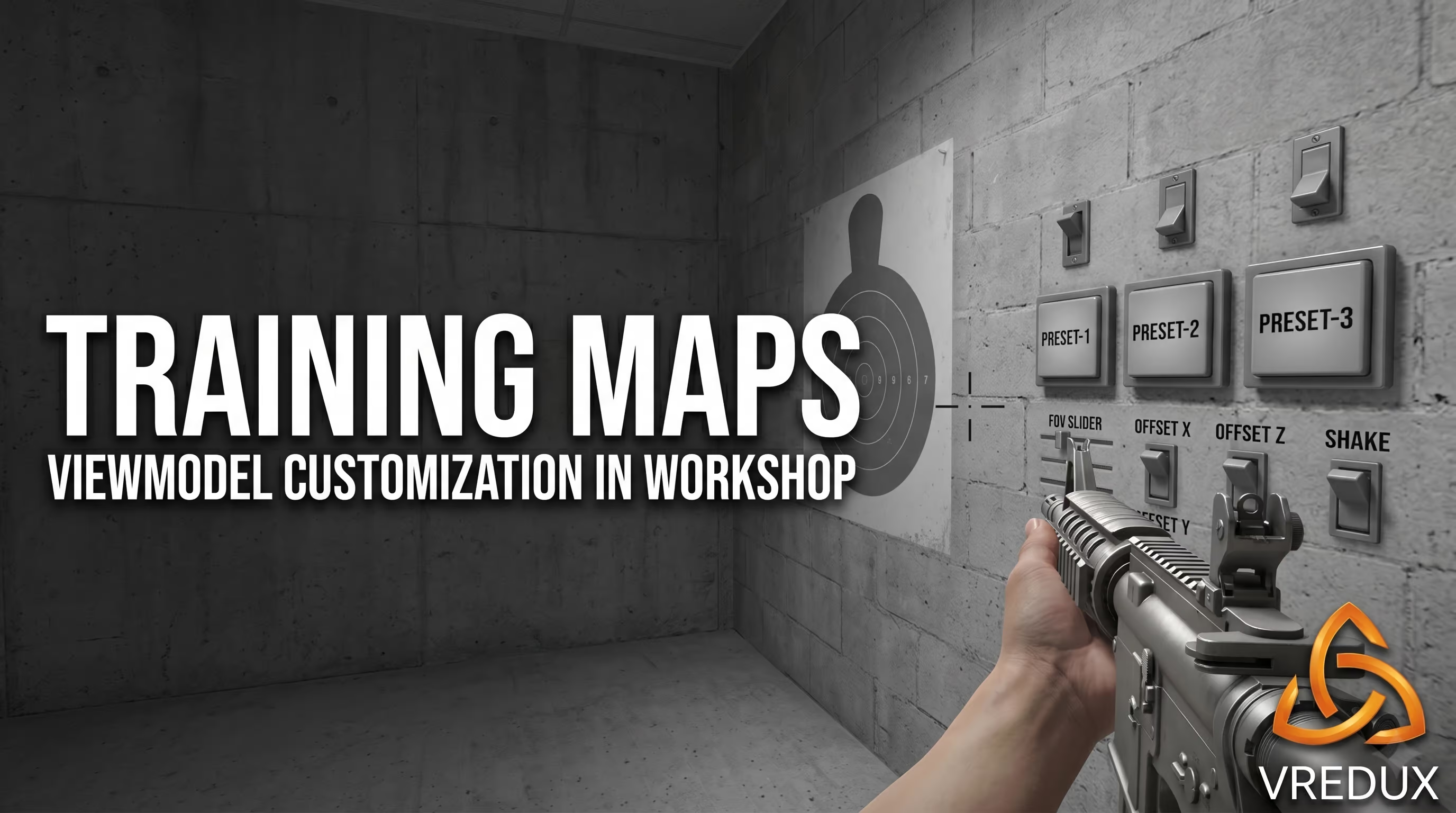
Why punch in numbers manually when the hard work is already done? The Steam Workshop features a legendary map — Crashz' Viewmodel Generator. This is a total must-have for any player.
- Open Steam and go to the Counter-Strike 2 "Workshop".
- Search for Crashz and subscribe to the Viewmodel Generator map.
- Launch the game, select "Workshop Maps", and load into it.
- Shoot the buttons on the wall to adjust your hand positioning. Go for presets like M7, s1mple, or Donk — they have minimal bobbing.
Crosshair and Graphics Settings (Hidden Shake Factors)
People constantly google why their crosshair jumps in CS2, confusing actual recoil with new UI mechanics.
Disabling "Follow Recoil"
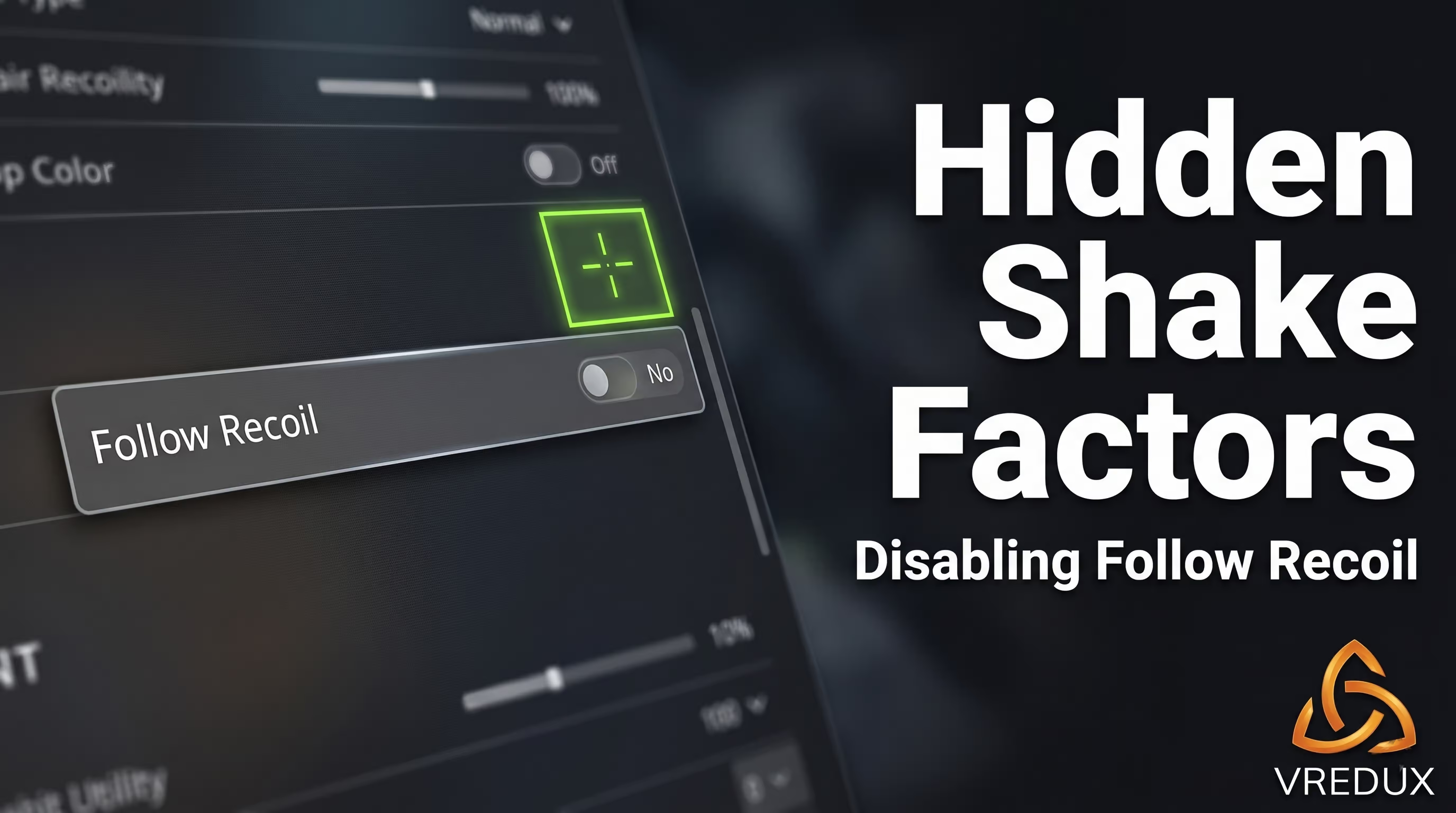
CS2 introduced a feature where the crosshair starts bouncing along with your spray pattern. It's helpful for beginners learning the spread, but it completely disorients experienced gamers. It creates the illusion that the entire CS2 picture is shaking.
Go to Settings -> Game -> Crosshair and find the "Follow Recoil" option. Set it to "No". Now your crosshair will stay dead center, just like in the good old CS:GO days.
The Impact of Motion Blur and FPS on Visual Stability
When your framerate drops and stutters overlap with the firing animation, it’s pure hell. Make absolutely sure to turn off "Motion Blur" in your graphics settings. On my rig (12400F + RTX 4060), this completely removed the blurriness during aggressive mouse flicks.
System Tweak: Disabling Fullscreen Optimizations
There’s a non-obvious factor at play here. Sometimes CS2 stutters during movement not because of the game engine, but because Windows is interfering with the rendering process (a Frame Pacing issue). To make the image buttery smooth, do the following:
- Open your Steam Library, right-click the game -> Manage -> Browse local files.
- Navigate to:
game\bin\win64. - Find the cs2.exe file, right-click it, and select Properties.
- Go to the Compatibility tab.
- Check the box for Disable fullscreen optimizations.
- Click "Apply" and "OK".
This simple step fixes the issue where your mouse feels jittery in CS2 despite having normal ping and high FPS.
Autoexec.cfg: How to Save Your Settings Forever
All the commands you entered to reduce weapon bobbing might reset after restarting the game. To prevent this, we’ll create a config file.
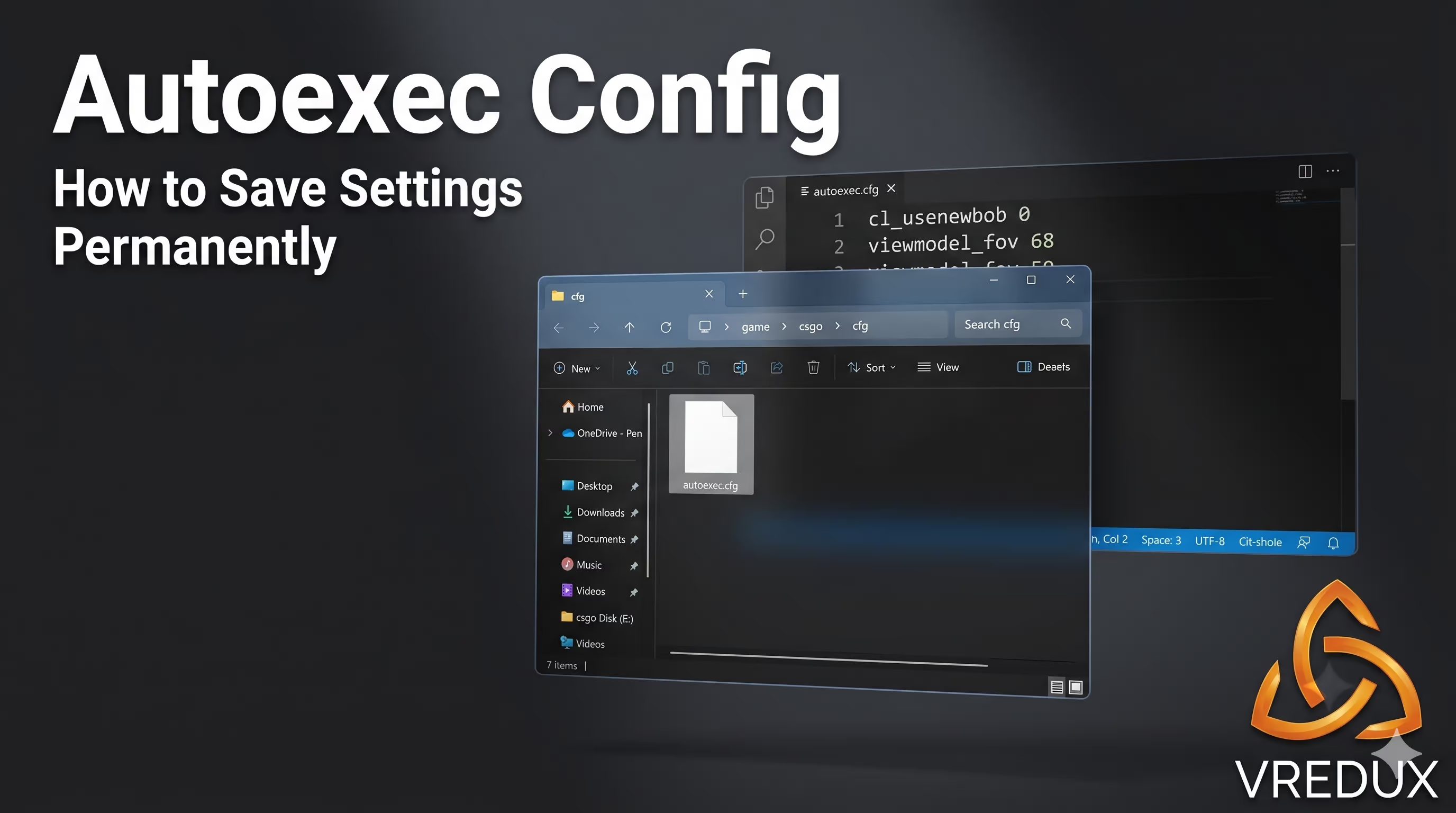
Navigate to the folder ...\Steam\steamapps\common\Counter-Strike Global Offensive\game\csgo\cfg. Create a text document there, name it autoexec.cfg (make sure the extension isn't .txt), and paste this legal block of code:
Next, add the line +exec autoexec.cfg to your Steam launch options for the game. Now your perfect setup stays with you permanently.
FAQ: Frequently Asked Questions
Here is the bottom line: comfortable gameplay is built on the little things. Properly configured viewmodels and butter-smooth frametimes will give you those precious milliseconds for the perfect shot. If you want to dive into more tricks, check out our articles section — there’s a massive knowledge base waiting for you. Happy fragging!