You know the situation: you are in a high-stakes Premier match, tied 11–11, and your teammate's monitor cuts out or the delivery driver starts banging on the front door. You panic, mash random keys, and flood team chat, but the round plays out anyway while the enemy team methodically wipes your bombsite. Calling a timeout to save a round has been a Counter-Strike staple for decades, but Counter-Strike 2 (CS2) on Source 2 completely rebuilds how match pauses work.
Old CS:GO console habits no longer apply here. Guessing commands often triggers syntax errors or hangs the server entirely. To avoid dropping critical rounds over technical hiccups, you need to know exactly how CS2 pauses operate across every competitive environment. As the developers of VRedux for CS2, we routinely break down competitive mechanics—and mastering match pause controls is an essential baseline skill for any team captain or scrim host.
Below, we break down every method: from initiating a quick vote in Competitive matchmaking without ever opening the console, to dedicated server commands like mp_pause_match, FACEIT platform rules, and demo playback controls.

Quick Answer: How to Pause in CS2 (All Methods)
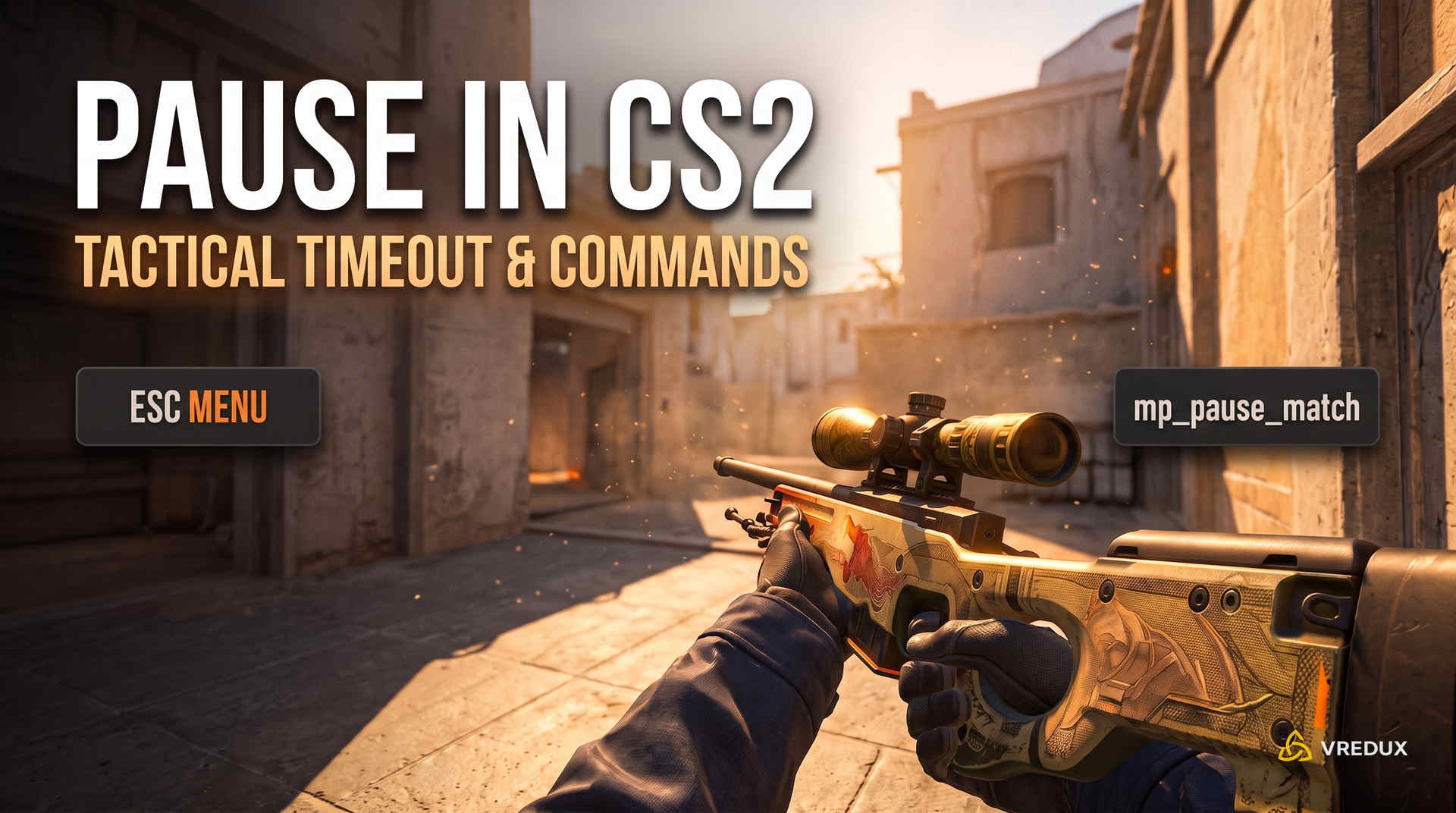
Pausing CS2 depends entirely on your game mode and permission level. In official ranked matchmaking (Premier and Competitive), players can only call a tactical timeout via the Esc vote menu. On dedicated community servers, admins use the console command mp_pause_match. In local offline practice with bots, you can freeze the match instantly using the pause command after enabling sv_pausable 1.
- Official Matchmaking: Esc key → Vote icon → "Call Tactical Timeout" (4 slots, 30 seconds each).
- Dedicated Community Server: Console command
mp_pause_match(takes effect at the start of the next freezetime). - Offline Bot Practice: Run
sv_pausable 1followed bypauseto freeze engine physics immediately. - FACEIT Platform: Type
!pausein team chat during the buy period (freezetime). - Demo Playback: Press Spacebar or enter
demo_pausein the replay console.
The reference table below compares all pause parameters across modes for quick in-game lookup:
1. Pausing in Competitive Modes (Premier and Competitive)
A tactical timeout in CS2 competitive play is an official 30-second match pause available to each team up to four times per map. Initiated through the in-game vote menu, the pause requires majority approval from your team and triggers strictly during freezetime—it never halts an active round mid-firefight.
New players often make the mistake of opening the developer console to enter server pause commands. On official Valve matchmaking servers, client-side console pause directives are completely disabled. If you enter host commands there, the server simply ignores them. The built-in vote menu is your only option.
Step-by-Step Guide: How to Call a Tactical Timeout via the Game Menu
When you need to coordinate team economy before a crucial buy round or wait for an AFK teammate, follow these steps:
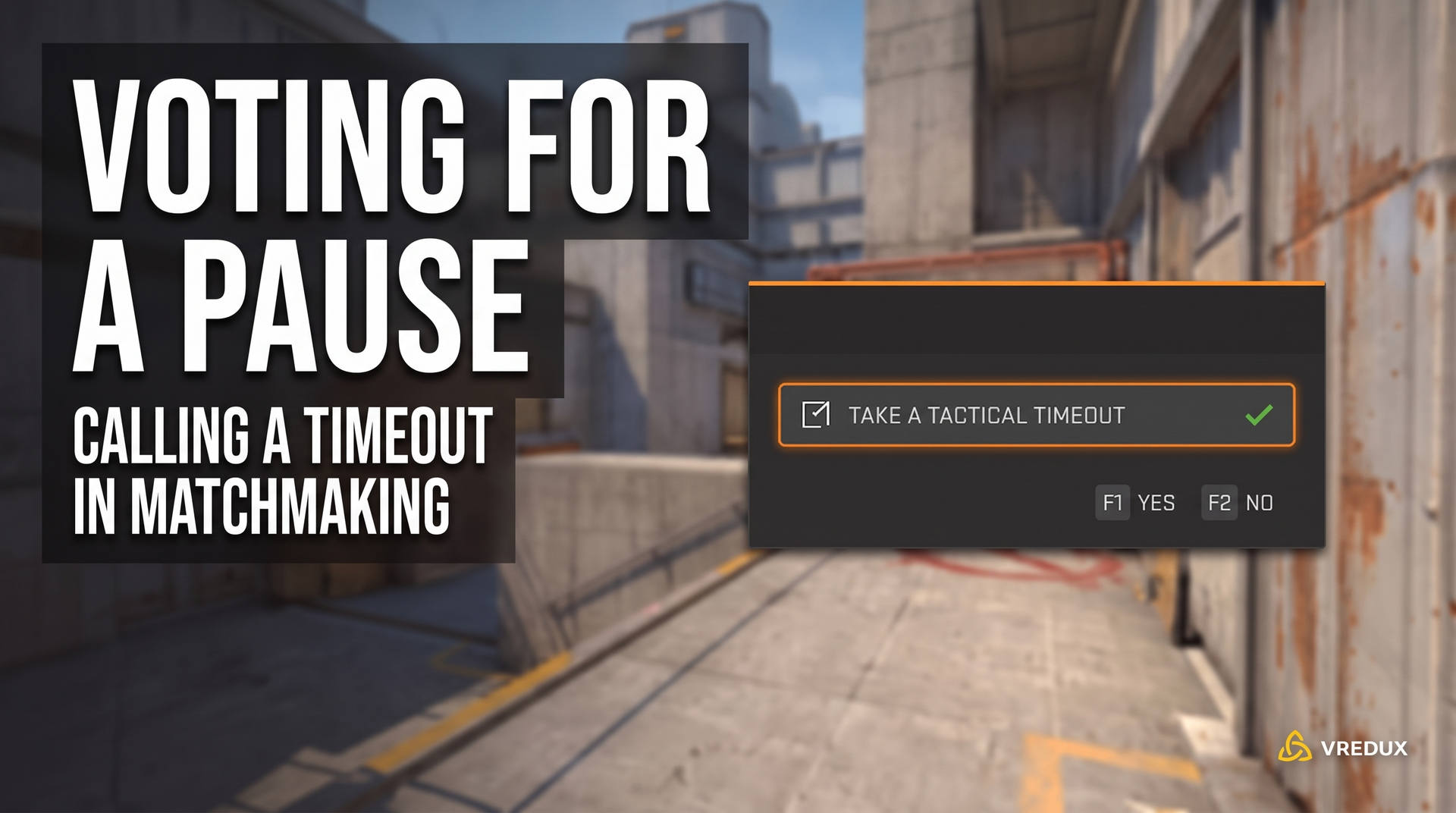
- Open the Game Menu. Press the Esc key at any point during the match.
- Navigate to the Vote Menu. In the left-hand sidebar, click the checkmark icon ("Call Vote").
- Select the Timeout Option. From the list of available votes, select "Call Tactical Timeout."
- Confirm the Vote with Your Team. A prompt will appear on your teammates' screens. A simple majority must press F1 ("Yes") for the timeout to pass.
Before relying on the menu in a crunch, make sure your game interface and keybinds are functioning properly. If you've modified your config, check our guide on how to enable the developer console in CS2 to ensure your default bindings haven't been disrupted.
Timeout Rules and Limitations in the MR12 System
Counter-Strike 2's shift to the MR12 format (12 rounds per half) brought updated competitive rules. Many players still assume timeouts last a full 60 seconds, as they did during parts of CS:GO. That is no longer the case.
- Timeout Allowance: Each team receives exactly 4 tactical timeouts per competitive map.
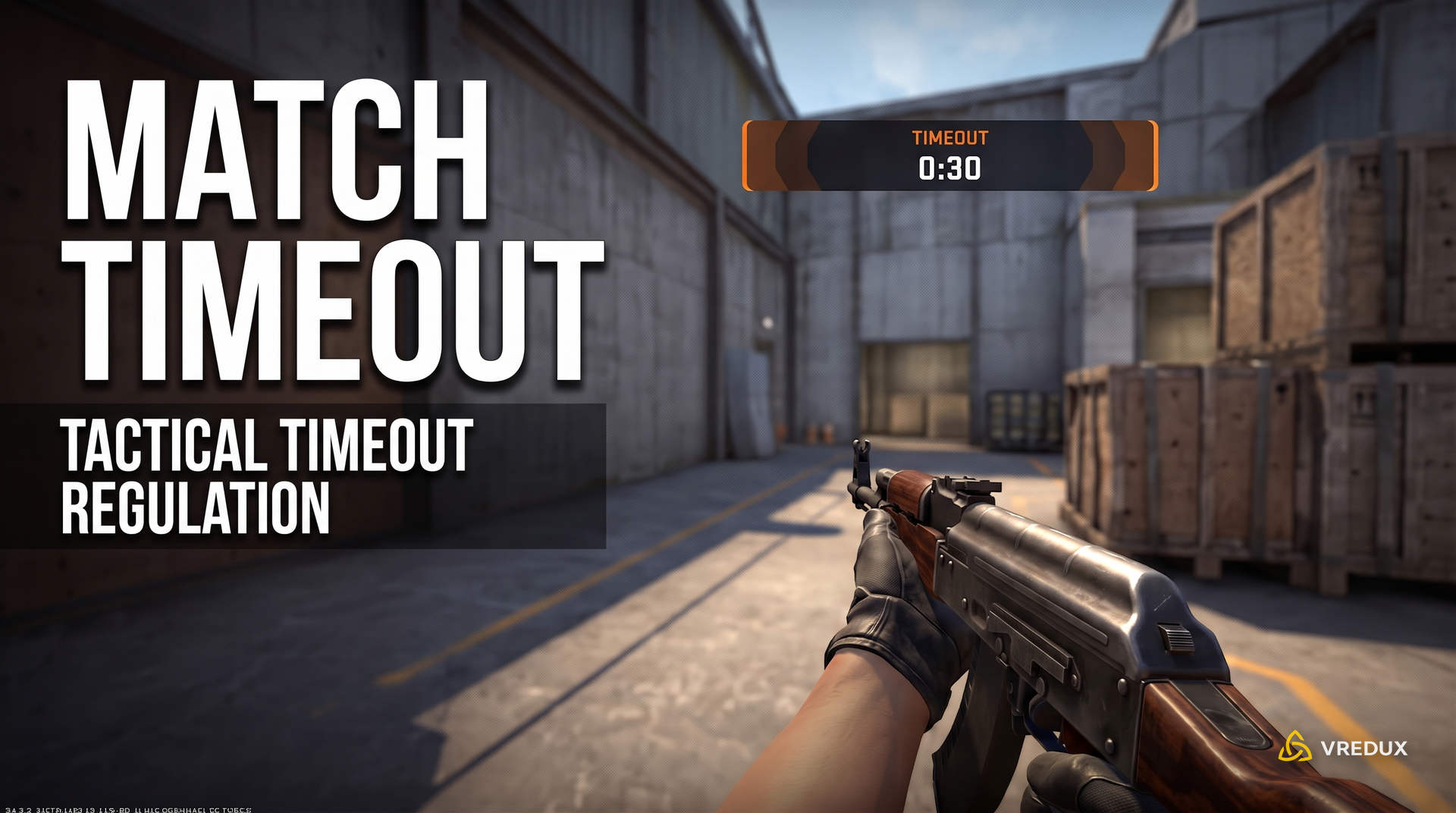
- Timeout Duration: Every tactical pause lasts a fixed 30 seconds.
- Halftime Carryover: Unused timeouts carry over to the second half. If you use zero timeouts on defense, all 4 remain available on offense.
- Activation Timing: Voting for a pause mid-round will never interrupt active gunplay. The server queues the request and freezes the timer at the start of the next round's buy phase.
- Intermission Length: On third-party tournament platforms and in competitive best-of-three series, breaks between maps typically run 2 to 5 minutes based on tournament rules. In Valve's Premier mode, matches conclude immediately after the final round, returning players to the main lobby.
If you are wondering how to end a CS2 timeout early in matchmaking, the answer is simple: you cannot. Neither team can cancel or skip an active 30-second timeout. Because the time is granted to both squads, you must wait out the full countdown clock.
Automatic Technical Pauses on Player Disconnect
When a player abruptly drops from the server due to a game crash, network drop, or blue screen, CS2's matchmaking coordinator handles the timeout automatically by initiating a technical pause.
This automatic technical pause lasts exactly 2 minutes (120 seconds). It triggers during the next freezetime once the server registers lost client packets. If the disconnected player reboots and reconnects before the two minutes expire, the technical pause ends immediately, and normal play resumes. If they fail to return in time, the match resumes 4v5, and the standard reconnection countdown begins before that player receives a competitive matchmaking cooldown.
2. Console Commands for Dedicated Servers and Practice
The primary CS2 pause command for dedicated servers is mp_pause_match, which puts the match on hold during the upcoming buy phase (freezetime). It does not require sv_cheats 1, executes with server or RCON admin privileges, and is resumed exclusively using mp_unpause_match.
In practice, control comes down to server architecture. When running scrims on a rented server or hosting a custom practice lobby, you don't need to wait on team votes. The host console grants direct control over match simulation and game state.
Syntax for mp_pause_match and mp_unpause_match
Managing 5v5 scrims and clan wars relies on the native Source 2 server command pool. To pause an organized match, the server administrator or lobby host opens the developer console with tilde (~) and executes:
mp_pause_match
Keep in mind that the game will not pause instantly if players have already left spawn. The command simply flags the server. CS2 allows the active round to finish naturally, then halts the clock during the next round's buy phase. Freezetime remains paused indefinitely, giving players ample time to swap hardware, fix config issues, or review strats.
Once both squads are ready to resume, the admin lifts the pause with:
mp_unpause_match
A frequent pitfall is trying to enter mp_pause_match 0, assuming zero acts as an off switch. In Source 2, mp_pause_match is not a toggle and accepts no numerical arguments. The console will return an invalid syntax error, and the server will remain frozen. You must always use mp_unpause_match to unpause. For more essential dedicated server controls, check our comprehensive list of CS2 server console commands.
Offline Practice with Bots: Enabling sv_pausable and pause
When practicing offline against bots or drilling grenade lineups with a friend, waiting for a round to finish just to pause via mp_pause_match is counterproductive. On a local listen server, you can freeze the game world instantly—even mid-air during a jump or while a smoke grenade is in flight.
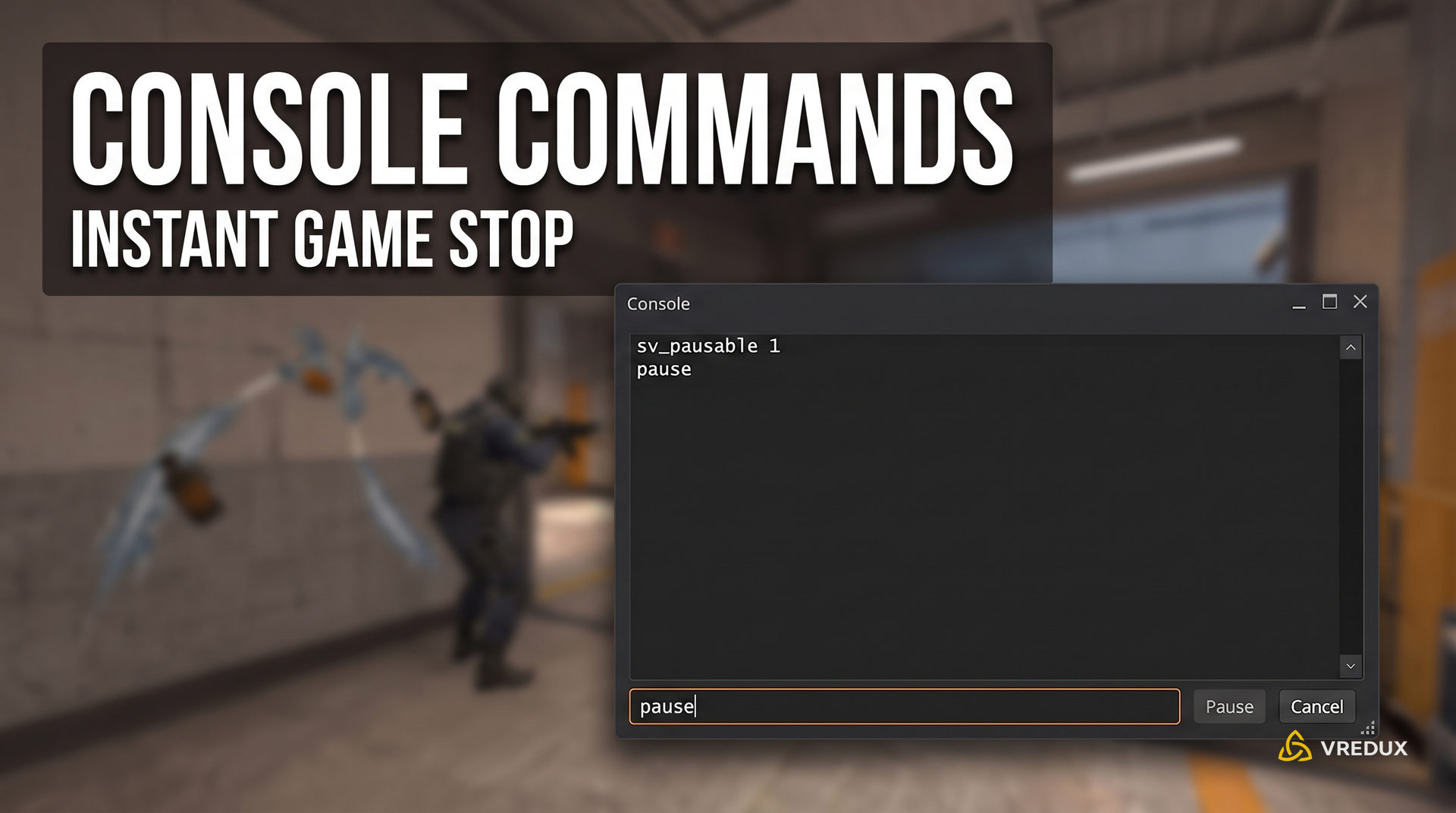
Source 2 includes a native client-side pause mechanism for this purpose. By default, it is locked behind sv_pausable 0. To unlock and trigger it, enter these two commands into your console:
sv_pausable 1
pause
Running pause immediately locks all world physics: bots freeze in their tracks, the round timer halts, and projectile trajectories suspend in mid-air. This provides the perfect environment to inspect bot sightlines, study grenade bounces, or capture clean cinematic screenshots.
To resume normal simulation, enter:
unpause
For streamlined offline training, bind the command to an unused key—such as bind "p" "pause". Remember that this keybind will not function in competitive matchmaking, as Valve servers enforce sv_pausable 0 at all times.
3. Pause Rules on FACEIT and 5v5 Scrim Servers
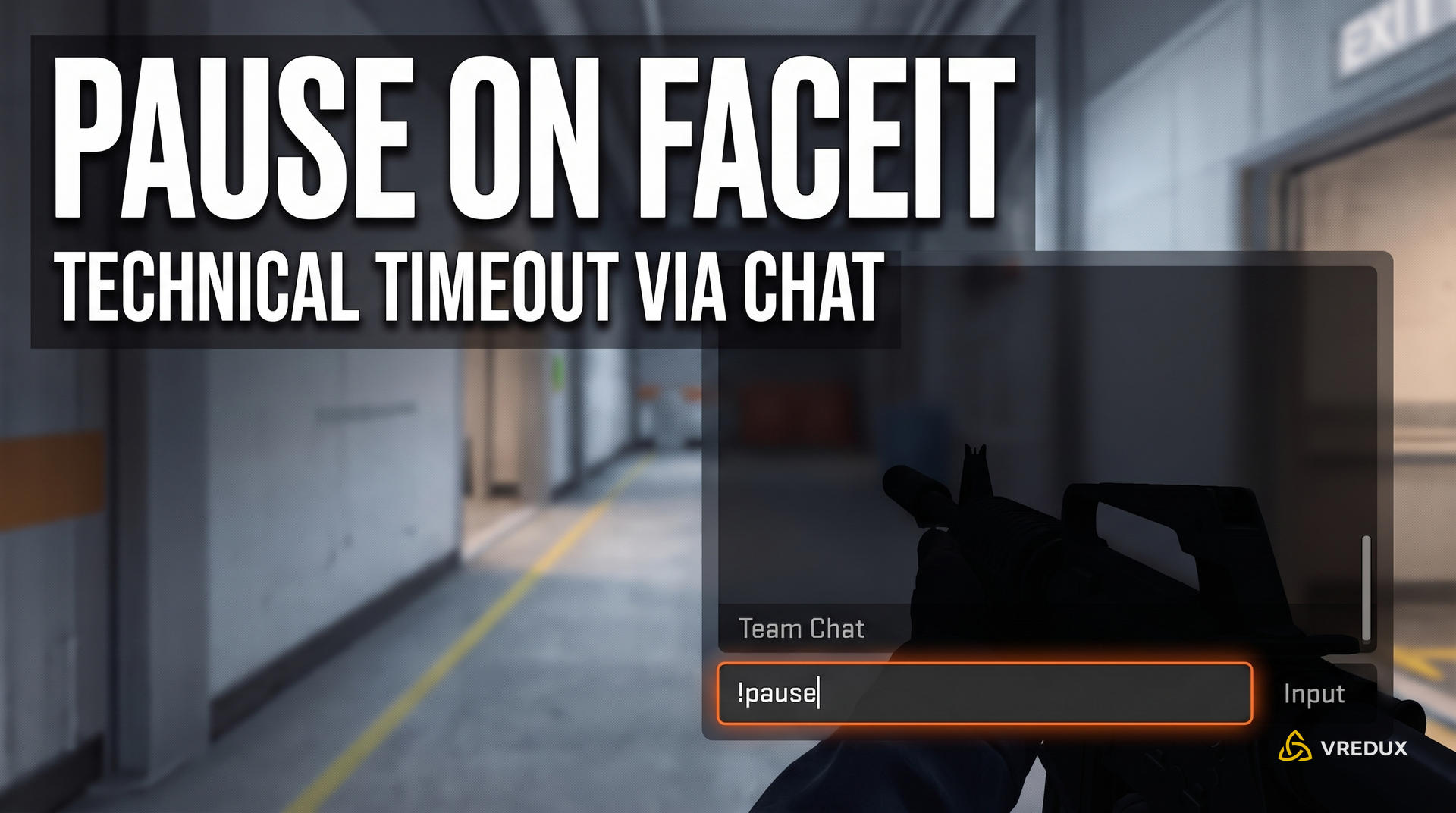
On the FACEIT competitive platform, team captains trigger a pause via the in-game text chat by typing !pause during freezetime. Each team receives a shared technical timeout bank of up to 10 minutes per match, and matches are resumed with the corresponding !unpause command.
Third-party competitive hubs bypass Valve's default matchmaking framework. Instead, they run dedicated server plugins—typically MatchZy or custom league mod suites—that handle match state directly through in-game chat commands.
Technical vs. Tactical Timeouts on FACEIT
FACEIT enforces a clear distinction between two types of match stoppages: tactical and technical.
- Tactical Timeout: Called through the standard in-game UI via Esc → "Call Vote." Each team gets 4 timeouts at 30 seconds each, mirroring Premier rules.
- Technical Pause: Reserved strictly for player disconnects, severe server lag, hardware crashes, or anti-cheat issues.
To call a technical pause, the team captain presses team or all-chat (Y or U) and sends:
!pause
The command only executes if entered during the buy phase (freezetime). If gunplay has already started, the server queues the pause for the following round. Each roster receives an aggregate pool of up to 10 minutes per map. While active, opponents cannot force an unpause. Once your teammate reconnects or the issue is resolved, the captain types:
!unpause
The match resumes once both teams confirm readiness or when the 10-minute timer expires. Abusing !pause without a valid technical reason violates platform rules and can result in administrative warnings or match forfeits.
Automated Pause Configuration for Scrims (sv_matchpause_auto_5v5)
Tournament organizers and team managers running scrims know the frustration: a player crashes through a B-site smoke, and the opposing team autopilots into the next round without noticing the 4v5. To remove human error, add automated roster-tracking ConVars to your server.cfg.
// Auto-freeze during freezetime when a player disconnects
sv_matchpause_auto_5v5 true

// Pause before switching sides at halftime
mp_halftime_pausematch 1

// Auto-pause after restoring a round backup
mp_backup_restore_load_autopause true
The core command here is sv_matchpause_auto_5v5 true. It operates as a server watchdog: if fewer than 10 players (5 per team) are connected when a new round initializes, the engine halts the match during freezetime and refuses to begin until the missing player reconnects.
4. Pausing CS2 Demos and Timescale Controls
Replay playback in CS2 is paused using the demo_pause console command, the Spacebar, or the media UI panel opened via Shift + F2. Unlike a live server pause, freezing a demo halts only the recorded tick timeline while retaining full free-cam navigation for reviewing setups and rotations.
Reviewing demos to identify tactical blunders is the fastest way to climb the competitive ladder. However, Source 2's demo player handles inputs quite differently from live matches. For a full breakdown, see our in-depth CS2 demo viewing guide; below are the essential playback controls.
Hotkeys and Console Commands for Demo Controls (.dem)
Use these shortcuts and console commands to scrub, pause, and control replay footage with precision:
- Spacebar: Toggles between pause and play, identical to a standard media player hotkey.
- Shift + F2: Opens the built-in replay interface (
demoui) featuring round timeline scrubbing and playback speed sliders. - demo_pause: Halts tick processing for the loaded replay file.
- demo_resume: Resumes normal playback speed.
- demo_togglepause: Toggles replay pause state on and off (ideal for binding to extra mouse buttons).
The main advantage of demo_pause in CS2 is camera independence: with tick simulation frozen, you can hit your jump or crouch key to enter Free Cam mode and fly across the entire map. This lets you inspect enemy grenade trajectories, analyze crosshair placement when clearing angles, and study defensive rotation timings.
Practice Time Freeze: Using host_timescale 0
Content creators and fragmovie editors often use a specialized command to freeze the engine's internal tick progression entirely when framing cinematic shots or analyzing hitbox collision: time scaling.
This command requires cheat permissions enabled on an offline server:
sv_cheats 1
host_timescale 0
Setting this value to 0 completely freezes game physics. The world locks in place, leaving smoke particles, muzzle flashes, and Molotov flames suspended in mid-air. To restore normal playback speed, enter:
host_timescale 1.0
host_timescale variable is a protected ConVar. Attempting to modify it in official Valve matchmaking without sv_cheats 1 is instantly rejected by the network protocol. Never run third-party scripts or external tools to manipulate timescale in live games—doing so will trigger automated anti-cheat flags and lead to account bans.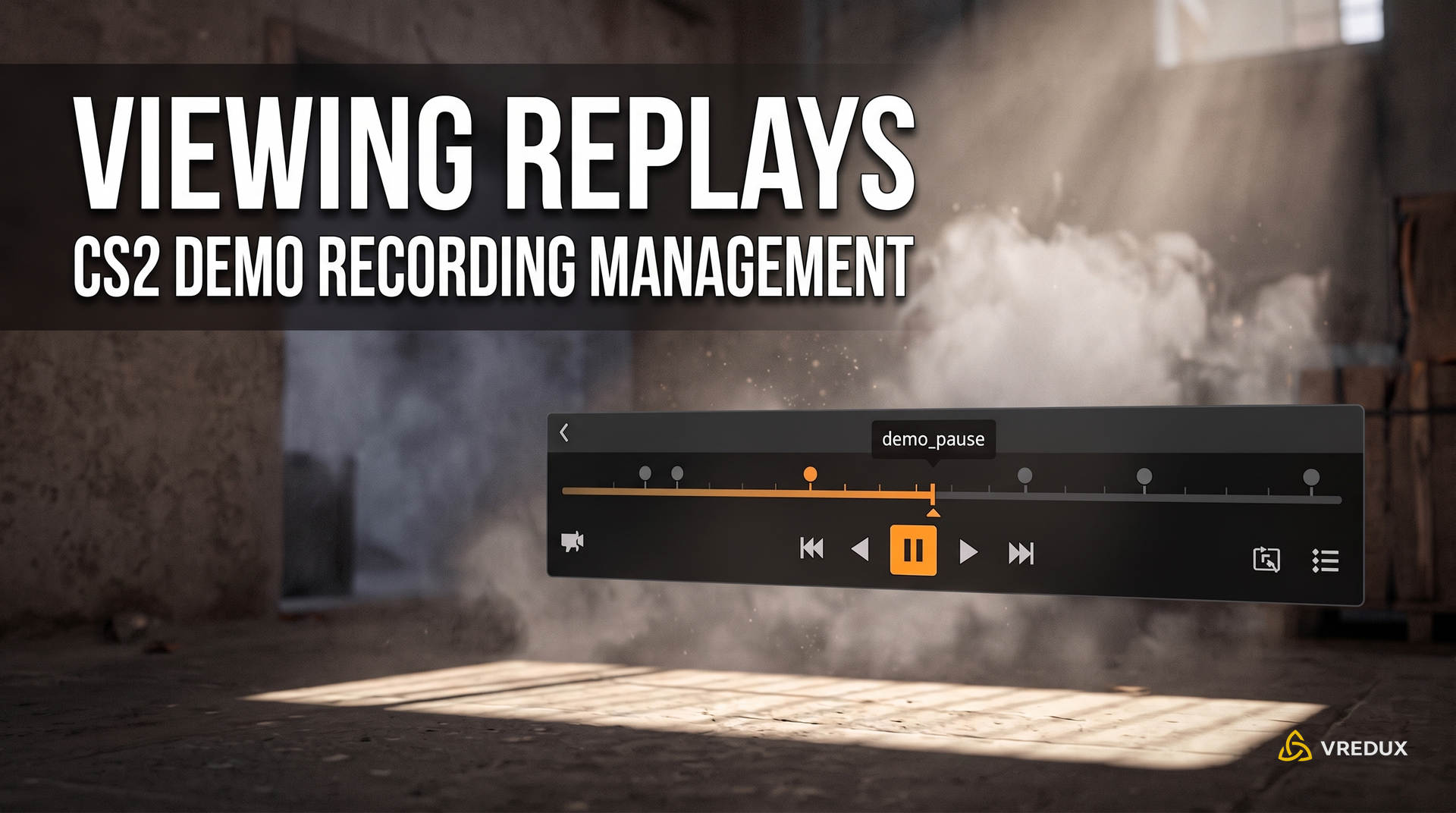
5. Troubleshooting: Why Your CS2 Pause Isn't Working
Things don't always go smoothly mid-match: menu buttons become unresponsive, the console throws syntax errors, or the server clock keeps running. Here is how to resolve the four most common pause failures.
Symptom 1: You entered mp_pause_match, but the round keeps going
Cause: The mp_pause_match command does not freeze physics mid-round. It queues a server flag for the next buy phase.
Fix: Play out the active round. Once it concludes and the next round begins, the freezetime clock will halt automatically, locking the server in a full pause.
Symptom 2: You cannot unpause the server; mp_pause_match 0 returns an error
Cause: In Source 2, mp_pause_match does not accept numerical values. Appending "0" is flagged as an invalid argument, leaving the match frozen.
Fix: Enter the dedicated resume command: mp_unpause_match. The server will unfreeze the timer and start the round.
Symptom 3: Pressing Esc traps your mouse cursor, preventing you from clicking the vote buttons
Cause: A known Panorama UI focus glitch in CS2, commonly triggered by window focus desyncs on stretched aspect ratios (such as 4:3 stretched).
Fix: Avoid wasting precious seconds clicking unresponsive UI buttons. Open the console with ~ and bypass the menu by typing callvote pause directly. Your team will receive the vote prompt immediately. Alternatively, quickly Alt + Tab out and back in to reset mouse capture.
Symptom 4: The pause console command does nothing during offline bot play
Cause: By default, sv_pausable is set to 0, which completely suppresses the pause command at the engine level.
Fix: Enable pausing permission first by running sv_pausable 1, then execute pause.
Frequently Asked Questions (FAQ)
Find quick answers below to common questions about calling timeouts, pause durations, and server commands in CS2.
Conclusion
Knowing when to break an opponent's momentum or hold the clock for a disconnected teammate separates disciplined rosters from disorganized pick-up groups. Use your official timeouts strategically, avoid invalid console commands, and explore our other CS2 guides to stay in full command of your matches.