Do you also get mad when unnecessary text on your monitor distracts you from an enemy suddenly peeking a corner? After the transition to the Source 2 engine, the UI system changed significantly, and the developers dumped a bunch of useless telemetry on us. Honestly, when I first launched the fresh version of the shooter, that annoying string with the build date at the bottom of the screen completely ruined my focus during the match. The tradition of customizing the interface dates back to version 1.6, but in modern reality, a clean screen is the key to fast focus. In this guide, I will explain in detail how to remove the text in the bottom left corner in CS2, break down the new telemetry commands, and show you how to save these settings permanently. By the way, if you're tired of spending hours tweaking console parameters to squeeze out FPS or gain an edge, I suggest skipping the hassle and just heading to the main private software platform VRedux. Our features handle visual cleanup, optimization, and server domination in just a couple of clicks.
Guide contents:
- • TL;DR: Removing the CS2 version text with one command
- • How to disable the game version text (Build Info) in CS2
- • Why do we need these numbers and when should you bring them back?
- • How to permanently hide the text (autoexec.cfg)
- • Screen cleanup: Configuring new telemetry (net_graph replacement)
- • FAQ: Common questions about UI cleanup
- • Conclusion
TL;DR: Removing the CS2 version text with one command
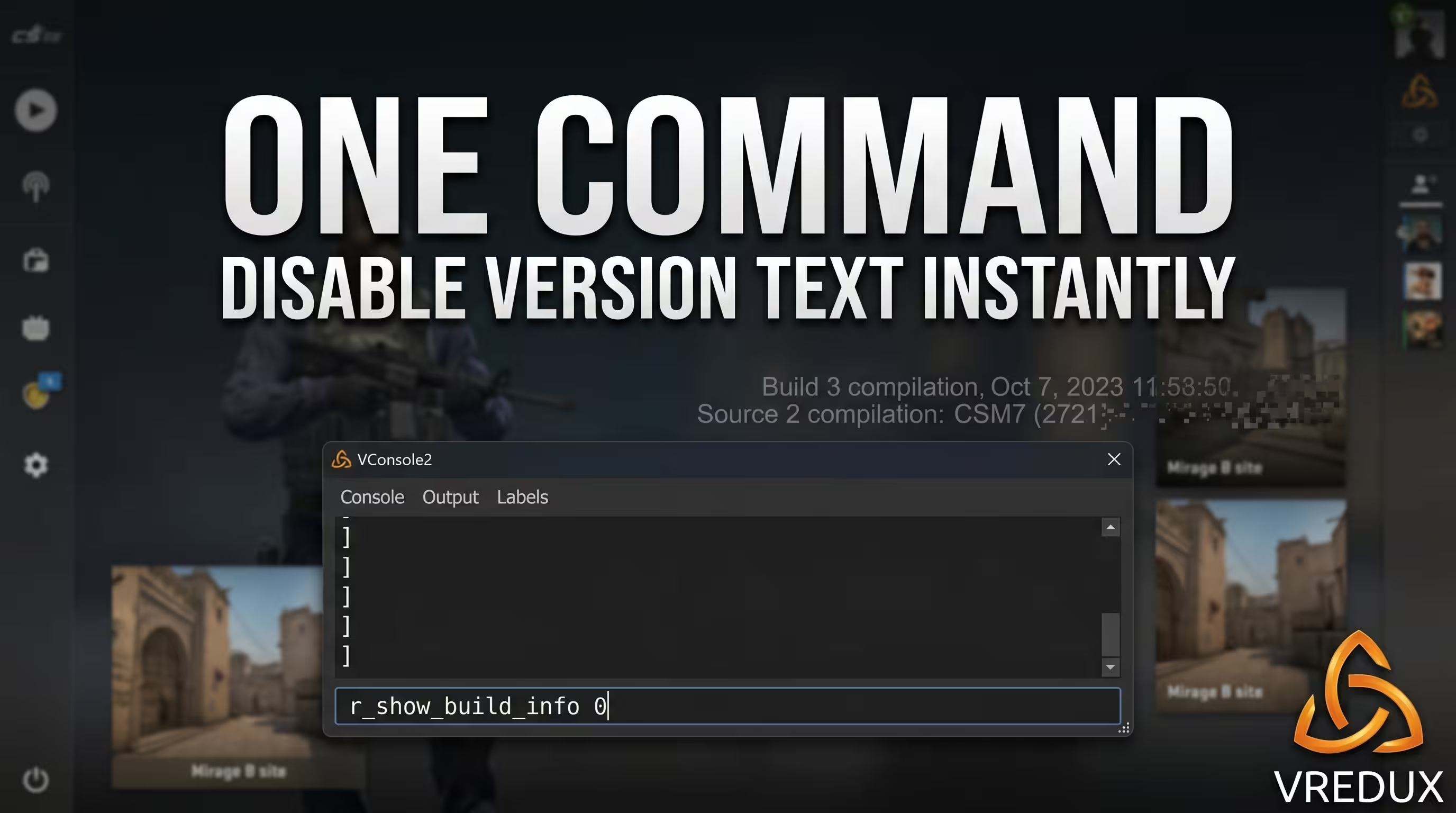
To remove the game version text in the bottom left corner of CS2, open the developer console (the ~ key) and enter the command:
The values 0 and false in the Source 2 engine are absolutely identical—they completely hide the watermark with the compilation date and server hash. If you ever need to bring this text back (for example, to record a bug video for Valve support), just type r_show_build_info 1. This action is safe, doesn't require activating cheat mode, and won't affect your Trust Factor in MM or Premier in any way.
How to disable the game version text (Build Info) in CS2
Let's break down how this actually works. Personally, I recommend the first and most reliable option: using the built-in console. The VConsole2 engine processes these requests instantly, removing visual clutter without you having to dig through game files. Here is the step-by-step algorithm on how to remove the bottom text in CS2:
- Make sure your command line is activated. If you're a beginner, read our manual on how to properly open the console in CS2 through the game settings.
- Press the Tilde (~) key on your keyboard.
- Copy and paste the text:
r_show_build_info false(or use the number0at the end). - Hit Enter. This text will disappear instantly.
r_show_build_info 0 command is the only correct method. Any attempts to change the screen resolution or crop the interface via graphics card settings will only kill your framerate.Why do we need these numbers and when should you bring them back?
You might think the devs added this bottom left text in CS2 for no reason, but dig deeper. It's the so-called Build Watermark. It contains two critical things: the exact game compilation date (version) and the unique hash of the server you're currently on. Valve strongly asks to keep this string enabled when recording clips of bugs, hitreg issues, or when a cheater is rage-spinning on the server. Without the server hash, the Steam community and developers simply won't be able to find the match in the logs. So, if you're going to report an issue, revert to r_show_build_info 1.
How to permanently hide the text (autoexec.cfg)
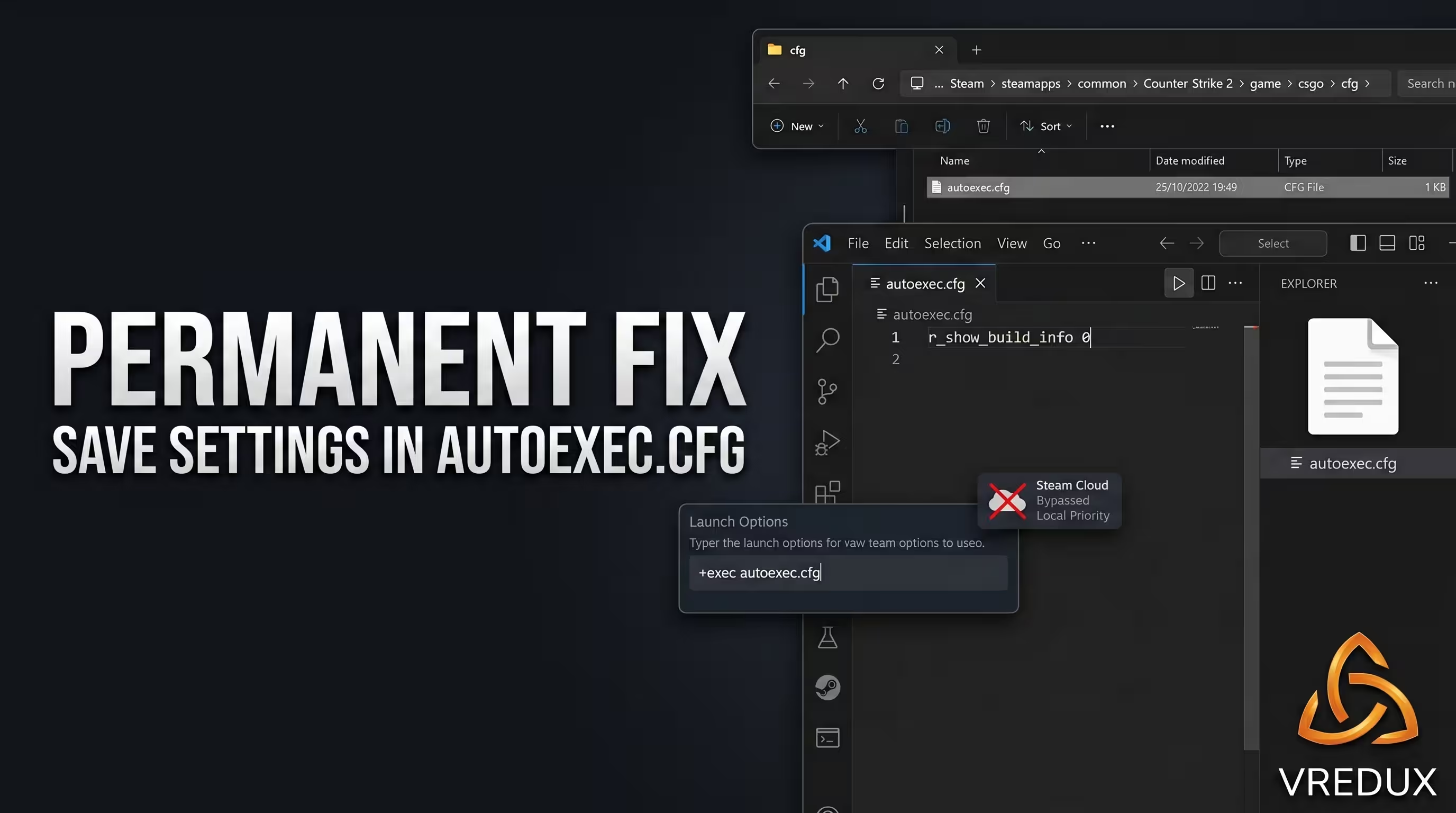
There's an important nuance here. The game frequently overwrites the default config.cfg during Steam Cloud sync. Honestly, when this bottom left CS2 text popped up again after another micro-patch, I was ready to uninstall the game. To lock the settings down permanently, we need an autoexec.cfg. In CS2, the folder structure has changed. If you drop the config into the old CS:GO path, it simply won't work. We broke down how to create these files from scratch in our article on CS2 Autoexec CFG and its configuration.
Create a text document in this folder, rename it to autoexec.cfg (make sure file extensions are visible in Windows), and type inside: r_show_build_info 0. Then go to the game properties in Steam and add +exec autoexec.cfg to your launch options. That's it, the bottom left CS2 corner will now always be crystal clean.
Screen cleanup: Configuring new telemetry (net_graph replacement)
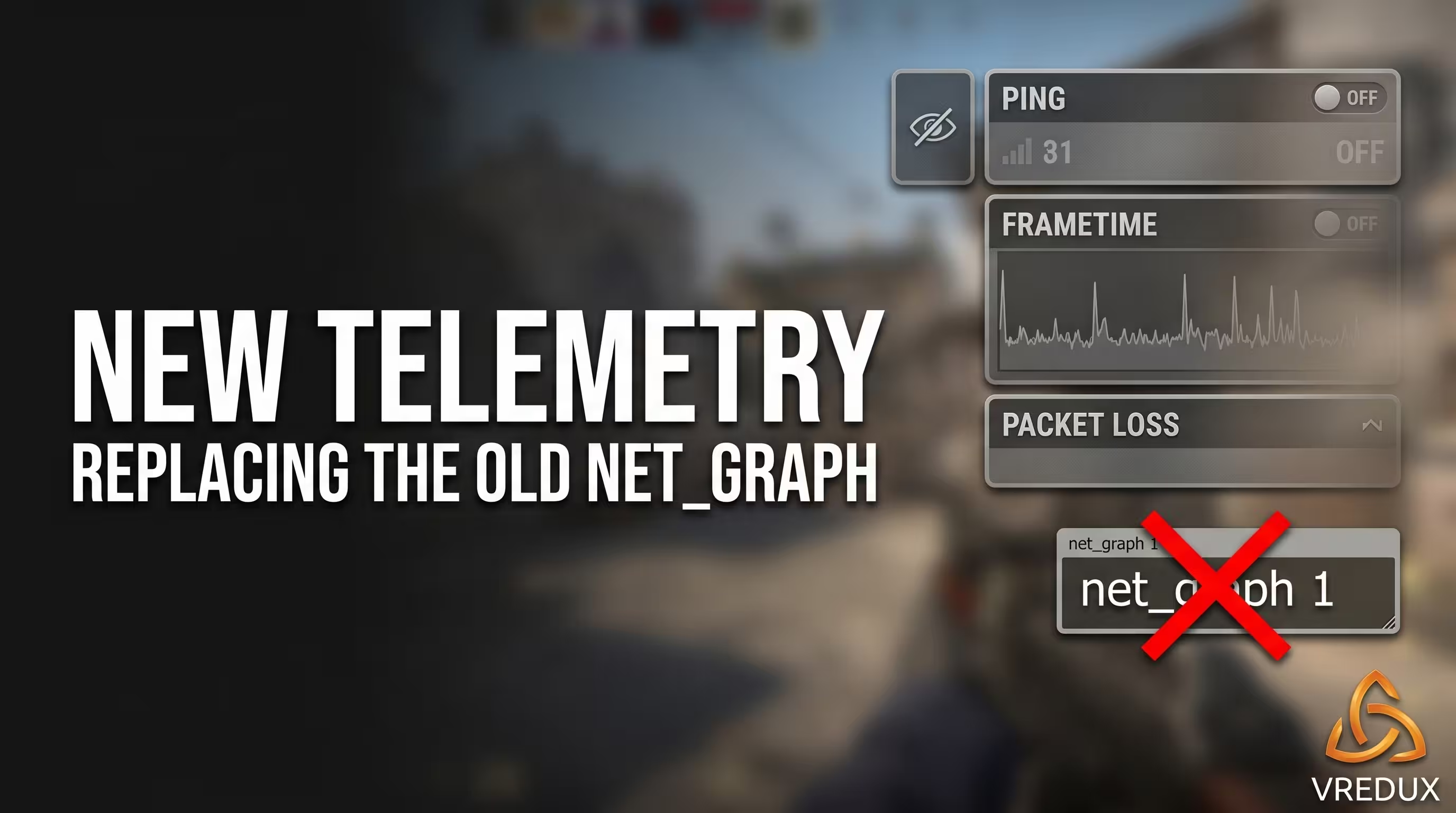
Many people still spam old commands, not realizing that in the realities of the new engine, they're just garbage. The classic network monitoring tool has been cut. It was replaced by an updated system. If you're looking for a way to bring back the usual stats, check out our guide on the net graph CS2 command, where we break down all the alternatives. Right now, we're interested in hiding the extra text in the top right corner (where ping, packet loss, and frametime are displayed). To remove the text completely, use the cl_hud_telemetry block.
Personally, I've tested various presets and settled on value 1 for all three options. It's the perfect balance: the screen stays clean, but if the server starts "dying" and hitreg drops, the system instantly signals me. But let's be honest: while you're manually typing cl_hud_telemetry_frametime_show 0 or trying to remove the bottom text in CS2, pro players are using automated solutions. VRedux private software features built-in custom overlays and complete visual customization. You can disable any annoying text, the radar, or recoil with a single slider in a user-friendly menu. Losing an account with expensive skins costs tens of times more than a subscription to a reliable Internal hack with a powerful Humanizer.
FAQ: Common questions about UI cleanup
During my tests and chats with the community, the same technical hiccups constantly pop up. I've compiled a database of solutions so you can easily get rid of these problems.
Conclusion
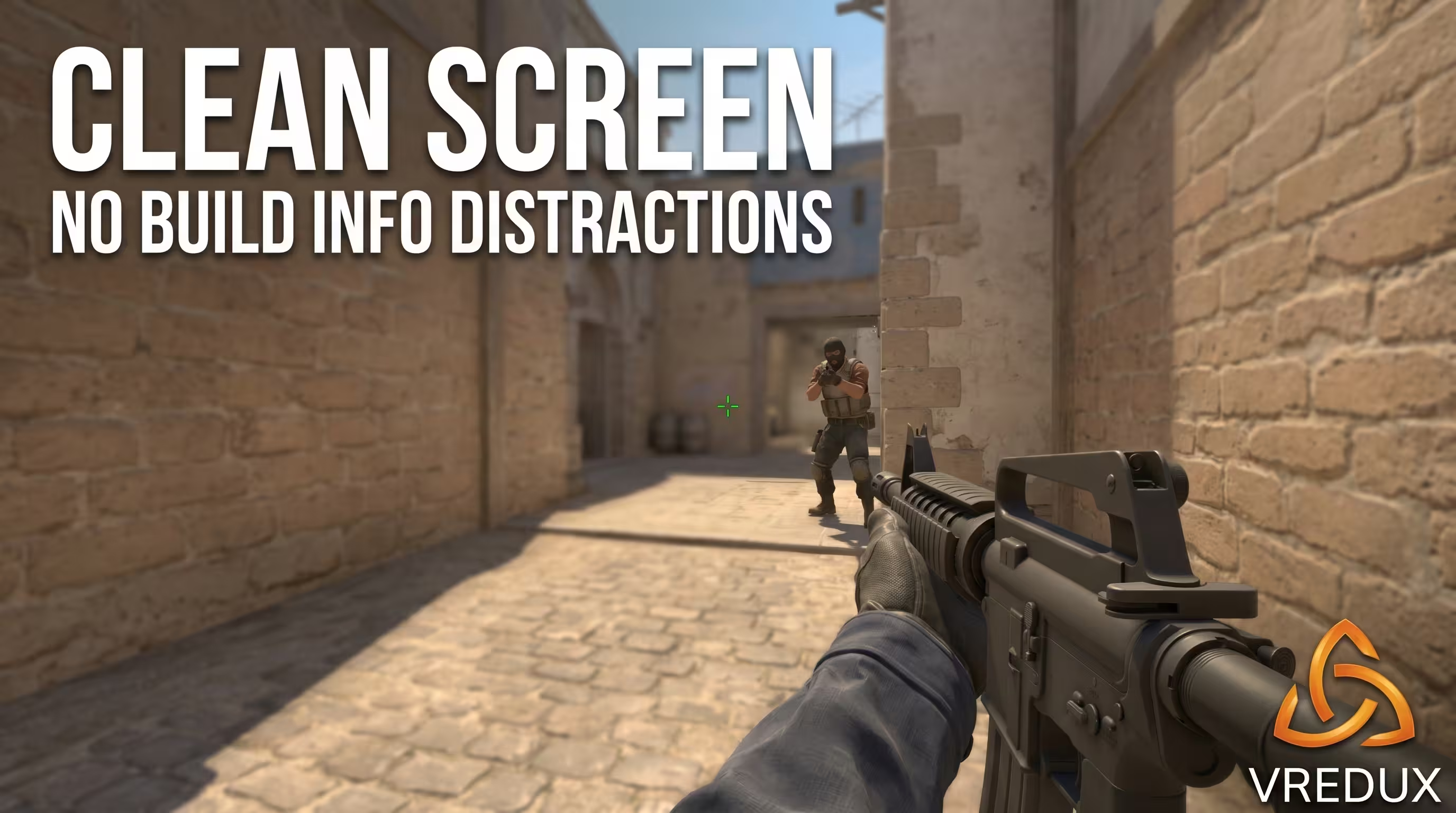
The main takeaway is simple: visual clutter steals your attention. Removing the text in the bottom left corner of the screen takes ten seconds, but it genuinely helps you better focus on your crosshair and enemy movements. Write the command into your config once, tweak the telemetry to your liking, and the interface won't distract you anymore. While other players get distracted by jumping graphs, tilt over the UI, and try to manually tweak every variable, you dominate the server with a crystal-clear screen. If you want to go further and gain total control over the shooter's mechanics (including radar hack, aimbot, and skin changer), drop by our articles and guides section, where we break down even more tricks for confident wins. Happy fragging!