We've all hidden from friends on local servers and tested wallbangs while invisible, but after the game migrated to the Source 2 engine, the rules changed completely. Old console commands stopped working, and plenty of players still run into errors trying to activate familiar cheat codes. I've personally spent hours on servers figuring out how model rendering works now.
Honestly, when the community first started digging into Counter-Strike 2, it looked like Valve had ripped this feature out entirely. But a workaround exists. In this guide, I'll walk you through the current method for going invisible in-game. Every setting here has been tested on the latest build, and you can always find more technical tricks on the VRedux portal.
Expert Verdict
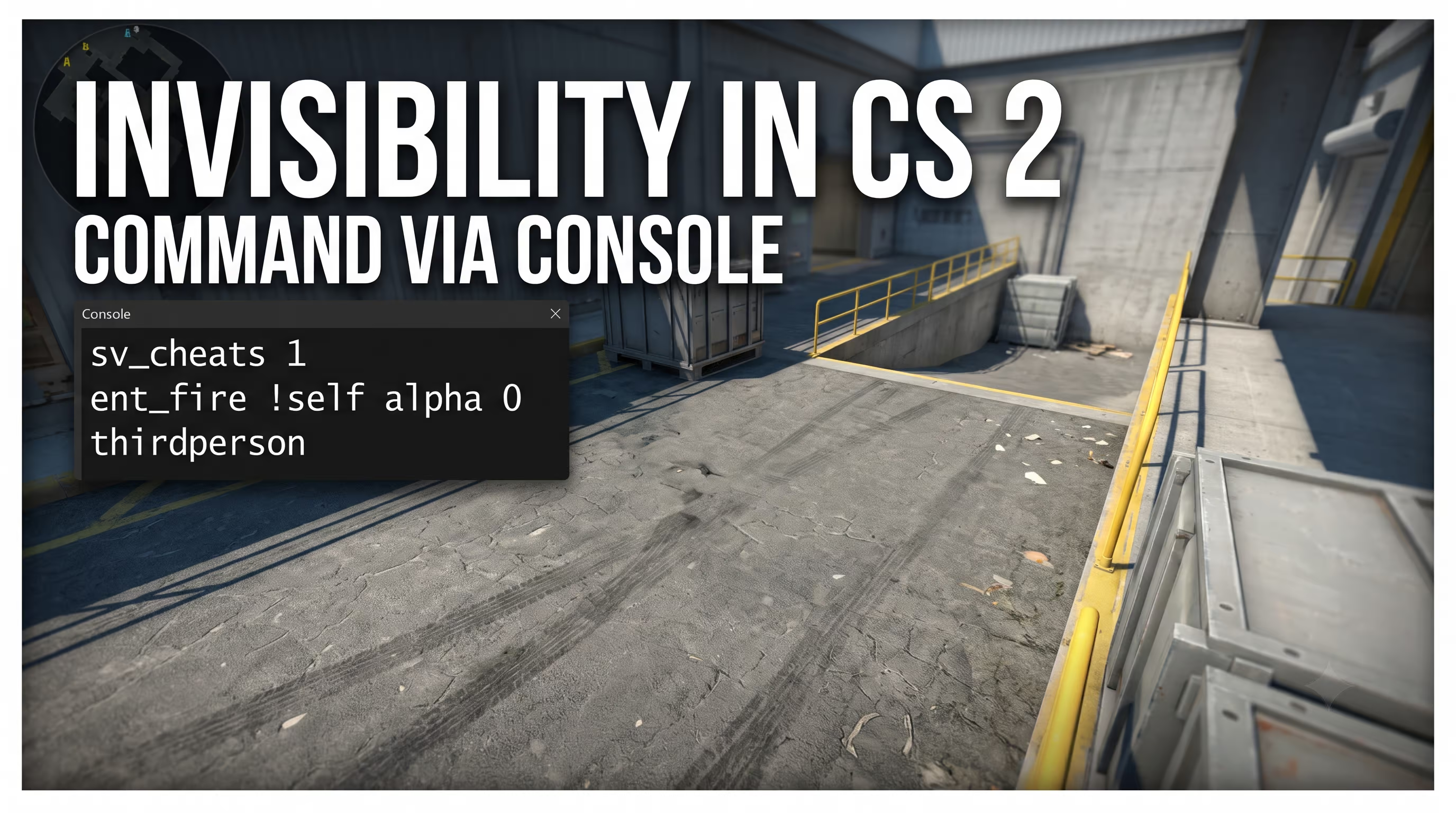
The working invisibility command in CS2 is ent_fire !self alpha 0. Type it into the developer console right after enabling the server parameter sv_cheats 1. Your player model will vanish completely, including its cast shadow. Important limitation: this method only works on your local server, in a private lobby with friends, or on a community server where you have full admin privileges. In official matchmaking and Premier competitive mode, this cheat is unavailable and blocked.
Key Principles and Steps
- Enable admin privileges: To use this command, you need a local server with
sv_cheats 1already activated. - Direct invisibility: The command
ent_fire !self alpha 0makes only the visual render of your character model invisible — it does not affect your physical hitboxes. - Weapons stay visible: To go fully transparent along with your equipped gun, you'll need to enter an additional line of code targeting your inventory.
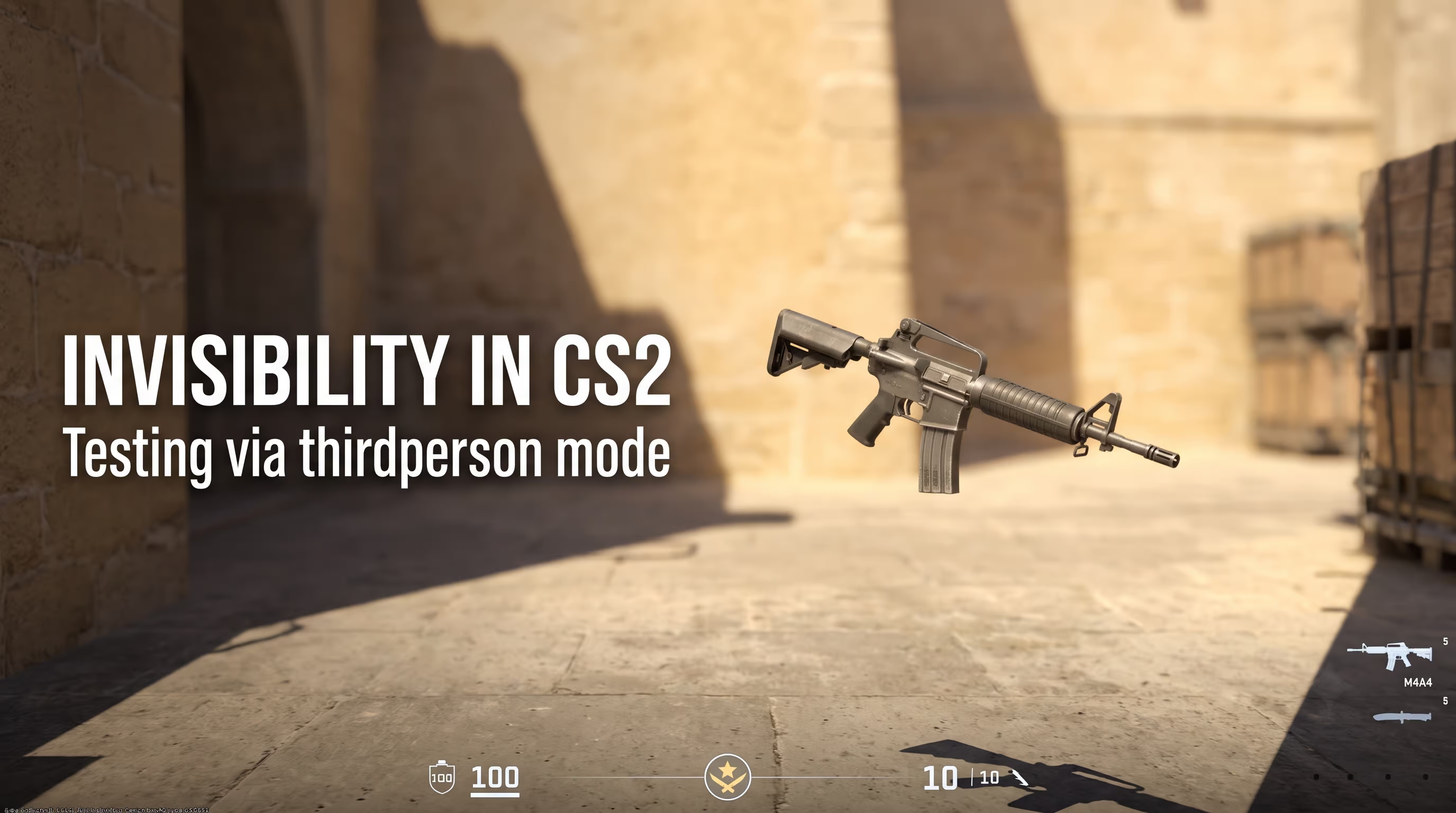
- Visual verification: Switch to third-person view (via the console command
thirdperson) to visually confirm that your model is completely gone from the screen.
How to Go Invisible in CS2 — Command and Step-by-Step Guide
A lot of people mistakenly think that invisibility in CS2 requires messing with game files. In reality, it takes a couple of seconds if you know the right syntax. Source 2 lets you directly manipulate entity parameters on the map. Personally, I recommend using the alpha transparency attribute.
How to Enable the Developer Console in CS2
Without this tool, you can't enter any commands. If pressing the tilde key (~) doesn't open the console, do the following:
- Open the game settings (gear icon in the top-left corner).
- Navigate to the Game tab.
- Find the Enable Developer Console option and set it to Yes.
Activating Cheat Mode and Entering the Invisibility Command
Start a bot practice session or a local server. Then follow these steps:
- Open the console and type
sv_cheats 1(orsv_cheats true). This is a mandatory prerequisite that unlocks server-side manipulation. - Enter the main command:
ent_fire !self alpha 0. - Press Enter. Your model is now fully transparent.
- To verify the result, type
thirdperson. The camera will pull back, and you'll see empty space where your agent used to be. Switch back withfirstperson.
The alpha parameter controls texture rendering. Here's a handy reference table if you want to experiment with transparency on your own servers:
Why Old CS:GO Commands Don't Work in CS2
I constantly see newcomers copying old guides from the Steam community and wondering why nothing happens. The reason lies in the Source 2 engine architecture. Valve completely rewrote the entity system. The addoutput syntax we all relied on back in the day now throws errors.
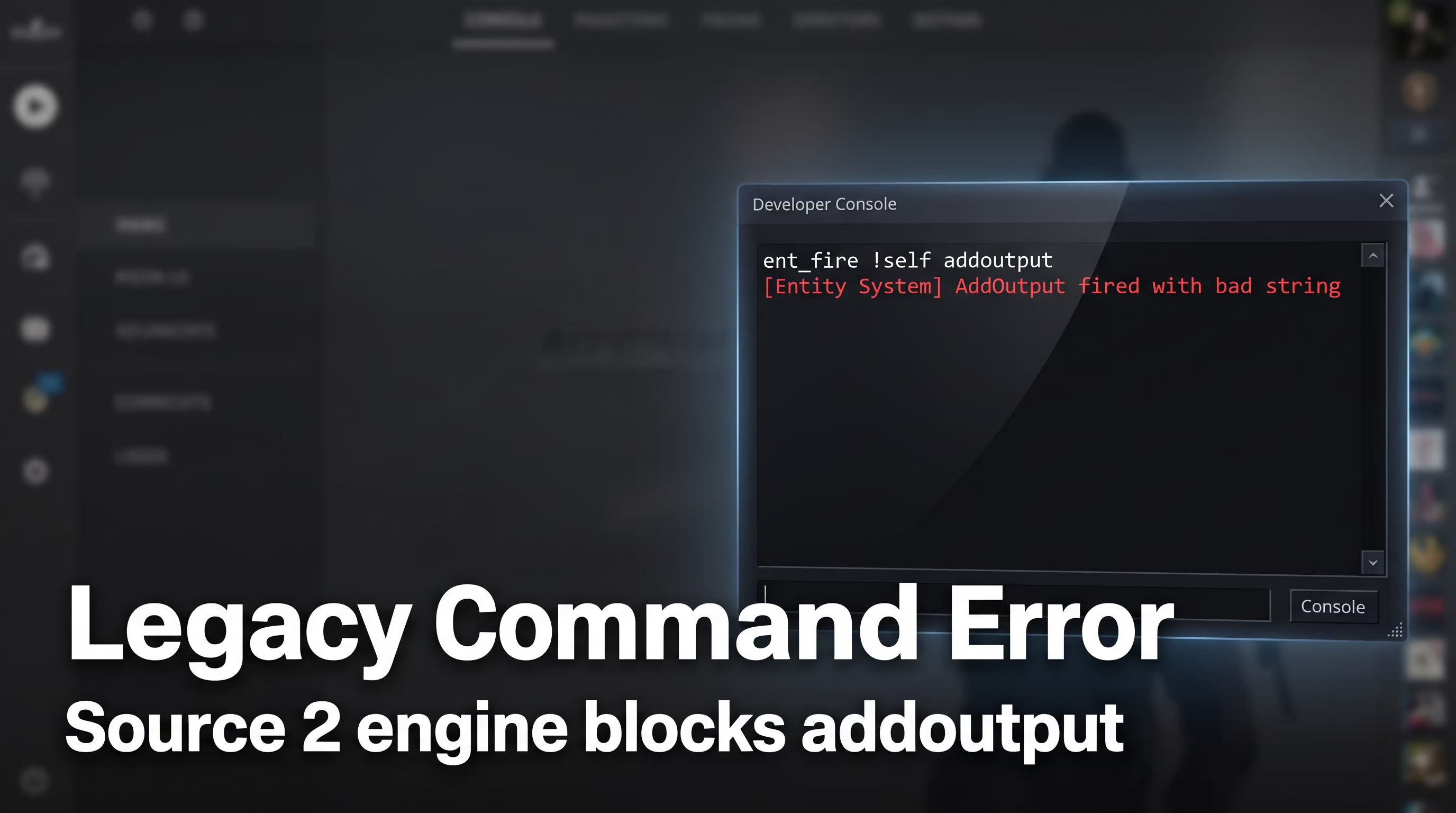
If you type in the old code, the console will throw an error: [Entity System] AddOutput fired with bad string. Let's break down which legendary methods are permanently broken and what to use instead in 2026.
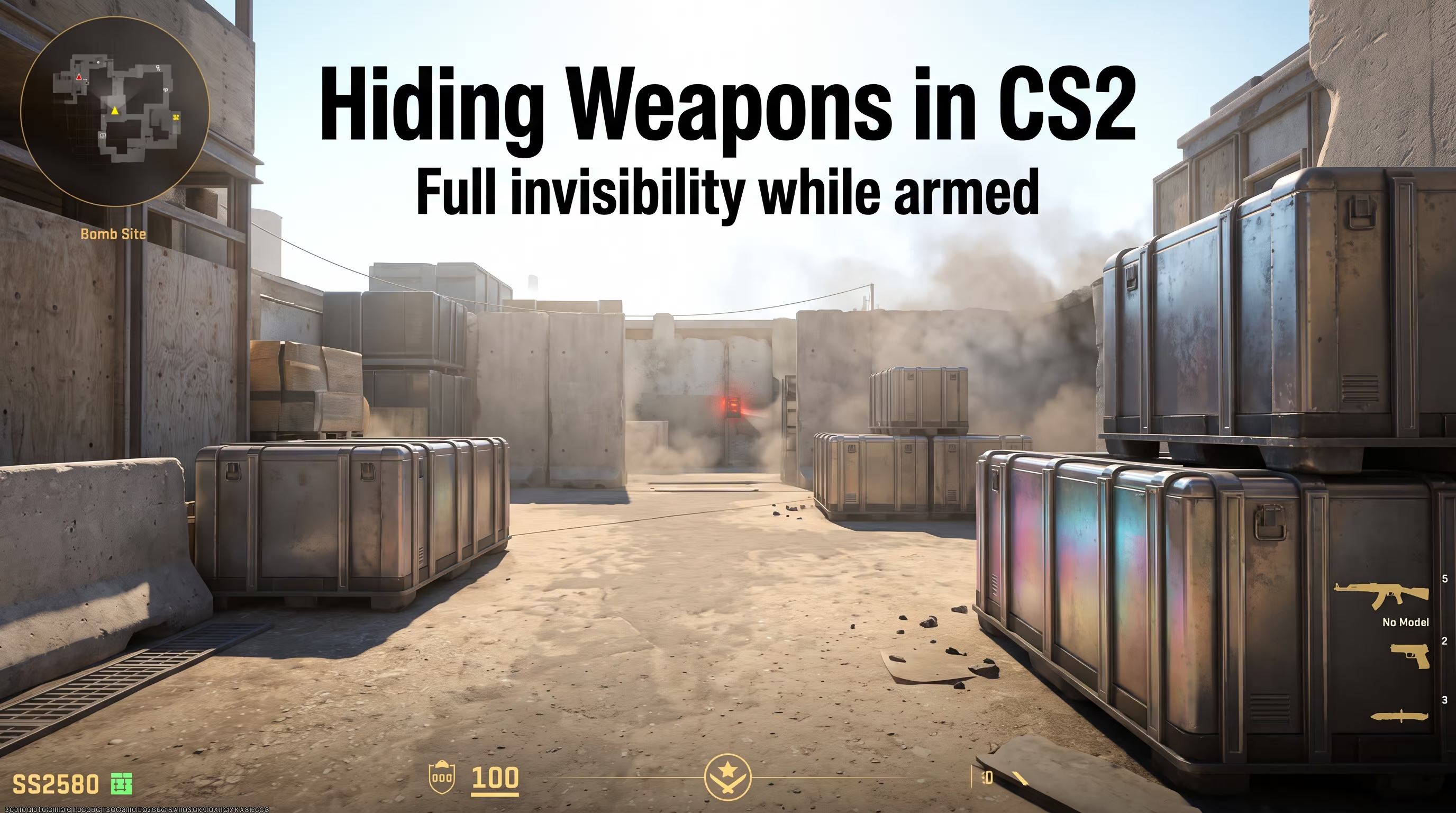
How to Hide Weapons, Grenades, and the Bomb in CS2
Here's a non-obvious catch. The invisibility command in CS2 only hides your character model. Weapons, grenades, and the knife in your hands will keep floating in mid-air, giving away your position. If you want to prank your friends properly, you need to hide your gear too. And to make the prank airtight, I'd recommend checking out bot commands in CS2 first so you can set up the server exactly the way you want.
- Hide your own weapons: type
ent_fire !self weapon_* alpha 0. This hides all weapons on your character (knife, grenades, primary and secondary), not just whatever you're currently holding. - Hide every weapon on the map: type
ent_fire weapon_* alpha 0(without the !self prefix). Now not a single gun will render. - C4 bomb specifics: You can hide it with
ent_fire weapon_c4 alpha 0, but its blinking indicator will still glow through the transparent textures. That's hardcoded into the game's render logic.
Disabling Footstep Sounds — Status as of 2026
Many guides claim that the command ent_fire !self setstep 0 disables footstep sounds. In my tests on a standard local server without third-party plugins (SourceMod), this function did not work consistently. As of now, there is no standard console solution for fully suppressing footsteps in regular game modes. Enemies won't see you, but they'll hear you running.
Where Invisibility Works — and Where You Get Banned
Let's be real: if you're trying to activate invisibility in CS2 on official Valve servers (Matchmaking, Wingman, Premier Season 5) — it's not going to happen. The server will simply reject your request because sv_cheats is hard-locked for regular players. No console command for invisibility in CS2 will bypass competitive mode protection.
VAC (Valve Anti-Cheat) does not ban you for entering console variables on your own personal server. But attempting to inject public hacks into matchmaking will get your account blocked fast. Stick to safe mechanics instead. For example, if it's your server, it's useful to know how to fly in CS2 using noclip — it's a great alternative for quickly repositioning around the map while practicing grenade lineups.
Binds and Autoexec for Invisibility
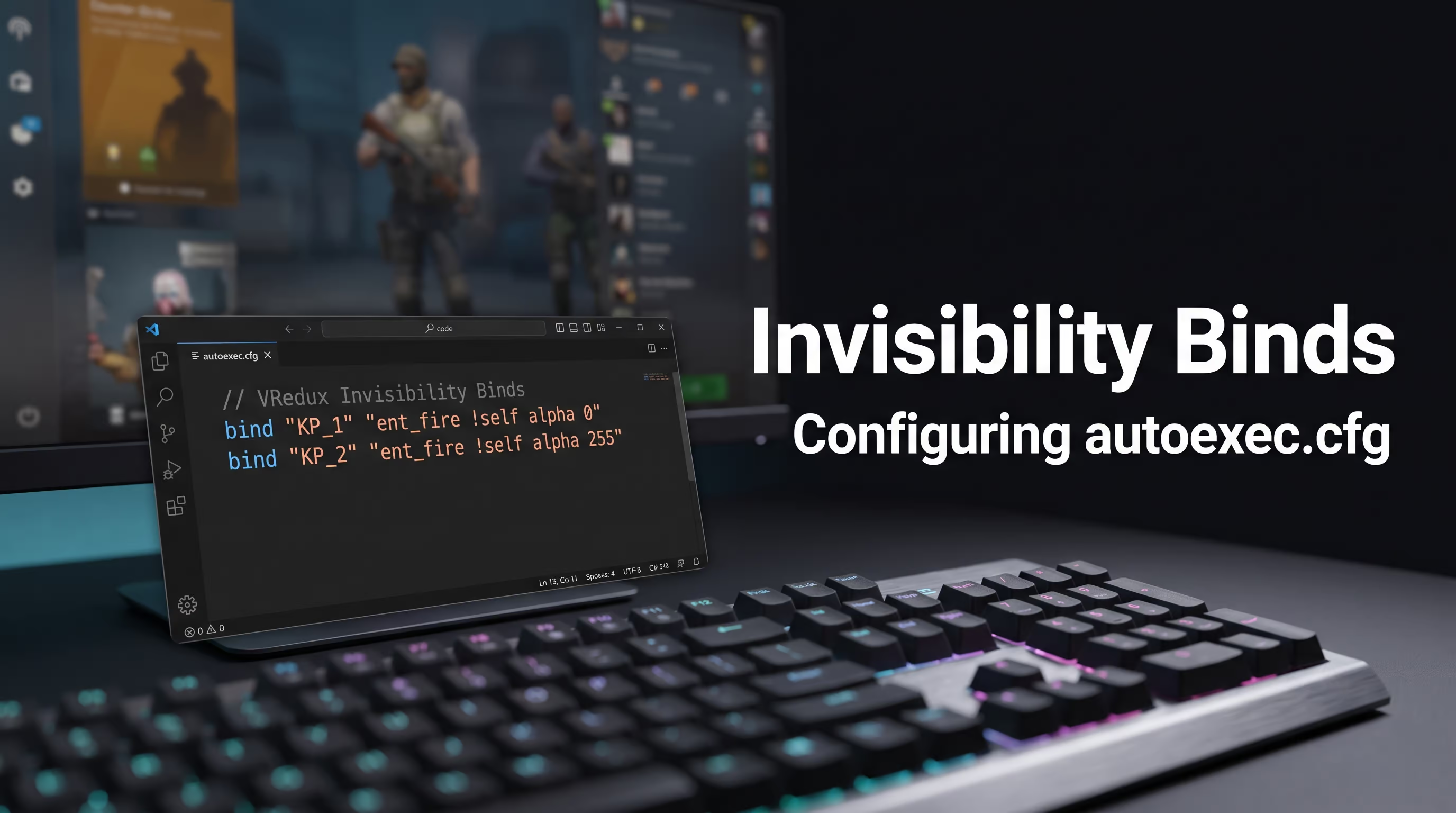
Typing out a long string every time is annoying. Why waste time on manual input when you can automate the whole thing? I always bind these functions to the NumPad so they don't conflict with core controls. If you're actively optimizing your gameplay, I recommend integrating these parameters into your config and checking out other useful binds in CS2 for a smoother experience.
Open the console and paste the following lines:
bind "KP_1" "ent_fire !self alpha 0; ent_fire !self weapon_* alpha 0"
bind "KP_2" "ent_fire !self alpha 255; ent_fire !self weapon_* alpha 1"
Now pressing Num 1 makes you and your weapons invisible, while Num 2 restores everything to normal. To avoid re-entering this every time you launch the game, add these lines to your autoexec.cfg file (located in Steam\steamapps\common\Counter-Strike Global Offensive\game\csgo\cfg\).
How to Disable Invisibility in CS2
Sometimes the Source 2 engine can glitch out, and simply resetting the value to alpha 255 doesn't reload textures instantly. If you're stuck in ghost mode, use these proven methods:
- Basic method: type
ent_fire !self alpha 255in the console. - Round reset: the command
mp_restartgame 1restarts the match and refreshes all entities on the map. - Reconnect: simply type
disconnectand recreate your local server.
What People Use Invisibility For — Use Cases
Fair question: if this doesn't work in matchmaking, why bother with a transparency command at all? From our experience, the community finds plenty of great uses for it:
- Streams and content creation: Perfect for filming cinematic fly-throughs (machinima) without the weapon model getting in the way.
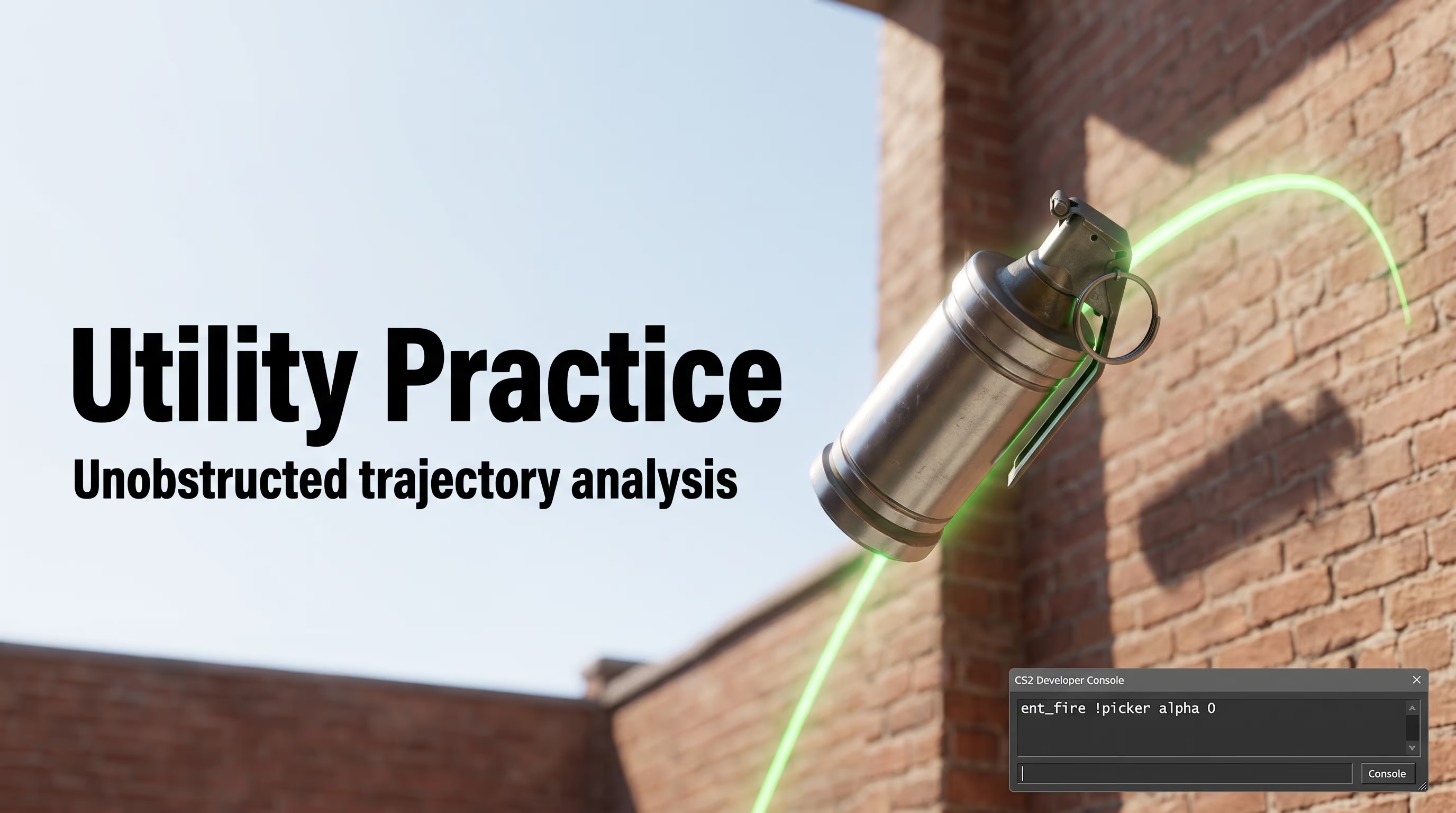
- Grenade lineup practice: You can stand in an enemy position, make a bot invisible with
ent_fire !picker alpha 0(by aiming your crosshair at the bot), and throw a flashbang to check whether it blinds that spot. Obviously, this isn't a competitive tactic — it's purely a tool for fun and deep grenade analysis. - Hide and Seek: A popular fun mode on private servers with friends.
FAQ — Common Questions About the Invisibility Command in CS2
Here's the takeaway: the Source 2 engine has simplified model transparency manipulation. Forget about clunky old codes that throw errors — now a single line with the alpha parameter is all you need. Set up binds, practice grenade lineups on empty maps, and surprise your friends on local servers. And if you want to dive deeper into game mechanics, check out our technical articles section, where we regularly break down lesser-known Counter-Strike 2 tricks.