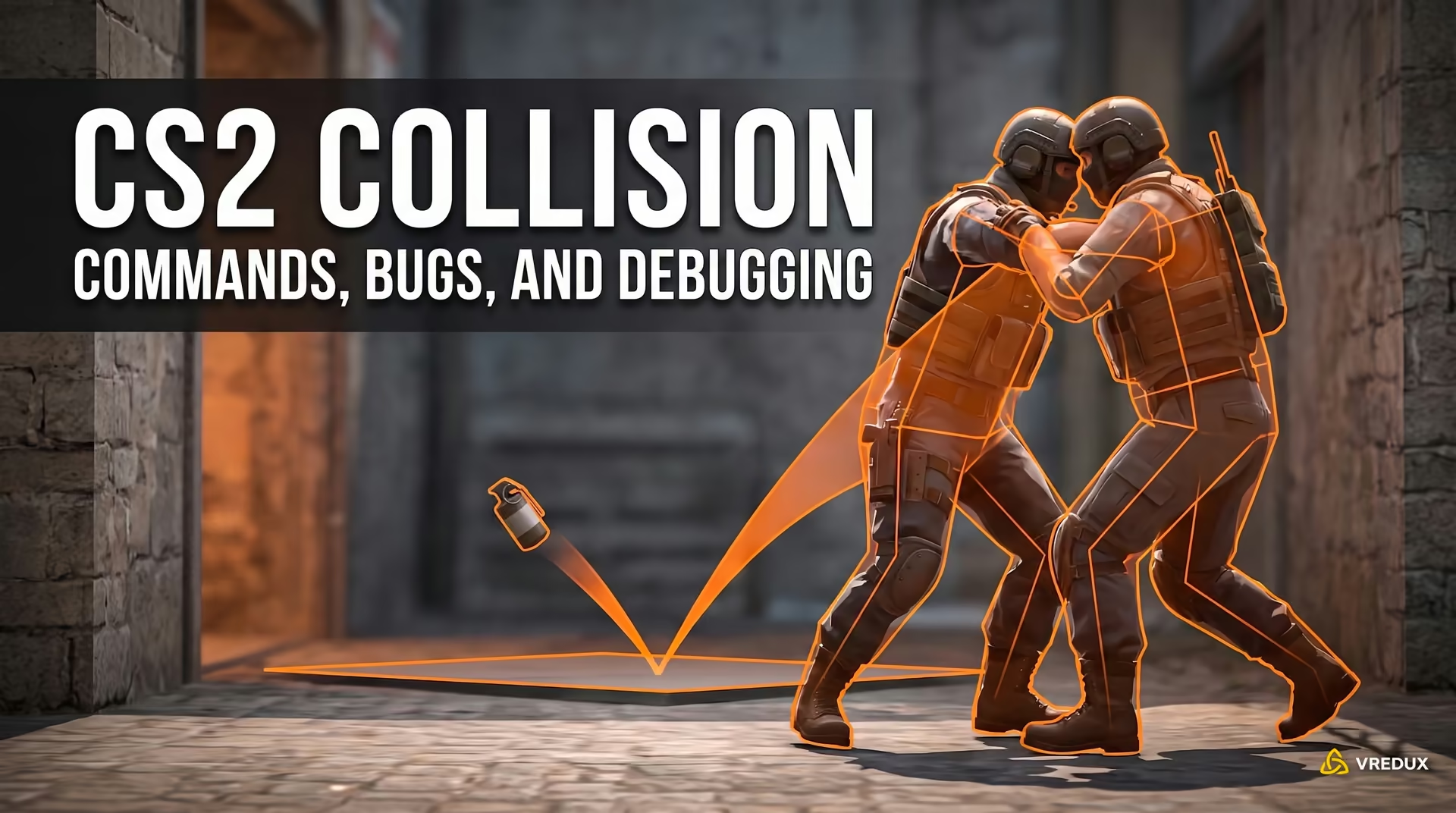
Honestly, there is nothing more frustrating in Counter-Strike 2 than dying to an enemy you couldn't even see. You peek Mid, check your corners, everything looks clear, and suddenly—BAM!—you are spectating your teammates. The enemy was right there, blending into the wall like a chameleon. If this sounds familiar, you are not alone. Visibility has always been a hot topic, and while the Source 2 engine brought beautiful lighting, it also brought new shadows for campers to hide in.
.jpg)
Today, we are going to talk about the CS2 boost player contrast command—a crucial setting that can be the difference between a frag and a gray screen. I’ve tested this on high-end rigs and potato PCs alike to tell you exactly how it works, how to enable it via console, and whether it steals your precious FPS.
What is Boost Player Contrast in CS2?
Before we dive into the CS2 graphics commands, let’s understand what this feature actually does. Boost player contrast (originally introduced in late CS:GO) is a post-processing filter that applies a specific shader to player models.
Think of it as a smart outline. The game engine analyzes the character and the background behind them. If the colors are too similar (like a CT standing against a gray wall on Overpass), the game increases the local contrast around the character model. It essentially creates a subtle "halo" or edge highlight to make the model pop out against the background.
Here is why it matters:
-
Spot enemies faster in dark corners (like Donut on Ancient).
-
Prevents models from blending into complex textures.
-
It works dynamically, only kicking in when the contrast is low.
I remember when this feature first dropped in CSGO boost player contrast updates; it was a game-changer. In Counter-Strike 2, where lighting is even more realistic (and sometimes distracting), keeping this optimized is critical..jpg)
How to Enable Boost Player Contrast CS2
There are two ways to handle this: the standard menu method for beginners and the console method for those who want to build it into their autoexec file or config.
Method 1: The Standard Menu Way
If you just want to turn it on and forget about it:
-
Open CS2 settings.
-
Go to the Video tab and select Advanced Video.
-
Find the line Boost Player Contrast.
-
Set it to Enabled.
It is enabled by default, but I have seen updates reset this setting, so always double-check.
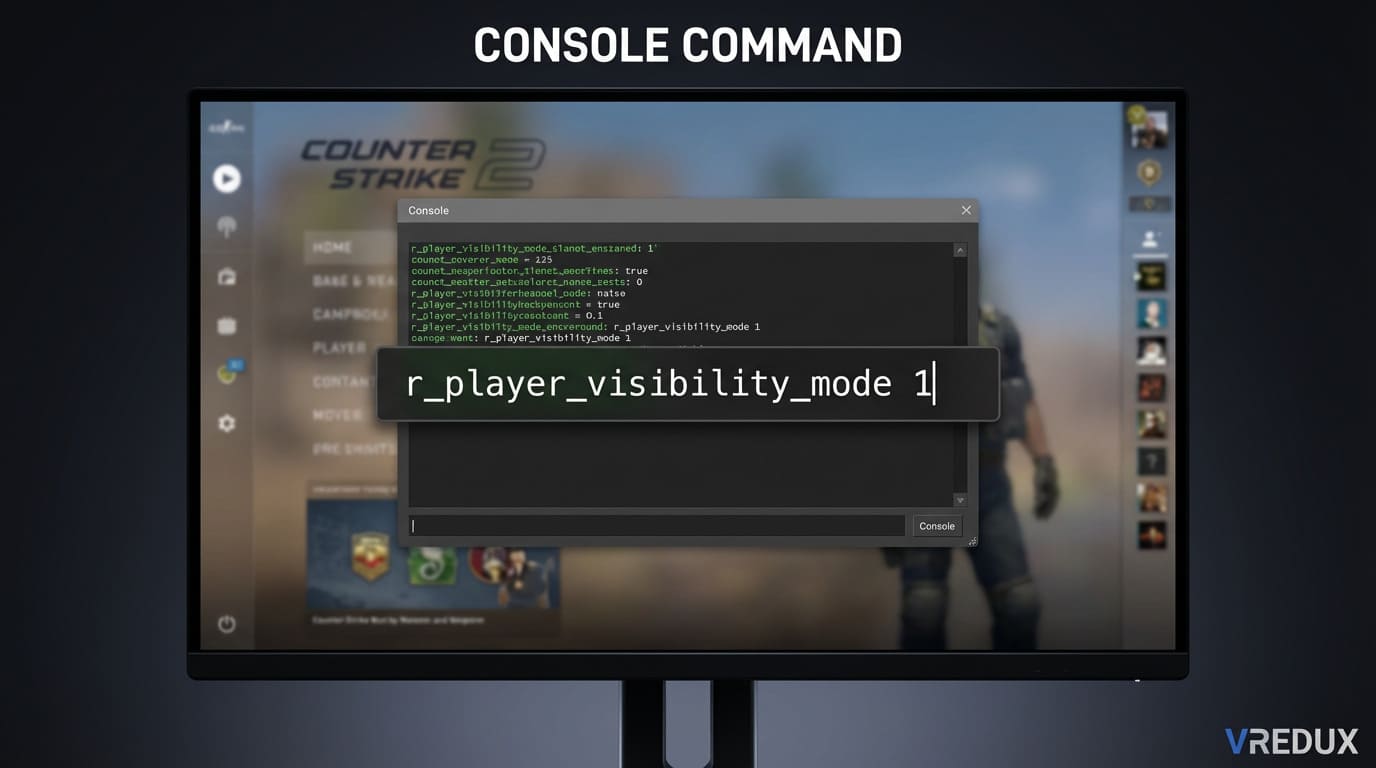
Method 2: CS2 Boost Player Contrast Command via Console
For the power users and gaming enthusiasts who prefer total control, you can use the console to force this setting. This is useful if you want to bind it or ensure it is always on in your config.
-
Open the developer console (press ~).
-
Type the following command:
r_player_visibility_mode 1
-
1 enables the boost (maximum visibility).
-
0 disables it (flatter image, potentially slightly more fps).
This is the direct CS2 boost player contrast command. Unlike some other CS2 launch options or hidden variables, this one changes the setting in real-time. Also, if you are optimizing your rig, don't miss our guides on how to fix high ping in CS2 and the best launch options for FPS..jpg)
Does Boost Player Contrast Affect FPS?
This is the million-dollar question. Does enabling boost player contrast CS2 kill your frame rate?
Technically, yes. Any post-processing effect requires GPU resources. However, Valve has optimized this heavily. On modern graphics cards (like an Nvidia RTX 3060 or higher), the impact is negligible—maybe 1-2 frames max.
However, if you are playing on an integrated graphics card or an old laptop, you might feel a slight dip in performance in CS2.
Performance vs. Visibility Comparison
I ran a benchmark on a mid-tier PC to see the difference.
| Setting | Visibility | Input Lag | FPS Impact |
|---|---|---|---|
| Enabled | High (Models pop) | minimal increase | ~2-3% drop |
| Disabled | Low (Models blend) | Lowest possible | 0% drop |
My advice: Unless you are struggling to hit 60 fps, keep it Enabled. The advantage of seeing an enemy 200ms faster outweighs losing 3 frames per second. If you are desperate for a boost performance, there are better settings to lower, like shader detail or global shadow quality.
Best CS2 Settings for Maximum Visibility
Boost player contrast is just one piece of the puzzle. To get the best CS2 experience and spot enemies like a pro, you need to combine it with other CS2 video settings. Here is my personal "visibility config" that balances smooth gameplay with clarity.
1. Brightness and Mode
Always play in Fullscreen mode. It reduces input lag compared to Windowed mode. Set your brightness to roughly 100-110%. Don't go too high, or you'll wash out the white walls on Nuke.
2. Global Shadow Quality
Set this to High or Medium. Why? because seeing an enemy's shadow before they peek gives you a massive competitive edge. Boost player contrast helps when you see them, but shadows help before you see them.
3. Model/Texture Detail
Medium is the sweet spot. Low can make textures look muddy, making it harder to distinguish a helmet from a box.
4. Nvidia Reflex Low Latency
If you have an Nvidia card, set this to Enabled + Boost. This doesn't change graphics, but it reduces system latency, making your mouse feel more responsive.
5. FSR (FidelityFX Super Resolution)
Honest talk: Try to keep this Disabled (Native). While it can boost your fps, it makes the game blurry. Boost player contrast struggles to work effectively if the base image is pixelated or blurry..jpg)
Troubleshooting: Why does my game look grainy?
Sometimes, players complain that boost player contrast creates a weird "grain" or noise around characters.
-
The Issue: This usually happens if you have FSR enabled or your Multisampling Anti-Aliasing Mode (MSAA) is too low.
-
The Fix: Increase MSAA to 4x or 8x. The "halo" effect from the contrast boost needs anti-aliasing to look smooth.
If the game still looks bad or you are experiencing lag, check your drivers. An outdated Nvidia control panel setting can often conflict with gameplay features.
When to Disable Player Contrast?
Is there ever a reason to turn off CS2 boost player contrast?
-
Extreme FPS Issues: If you are playing on a toaster and every frame counts.
-
Visual Distraction: Some pros (very few) find the glowing edge distracting and prefer a raw image.
-
Specific Maps: Sometimes on very bright community maps, the effect can look unnatural.
But for 99% of players, including those grinding Premier, keeping it on is the optimal performance choice.
FAQ
What is the exact CS2 boost player contrast command?
The command is r_player_visibility_mode 1 to enable it and r_player_visibility_mode 0 to disable it. You can enter this in the developer console.
Does boost player contrast lower FPS in CS2?
Yes, but minimally. On most modern graphics cards, the drop is less than 3%. It is worth it for the improved visibility.
Should I use Nvidia Reflex with Player Contrast?
Absolutely. Nvidia Reflex reduces input lag, while Player Contrast improves visibility. Using both gives you the best counter-strike responsiveness.
Why is my CS2 character blurry with contrast on?
This is likely due to FSR being enabled or low Anti-Aliasing settings. Disable FSR and set MSAA to at least 4x for a smooth image.
Is boost player contrast available in CS:GO?
Yes, CSGO boost player contrast was added in a 2020 update and has been ported over to Counter-Strike 2 with improvements for the Source 2 engine.
Conclusion
The CS2 boost player contrast command (r_player_visibility_mode 1) is one of the few "set and forget" settings that provides a tangible advantage without ruining your gaming performance. It fixes the visual clutter of Counter-Strike 2 and helps you react faster.
Don't expect it to be a legal wallhack, though. It helps you see what is on your screen, not what is behind a wall. If you want to take your gameplay experience to a level where visibility isn't even a question, you might want to look at other tools.
For those who want to dominate regardless of lighting conditions, check out the VRedux private cheat for CS2. Whether you need a legit-looking aim assistant or just better visuals, VRedux helps you maintain a green Trust Factor while securing those wins.
Now, go enable that contrast, check your corners, and stop blaming the lighting for your deaths!